3 Free Ways for Lenovo Desktop Factory Reset
Content of this article:
- Need to factory reset Lenovo desktop
- Way 1: Reset Lenovo PC to factory settings without password using Reset this PC
- Way 2: Reset Lenovo desktop to factory settings with Lenovo OneKey Recovery
- Way 3: Factory reset Lenovo desktop in Windows 11/10/8/7 via Qiling Disk Master
- Wrapping things up
Need to factory reset Lenovo desktop
To factory reset a Lenovo desktop, start by creating a Windows 10 installation media on a USB drive. Then, restart the computer and enter the BIOS settings by pressing the designated key (usually F2, F12, or Del). Set the boot order to prioritize the USB drive.
You can use Lenovo OneKey Recovery, a pre-installed software that comes with your computer's factory image, to backup and recover your system, including the OS, drivers, and pre-installed software. Alternatively, you can use the "Reset this PC" feature on your computer. If you've forgotten your password, using an installation disc is a good option. Additionally, you can use a more advanced onekey recovery software for further assistance.

To write a research paper, there are several steps you can take. First, choose a topic that interests you and is relevant to the field of study. Next, conduct a literature review to identify the key concepts and theories related to your topic.
Way 1: Reset Lenovo desktop to factory settings with Lenovo OneKey Recovery
Lenovo OneKey Recovery allows you to reset your Lenovo desktop to its factory settings, provided you haven't reinstalled the system or resized any partitions on the disk.
To do a Lenovo desktop factory reset in Windows 11/10/8/7, go to the upper left corner of the Power button and find the Novo button, then follow the instructions to reset your Lenovo desktop to factory settings.

Note: Lenovo OneKey Recovery can be used to factory reset Lenovo Yoga and Ideapad, but not ThinkCentre devices.
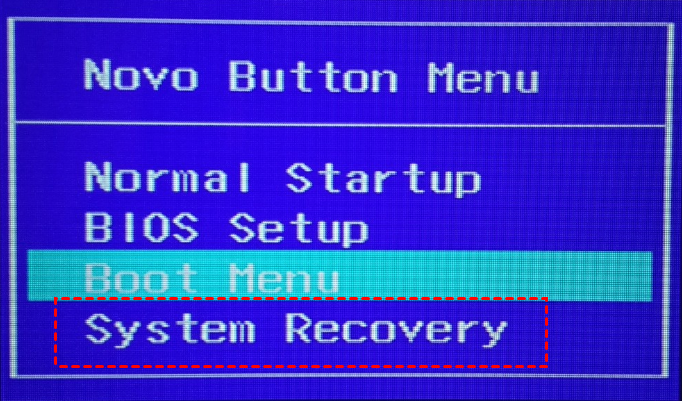
Step 1. Press the Novo button for a few seconds and select System Recovery in the Novo Button Menu.
Step 2. To perform a Lenovo desktop reset to factory, select "Restore from initial backup".
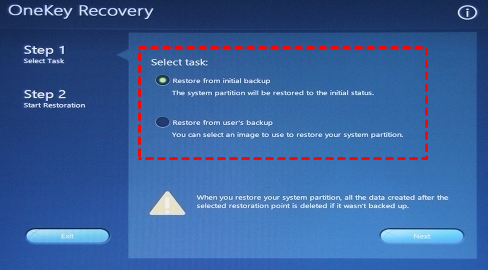
If you've created a user backup before your computer stopped working, the "Restore from user's backup" option is a better choice, as it will retain all the items you backed up in the image file.
Step 3. To start the process, click the Start button and wait until it's finished. Once completed, follow the on-screen instructions to configure the settings.
Way 2: Reset Lenovo PC to factory settings without password using Reset this PC
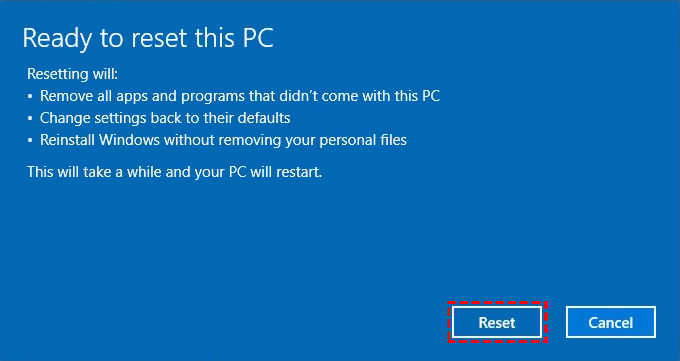
To reset your Windows 11/10/8.1/8 PC without typing a password, you can use the installation disc. Insert the disc, restart your PC, and select the language and other preferences. Then, click on "Repair your computer" and select Troubleshoot. Next, choose Reset this PC and select the option to remove everything. This will erase all data on the PC, so make sure to back up any important files before proceeding.
Step 1. Insert the installation disc, enter BIOS settings by pressing F1/F2, navigate to Boot and move the CD-ROM Drive to the top using the '+' key, and then save the changes by pressing F10.
Step 2. When you see the error message "Press any key to boot from CD /DVD" on screen, press any key on your keyboard to boot from the disc, and the installation process will begin by loading files.
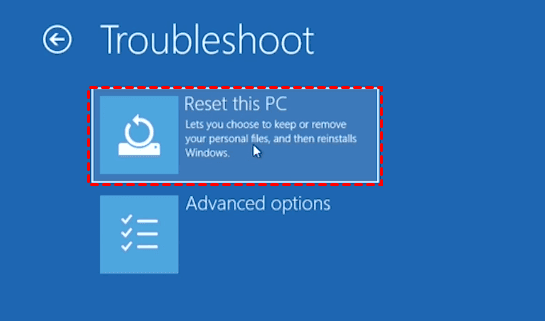
Step 3. After loading files, you will access the installation screen. Click Next, then Troubleshoot, Reset This PC.
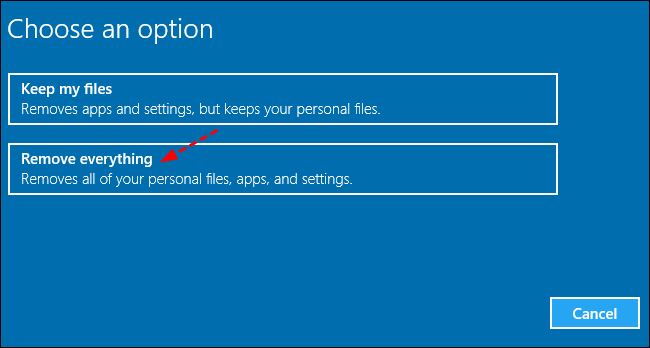
Step 4. Select Remove everything. Only in this way, you can bypass the password from the user account.
Step 5. You have two options to reset your Windows operating system and drive: you can either reset only the drive where Windows is installed, or reset all drives.
Step 6. To reset your computer, you can choose between two options: "Just remove my files" or "Fully clean the drive". This allows you to select the level of data removal that suits your needs, whether it's a quick reset or a more thorough one.
Step 7. Go to Settings, then Update & Security, and finally Recovery. In the Recovery tab, click on Get started under Reset this PC.
Way 3: Factory reset Lenovo desktop in Windows 11/10/8/7 via Qiling Disk Master
Besides the built-in users choose to use a third-party recovery software like Qiling Disk Master to protect their computer. This software allows users to create a system backup and schedule backups daily, weekly, or monthly, keeping track of changes between backups.
You can easily reset your Lenovo desktop to its factory settings in Windows 11/10/8/7 or revert to a previous status with all your data intact. This process works even if you've used all the unallocated space and changed the disk space of your system drive. This method applies to all brand computers, including Lenovo, Dell, HP, and ASUS.
Step 1. To use Qiling Disk Master, download and install the software, then launch it. Next, click on the "OneKey System Recovery" option.
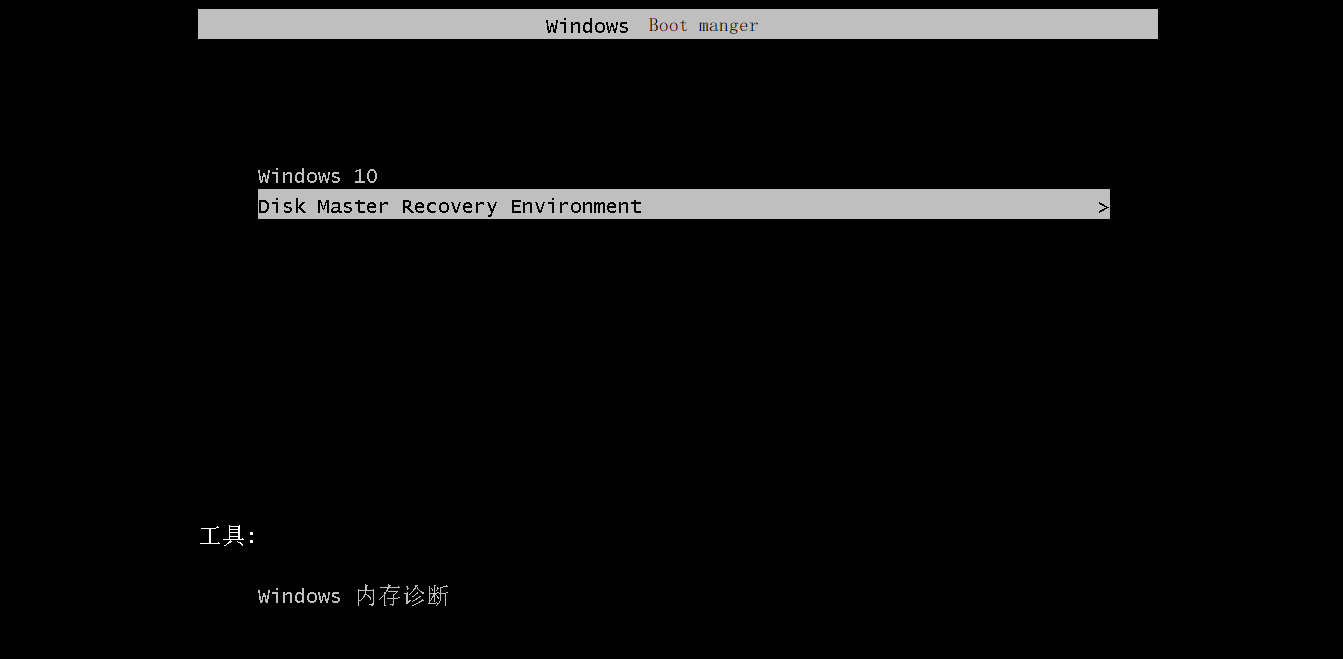
Step 2. If you were booted to Qiling Disk Master partition, tick the first option and click Next.
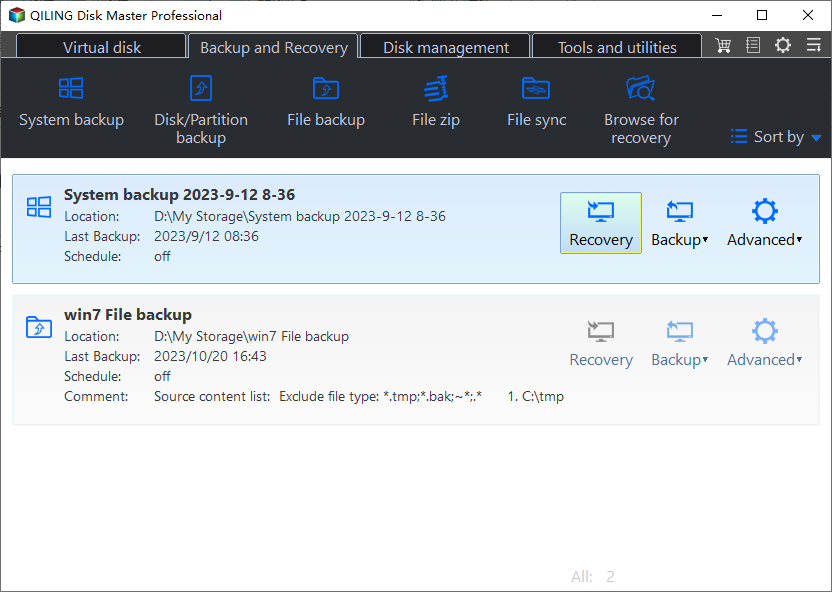

Tip: If you're creating a Lenovo OneKey Recovery to a new hard drive or external device, select the second option. Make sure the disk with the image is connected to your computer beforehand.
Step 3. Confirm that the system will be overwritten and you want to restore your computer to factory settings. Then, click "Proceed" to execute this process.

Safer way to make your computer run smoothly without factory reset:
Qiling Disk Master works only when your computer runs smoothly or is slightly damaged. If it fails completely, you can't use it for system recovery. To avoid this, use Qiling Disk Master Standard, a more powerful backup software.
This software allows you to create a system image that includes everything on the system partition, making it possible to schedule backups. By default, it only backs up changed files, which saves disk space and time. The backup image is not bootable, but you can create a separate bootable media if needed. This means you can recover your system in any situation, even if it becomes unbootable.

Wrapping things up
If you need to perform a Lenovo desktop factory reset, the above methods can guide you through the process without any issues. If you've forgotten your password, you can use the Reset this PC feature with the help of an installation disc. However, it's recommended to backup your system with a reliable backup software and restore from a user backup instead of the factory image, as this will preserve your personal data and software not included with your computer.
Qiling Disk Master is a good choice for system protection, allowing continuous protection with its Scheduler feature and compatibility with various computer brands and Windows systems. For backup and restore needs across multiple computers, or providing technical services to clients, Qiling Disk Master Technician or Customization may be a better option.
Related Articles
- How to Choose One Key Recovery Software
- Workaround to Lenovo Product Recovery Stuck in Recovery Mode
- Why Lenovo F11 Not Working in Windows 7/8/10 and How to Solve It
- SyncToy Windows 10/11: How to Use SyncToy for Backup
Learn the key steps, checks, and practical tips for this related guide. - Bare Metal Backup and Restore Windows 10 Tutorial | Your Full Guide Is Here
Learn how to back up Bare Metal Backup and Restore Windows 10 Tutorial | Your Full Guide Is Here with practical steps, storage tips, and safer recovery planning. - Top 5 Best Backup Software for External Hard Drive (2022 Rankings)
This article provides an overview of the five best backup software for external hard drives, enabling readers to gain a comprehensive understanding of external hard drive backup software and select the most suitable option to back up their external hard disk.
Products
Articles & Tutorials
- Data Recovery
- Data Backup
- File Recovery
- File Backup
- File synchronize
- System Backup and Restore
- Disk and Partition Clone
- Technical articles
- Disk Master Help
- Windows Deleted File and Disk Recovery Tutorials
- Windows File and Data Recovery Tutorials
- More Windows Tutorials for Install, Security, Files, and PC Tips
- Windows Boot, Repair, and Recovery Environment Tutorials
- Windows Backup Tutorials
- Windows Restore Tutorials
- Windows Clone and Migration Tutorials
- Windows Server Backup, Recovery, and Management Tutorials
- Windows Disk, Partition, and Storage Management Tutorials