How to Delete Unnecessary Files in Windows 10?
Common types of unnecessary files
Windows, the world's most popular operating system, has its flaws, including a large number of unnecessary files and directories that take up valuable space on your computer. While some are essential for the system's functioning, many are redundant and can cause your PC to slow down, lag, freeze, or even crash by consuming space and resources.
To keep your Windows PC running smoothly, it's essential to delete unnecessary files. But, many users are unsure about which files can be safely deleted. Here's a list of files that can be deleted:
• The Temp Folder
• The Hibernation File
• The Recycle Bin
• Downloaded Program Files
• The Windows Old Folder Files
• Windows Update Folder
• Cache files
• Installer files
• Thumbnail
…
Some files stored in system data folders on the C drive cause the C drive space to disappear quickly, leaving users unsure if they can delete them from the C drive. To resolve this, cleaning unnecessary files from Windows 10 is necessary.
How to delete unnecessary files on a Windows 10 computer?
1. Use Disk Cleanup
Step 1. Type "disk cleanup" in the search box on the taskbar, and select Disk Cleanup from the list of results.
Step 2. Select the drive you want to clean up (like C drive), and then select "OK".
Step 3. Under "Files to delete", select the file you want to get rid of, and click "OK".
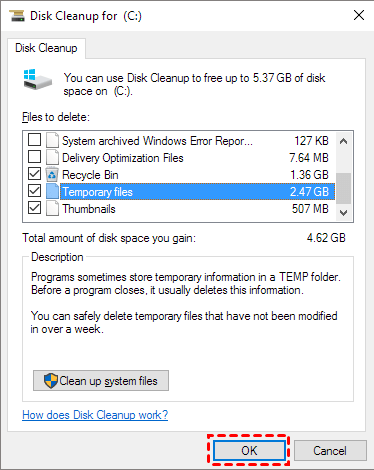
You can also click "Clean up system files" to remove unnecessary system files, but be cautious not to delete important data.
2. Delete Temp files in File Explorer
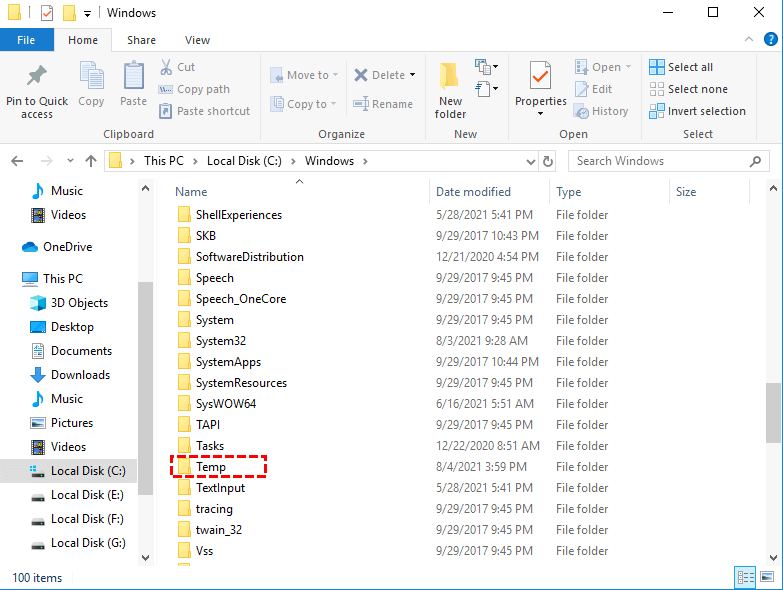
The Temp folder on Windows is often cluttered with unnecessary files, and while Disk Cleanup can help, it may not always remove everything. To ensure the folder remains clean, it's recommended to manually clear it out regularly.
3. Clean Hibernation files
The Hibernation File, also known as hiberfil.sys, is a large file that stores a snapshot of your computer's RAM when you put it in hibernation mode, which saves all open work to the hard disk, taking up a significant amount of hard drive space, typically a few gigabytes or more, proportional to the amount of RAM installed.
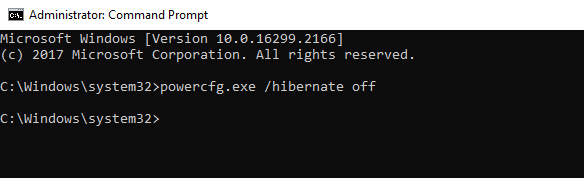
To disable hibernation mode, open the Command Prompt as an administrator, type "powercfg -h off" and press Enter. This will disable hibernation, freeing up hard disk space equivalent to your RAM. However, be aware that disabling hibernation will cause Windows to rebuild the hibernation file from scratch if you enable it again, which can take some time.
Step 1. Go to the Start menu, type "cmd" right-click on the results Command Prompt and select Run as administrator.
Step 2. Then type "powercfg.exe /hibernate off" and press Enter.
4. Clean Recycle bin
After deleting a file or folder, it doesn't disappear completely - it moves to the Recycle Bin, a holding area where deleted items are stored until they're permanently removed or restored. To free up space, it's essential to regularly check and clear the bin, as it can accumulate outdated data, taking up several gigabytes of storage.

5. Delete downloaded program Files
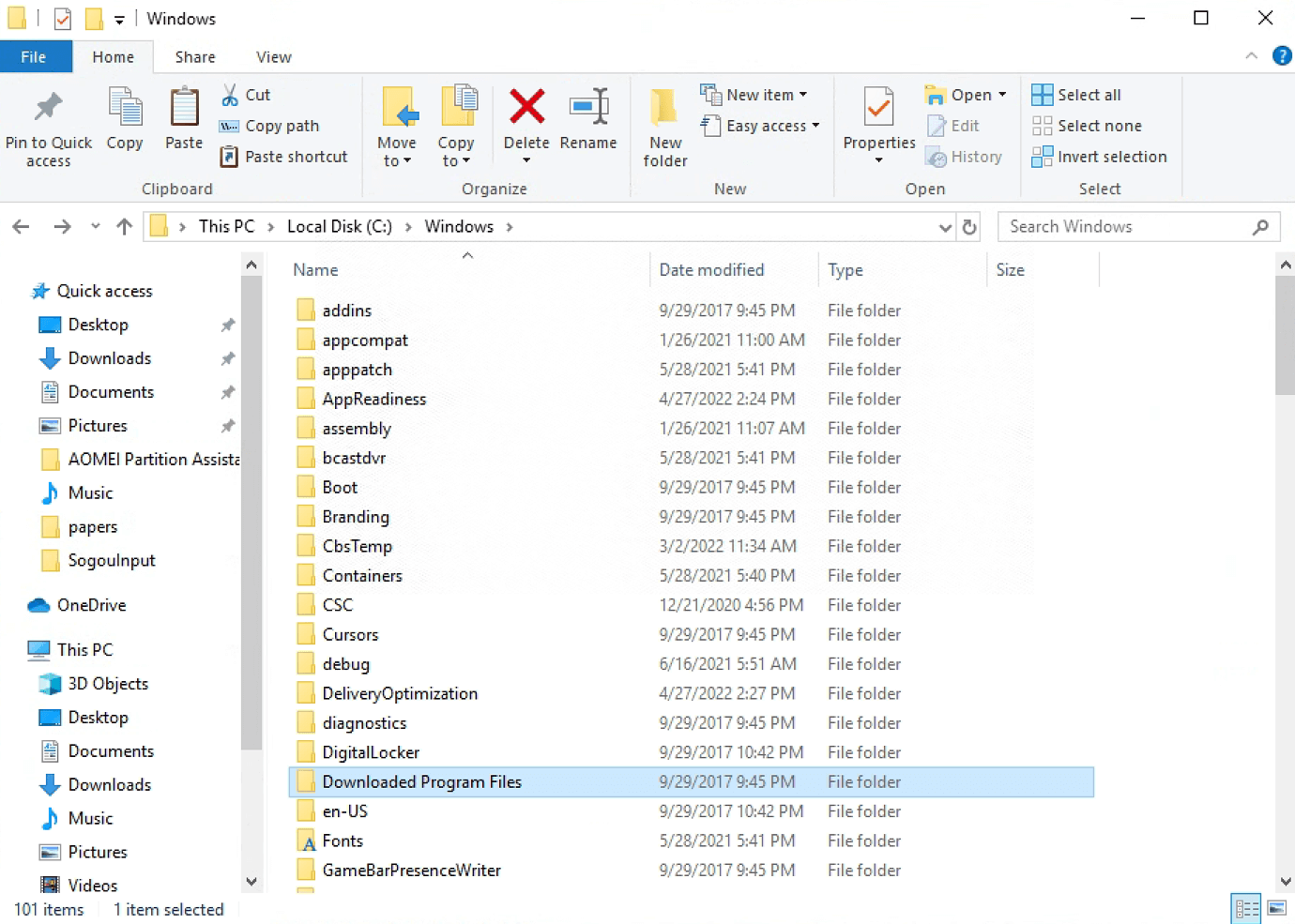
The Downloaded Program Files folder on Windows is often misunderstood. It doesn't contain downloaded apps, but rather stores files needed by Internet Explorer's ActiveX controls and Java applets, so you don't have to download them twice if you use the same feature on a website.
The folder in question is essentially taking up unnecessary space and contains outdated technologies like Java applets and ActiveX, which pose security risks. You can verify the contents of the folder and delete any large files or unnecessary items to free up space.
6. Clean Windows.Old Folder
After upgrading to a new version of Windows, a Windows.old folder is created on the C drive, containing a duplicate of all files from the previous version, allowing for easy reverting if needed.
If you are certain you do not need to roll back to the previous Windows version, remove Windows.old under Disk Cleanup > Clean up system files. If you are unsure, keep it until you confirm the upgraded system works properly.
Clean junk files via the PC cleaner tool
Windows built-in Disk Cleanup can remove many unnecessary files, but it may not find every large or hidden junk file. If you want a more direct cleanup workflow, a dedicated PC cleaner can help scan selected drives and list removable items more clearly.
To meet your needs, we recommend using Qiling Disk Master Professional, a disk and partition manager for Windows computers. This tool offers three features to help release free space on the disk: App Mover, PC Cleaner, and Delete Large Files. With these features, you can efficiently manage your disk space and free up room for new files and applications.
PC Cleaner: This feature allows users to scan selected drives and disks to identify and remove unnecessary junk files, giving them the ability to customize which files are cleaned.
Delete Large Files: This feature scans the disk for large files and allows users to select and remove unwanted files, streamlining the process of finding and deleting them.
Here is how to delete large files from your Windows PC with Qiling Disk Master Professional.
Step 1. Download and run this tool. Click "Free up" and go to "Delete Large Files".
Step 2. To find large files on your computer, open the pop-up window, choose the partitions you want to scan, and then click "Start Scan" to begin the search for large files.
Step 3. When the scan is complete, all large files found are listed. Select the files you want to delete, and then click the "Delete" button.
Step 4. This step will list all the files you have selected to delete, confirm the selection, then click "Delete Now" to successfully delete the files.
Ending
After reading this guide, you'll know how to delete unnecessary files in Windows 10 and clean junk files. Qiling Disk Master is an efficient manager that not only helps clean your PC but also offers additional features like cloning disks, transferring OS, converting between MBR and GPT without data loss, recovering lost data, and SSD secure erase. There's also a Server Edition available for Windows Server 2022/2019/2016/2012(R2)/2008(R2)/2003.
Related Articles
- How to Delete Unnecessary Files in Windows 10?
Learn how to Delete Unnecessary Files in Windows 10 with clear steps, key checks, and practical tips. - How to Delete Large Files Quickly on Windows 10 & 11
Learn how to Delete Large Files Quickly on Windows 10 & 11 with clear steps, key checks, and practical tips.
Products
Articles & Tutorials
- Data Recovery
- Data Backup
- File Recovery
- File Backup
- File synchronize
- System Backup and Restore
- Disk and Partition Clone
- Technical articles
- Disk Master Help
- Windows Deleted File and Disk Recovery Tutorials
- Windows File and Data Recovery Tutorials
- More Windows Tutorials for Install, Security, Files, and PC Tips
- Windows Boot, Repair, and Recovery Environment Tutorials
- Windows Backup Tutorials
- Windows Restore Tutorials
- Windows Clone and Migration Tutorials
- Windows Server Backup, Recovery, and Management Tutorials
- Windows Disk, Partition, and Storage Management Tutorials