How to Backup Files to External Hard Drive in Windows 10
Why backup files to external hard drive in Windows 10?
Many Windows 10 users want to backup their files to an external hard drive, taking advantage of the operating system's widespread popularity and global use.
Backing up files is crucial to protect data from loss. You can make an exact copy of your files and restore them if they're damaged or deleted by mistake. Additionally, backing up files to an external hard drive can also prevent data loss due to computer failure, system crash, or hard drive breaking.
External hard drives are convenient and portable, allowing users to take them anywhere and access their files at any time by connecting them to a computer.
Common ways to backup files to an external hard drive
When discussing file backup, many users often think of built-in tools first. Microsoft offers two free backup software options: Backup and Restore (Windows 7) and File History. However, these tools have some differences, which can be reviewed further.
| Backup and restore (Windows 7) | File History | |
| Backup items | user files as well as system and data partition. | users files |
| Backup destination | internal or external drive, network or NAS | internal or external drive, network or NAS |
| Schedule backup | daily, weekly, monthly backup | backup from 10 minutes to daily, hourly by default |
| Backup method | incremental backup | incremental backup |
Backing up files to an external hard drive in Windows 10 is a good idea, but the current method only backs up files in the "User" folder. If you want to backup other files, you'll need to add them to this folder first.
Using external hard drives or USB drives for Windows 10 backup can be problematic, leading to issues such as file history drive disconnection, backup failures, and inability to restore system images to smaller drives.
In Windows 10, Backup and Restore (Windows 7) is outdated and not maintained, while File History is also being phased out in Windows 11, with its Folder option missing. Therefore, it's not recommended to use them, and instead, refer to backing up files to an external hard drive.
To backup files to an external hard drive in Windows 10, consider using a reliable third-party backup software like Qiling Disk Master Standard, which can provide a safe and efficient way to backup files.
Best free backup software to backup files - Qiling Disk Master Standard
Qiling Disk Master Standard is a reliable backup software that offers a range of features, making it easy to backup files to various storage devices, including external hard drives, internal drives, cloud drives, network drives, and NAS, with the added benefit of enjoying a secure and efficient backup process.
- Backup files in Windows 10 automatically: This software allows for automatic backup of files on a daily, weekly, or monthly schedule, ensuring data safety and preventing loss due to unforeseen events or forgotten backups.
- Backup only changed files: This software uses a default block-level incremental backup method, which only backs up changed blocks in files, saving time and disk space.
- Other useful features: If you're concerned that your computer might fail, you can prepare a backup option by creating a bootable USB or CD/DVD in advance.
And all the operations are based on an intuitive interface, so most users can understand and use it easily. Please download this software and install it on your computer.
This software is compatible with Windows 11/10/8/7/XP/Vista. For server users, Qiling Disk Master Server is recommended.
How to backup files to external hard drive in Windows 10 easily
Connect an external hard drive to your Windows 10 computer, ensuring it's recognized by the system. Then, using Qiling Disk Master Standard, select the drive you want to backup and choose the external hard drive as the destination for the backup files. Follow the program's instructions to complete the backup process.
Step 1. Open Qiling Disk Master Standard on your Windows 10 computer. Then, click Backup->File Backup.

Step 2. To access the File Backup page, click on the "Files" or "Folders" option to select the files you wish to backup.

The software allows users to backup files with specific extensions automatically by enabling filter settings in the professional version.
Step 3. Connect the external hard drive to your computer, then select it as the destination space to store the files on.

You need to know about the three options before clicking Proceed.
- Options: With this, you can add a comment to your backup, enable Windows 10 backup notifications, choose a compression level for your backup, and even split large files into multiple smaller files for easier backup and storage.
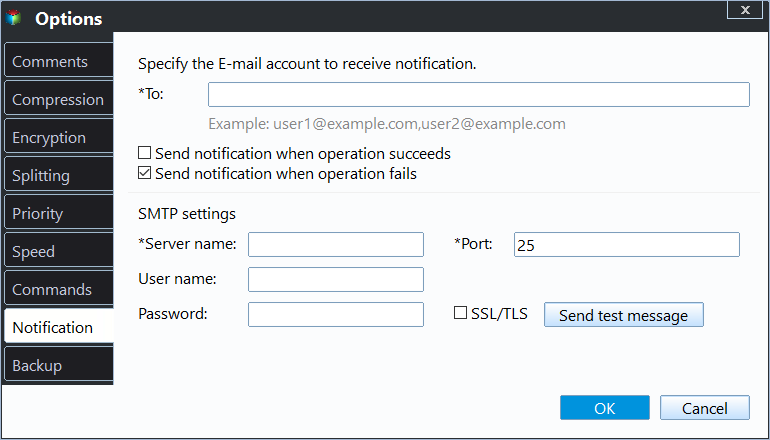
- Schedule Backup: To automatically backup files to an external hard drive, you can select this option and set up a daily, weekly, or monthly auto file backup. Additionally, upgrading to the professional version unlocks features like Event triggers and USB plug-ins.

- This software uses incremental backup by default when a scheduled task is set, or you can opt for differential backup, which is a safer method. Both incremental and differential backup methods are explained in more detail in the "Incremental or Differential Backup" section. Additionally, the software allows you to automatically delete old backup images to free up space for new backups, making it easy to manage your backups.

Step 4. After configuring all settings, click Proceed to start the process. Once it's complete, click Finish to exit.

With the help of Qiling Disk Master, backing up files to an external hard drive in Windows 10 is simplified, and you can also restore files quickly when needed. Additionally, you can use it to backup a disk, backup a computer to an external hard drive, and more.
Summary
You can easily backup files to an external hard drive in Windows 10 (and other systems like Windows 7/8/11) using the free backup software Qiling Disk Master Standard, which allows for automatic backups and only saves changed files.
In its advanced edition, you can enjoy more powerful features, such as Differential Backup, Automatic Backup Cleanup, Event trigger, and USB plug in. This software is one of the best backup tools to help protect your data, and I highly recommend giving it a try.
Related Articles
- Guide | Automatic Backup Windows 10 to External Hard Drive
This article explains how to auto backup your computer to external hard drive in Windows 10. The importance of backup needs no elaboration, and an automatic schedule can certainly save you a lot of trouble. - Best Way to Backup Windows Program Files to External Hard Drive
This guide explains Best Way to Backup Windows Program Files to External Hard Drive with clear steps, key checks, and practical tips. - Automatically Backup Files to External Drive | 4 Free Ways
Learn more about Backup and Restore, File History, Qiling Disk Master and pick one among them to automatically backup files to external hard drive. - Best Free Way to Backup WD My Cloud to Amazon Drive
You need to create multiple backups, not only backup WD My Cloud to Amazon Drive, but also to other clouds like OneDrive, Google Drive, Dropbox etc, so your data is always safe even if the Amazon Drive is deprecated. - How to Resolve WD Sync Not Working in Windows 10 Easily?
Learn how to Resolve WD Sync Not Working in Windows 10 Easily with clear steps, key checks, and practical tips. - Windows 10 Backup vs SyncToy | How to Use It Correctly
This guide explains Windows 10 Backup vs SyncToy | How to Use It Correctly with clear steps, key checks, and practical tips.
Products
Articles & Tutorials
- Data Recovery
- Data Backup
- File Recovery
- File Backup
- File synchronize
- System Backup and Restore
- Disk and Partition Clone
- Technical articles
- Disk Master Help
- Windows Deleted File and Disk Recovery Tutorials
- Windows File and Data Recovery Tutorials
- More Windows Tutorials for Install, Security, Files, and PC Tips
- Windows Boot, Repair, and Recovery Environment Tutorials
- Windows Backup Tutorials
- Windows Restore Tutorials
- Windows Clone and Migration Tutorials
- Windows Server Backup, Recovery, and Management Tutorials
- Windows Disk, Partition, and Storage Management Tutorials