[Solved] WD Sync Not Working in Windows 11/10/8/7
The issue: WD Sync not working
WD Sync is a file synchronization tool that allows files to be synced across multiple computers connected to a My Cloud NAS device. Changes made to files in one location are automatically reflected in the other locations, but deleted files cannot be restored. It's not a backup software, so deleted files are lost forever.
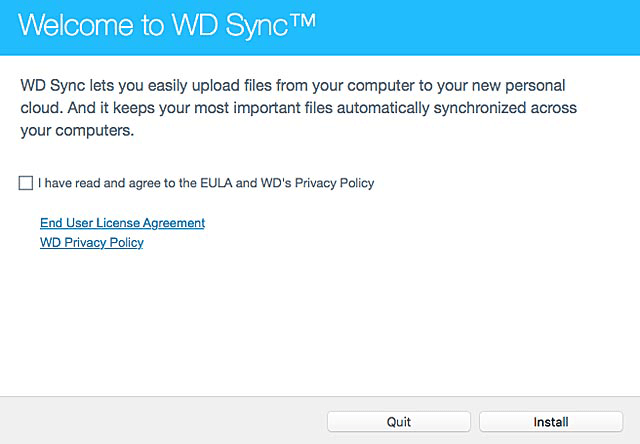
Some users experience issues with WD Sync not working occasionally, which can be attributed to two common problems.
◈ The WD Sync software is experiencing an issue where it's unable to synchronize data from the Network-Attached Storage (NAS) device to the client computer.
◈ WD Sync may display "No Storage Devices Found" or "My Cloud Not Seen" if the My Book or My Passport drive is not connected to the computer, or if the drive is not recognized by the computer. To resolve this issue, ensure that the drive is properly connected to the computer and that the computer can see it.
To fix the WD Sync not working error, try restarting your computer and WD Sync software, checking for any software updates, and ensuring that your WD Sync account is properly set up. You can also try reinstalling the WD Sync software, checking for any conflicts with other software, and verifying that your WD My Cloud or WD external hard drive is properly connected and recognized by your computer. If none of these steps resolve the issue, you may need to contact WD support for further assistance.
How to resolve WD Sync not working in Windows 11/10/8/7
I'll show you why is My Cloud not syncing and how to resolve WD Sync not working in Windows 11/10/8/7 under the two circumstances mentioned above one by one. If none of the solutions work, try the best free WD Sync alternative as a workaround.
📢The WD Sync software is no longer available for download and technical support ended on April 30, 2020. Instead, users are suggested to download GoodSync for WD. If users continue using WD Sync, they will not receive software updates and will have to troubleshoot issues on their own without technical support.
Case 1: WD Sync is unable to sync from the NAS to the client.
This issue may be caused by Cloud Access being disabled. To resolve it, follow these steps.
1. Login to the My Cloud Dashboard.
2. Select the Settings tab.
3. Scroll down to Cloud Access. Turn ON the Cloud Service and click OK.
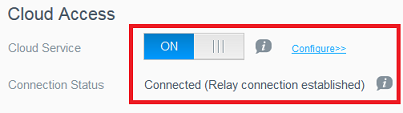
Notes:
▪ If the Connection Status shows "Not Connected" after turning on the Cloud Service, try turning it off and on again to resolve the issue.
▪ If you're still having issues, try restarting your My Cloud device and verify that the Cloud Access status shows 'Connected' afterwards.
Case 2: WD Sync displays “No Storage Devices Found” or “My Cloud Not Seen”.
This issue is related to remote access and network connection failures, where users may experience difficulties in accessing a network or system remotely, resulting in errors, timeouts, or complete loss of connectivity.
Method 1. A power cycle is sometimes necessary to ensure full networking capabilities on a device, such as a router or modem, by restarting it to re-establish connections and resolve any connectivity issues.
- Power OFF the Router, Gateway and/or Switch.
- Power ON the Router, Gateway and/or Switch.
- Power OFF the My Cloud.
- Power ON the My Cloud.
Method 2. To ensure your My Cloud firmware is up to date, go to the Western Digital support website, click on "Software" and then select your device model. From there, you can check for any available updates and follow the prompts to download and install the latest firmware.
Method 3. My Cloud user email address update:
- Login to the My Cloud Dashboard.
- Click the Users tab and select the user.
- Re-enter the email address of the user and click Update.
Method 4. Consult with your Network Administrator or ISP to verify that your router is not blocking incoming and outgoing traffic from non-standard ports between 9000 and 9999.
Method 5. Check your local PC's firewall, anti-virus, malware, internet security, and endpoint protection software to ensure ports are not blocked. This will help prevent any potential issues with your connection.
Best free WD Sync alternative for Windows - Qiling Disk Master
Although WD suggests GoodSync as an alternative, some users find it's extremely difficult to work out what they need to do with it. If you are looking for an easy-to-use alternative, the best free file sync software - Qiling Disk Master Standard can be your ideal choice.
|
📂 Local file sync |
You can sync files between two folders, drives, or even two computers. |
|
☁ NAS/Cloud sync |
You can sync local folders with various NAS devices, including Synology, WD, and QNAP, as well as sync files to different cloud drives like OneDrive, Dropbox, and Box. |
|
⏰ Automatic sync |
You can set a schedule for a sync task to synchronize new changes automatically. |
How to sync PC folders to WD My Cloud
1. Download, install and launch Qiling Disk Master, then click on the "Backup and recovery" tab and select "File Sync" from the options.

2. To identify and differentiate it from other synchronization tasks, name this task and then click the "Folder" option to choose the specific folder you want to synchronize.

3. Click the right edge of the second bar, then select "Add Share or NAS Devices" from the drop-down menu.

4. To add a My Cloud device, go to the Add Share or NAS Devices window, enter the device's IP address and click the blue button on the right. If prompted, enter the username and password to access the device.

5. Add the NAS device, select a folder to store synced data, and click OK.
6. Click on "Proceed" button to perform the operation.
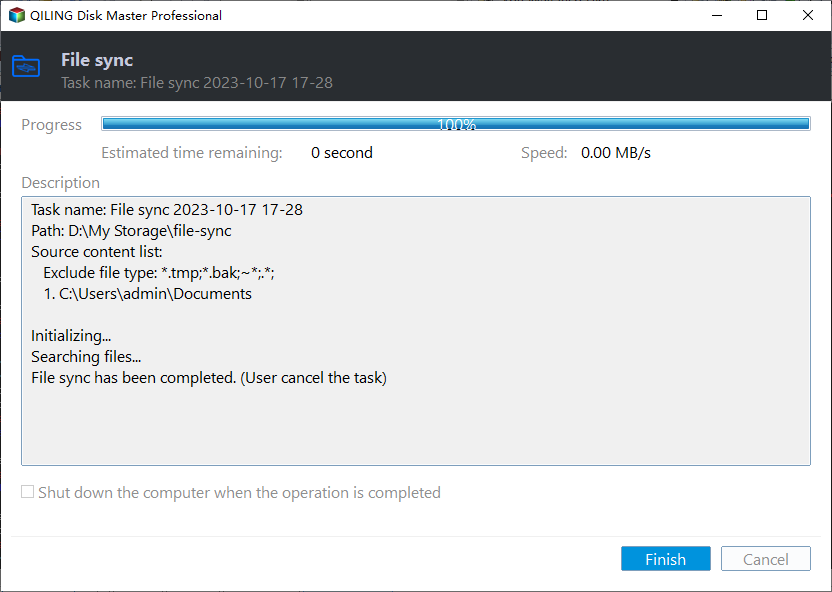
Notes:
▪ After doing file sync, do not modify the source folder name, as this will prevent the program from synchronizing it again.
▪ To sync changed files to WD My Cloud without delay, upgrade to Qiling Disk Master Professional, which offers a "Real-time Sync" feature, as well as "Mirror Sync" and "Two-Way Sync" capabilities.
Summary
When you encounter the WD Sync not working error, you can try the solutions in this article to fix the issue. Alternatively, you can use Qiling Disk Master, which also offers a clone feature to upgrade your hard drive to an SSD or clone an M.2 NVMe SSD.
Related Articles
- Download Best Free WD Sync Alternative
- WD SmartWare Continuous Backup Not Working – Quick Fix
- Solved: Acronis True Image WD Edition Will Not Clone
- Copy User Profile in Windows 7 to Another Computer |3 Solutions
If you don't know how to copy user profile from Windows 7 to another computer, like Windows 7/8/10/11 etc, please read this article patiently to learn 3 helpful methods. - How to Create QNAP to Dropbox Sync | 2 Free Tools
This tutorial provides two easy ways to perform QNAP to Dropbox sync. You can pick QNAP Cloud Drive Sync or free Qiling Disk Master to help you. - How to Run Robocopy Two-Way Sync in Windows 11/10/8/7
This tutorial demonstrates how to run Robocopy two-way sync in Windows 11/10/8/7 step by step. Two-way file sync would be more flexible if you pick Qiling Disk Master.
Products
Articles & Tutorials
- Data Recovery
- Data Backup
- File Recovery
- File Backup
- File synchronize
- System Backup and Restore
- Disk and Partition Clone
- Technical articles
- Disk Master Help
- Windows Deleted File and Disk Recovery Tutorials
- Windows File and Data Recovery Tutorials
- More Windows Tutorials for Install, Security, Files, and PC Tips
- Windows Boot, Repair, and Recovery Environment Tutorials
- Windows Backup Tutorials
- Windows Restore Tutorials
- Windows Clone and Migration Tutorials
- Windows Server Backup, Recovery, and Management Tutorials
- Windows Disk, Partition, and Storage Management Tutorials