Solved: Acronis True Image WD Edition Will Not Clone
Quick Navigation:
- User case: Acronis computer restart is required
- 3 situations to Acronis True Image WD edition will not clone
- 4 Solutions to Acronis True Image WD edition clone not working
- Solution 1: Disable secure boot
- Solution 2: Clean WD hard drive
- Solution 3: Try Acronis bootable media
- Solution 4: Download and run .exe file
- Ultimate solution to Acronis True Image WD Edition will not clone
- How to boot from the cloned hard drive
- Conclusion
User case: Acronis computer restart is required
Many users who need to clone their Western Digital SSDs turn to Acronis True Image WD edition, which is specifically designed for Western Digital drives. However, some users have encountered issues with the software, including problems with cloning, as reported in online forums.
You downloaded WD's cloning software, but it keeps saying "Acronis computer restart is required" and then fails to clone after restarting. You're wondering why it's not working and if there's an alternative WD disk cloning software.
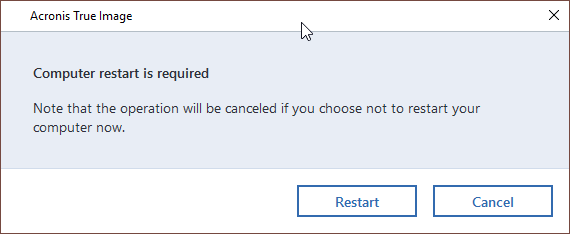
Don't worry about too much and I'll show you how to fix it in this article. Keep reading below to learn the different situations and solutions to Acronis True Image WD edition clone not working.
3 situations to Acronis True Image WD edition will not clone
Situation 1. Acronis True Image not cloning after restart. When cloning a disk using Acronis True Image within Windows, the process requires a restart, but the computer may not boot into the recovery environment, instead, it may just restart normally, without showing the recovery options.
To clone a disk, you should first disable the secure boot in your BIOS settings, as this security feature prevents untrustworthy firmware from running and may interfere with the cloning process. By disabling secure boot, you'll be able to successfully clone your disk.
Situation 2. Acronis not recognizing WD HDD/SSD. Acronis True Image WD edition does not support the exFAT file system, so it won't recognize exFAT formatted hard drives. This means you can't use modern digital drives, which are often exFAT formatted, as the target drive. To resolve this, you may need to format the drive to FAT32 or NTFS, or consider using a professional disk cloning software like Qiling Disk Master Professional.
The most likely reason for the issue is that the drive doesn't have a valid Master Boot Record (MBR) or that third-party software is interfering with access to the hard disk drive.
Situation 3. Acronis True Image WD edition installation restricted This product edition requires at least one Western Digital drive to be installed in your system, which is similar to the previous issue but is caused by a USB cable connected to a WD disk.
4 Solutions to Acronis True Image WD edition clone not working
To resolve the Acronis True Image clone failed error, consider the following solutions. If the error occurs during the cloning process, try checking the disk space, closing unnecessary programs, and ensuring the source and destination drives are not in use. Alternatively, if the error occurs after the cloning process, check if the cloned image is corrupted and try to restore it.
Solution 1: Disable secure boot
To fix the issue with Acronis clone failing due to Secure Boot, you need to disable Secure Boot in BIOS, then enable it again after cloning the disk with Acronis True Image.
Step 1. After restarting your computer, press the specified key (such as F1, F2, ESC, etc.) on the initial screen to access the BIOS settings.
Step 2. Select the Secure Boot option and disable it. This setting is often located under the Security, Boot, or Authentication tab.

Solution 2: Clean WD hard drive
If a disk appears normal in Disk Management but can't be detected by a third-party tool like Acronis, it may be due to an invalid Master Boot Record (MBR) or the tool not supporting the disk's file system. To resolve this, you can try cleaning the disk and initializing it, then use Acronis True Image to clone the HDD to SSD again.
⭐TipThis operation will erase the disk entirely, so you need to back up all data on the disk before proceeding.back up files in advance if there is something important.
Step 1. Type cmd in the search box, then run as administrator.
Step 2. Type diskpart.
Step 3. Type list disk.
Step 4. Type select disk n (n is the number of your disk).
Step 5. Type clean.

Step 6. Press Win + R to summon the Run window, then type diskmgmt.msc.
Step 7. Right-click the disk marked as Unknown, then select Initialize Disk.
Solution 3: Try Acronis bootable media
WD hard drives may not reboot in the recovery environment, so cloning with Acronis bootable media is a good alternative. This method ensures that all internal or external hard disks are detected on the system, and the bootable disk type should be WinPE.
Solution 4: Download and run .exe file
If you get the error message "Acronis True Image WD edition installation restricted - this product edition requires at least one Western Digital drive to be installed in your system", you can try contacting WD support or downloading a special .exe file and running it multiple times before installing Acronis and using it to clone to a smaller SSD.
Ultimate solution to Acronis True Image WD Edition will not clone
If the Acronis WD clone still fails, consider using professional disk cloning software like Qiling Disk Master Professional, which can clone disks regardless of partition style, size, or file system.
- The software is designed to be user-friendly and accessible to individuals with little to no experience, allowing them to operate it with ease and efficiency, just like a professional would.
- Cloning scenarios involve different scenarios such as cloning a hard drive to a larger drive, cloning a larger hard disk drive (HDD) to a smaller solid-state drive (SSD), and cloning a Master Boot Record (MBR) disk to a GUID Partition Table (GPT) disk or vice versa. These scenarios require careful consideration of the target drive's size and partition table type to ensure a successful clone.
- To support cloning a disk with different interfaces, such as SATA, PCIe, NVMe, etc., a disk-to-disk (D2D) clone can be performed using specialized software tools. These tools, such as Acronis True Image, Qiling Disk Master, or Macrium Reflect, can create an exact copy of the original disk, including the operating system, applications, and data, and then transfer it to the new NVMe SSD. This process can be done while the system is running, and it's a relatively straightforward process that can save you a lot of time and effort compared to reinstalling Windows 10 from scratch.
- Improve SSD disk performance, such as reading & writing speed.
- The software is compatible with all brands of SSD disks, including WD, Samsung, Intel, SanDisk, Kingston, and others.
- Support Windows 7/8/8.1/10/11/XP/Vista
The Clone feature in the free trial version can only be demonstrated, it's suggested to upgrade to the full version of Qiling Disk Master to make this process smooth.
Necessary Steps Before Cloning:
If the destination disk is smaller, you may need to free up space on it to accommodate the contents of the source disk. This can be done by uninstalling unused programs or deleting unnecessary files. Alternatively, you can clone only the OS partition instead of the entire disk. This approach can help ensure a successful cloning process.
Step 1. On the main page of Qiling Disk Master, click Disk Clone under the Clone tab to clone the entire disk, or click System Clone to clone only the system.

Step 2. Select the source disk and click Next.

Step 3. Select the destination disk and click Next. If the destination disk has multiple partitions, select the first partition to ensure secure boot.

Step 4. If your target disk is an SSD, select the option "SSD Alignment" to accelerate writing and reading speed and extend its lifespan, then click Proceed to clone the WD SSD.

The cloning process can be simplified by using the "Sector by sector clone" feature to keep the old partition layout, or the "Edit Partitions" feature to adjust the partition size on the destination disk, which resolves potential issues during the cloning process.
#1: The cloned drive not show full capacity.
To prevent an exact copy of the source disk when cloning, try the following three options. By default, most cloning software makes an exact replica of the source disk unless you specify otherwise. However, you can change this by adjusting the partition size while cloning, which will create a customized copy of the disk.
👉 Copy without resizing partitions: It will not resize the partition size.
👉 Add unused space to all partitions: It will redistribute the unallocated space to each partition of the target disk, proportional to the disk size.
👉 Manually adjust partition size: It allows you to extend unallocated space to any partition on the destination disk you want.
#2: The cloned drive not bootable after cloning.
The "cloned hard drive shows wrong size" error often occurs when the destination and source disk have different partition styles and you haven't converted them to the same before cloning. To resolve this, simply check the option to Convert the destination disk from MBR to GPT or vice versa, matching the partition style of the source disk.
MBR and GPT are two different disk types for data storage. You can check their disk properties in Disk Management. The overall steps are below:
- To open Disk Management, press the Windows key + R to open the Run window, then type `diskmgmt.msc` and press OK.
- Then, right-Click the disk you want to clone and select Properties in the pop-up window.
- In the Properties window, select the Volume tab and confirm the partition style, which can be either MBR (Master Boot Record) or GPT (GUID Partition Table).

- If the destination disk's partition style is MBR, you can directly clone the hard drive to the WD SSD. If it's not, you'll need to convert the partition style, which can be done using the Edit Partitions feature.
✅ Notes:
✔️ For server users, you can use Qiling Disk Master Server, which supports various Windows Server versions, including Windows Server 2003, 2008, 2012, 2016, and 2019, along with their R2 versions.
✔️ This software remains an M.2 SSD cloner, allowing users to migrate Windows 10 to M.2 SSD, clone M.2 SSD to M.2 SSD, and perform other similar operations.
How to boot from the cloned hard drive
Now, things are half done. You just need to check if the cloned SSD will boot. Only then can you ensure it's available, so you can use it to replace an old or damaged hard drive or when the system crashes.
Step 1. Completely shutdown your computer and replace hard drive with cloned SSD using screwdriver.
Step 2. Install the computer back cover tightly, and connect the power cable.
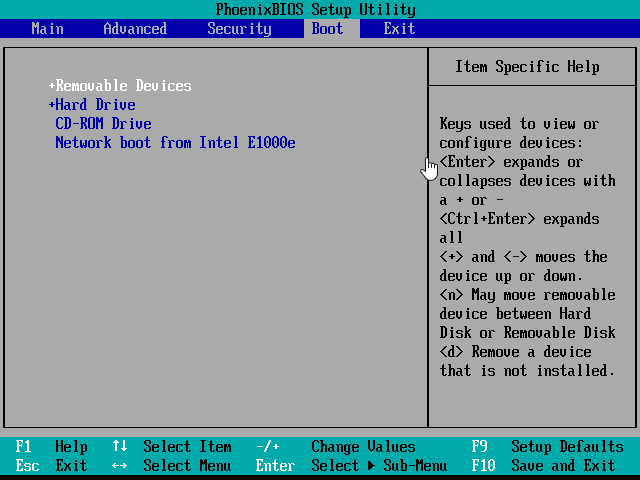
Step 3. Restart your computer and press the key shown in the initial screen, usually F2 or ESC, to access the BIOS screen.
Step 4. At last, change the cloned SSD as the first boot option and start Windows from it.
If you don't understand the process clearly, you can check the following video:
Conclusion
If you're experiencing issues with Acronis True Image WD edition, such as cloning problems, computer restarts, or failure to detect hard drives/SSDs, you may have already found a solution. However, if not, you can try turning off Secure Boot, clearing the disk and reinitializing it, or using Acronis bootable media. Alternatively, you can contact WD support directly for further assistance.
Using Qiling Disk Master Professional to clone a WD SSD can be a great alternative to Acronis True Image, which may have cloning issues. This tool makes the process easy, allowing you to clone a hard drive in simple steps and boot your computer successfully. Additionally, you can clone system partitions with the "System Clone" feature and data partitions with the "Partition Clone" feature.
Related Articles
- How to Fix Acronis Clone Disk Operation Failed Problem
- 5 Methods to Try When Macrium Reflect Clone Failed
- How to Use Acronis True Image to Clone to SSD
- Best ADATA SSD Disk Migration Tool to Clone HDD to ADATA SSD
The best ADATA SSD disk migration tool - Qiling Disk Master will help you safely clone HDD to ADATA SSD without reinstalling. - [Tried and True] How to Upgrade HDD to SSD Without Reinstalling Windows
Learn how to upgrade an HDD to an SSD without reinstalling Windows by cloning the system, apps, and files to the new drive safely. - Intel Data Migration Software Not Working - How to Fix?🔥
If your Intel data migration software isn't working properly, preventing you from transferring your operating system, installed applications, and personal files from an old storage device to a new Intel SSD drive, this blog can help you resolve the issue.
Products
Articles & Tutorials
- Data Recovery
- Data Backup
- File Recovery
- File Backup
- File synchronize
- System Backup and Restore
- Disk and Partition Clone
- Technical articles
- Disk Master Help
- Windows Deleted File and Disk Recovery Tutorials
- Windows File and Data Recovery Tutorials
- More Windows Tutorials for Install, Security, Files, and PC Tips
- Windows Boot, Repair, and Recovery Environment Tutorials
- Windows Backup Tutorials
- Windows Restore Tutorials
- Windows Clone and Migration Tutorials
- Windows Server Backup, Recovery, and Management Tutorials
- Windows Disk, Partition, and Storage Management Tutorials