Run Windows 10 Backup Using SyncToy Even on a Schedule
SyncToy is a Microsoft PowerToys series freeware that offers a user-friendly graphical interface for syncing files and folders in Windows XP, Vista, and 7. It allows for backup and syncing in both two-way and one-way directions, and supports syncing not only local drives, but also external drives like flash drives and network drives. Written using Microsoft's .NET framework and the Microsoft Sync Framework, SyncToy provides a convenient solution for managing data synchronization.
Many users want to use SyncToy to sync folders in Windows 10, but it's no longer available in the Microsoft Store. However, there are alternative software options that can perform the same function, such as RoboCopy, FreeFileSync, and RichCopy. These tools can help users sync folders and files across different locations, providing a similar experience to SyncToy.
- Will SyncToy Work with Windows 10?
- How to Perform Windows 10 Backup via SyncToy Correctly
- SyncToy Windows 10 Schedule
- Easier Way to Automatic Sync Folders in Windows 10
- In The End
Will SyncToy Work with Windows 10?
SyncToy is a free tool from Microsoft that allows you to synchronize and backup files. It is compatible with Windows 10, and you can use it to backup and sync your files between different folders on your computer or between your computer and an external drive. To use SyncToy with Windows 10, simply download and install the tool, then follow the on-screen instructions to set up your backup and sync jobs. You can also use SyncToy to backup and sync files across multiple computers if you have a home network set up.
I upgraded to Windows 10 from Windows 7 and now SyncToy won't install. It keeps asking for .NET Framework version 2.0.50727, but even after installing version 4.6, I still can't get SyncToy to work.
Where am I going wrong? I have used this app for years and like it, so I want to install it on windows 10. Thanks for any input.
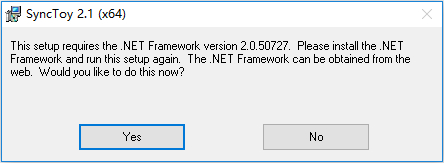
Don't worry about it and there are reasons for this situation - can't install SyncToy on Windows 10. So I'll show you the corresponding solutions based on the reasons and steps to sync files and folders in Windows 10 with SyncToy.
One Stop Wizard: Perform Windows 10 Backup via SyncToy Correctly
Users searching "Windows 10 backup vs SyncToy" online are looking to sync folders with SyncToy and use the synced files as part of their backup, noting that SyncToy is a sync tool rather than a backup software.
To use SyncToy correctly, you need to resolve two main issues before initiating the folder sync process. Firstly, ensure that the source and destination folders are correctly identified and accessible. Secondly, resolve any conflicts or discrepancies between the two folders to avoid any potential errors or issues during the synchronization process. By addressing these two key concerns, you can ensure a smooth and successful folder synchronization using SyncToy.
Fix Two Windows 10 SyncToy Problems
First, SyncToy can't install in Windows 10. Installing an application is a task that should be straightforward, yet it often proves to be frustratingly difficult, leaving users feeling perplexed and annoyed.
★ 3 solutions to SyncToy installation failed:
To fix the issue of not being able to install SyncToy on Windows 10, try the following 3 ways that are proven to be working. These solutions will allow you to successfully install SyncToy without any obstacles.
1. To run SyncToy 2.1, you need to download and install either .Net Framework 2.0, .Net Framework 2.0 SP 1, or the .Net Framework 3.5, which includes both 2.0 and 3.0 versions. However, note that .Net Framework 4.6 will not work with SyncToy 2.1.
2. To enable the .Net Framework 3.5 on your computer, type "Turn Windows Features On or Off" in the search box, select it, check the box next to ".Net Framework 3.5", and hit "OK".
3. Install the Microsoft Sync Framework Core Component (x64) ENU and Microsoft Sync Framework Provider Services (x64) ENU.
Second, SyncToy misses a couple of files every time. The missed files may be a protected system file, such as NTUser.dat, and excluding system files in the "Change options" during synchronization can help avoid this error. This feature will be introduced in detailed steps.
Download and install SyncToy 2.1 in Windows 10
Step 1. Download SyncToy from Microsoft's website, as the original link may have been removed, and you might need to request the download link from Microsoft.
Step 2. Select the x86 or x64 version of the software based on your computer's architecture, and then click Next. The software will automatically download the .exe file, which you can locate and run to complete the installation.
Step 3. In the Setup Wizard window, tick "I have read and understand the warning above" and click "Next".
Step 4. In the License Agreement window, click "I Agree" and "Next".
Step 5. To install SyncToy, first click "Next" after selecting the destination folder where you want to install SyncToy. Then, you will be prompted to add Microsoft SyncToy Customer Feedback Options, where you can choose to click "Yes" or "No" based on your preference.
Sync Folder in Windows 10 with SyncToy
To sync files and folders in Windows 10, download SyncToy from Microsoft and set up the .exe program. Then, double-click SyncToy 2.1 and follow the steps to sync your files and folders.
Step 1. Click "Create New Folder Pair" to start.
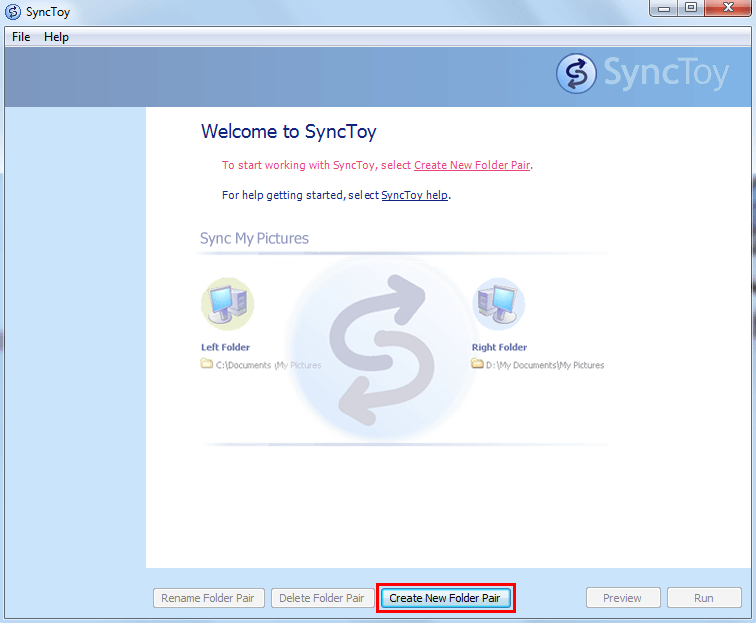
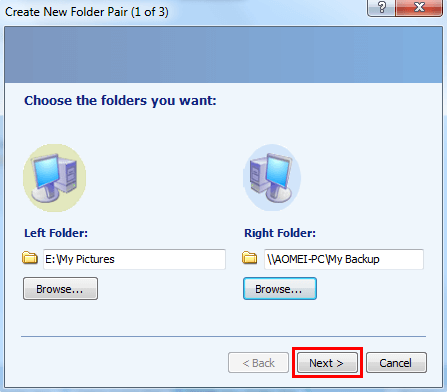
Step 2. To sync files, click the "Browse..." button to select the left folder containing all the files you want to sync, such as documents, pictures, and audio files. Then, choose the right folder to save the synced files, which can be a local drive, external disk, or network drive, and click "Next".
Step 3. Choose a folder pair among "Synchronize", "Echo", "Contribute" and click "Next".
This method synchronizes data in both locations, reflecting changes and resulting in identical files, including new, updated, renamed, or deleted files.
The Echo method is a one-way file synchronization that only transfers changes from the left folder to the right folder, allowing for synchronization of changes without overwriting existing files.
This method is similar to Echo but it does not remove the deleted files in the left folder, allowing them to remain.
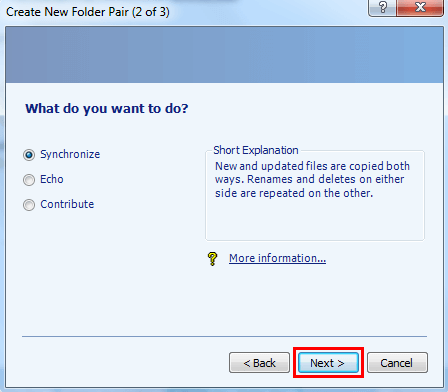
Note: Folder Pair is a backup or sync rule for the created task between left and right folders, making the process run smoothly.
Step 4. Type a name for this pair and click "Finish".
Step 5. To exclude .dat files from the sync task, click "Change options...", type "*.dat" in the Files to exclude textbox, preview the pending sync task, run it, and then close the task.
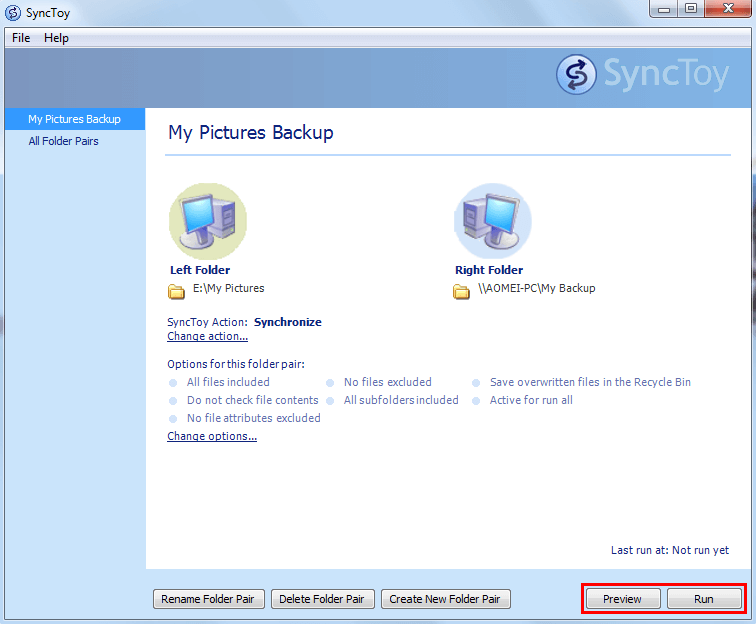
Windows 10 SyncToy backup failure
Some users have reported that SyncToy 2.1 in Windows 10 does not work well, throwing error messages such as "the file cannot be found", "were amended during synchronization", or other obscure reasons. To solve this problem, there are two working ways you can try.
Method 1: reinstall SyncToy in compatibility
- Uninstall the existing SyncToy from your PC.
- Download the latest setup file, right-click it and select "Properties" to open a new window.
- Go to the "Compatibility" tab, check "Run this program in compatibility mode for" and select Windows 8/8.1/7 per your needs, then click "Apply" and "OK" to exit.
- Complete the installation and restart your computer to check if this issue is solved.
Method 2: Disable OneDrive Files On Demand option
Some users have found that disabling the "Files on Demand" option in OneDrive allows SyncToy to work properly. They recommend trying this if you also use the "Files On Demand" option to sync files to OneDrive.
Run SyncToy Windows 10 Schedule with Task Scheduler
SyncToy does not provide schedule sync or backup settings, but you may need to track changes made in synced files. To do this, you can use the solution to SyncToy Schedule.
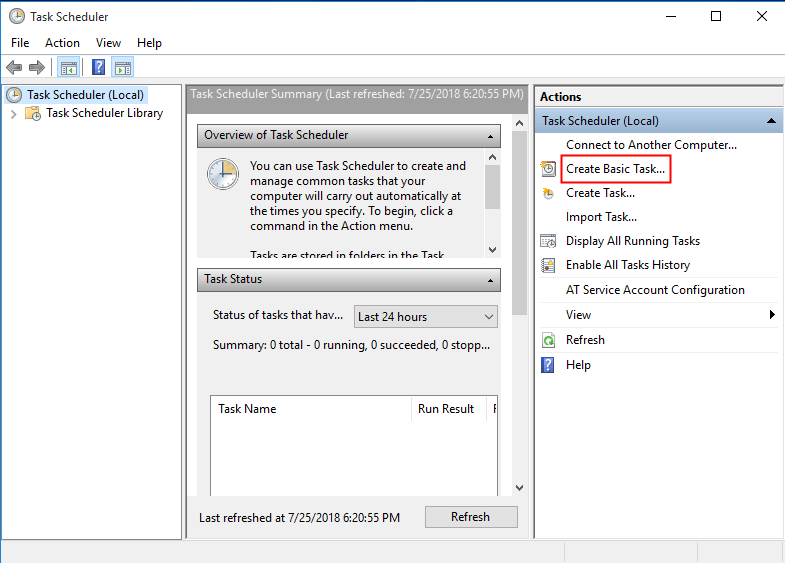
Step 1. Type "task scheduler" in the search box and run this tool. Then, click "Create Basic Task" under the Actions tab.
Step 2. Name your task and make a description for it. Then, click "Next".
Step 3. Select a schedule trigger, such as, daily, and click "Next". Also, you can select other triggers and it's your decision.
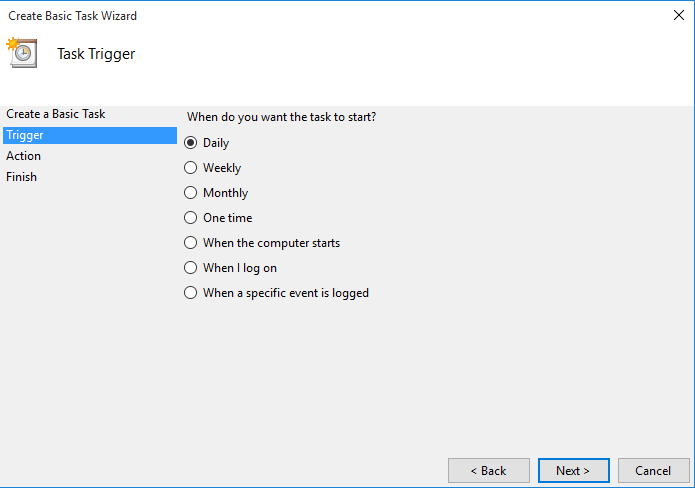
Note: You may be asked to add additional settings, such as a specific time point, depending on the selected settings.
Step 4. Click "Start" on the Action tab, then click "Browse" under Program/script to locate the SyncToy 2.1, usually found in "C:\Program Files\SyncToy 2.1\SyncToyCmd.exe", and type "-R" and click "Next".
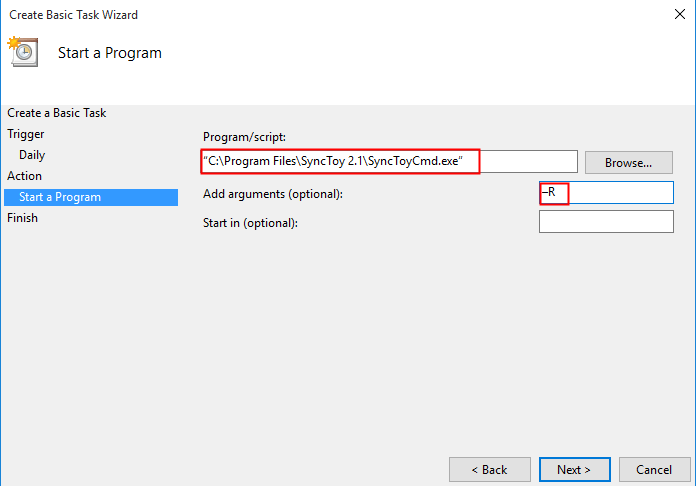
Step 5. Preview the task information and click "Finish".
Use SyncToy Alternative Windows 10 to Automatic Sync Folders (Easier)
SyncToy, although helpful for syncing files and folders in Windows 10, has a removed download link, lacks a user-friendly schedule feature, and often fails to work properly, throwing out errors like "SyncToy not copying all files" or "SyncToy access denied".
To find an alternative to SyncToy on Windows 10, Qiling Disk Master Standard is a great option. It allows syncing files from or to multiple devices, such as external hard drives, USB drives, network drives, or NAS, and can be set to run on a daily, weekly, or monthly schedule, keeping all changes up to date.
To get started, download and install Qiling Disk Master Standard, which supports Windows 11/10/8/7/XP/Vista. Server users can try Qiling Disk Master Server instead.
Step 1. Launch Qiling Disk Master Standard after installation. Click "Backup and recovery" and "File Sync" to start the file sync.

Step 2. To sync a folder, click the "Folder" option, select the folder you want to sync, and then choose a destination path, such as an external hard drive, flash drive, network drive, or cloud storage like OneDrive.

Tip: To share files with specific extensions, click the funnel-shaped button and type the desired file extensions, such as *.doc, *.xls, *.ppt, *.temp, *.bak, *~*temp, and temp*. This feature is called Filter settings and is available in Qiling Disk Master Professional.
Step 3. To enable the default setting, click "Schedule Sync", then "OK", and select daily sync. You can also choose weekly or monthly sync. Finally, click "Proceed" to complete the task.

Notes:
✘ The program's ability to synchronize a selected folder is dependent on the original name of the schedule sync task folder not being modified. If the folder name is altered, the synchronization process will be disrupted.
✔ The core of "File Sync" is one-way file sync, which only syncs changes from the source folder to the destination folder, and doesn't automatically transfer deleted files, requiring a manual setting in "Options".
✔ In the premium version, you can choose from different sync methods, such as "File Sync", "Mirror-Sync", or "Two-Way Sync", to suit your needs, and for more information, see the page on the differences between syncs.
In The End
Users want to sync files and folders as part of their backup process, not compare backup and sync software. They want a simple solution to copy and sync their files, not a detailed comparison between backup and sync tools like SyncToy and Windows 10 backup.
If you're looking to sync folders in Windows 10, you have three options: SyncToy, Task Scheduler, or a SyncToy alternative software like Qiling Disk Master. If you're tired of SyncToy's issues in Windows 10 or don't want to spend time setting up Task Scheduler, the SyncToy alternative is a recommended choice, as it efficiently syncs folders and performs scheduled tasks smoothly.
Related Articles
- How to Sync Folder to Network Drive in Windows 7/8/10
Syncing local folder to network drive automatically is one of the best ways to protect data in the long-term. For easy access, you can choose to make network files available offline. - Sync Folders between Drives in Windows 10/8/7 (with Video)
This article will provide you with 2 reliable sync tool and illustrate how to sync folder between drives in Windows 7, 8, 10, 11 automatically. - 3 Ways to Make Windows Sync Folders between Computers
This guide explains 3 Ways to Make Windows Sync Folders between Computers with clear steps, key checks, and practical tips. - Top Two Ways to Synchronize Files between Windows Servers
You can synchronize files or folders between Windows Servers with DFS replication if you want a free solution. Instead, Qiling Disk Master Server for advanced features and ease of operation. - How to Create Scheduled Task to Copy Files to Another Folder?
With robocopy and Task Scheduler, you can create a scheduled task to copy files to another folder on regular basis. Here are the steps and also an easier alternative. - Quick Fix: SD Card Copy Hangs While Copying Files to Computer
This guide explains Quick Fix: SD Card Copy Hangs While Copying Files to Computer with clear steps, key checks, and practical tips.
Products
Articles & Tutorials
- Data Recovery
- Data Backup
- File Recovery
- File Backup
- File synchronize
- System Backup and Restore
- Disk and Partition Clone
- Technical articles
- Disk Master Help
- Windows Deleted File and Disk Recovery Tutorials
- Windows File and Data Recovery Tutorials
- More Windows Tutorials for Install, Security, Files, and PC Tips
- Windows Boot, Repair, and Recovery Environment Tutorials
- Windows Backup Tutorials
- Windows Restore Tutorials
- Windows Clone and Migration Tutorials
- Windows Server Backup, Recovery, and Management Tutorials
- Windows Disk, Partition, and Storage Management Tutorials