How to Backup Using Seagate Backup Plus Drives [OS & Files]
Quick Navigation:
- Overview for Seagate Backup Plus
- Best software to backup with Seagate Backup Plus
- Case 1. How to use Seagate Backup Plus to backup non-system files
- Case 2. How to backup all kinds of PC files to Seagate Backup Plus
Overview for Seagate Backup Plus
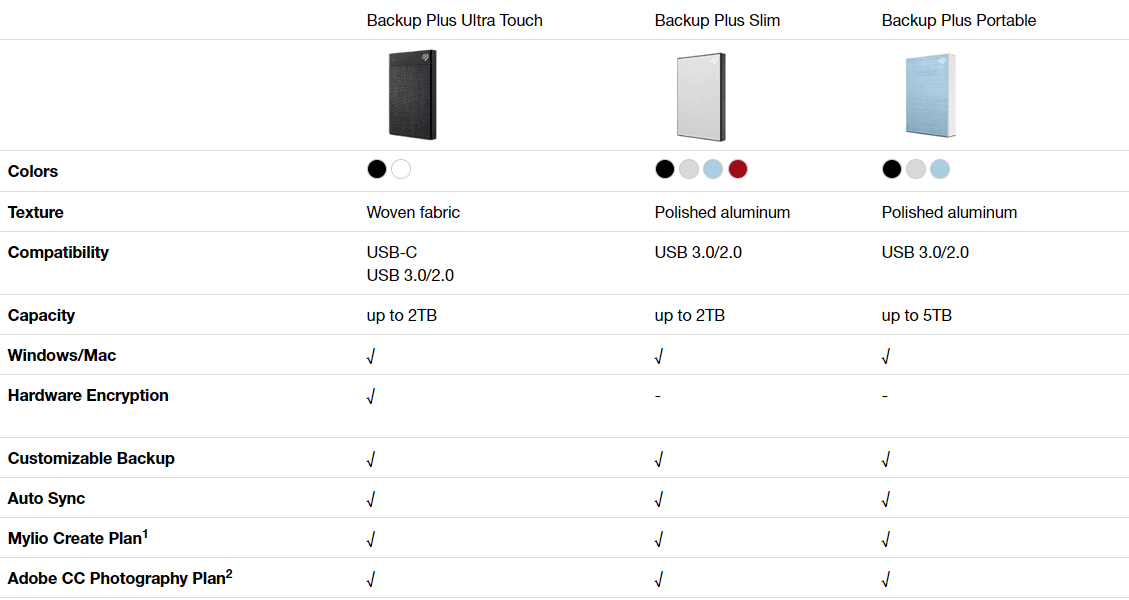
The Seagate Backup Plus is a family of portable hard drives that offer high-capacity storage for managing and protecting photos, movies, documents, and more. The lineup includes three products: Backup Plus Ultra Touch, Backup Plus Slim, and Backup Plus Portable, all of which are compatible with both Windows and Mac operating systems via USB.
Backup Plus portable drives are shipped with easy-to-use tools to backup your data on demand. With it, you can schedule automatic backups hourly, daily, weekly, monthly, or mirror folders seamlessly. Here in this post, I'll introduce how to backup using Seagate Backup Plus.
Best software to backup with Seagate Backup Plus
Seagate's backup software has evolved over the years. Prior to 2018, the previous generation of backup software was called Seagate Dashboard, which was used from 2012 to 2017. However, since 2018, the current backup software shipped with most Seagate external drives is called Seagate Toolkit.
In fact, both of the tools support Seagate Backup Plus drives, so you can choose either one for data backup. But since Seagate Toolkit is the latest solution, I'll use it in this article.
The Toolkit and Dashboard only backs up data in the Windows root drive (usually C:/), excluding program files, application data, temporary files, and other system files and folders. Additionally, only one backup plan can be created for one Backup Plus drive.
🔰Better tool to backup both OS and data files
If you want to backup operating system or files in non-system drives even network drives, please try another Seagate Backup Plus backup software. More information can be found by clicking on the link.
Case 1. How to use Seagate Backup Plus to backup non-system files
While Seagate Toolkit has some limitations, it remains a simple and effective solution for backing up files using Seagate Backup Plus portable drives. For example, on Windows 10, using a Backup Plus Slim drive, you can easily use Seagate Backup Plus to backup your files.
Requirements for Seagate Backup Plus:
- Computer with a USB-A (USB 3.0 or USB 2.0) port.
- Windows 7 or higher operating system
- 600MB and larger free disk space
How to use Seagate Backup Plus Slim for non-system files backup:
Step 1. To connect your Seagate Backup Plus Slim to your computer, you can use either a USB 3.0 or USB 2.0 port, both of which are available on the device. This will allow you to transfer files and data between your computer and the external hard drive.
Step 2. For Windows users, to register the Backup Plus drive, launch File Explorer and double-click the "Start_Here_Win" file in the drive.
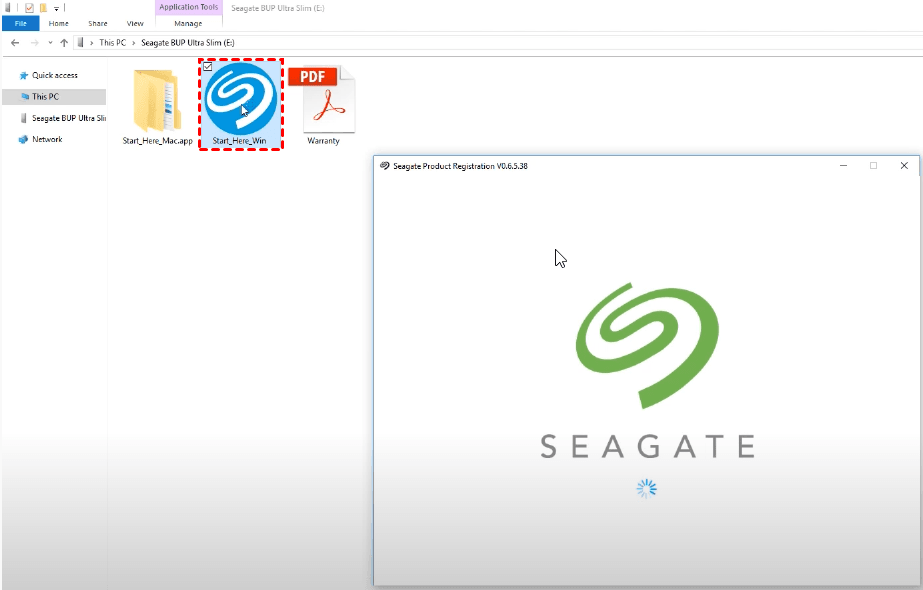
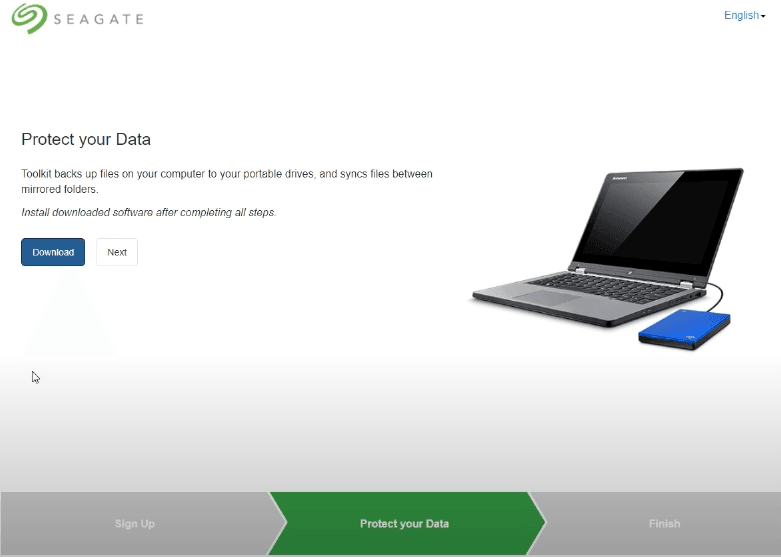
Download To install the Seagate Toolkit, download the SeagateToolkit.exe file from the provided link, then run the downloaded file and follow the installation wizard to complete the installation. Once installed, you can use the Seagate Toolkit software to protect your PC data with the Seagate Backup Plus portable drive.
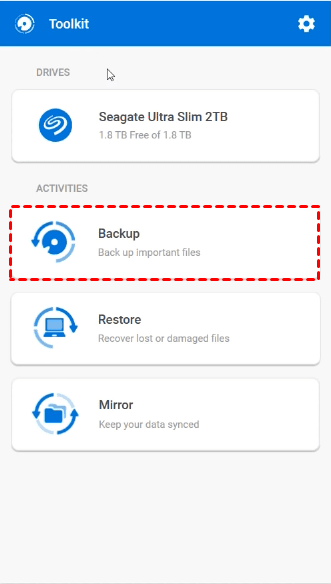
Step 3. After launching Seagate Toolkit, there are 3 activities on the main interface – Backup, Restore and Mirror. Choose Backup here.
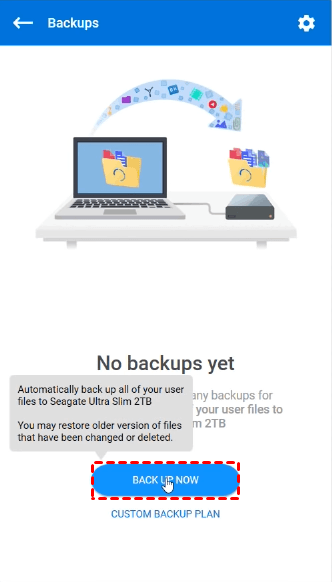
The user is prompted to click the "BACKUP NOW" button to initiate a backup process, which will automatically back up all files from the Windows root drive to a Seagate Backup Plus device.
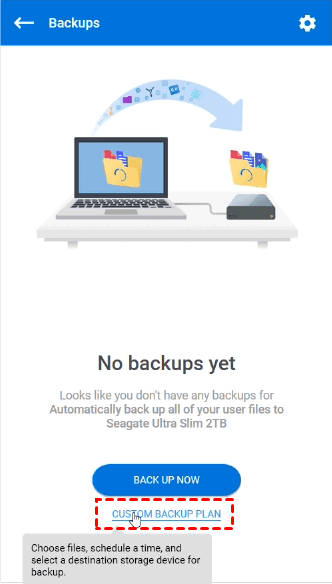
You can also choose a CUSTOM BACKUP PLAN to select specific files and schedule the backup to run at a time that suits you.
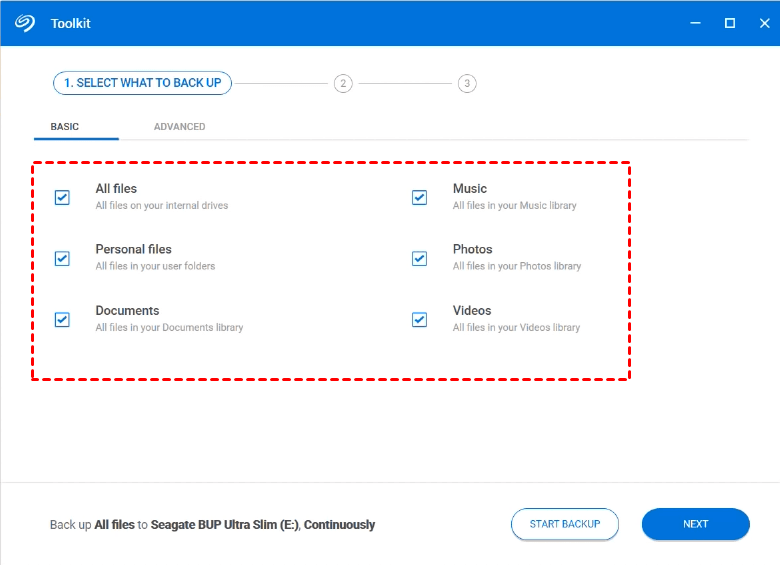
For users who chose custom backup, a setup window will automatically appear. Others can also access it by clicking on the backup progress and selecting "Edit" to customize the task.
Check and uncheck file types to decide what to backup, and optionally select folders manually on the ADVANCED tab, then hit Next to proceed.
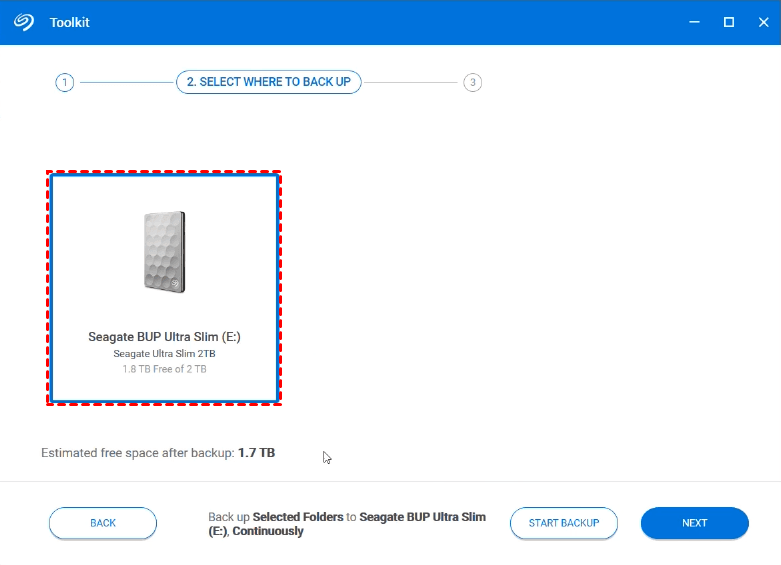
Connect the Seagate Backup Plus Slim to the computer and select it as the destination in the backup software, then click Next. Note that only one backup plan can be created for one device.
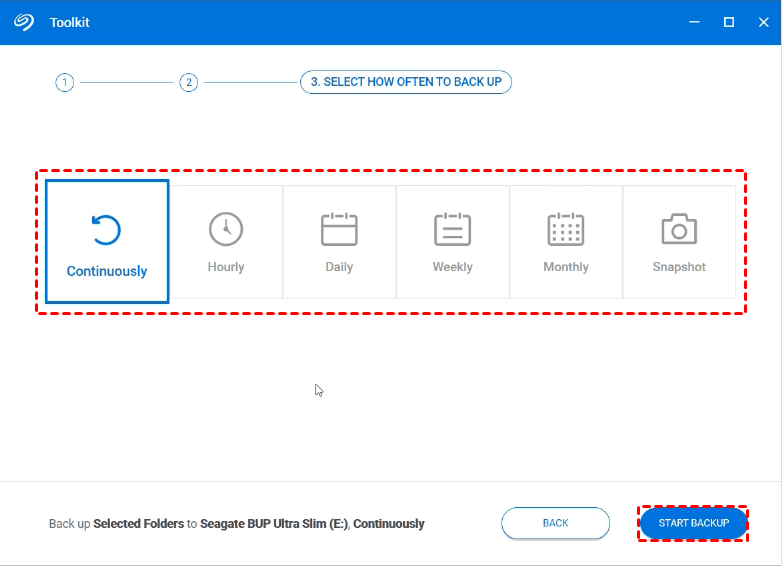
To set up automatic backups, select a schedule and click "Proceed". The default option is "Continuously", which runs automatically whenever files are modified, while "Snapshot" executes the backup only once.
How to restore files from Seagate Backup Plus:
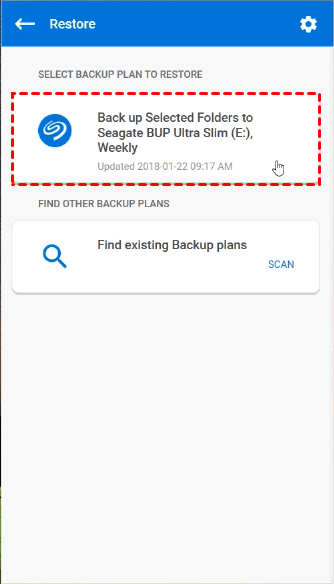
Connect your Seagate drive and launch Seagate Toolkit. Choose the Restore option and select the desired backup plan to recover your data.
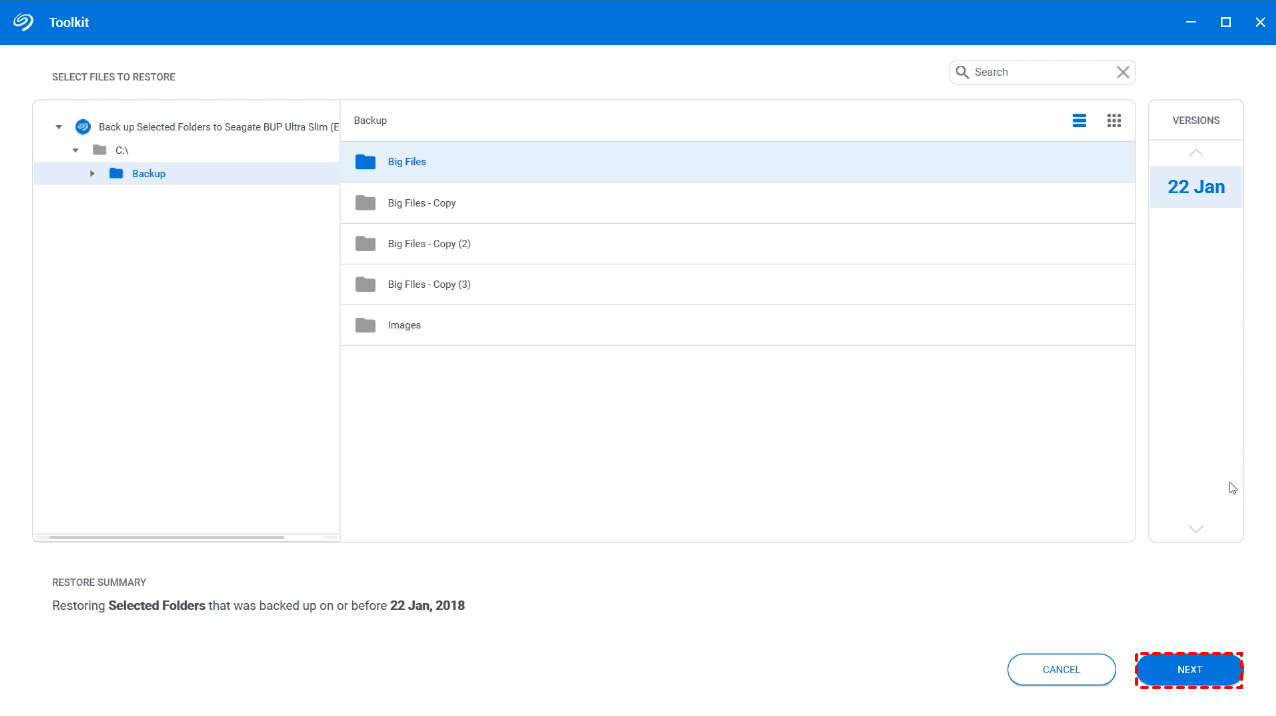
To restore a backup, select the entire backup job or individual folders, choose a backup version created at the desired time point, and click Next to proceed.
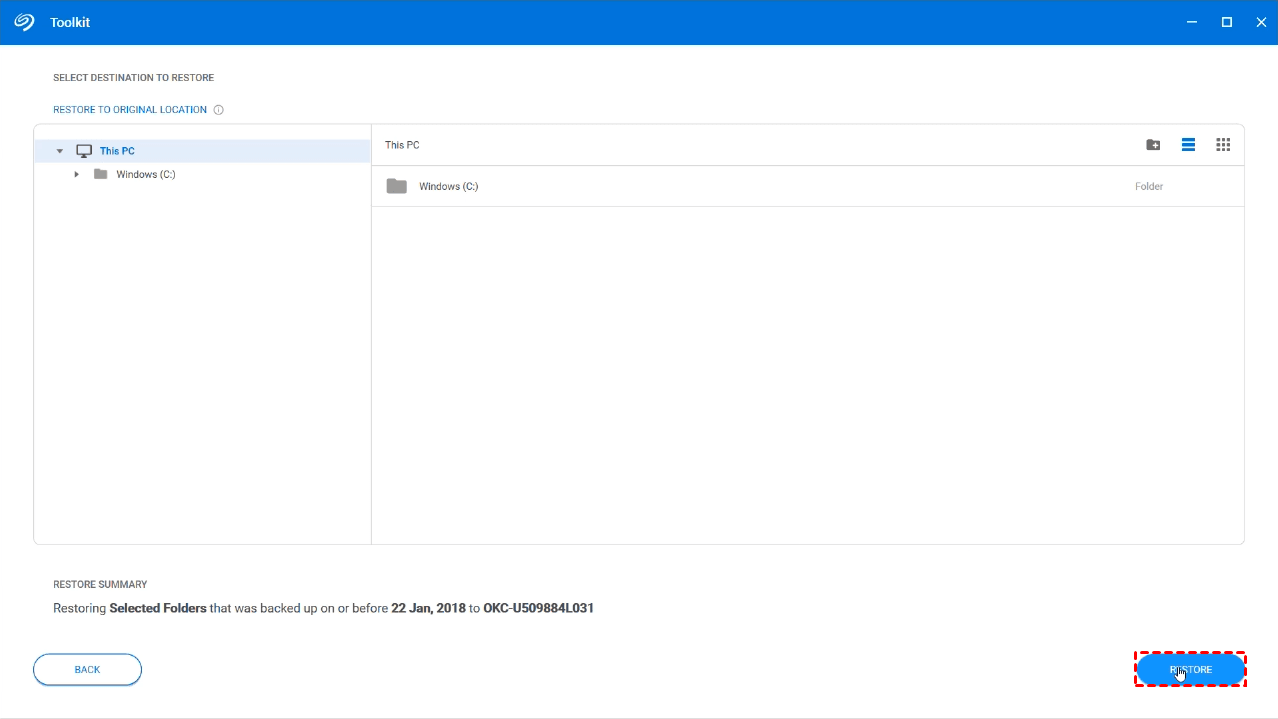
Specify a destination or restore the files to their original location by default. Click Restore to execute it.
How about Mirror feature in Seagate Toolkit?
You can choose the "Mirror" activity to create a mirror folder, which will copy any data you drag to it to the Seagate drive with the original format.
Please note that the process described is a two-way sync, not a backup, meaning any data deleted or modified in either folder will be reflected on both sides. If you're looking to protect your data automatically and keep multiple versions for recovery purposes, a traditional backup is a better option.
Case 2. How to use Seagate Backup Plus to backup all files and OS
Seagate Toolkit has flexibility in scheduling backups, but it lacks flexibility in what to backup and where to backup, limiting users to only backup certain types of data to specific Seagate devices, such as not allowing backup of Windows 10 operating system, non-system drives, or files to devices other than Seagate drives.
There's another software that can be used for system backup, Seagate DiscWizard. However, it only runs on Seagate and Maxtor hard drives. I prefer to use the Seagate Toolkit alternative, Qiling Disk Master Standard, which has higher compatibility and more optional backup types.
✔ This software supports various types of backups, including file/folder, partition, disk, and system backups. It allows users to run a task once or schedule automatic backups at intervals such as hourly, daily, weekly, or monthly. Additionally, it is often used in conjunction with incremental backups.
✔ You can sync any existing folder to another using file mirror, which doesn't create a new folder. This one-way mirror syncs changes from the source to the target, but not the other way around, so deletions or modifications from the target won't affect the source.
✔ Qiling Disk Master supports various storage devices as source or target directory, including internal/external hard drives, USB drives, NAS, network shares, or cloud drives, allowing for easy backups between different storage devices.
The free Standard version of the software already includes complete backup and restore features, but upgrading to a paid version offers additional features such as schedule options, different backup, USB plug in, File Sync, and dissimilar hardware restore.Professional or higher editions.
You can use Qiling Disk Master to create a virtual disk with the same structure as your physical disk, which can be used for testing, backup, or even as a portable version of your physical disk. This allows you to test software or operating systems on your physical disk without risking any damage to your actual data.
How to auto backup PC files to Seagate Backup Plus:
To perform automatic backups using your Seagate Backup Plus portable drive, install the backup software on your Windows computer and connect the drive. Then, follow the steps to set up automatic backups, which can also be applied to other external hard drives or USB drives.
Step 1. To back up your Windows files, go to the Backup tab and select File Backup, or back up your entire operating system with System Backup, or your entire hard drive with Disk Backup.

Step 2. Select the files or folders you want to backup, optionally choose a shared or NAS location, and then select the connected Seagate drive as the destination.

To set up automatic backup, click Schedule Backup > Enable Schedule Backup, then choose a frequency such as Daily, Weekly, or Monthly and customize the settings as needed, such as running hourly backups within a specific time frame.

Options: This tool allows you to manage various settings for image compression and processing, including setting the compression level, splitting images into multiple files, prioritizing operations, adding comments, and configuring email notifications.
Advanced schedule: In later versions, you can also select Event triggers (such as startup or shutdown), USB plug-in as the backup schedule.
Backup Scheme: In Pro or higher editions, the software can automatically delete old backup images based on a customized rule and switch to differential backup mode, which can help prevent the backup disk from becoming full. This can be useful if the Backup Plus has limited storage capacity.
Step 3. Click Proceed to execute the task.
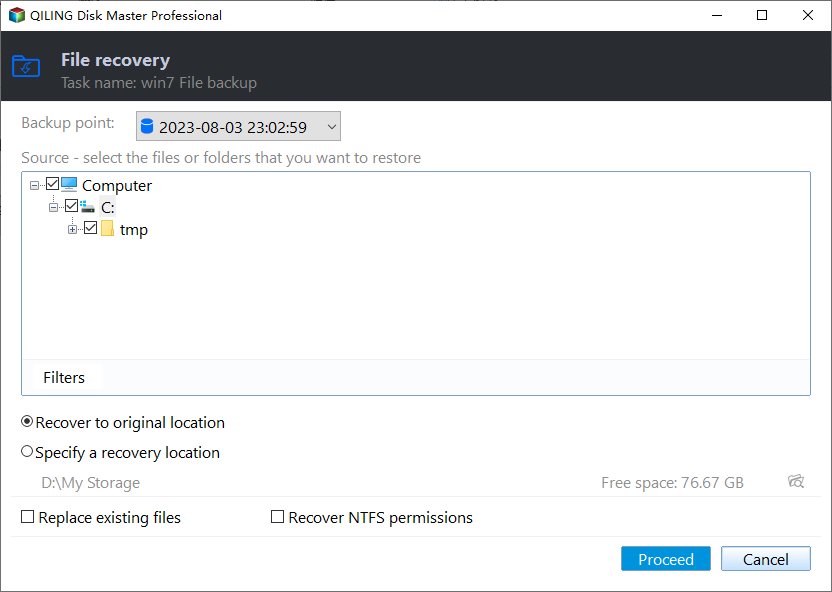
You can manage the backup in the Home page, or go to the Restore tab to restore files from the Backup Plus or other devices.
Create a portable Seagate Backup Plus backup software to use on any PC
Installing backup software on multiple computers can be inconvenient, especially if you have to maintain multiple devices.
You can use Qiling Disk Master to create a portable version of the software on a Seagate Backup Plus drive, which can be plugged into any target computer for direct use without installation.
Both the Technician and Technician Plus editions of Qiling Disk Master offer all standard and advanced features, including the ability to create portable backup software. The Technician edition also supports Windows servers, in addition to Windows PCs, making it a versatile option. You can download the edition that suits your needs, with the Technician edition being a good starting point.
How to create Seagate Backup Plus backup software for portable use:
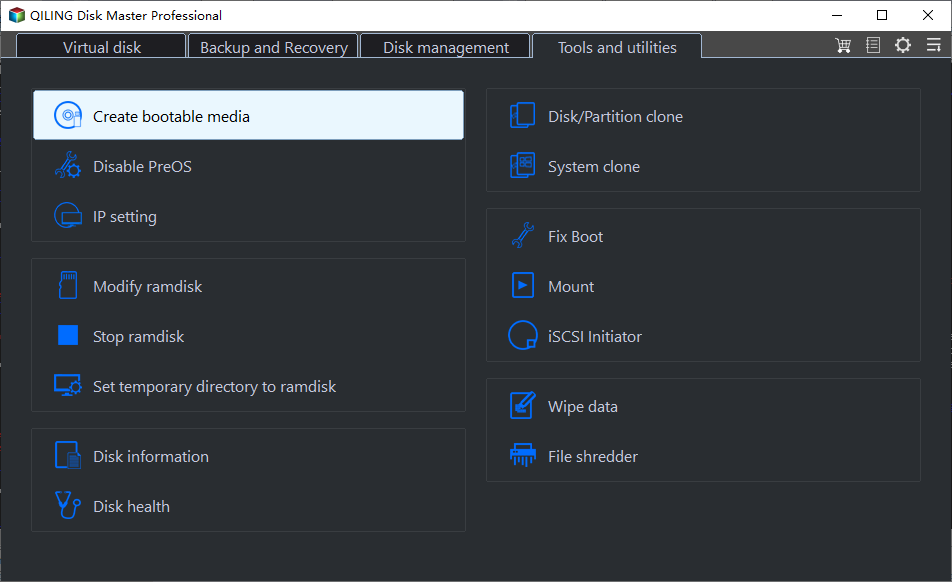
Step 1. Connect the Seagate Backup Plus drive to your computer, which has Qiling Disk Master installed. Then, open the software and navigate to the Tools tab, where you'll find the option to Create bootable media.
Step 2. The connected removable device should be selected as the target location by default, otherwise you can browse to select a target path manually.

Step 3. To install the Seagate Backup Plus drive, proceed with copying the installation directory to the target location, and then click Finish when it's complete. After that, you can insert the drive into any computer and run the portable backup software, Disk Master.exe, by double-clicking on it. This allows you to use the backup software without needing to install it on the computer.
✍Tips:
- This tool currently does not support network paths or CD-ROM drives as target locations.
- You cannot use Portable version simultaneously with Qiling Disk Master.
- If Qiling Disk Master has been installed on the computer before, you may encounter issues with the portable version. In this case, you can use the Register.exe to register the correct edition.
Conclusion
The Seagate Backup Plus drives come with the latest backup software, Seagate Toolkit, which automatically backs up files and creates a mirror. However, this feature only applies to data in the Windows root drive and excludes system files and program files.
To backup files or system partition, including the entire disk, consider using Seagate's Qiling Disk Master software. This tool allows for scheduled backups and automatic cleanup methods to prevent backup disk full issues. Additionally, the technician or techplus edition of Qiling Disk Master enables the creation of bootable media that can work on any PCs or servers.
Qiling Disk Master can be used for backup and as Seagate cloning software to migrate hard drives to smaller SSDs or larger HDDs, with a specialized Server edition for Windows Server users.
Related Articles
- Backup Files on Seagate External Hard Drive | 3 Ways
Learn how to Backup Files on Seagate External Hard Drive | 3 Ways with clear steps, key checks, and practical tips. - Top 3 Seagate Hard Drive Backup Software in Windows 10/8/7
Find the best Seagate hard drive backup software to backup data to Seagate external hard drive safely and easily according to the following text. - Quickly Create Seagate DiscWizard Image Backup | 2 Ways
This article introduces you to Seagate DiscWizard and how to create Seagate DiscWizard image backup and recovery in detail. Scroll down below to learn everything you want to know. - Best Free Seagate NAS Backup Software in Windows 10/8/7
This guide explains Best Free Seagate NAS Backup Software in Windows 10/8/7 with clear steps, key checks, and practical tips. - Move Users Folder to Another Drive in Windows Server 2012
Find practical guidance for Move Users Folder to Another Drive in Windows Server 2012, including disk, partition, file system, or Windows troubleshooting steps. - Fixed: Offline Files Sync Pending in Windows 10
You will learn 5 solutions to fix offline files sync pending and an easier way to sync network files locally.
Products
Articles & Tutorials
- Data Recovery
- Data Backup
- File Recovery
- File Backup
- File synchronize
- System Backup and Restore
- Disk and Partition Clone
- Technical articles
- Disk Master Help
- Windows Deleted File and Disk Recovery Tutorials
- Windows File and Data Recovery Tutorials
- More Windows Tutorials for Install, Security, Files, and PC Tips
- Windows Boot, Repair, and Recovery Environment Tutorials
- Windows Backup Tutorials
- Windows Restore Tutorials
- Windows Clone and Migration Tutorials
- Windows Server Backup, Recovery, and Management Tutorials
- Windows Disk, Partition, and Storage Management Tutorials