Automatically Sync Multiple Folders to Google Drive | 3 Ways
Protect and share your folders with Google Drive
Google Drive, released in 2012, is a cloud file storage service with 240 million monthly active users, offering 15GB of free storage and paid plans up to 30TB. It allows users to store, share, and sync files across multiple devices.
Google Drive offers a convenient way to access stored files from anywhere, with website, computer app, and mobile app versions available. This allows users to access their files from smartphones, tablets, and PCs at any time, making it easy to collaborate with others. Additionally, users can invite others to edit files, making it a useful tool for group work in a company or school setting.
Many users want to sync PC folders to Google Drive, especially when working on a project collaboratively with others. This article will show you how to efficiently sync multiple folders with Google Drive.
- Way 1. Sync Folders to Google Drive Web One by One
- Way 2. Sync multiple folders at once via Google Drive for Desktop
- Way 3. Auto Sync Multiple Folders to Google Drive via Effective Tool
Way 1. Sync Folders to Google Drive Web One by One
To sync multiple folders with Google Drive, you can use the "Folder Upload" or "File Upload" feature in the Google Drive web browser to upload folders one by one. This allows you to upload multiple folders at once, making the process more efficient.
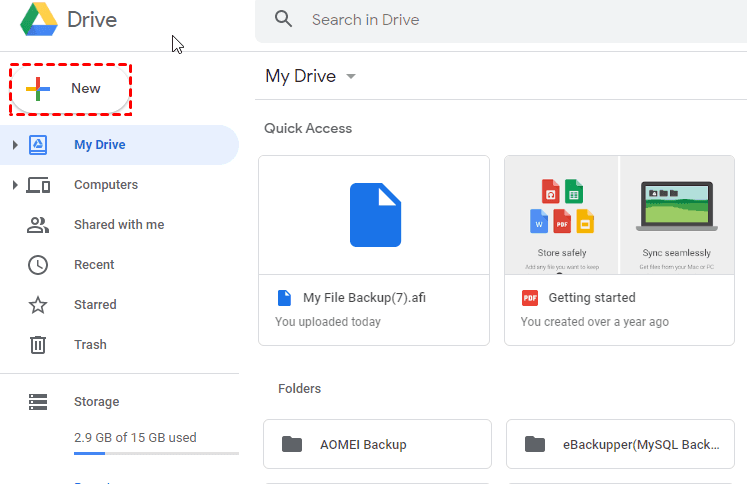
1. To login your Google Drive Account, click the New button at the left side.
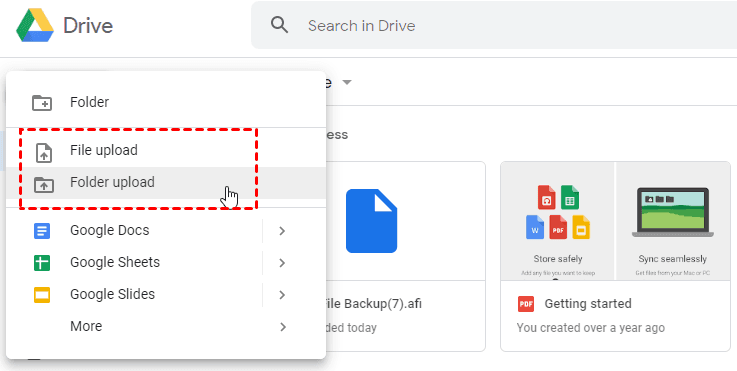
2. To backup your folders to Google Drive, choose Folder Upload, navigate to your desired folder, and click Upload.
Way 2: Sync multiple folders at once via Google Drive for Desktop
If you want to sync multiple folders to Google Drive, Google Drive for desktop could be one of your choices.
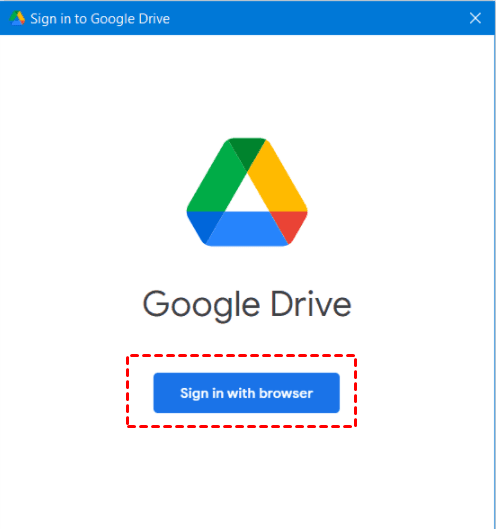
1. Download the Google Backup and Sync desktop app, sign in with your Google account, and follow the installation prompts.
2. To access Google Drive for desktop, click on the Drive icon in the system tray, then select Settings and Preferences to begin.
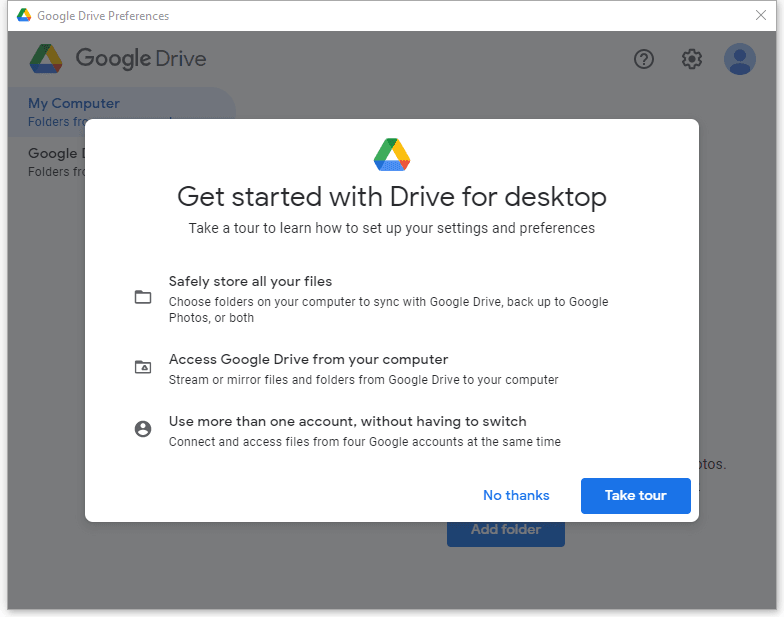
3. To sync a folder to Google Drive, choose Add Folder in the My Computer tab and select the folder you want to sync.
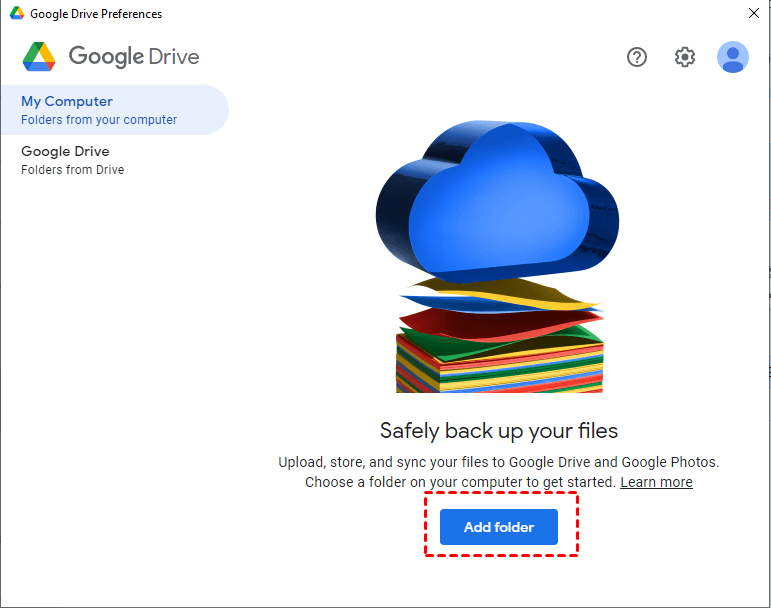
4. To complete the task, select either "Sync with Google Drive" or "Back up to Google Photos", and then click "Done". The first option will sync all files and folders, while the second will only upload photos and videos, and also sync any deleted files.
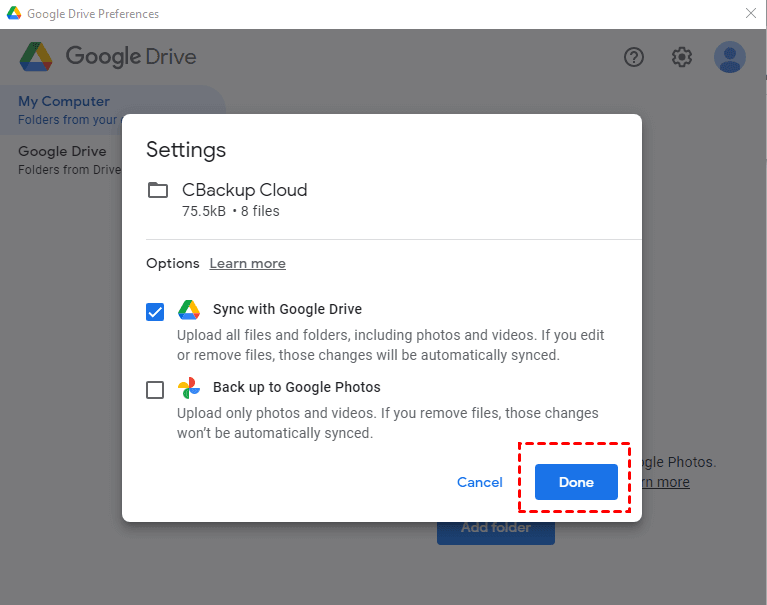
5. To sync multiple folders, first, click on the "Add Folder" button to start the process. Then, select the folders you want to sync by checking the boxes next to each folder's name. Next, you can add multiple folders by repeating steps 3 and 4. After that, click the "Save" button to start the sync process.
Google Drive for desktop is a more powerful alternative to the web browser, but users may encounter issues such as Google Drive not syncing, getting stuck on "Preparing for Sync", or stopping suddenly. To resolve these problems, various solutions can be tried, including troubleshooting steps to resolve the issues and get Google Drive working smoothly again.
- Restart Google Drive for desktop.
- Disconnect and reconnect your Google Drive account.
- Restart computer.
- Reinstall Google Drive for desktop.
- View the troubleshooting page to for more solutions.
If you're still having trouble solving a problem, consider finding an alternative solution. This can be a more effective way to address the issue.
Way 3. Auto sync multiple folders to Google Drive via an effective tool
It's highly recommended to try the best file sync software, Qiling Disk Master Professional, which can sync multiple folders from PC to Google Drive or vice versa with simple clicks.
And it allows you to run the sync task schedule, from daily to monthly or use event triggers and USB plug in. Besides, you can real-time sync changed or newly added files and folders to the target path and undo changes made in the destination to be sure it's exactly the same as source.
To take data security seriously, you can utilize its file backup feature, which compresses all folders into an image file and requires a file restore before use. Additionally, the feature allows for syncing or backing up files to multiple paths, including Google Drive, Dropbox, OneDrive, external hard drives, USB drives, NAS, or shared folders.
Download the 30-You can try Qiling Disk Master Server for a day free trial to see how it works. For server users, you can also try the Qiling Disk Master Server.
To sync multiple folders to Google Drive, download and install the best file sync software, then launch it and follow the steps to sync your folders.
1. At the main interface, go Sync > Basic Sync.

Other sync methods to automatically sync multiple folders with Google Drive:
- Real-Time Sync: The software will sync files immediately when it detects a change in the source directory.
- Mirror Sync is a process that creates a complete copy of the source directory, effectively undoing any changes made in the destination directory during the next scheduled sync.
- Two-Way Sync allows for syncing changes between two locations from source to destination and vice versa once there is a change.
2. Click "Add Folder" to specify directories you want to sync to Google Drive, whether it's on a local drive, external drive, network or shared folder. You can also change the "Task Name" to make it easy to distinguish.

Tip: After selecting a source directory, you can hover your pointer over the selection box, click on the funnel icon and specify the type of file you want to exclude or include.
3. To select the target path, click the small triangle and choose "Select a cloud drive" from the drop-down menu, which will auto-detect all installed cloud drives.

4. To set up auto synchronization, click Schedule Sync and choose from options such as Daily, Weekly, Monthly, or Event triggers, and then select USB plug in. After that, click Proceed to sync multiple folders to Google Drive.

Note: You can specify settings in the Options, such as writing a comment on this task to distinguish it from others, enabling email notifications, and getting the complete status.
✨ How to backup multiple folders to Qiling Cloud
With the growing popularity of cloud storage, Qiling offers its own cloud service, Qiling Cloud. After signing up for a Qiling account, users can utilize 1TB of free storage for 15 days. To start backing up folders to Qiling Cloud, simply navigate to Backup > Cloud Backup and follow the process.
Write in the End
To sync multiple folders to Google Drive, a suitable method is to use the file sync software Qiling Disk Master, which is easy to operate even for a novice. This software not only allows syncing multiple folders but also enables running it as a scheduled task, and offers different sync methods based on individual needs.
Qiling Disk Master is a hard drive cloning software that not only synchronizes files but also clones hard drives, allowing for OS migration to SSD without reinstalling, cloning drives with bad sectors, cloning larger drives to smaller ones, and cloning Windows 10 to NVMe.
Related Articles
- How to Sync Local Folder to Google Drive in Windows 7/8/10
- Sync Files to Google Drive Automatically | 4 Ways Included
- How to Sync Network Folder to Google Drive
- Easy Steps to Sync QNAP NAS and Google Drive Cloud
- Workaround to Lenovo Product Recovery Stuck in Recovery Mode
Learn the key steps, checks, and practical tips for this related guide. - Best Way to Do Real-Time Backup to External Hard Drive
The best real-time backup software provided in this post to perform real-time backup to external hard drive in Windows 11/10/8/7 to get continuous data protection.
Products
Articles & Tutorials
- Data Recovery
- Data Backup
- File Recovery
- File Backup
- File synchronize
- System Backup and Restore
- Disk and Partition Clone
- Technical articles
- Disk Master Help
- Windows Deleted File and Disk Recovery Tutorials
- Windows File and Data Recovery Tutorials
- More Windows Tutorials for Install, Security, Files, and PC Tips
- Windows Boot, Repair, and Recovery Environment Tutorials
- Windows Backup Tutorials
- Windows Restore Tutorials
- Windows Clone and Migration Tutorials
- Windows Server Backup, Recovery, and Management Tutorials
- Windows Disk, Partition, and Storage Management Tutorials