Quickly Move My Documents to Another Drive in Windows 10
Need to move My Documents to another drive
In Microsoft Windows, the "My Documents" folder (previously called "Documents" in Windows Vista) is used to store computer documents and files related to installed programs, serving as a central location for keeping track of digital files.
While My Documents can be a convenient way to access files, placing it on the same drive as the operating system (C:) is not ideal. This is because the C: drive typically contains the OS, which can lead to issues if the drive becomes full or experiences problems, potentially affecting the entire system.
- Degrade Windows performance. As My Documents grows in size, it's likely to consume all available space on the C: drive, leading to a slow and sluggish system with long boot times and reduced read/write speeds.
- My Documents folder is easy to lose. The My Documents folder is at risk of being lost due to system crashes, hard disk failure, or user error.
To move the My Documents folder to another drive, follow these steps: Right-click on the folder and select Properties. In the Properties window, click on the Location tab. Here, you can change the location of the folder to the desired drive. Click on the "Move" button to move the folder to the new location.
Top 2 ways to move My Documents to another drive in Windows 10
To move My Documents to another drive, you can use the built-in Windows feature or a free tool like Qiling Disk Master, which works on Windows 7, 10, and 11 systems.
To move your "My Documents" folder from the C drive to the D drive, open File Explorer, navigate to the "My Documents" folder on the C drive, right-click and select "Cut", then navigate to the D drive, right-click and select "Paste". Alternatively, use the keyboard shortcut Ctrl + X to cut the folder and Ctrl + V to paste it. Be careful not to accidentally delete or overwrite important files, and verify that the files have been moved successfully.
- Method 1: Move My Documents to another drive via Windows inbuilt feature
- Method 2: Move My Documents folder to another drive using Qiling Disk Master
Method 1: Move My Documents to another drive via Windows inbuilt feature
1. Create a new folder named Documents at the target drive, D: drive, for example.
2. To access your user account, navigate to "This PC" > "Local Disk (C:)" > "Users" > "User Name".
3. Right-click on the My Documents folder and select Properties.
4. Click on the Location tab, type the new path to the Documents folder, and click OK. For example, click on the Location tab, type D:\Documents, and click OK.
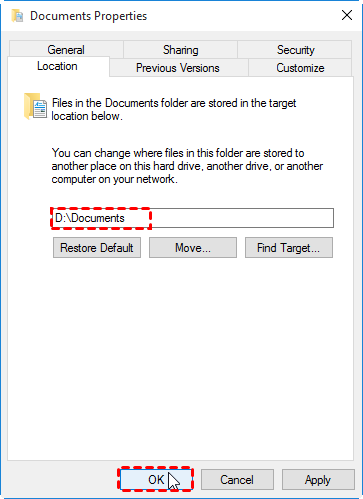
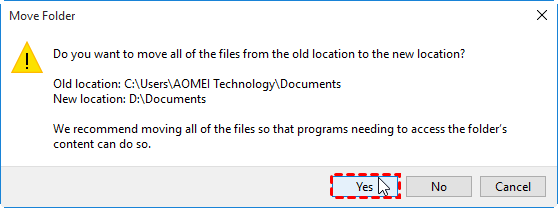
5. Click "Yes" when prompted to move all files from the old location to the new one, and wait for the process to complete.
✍ Tips:
- The original My Documents folder in the C drive will be automatically deleted.
- To get back the My Documents folder in the C drive, find the Documents folder in its new location, right-click on it, select Properties, and click Restore Default under the Location tab.
Method 2: Move My Documents folder to another drive using Qiling Disk Master
Qiling Disk Master Standard is a free backup and sync software for Windows that allows users to easily move their My Documents folder to another drive and synchronize one or multiple folders from their original location to a new location.
To move your My Documents folder to another location, you can use Qiling Disk Master to relocate it. The new location can be another drive on the same disk, an external drive, a network location, or a cloud drive, such as OneDrive. By following the steps with Qiling Disk Master, you can easily move your My Documents folder to a more suitable location, freeing up space on your original drive.
✎ Note: You don't need to create a new folder named "Documents" at the destination drive if using Method 2, as it will be automatically created during the sync process.
1. To sync the Document folder to another drive in Server 2012, 2016, 2019, 2022, etc, download, install, and launch Qiling Disk Master Standard, then try Qiling Disk Master Server.
2. Click Backup and recovery and select File Sync.

3. Edit the task name for this file sync task. Click Folder to select the Documents folder. You can also add other user folders like Downloads, Pictures, Videos, etc by clicking the "+" icon.

Note: Select the My Documents folder in the above picture, and then click the Filter settings to include or exclude files or folders with certain file extensions, such as backup files with a specific file extension.
4. Select the destination drive (eg: D:) to store the folder.

>> Options: To add a comment and enable email notification for your sync task, you can simply click on the "Add comment" field and type in the specific sync contents you want to note. This way, you can easily identify the sync contents and also receive email notifications when the task is completed.
>> Schedule Sync: You can set the automatic sync task to run daily, weekly, or monthly, and for more advanced schedule modes like "Event triggers" and "USB plug in", you may upgrade to Qiling Disk Master Professional.
5. To quickly move My Documents to another drive, click on the Proceed button.
✍ Tips:
- After the sync process, the Documents folder in the C drive can still be found. You can either delete it to free up space or keep it as a backup.
- If you delete the Documents folder in the C drive, the sync task will become invalid, meaning it can't run anymore.
- To move the Document folder to another drive on multiple computers, you can create a portable version of the software and run it from a flash drive, especially if you have Technician or Technician Plus edition. This allows for easy transfer and management of the Document folder across different computers.
Summary
To move My Documents to another drive in Windows 10 or 11, you can use either the built-in "Move" feature or a third-party tool like Qiling Disk Master. If you have multiple folders to move, the sync feature in Qiling Disk Master is a convenient option. However, if you have large files in My Documents, it's recommended to use the file backup feature to ensure their safety before moving them. This approach helps prevent data loss in case something goes wrong during the transfer process.
The software also allows for data copying, cloning, and replacing hard drives, in addition to its backup and sync features.
Related Articles
- Four Ways to Transfer Files from C Drive to D Drive in Windows 10/8/7
This guide explains Four Ways to Transfer Files from C Drive to D Drive in Windows 10/8/7 with clear steps, key checks, and practical tips. - Move User Profile to Another Drive in Windows 10 Easily
Learn how to Move User Profile to Another Drive in Windows 10 Easily with clear steps, key checks, and practical tips. - How to Move Program Files to Another Drive on Windows 10/8/7?
Although it's not suggested to move program files to another drive, you still can make this task safely. The secret is to create a system image backup in advance. - How to Create QNAP to Dropbox Sync | 2 Free Tools
This tutorial provides two easy ways to perform QNAP to Dropbox sync. You can pick QNAP Cloud Drive Sync or free Qiling Disk Master to help you. - Top 2 Ways to Backup Files to Dropbox in Windows (Free)
Users want to backup all files on their computer to Dropbox so that their data will be safe even in case of computer meltdown. - Backup Microsoft Office Before Reformatting Hard Drive
Learn how to Backup Microsoft Office Before Reformatting Hard Drive with clear steps, key checks, and practical tips.
Products
Articles & Tutorials
- Data Recovery
- Data Backup
- File Recovery
- File Backup
- File synchronize
- System Backup and Restore
- Disk and Partition Clone
- Technical articles
- Disk Master Help
- Windows Deleted File and Disk Recovery Tutorials
- Windows File and Data Recovery Tutorials
- More Windows Tutorials for Install, Security, Files, and PC Tips
- Windows Boot, Repair, and Recovery Environment Tutorials
- Windows Backup Tutorials
- Windows Restore Tutorials
- Windows Clone and Migration Tutorials
- Windows Server Backup, Recovery, and Management Tutorials
- Windows Disk, Partition, and Storage Management Tutorials