How to Easily Perform Continuous File Sync on Windows
User Case
Reliable Continuous File Sync Software Suggestion?
"Hello, I need a program that checks folder A (and all subfolders) and copies changes across to folder B (and subfolders) continuously. It should be reliable (i.e not crash in the middle of a sync job), do the job accurately and have a relatively simple interface. I have been using FreeFileSync for a while now which does this well but with the amount of adware being bundled of late, am looking for an alternative. Any suggestions?"
- Question from Windows 10 Forums
Benefits of Sync Files Continuously
Continuous file sync, also known as File Synchronization, monitors folder changes and copies new or modified files shortly after they occur, ensuring data accuracy and security.
✥ It ensures data consistency and security. Since you only need to enter data in the source folder or source device, it will automatically sync to the target location or device, ensuring it's always up-to-date, complete, and free from human error or duplication.
✥ It can save time and increase productivity. After completing the File Sync setting, the synchronization process will be executed automatically, saving you time and energy that would be spent on manually exporting and importing data.
Learn how to keep your files in sync across multiple devices with two effective methods for continuous file synchronization on Windows. By using one of these methods, you can ensure that your files are always up-to-date and accessible from anywhere. Whether you're working on a project or just want to keep your personal files organized, these methods can help you stay on top of your file management needs.
Perform Windows Continuous File Sync via Robocopy
ROBOCOPY, Robocopy is a command-line directory and/or file replication command for Microsoft Windows that helps copy file data from one location to another. The basic syntax of the robocopy command is robocopy [source] [destination] [file[ ...]] [options], and various options can be used to meet different needs.
| Parameter | Description |
|
[source] |
Specifies the path to the source directory. |
| [destination] | Specifies the path to the destination directory. |
| [file] | Specifies the file or files to be copied. Wildcard characters (* or ?) are supported. If not specified, the default value is *.*. |
| [options] | Specifies the options to use with the robocopy command, including copy, file, retry, logging, and job options. For more information on copy options, click here. |
In fact, Robocopy provides you with /mot: copy option to monitor changes within M You can't monitor changes less than one minute. To perform Robocopy continuous sync, use this command.
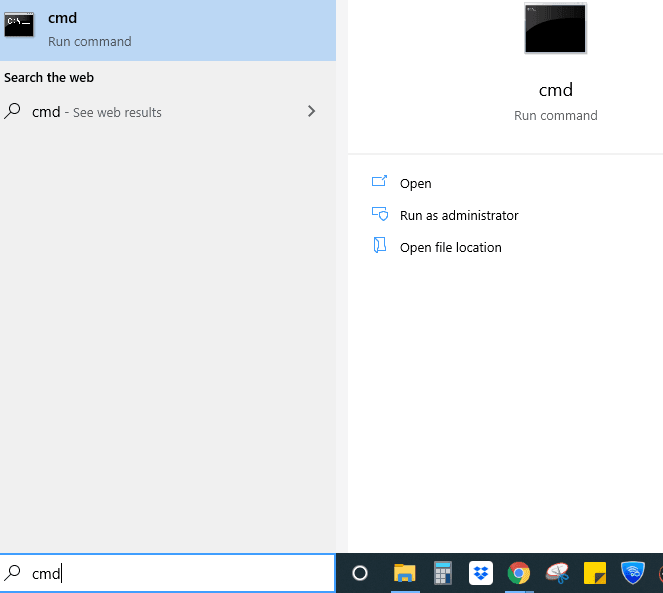
- To run the Command Prompt as administrator, start by opening the Windows search box, then type cmd and press Enter. This will open the Command Prompt.
- To sync the temp folder and its subfolders located in \\192.168.0.250\PublicShare\ to \\192.168.0.58\WorkD, and monitor every one minute for continuous file sync, type:
▶ robocopy \\192.168.0.250\PublicShare\temp \\192.168.0.58\WorkD /e /copy:DAT /mt /z /mot:1

Tips✍:
● /e: The /copy option allows you to copy subdirectories, including empty ones, and can be used with additional flags to modify the copied files. For example, /copy:DAT enables copying of the source folder to the destination folder with D (Data), A (Attributes), and T (Time stamps), and can be modified. Other options include /mt for multi-threading to enhance performance, and /z to restart the transfer in case of an interruption.
Easier Way to Perform Continuous File Sync for All Windows
Qiling Disk Master Professional is a powerful and reliable file sync software that allows for easy file synchronization across all Windows PCs, including 32-bit and 64-bit versions of Windows XP, Vista, 7, 8, 8.1, 10, and 11. With its intuitive GUI, this software makes it simple to perform file sync operations with just a few clicks, even for novice users.
With the help of Qiling Disk Master Professional, you could:
✾ Sync folders to multiple destinations: You can sync files and folders to various storage locations, including your local disk, external hard drives (HDD or SSD), CDs/DVDs, USB flash drives, network shares, NAS devices, or even cloud services like Google Drive, Dropbox, and OneDrive.
✾ Schedule automatic file sync: In addition to File Sync, it allows you to run scripts and automate tasks.schedule sync You can set up tasks to run at regular intervals, such as daily, weekly, or monthly, to help you stay on top of changes. Additionally, you can set up tasks to trigger at specific events, like a USB device being plugged in, which can be useful for automatically copying files when a USB drive is connected. This can help you get changes regularly and ensure that your files are up-to-date.
✾ Copy open files without effort: The copying process will not be affected when using the file.
To try out the file sync software, download the Qiling Disk Master Professional for Windows, which offers a 30-day free trial. For server users, you may want to try a different option.Qiling Disk Master Server!
To achieve continuous file sync in Windows using Qiling Disk Master, let's take the example of synchronizing files from one network location to another.
Step 1. Launch Qiling Disk Master Professional, click the Backup tab and select File Sync.
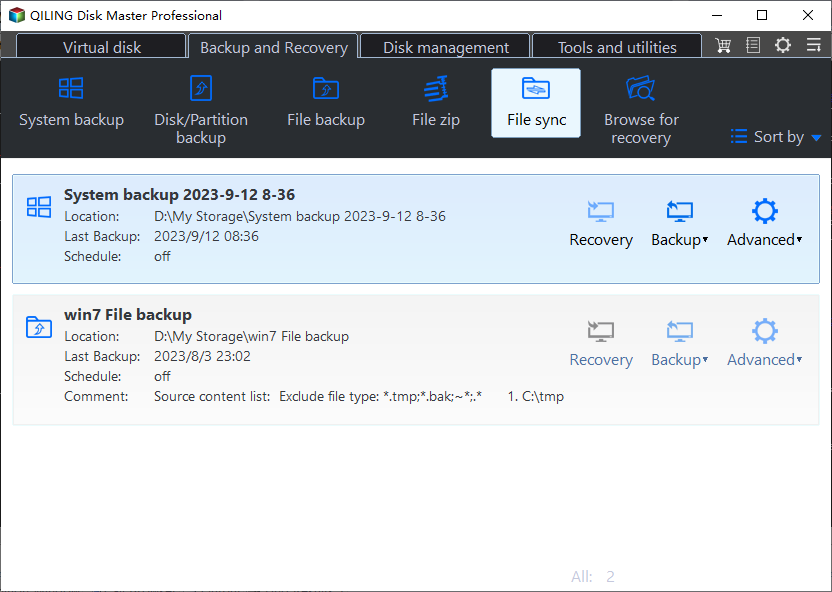
Note: The File Sync feature ensures data security by blocking any file changes in the destination folder, resulting in a duplicate copy of the original files.
Step 2. Press + Folder button -> Share/NAS.
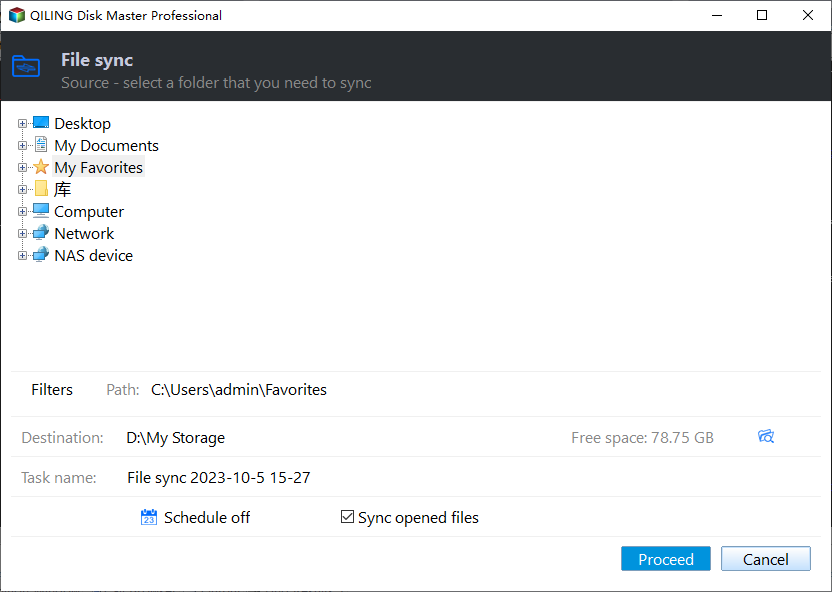
Step 3. To add a network share or NAS device, click "Add Share or NAS Devices" and input the display name and network path. If required, type in the user name and password. Then, select the folder you want to sync.
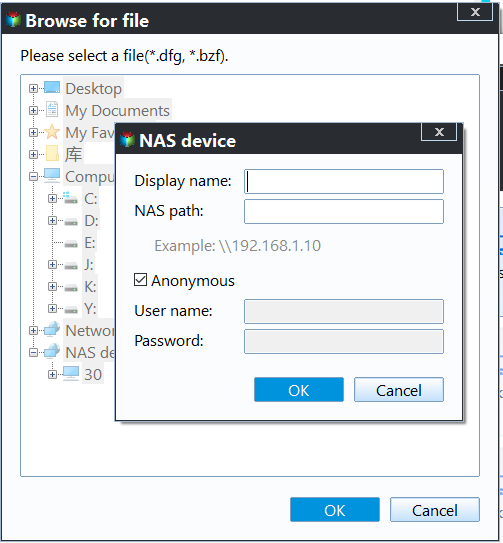
Note: You can also enable filter settings to include or exclude specific files or folders from syncing, similar to backing up files with a certain file extension.
Step 4. To add another network share as the destination, click the triangle icon and tap "Add Share or NAS Device". Then input the "Network Path" to complete the process.

Step 5. After selecting the source and destination folders, confirm your settings. Then click "Proceed" to perform continuous file sync.
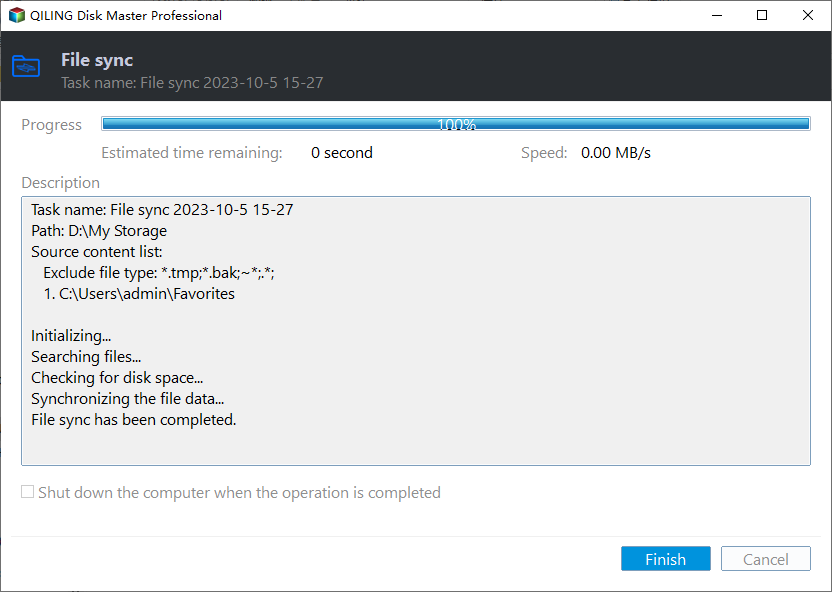
Tips ✍:
● The Options The program can be modified to include a feature in the lower left corner that allows users to comment on the real-time file sync task, and also verifies the integrity of the files in the destination location during synchronization.
● If you want to perform real-To synchronize files across multiple computers easily, consider using a cloud-based file syncing service. This allows you to access and share files from any device with an internet connection, while also ensuring that all devices are up-to-date with the latest file versions.creating a portable version This software can be run from a flash drive, eliminating the need to install it on any computer. It is supported by the Technician or TechPlus edition, making it a convenient option for users who want to access its features without taking up space on their device.
● To copy data from one hard drive to another, it's suggested to use the command line interface of the operating system, such as Windows Command Prompt or Linux terminal, to run a command like `robocopy` or `rsync` to copy files and folders, or use a dedicated data transfer software like Qiling Backup to clone the hard drive. Additionally, using a USB drive or external hard drive to transfer data can also be an option, but it may take longer depending on the amount of data.disk clone This feature allows users to create an exact copy of their system disk, including all installed applications, settings, and data, under the clone tab. It functions seamlessly in cloning a system disk, ensuring a precise replica of the original disk.
Summary
You can perform continuous file sync on Windows using either the Robocopy command line that comes with Windows or a reliable file sync software like Qiling Disk Master Professional.
Comparing the two methods, the second one is a more user-friendly option. It's easy to operate, even for those who are new to computers, and can also help with stuck OneDrive syncs. In contrast, the first method requires some computer knowledge, as it involves using specific commands. This makes the second method a more accessible choice for those who want to get started quickly.
Related Articles
- Sync Files to Google Drive Automatically | 4 Ways Included
4 Ways offered in this post to sync files to Google Drive automatically, just follow the step-by-step guide sync files to Google Drive easily. - WD SmartWare Continuous Backup Not Working – Quick Fix
You will learn the causes and fixes to WD SmartWare Continuous Backup not working as well as how to perform continuous backup with easier alternative. - Best Real-Time Backup Software for Windows 10/11 [2023]
This article introduces you to the real-time backup meaning and how to perform it with the best real-time backup software. Please click to learn more! - Best freefilesync alternative for Windows 10/8/7
Get the best FreeFileSync alternative freeware in this article and how to use it to sync files (only changes) automatically in simple steps. - Windows 10 File History Backup Cannot Folders | Solved
This guide explains Windows 10 File History Backup Cannot Folders | Solved with clear steps, key checks, and practical tips. - How to Backup Windows 11 Files & OS to Network Drive
Learn how to Backup Windows 11 Files & OS to Network Drive with clear steps, key checks, and practical tips.
Products
Articles & Tutorials
- Data Recovery
- Data Backup
- File Recovery
- File Backup
- File synchronize
- System Backup and Restore
- Disk and Partition Clone
- Technical articles
- Disk Master Help
- Windows Deleted File and Disk Recovery Tutorials
- Windows File and Data Recovery Tutorials
- More Windows Tutorials for Install, Security, Files, and PC Tips
- Windows Boot, Repair, and Recovery Environment Tutorials
- Windows Backup Tutorials
- Windows Restore Tutorials
- Windows Clone and Migration Tutorials
- Windows Server Backup, Recovery, and Management Tutorials
- Windows Disk, Partition, and Storage Management Tutorials