Best FreeFileSync Alternative Freeware - Qiling Disk Master
- Any FreeFileSync Alternative to Sync Files?
- About FreeFileSync
- Sync Files and Compare Change with FreeFileSync
- FreeFileSync Limitations
- Best free FreeFileSync alternative for All Windows Systems
- Perform Automatic File Sync with FreeFileSync Alternative
- Wrapping Things Up
Any FreeFileSync Alternative to Sync Files?
FreeFileSync has alternatives that offer more flexible file syncing options. Unlike these alternatives, FreeFileSync does not provide schedule sync options, unless you create a schedule sync task using the Task Scheduler.
About FreeFileSync
FreeFileSync is a free, open-source file synchronization software available for Windows 10, 8.1, 8, 7, Vista, XP, MacOS, and Linux. It allows users to compare one or multiple folders based on content, modification time, and file size, and then synchronize the content according to user-defined settings.
FreeFileSync offers two versions: the free version and the Donation Edition, which costs at least 5 Euro for a month. The Donation Edition provides additional features, including those mentioned earlier.
- Parallel file copy.
- Auto updater for Windows.
- Email notification.
- Silent installation.
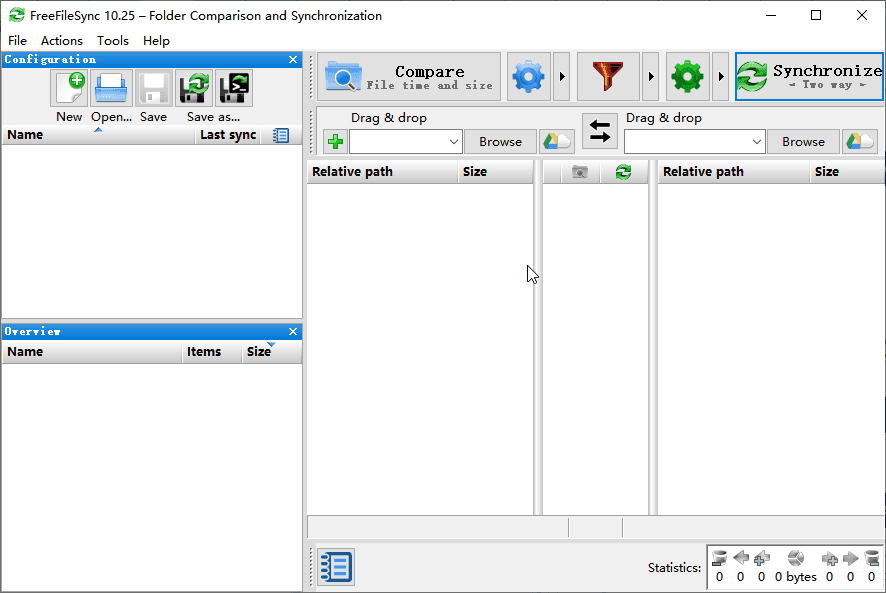
After installing FreeFileSync software, you will also get the RealTimeSync software installed.
Sync Files and Compare Change with FreeFileSync
To sync files easily with FreeFileSync in Windows 7/8/10, follow these simple steps: First, download and install the FreeFileSync software on your computer. Next, launch the program and select the two folders you want to sync by clicking on the "Add" button and browsing to the folders.
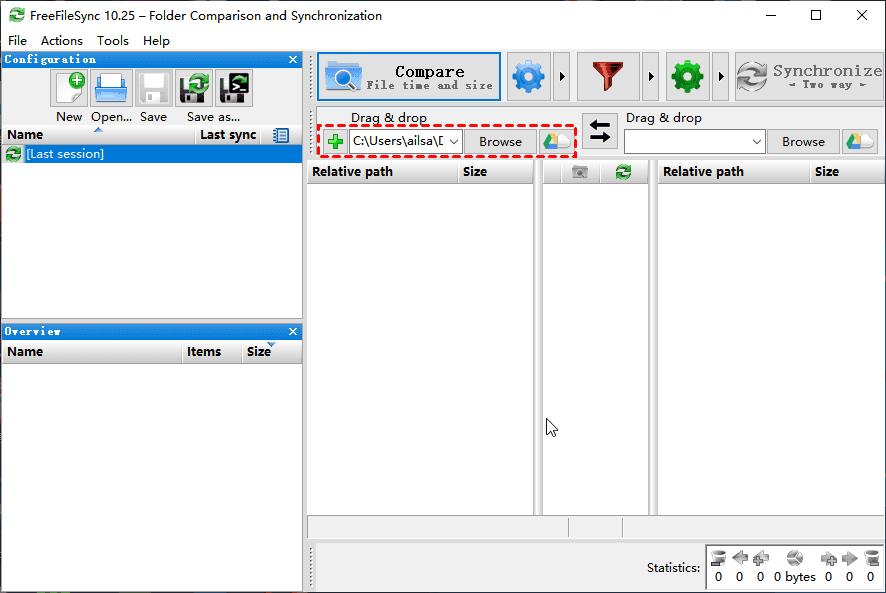
1. To start, execute the FreeFileSync software and click the "+" button to add a folder pair or click "Browse" to select a folder on your local computer on the left side - let's choose a folder.
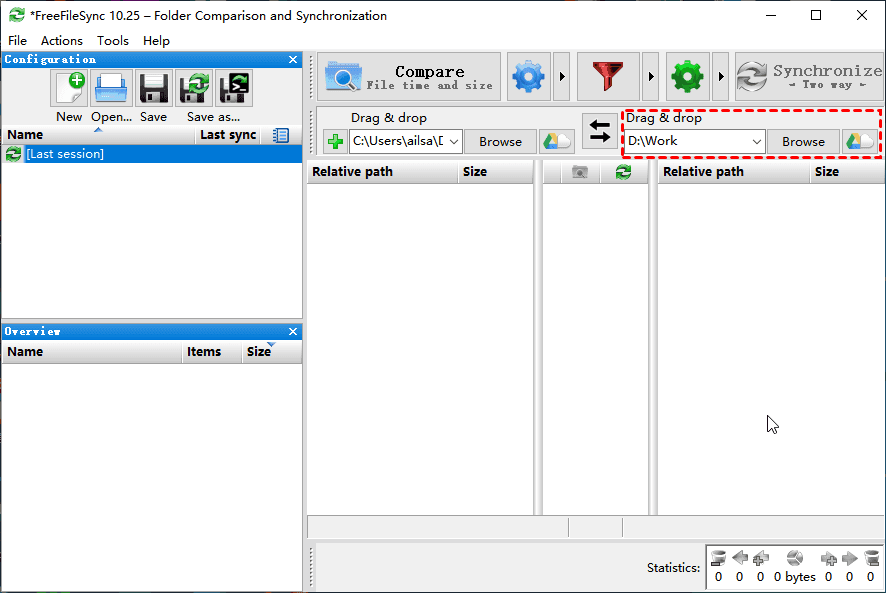
2. Select other folders on the right side.
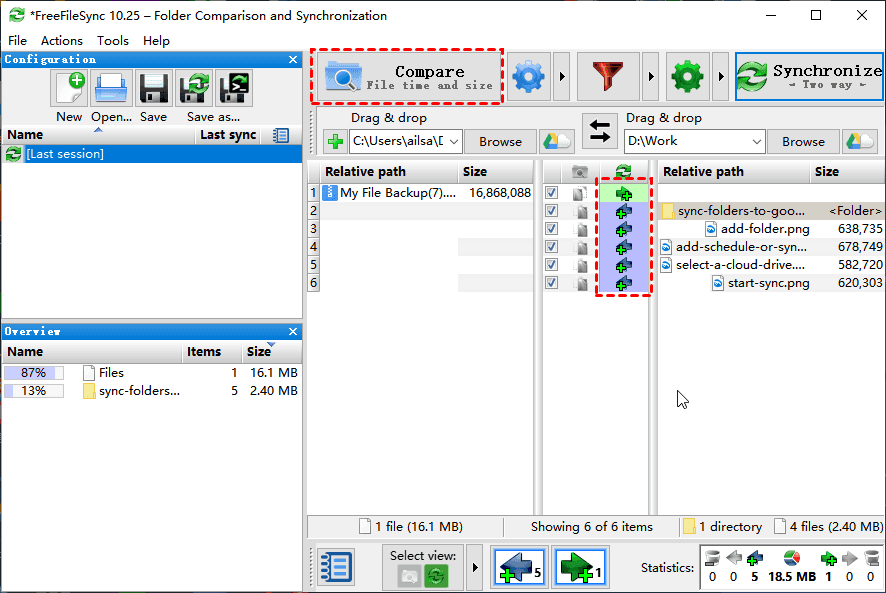
3. To compare two folders and perform a one-way file sync, click 'Compare' to identify differences. If discrepancies are found, select the file and click 'Copy new item to right icon' (or 'Copy new item to left icon') to sync the file from the left to the right folder.
4. To perform File sync, click Synchronize at the top right corner of the interface. This will synchronize the local files with the remote files, ensuring that both locations have the same version of the files.
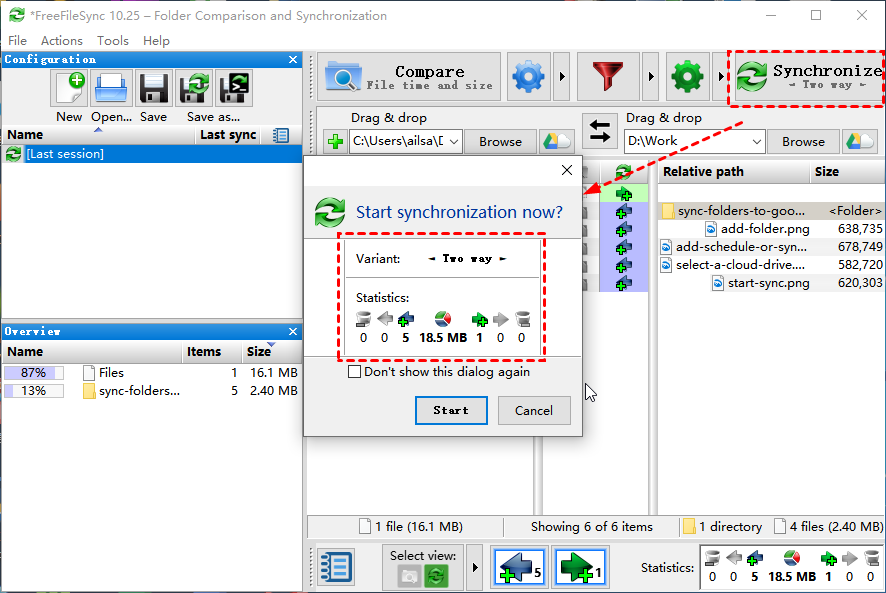
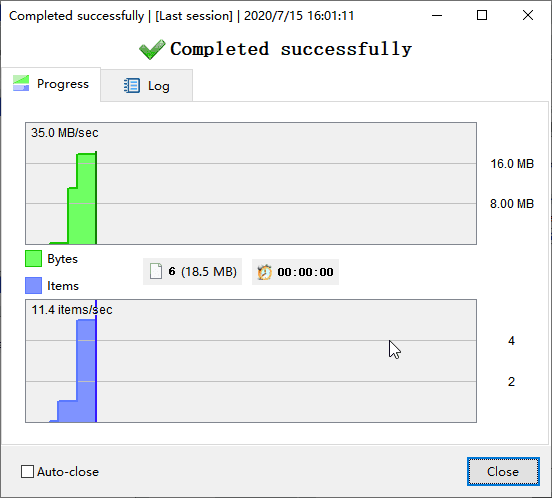
5. If you click on the "Start" button, it will initiate the sync process, and once it's done, it should sync successfully immediately.
FreeFileSync Limitations
Although FreeFileSync is available for you to sync files or folders, the limitation of the freeware you have to be aware of is that you have to manually select files or folders to sync, which can be time-consuming and prone to errors if you have a large number of files or folders to sync.
- The adware bundled with this tool while installing, and is really annoying.
- The interface is complicated so as to don't know what to do.
- The schedule sync option is not provided.
And you may get other FreeFileSync not responding or not enough space error while syncing. To avoid these limitations completely, try the best FreeFileSync alternative. And I'll introduce you to one such software.
Best Free FreeFileSync alternative for All Windows Systems
Qiling Disk Master Standard is a top alternative to FreeFileSync freeware, available in Windows 11, 10, 8, 7, etc. It covers most features, including parallel file copy, email notification, one-way file sync, and more.
- Scheduled sync allows you to sync files and folders with different frequencies, such as daily, weekly, or monthly.
- Multiple sync devices: It syncs files from/to external drives, USB, network drives, or NAS, which is crucial for the 3-2-1 backup strategy and enhances data security.
- Free and easy-to-use: The software has a user-friendly interface that makes it easy for anyone to understand and use.
If you're using an operating system like Server 2003, 2008, 2012, 2016, 2019, 2022, etc., you can try downloading Qiling Disk Master Server to have a go!
Perform Automatic File Sync with FreeFileSync Alternative
Now, we will show you sync files and folders automatically with simple steps using the free file sync software - Qiling Disk Master Standard.
Step 1. To use Qiling Disk Master as an alternative to FreeFileSync, select the "File Sync" option under the "Backup and recovery" tab.

Step 2. Select the folders and files you want to sync by clicking on the "Folder" option. You can also rename the task by editing the "Task Name" field if needed.

Step 3. To change the destination path for the synced folders and files, select another location as the destination path, which gives you three options: Home, Documents, or Desktop.
- Select a local path: It allows you to sync files to external disk (HDD or SSD) or USB, and you need to connect the device before selecting it to sync files.
- Add Share or NAS Devices: To add a network path or NAS device, you need permission to access it, otherwise you can't add it and select a folder on it.
- Select a cloud drive: It allows you to sync a local folder with Google Drive, OneDrive, or Dropbox by downloading and installing the necessary software.

Step 4. To schedule a sync, click on "Schedule Sync" and enable it. Then, choose a sync frequency from the options, such as daily, weekly, or monthly. You can also add a comment to distinguish this sync task from others and enable email notifications to receive updates on the sync's success or any errors that may occur.

Step 5. Press the Proceed button and choose Add the schedule and Proceed now or Only add the schedule according to your needs, and it will sync all files at the first time and then only sync changes.
★Tips:
✍ On the professional version, you can still use both Event triggers and USB plug in feature, except for syncing files in daily, weekly, or monthly intervals.
✍ This software allows you to use other sync methods, including File Sync, File Sync and File sync, to automatically sync files.
✍ If you want to sync files to a cloud drive without downloading software, you can use the Cloud Backup feature, which also offers 1TB of free storage for 15 days after registering a Qiling account.
Wrapping Things Up
If you encounter issues or become confused with the interface of FreeFileSync on Windows, consider trying Qiling Disk Master Professional as a reliable alternative. This software simplifies the process of syncing files and folders, making it more user-friendly, and also offers a schedule sync feature to automatically sync files at set intervals.
In the advanced version, users can enjoy additional features such as real-time file syncing, file filtering, and more, all while still using the software for free. This allows for backup to external hard drives, Windows 10 system backup, and backup of hard disks, among other functions.
Related Articles
- What Is the Best Free WD Sync Alternative (User Guide Included)
This article will show you how to fix WD Sync not working and two WD sync alternatives to sync files from or to WD My Cloud. - Best Free GoodSync Alternative for Windows 7/8/10
Learn more about GoodSync and the best free GoodSync alternative - Qiling Disk Master. And how to sync files easily in Windows 11, 10, 8, 7. - How to Schedule SyncToy in Windows 10 to Run Automatically
Learn how to Schedule SyncToy in Windows 10 to Run Automatically with clear steps, key checks, and practical tips. - Sync Files to Google Drive in Windows Server 2008 or Similar Storage
This article introduces you to how to perform Google Drive sync in Windows Server 2008 in different situations. Please click on to learn more about it! - Reinstall Windows 7 without Losing Files or Anything
Windows 7 has ended its life, so you can choose to repair Windows 7 with all the available methods or directly clean install newer system. - Upgrade Windows 7 32 bit to 64 bit without Losing Data
You can easily upgrade Windows 7 32 bit to 64 bit without losing data as long as you backup files beforehand. Click on this article to learn the complete guide.
Products
Articles & Tutorials
- Data Recovery
- Data Backup
- File Recovery
- File Backup
- File synchronize
- System Backup and Restore
- Disk and Partition Clone
- Technical articles
- Disk Master Help
- Windows Deleted File and Disk Recovery Tutorials
- Windows File and Data Recovery Tutorials
- More Windows Tutorials for Install, Security, Files, and PC Tips
- Windows Boot, Repair, and Recovery Environment Tutorials
- Windows Backup Tutorials
- Windows Restore Tutorials
- Windows Clone and Migration Tutorials
- Windows Server Backup, Recovery, and Management Tutorials
- Windows Disk, Partition, and Storage Management Tutorials