How to Schedule SyncToy to Run Automatically in Windows 10
About SyncToy
Yes, Windows has a built-in feature called File History that allows you to automatically back up your files to an external drive or network location. You can also use cloud storage services like OneDrive or Google Drive to back up your files. Additionally, you can use third-party backup software like Qiling Disk Master to automate the backup process.
SyncToy is a free file sync tool for Windows released by Microsoft, featuring a simple and highly customizable interface that makes it easy to use. It allows users to perform heavy work involved in copying, moving, and synchronizing different directories with just a few mouse clicks. SyncToy offers three synchronization options: Synchronize, Echo, and Contribute.
▶ Synchronize
New and updated files are copied both ways, while deleted or renamed files are synced in the opposite direction, so if a file is deleted or renamed in one folder, it will be deleted or renamed in the other folder as well.
▶ Echo
New and updated files are copied from left to right, making it a one-way process. Unlike the two-way process in Synchronize, this process only affects changes in the right folder if files are renamed or deleted in the left folder, but not the other way around.
▶ Contribute
This command copies new and updated files from the left to the right, but does not delete any files. It's similar to the Echo command, but does not include deletions. Renamed files are also copied from left to right. However, if a file is deleted in the left folder, it will not be deleted in the right.
Now you have a clear idea about three synchronization options. You can choose any one depending on your situation to sync folders in Windows 10.
Schedule SyncToy in Windows 10 with Task Scheduler
You can't create SyncToy auto sync tasks in the tool itself, but you can run SyncToy automatically with Windows Task Scheduler in Windows 10 by following the guidance below.
1. To access Task Scheduler, click on the Search button on the taskbar, type "task scheduler" in the search box, and then click on Task Scheduler to open it.
2. To create a basic task, click on "Create Basic Task" in the "Actions" pane on the right.
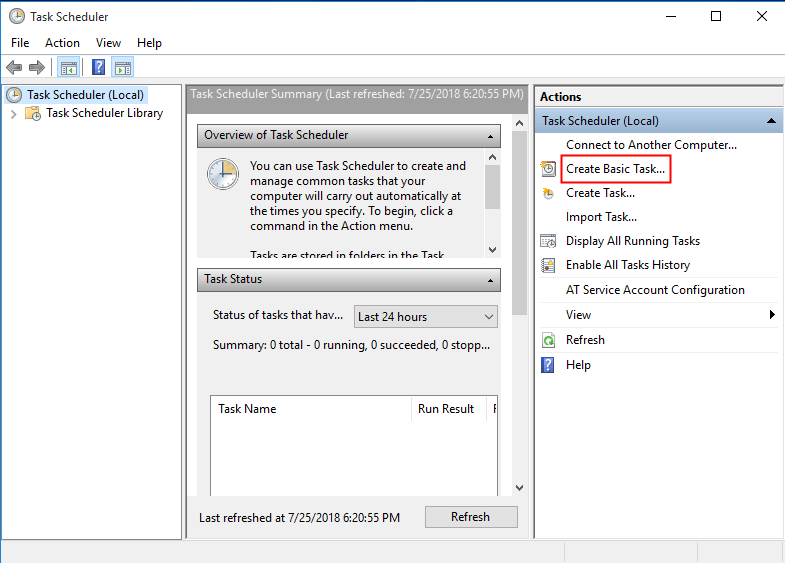
3. To create a new task, open the task manager, then click on the "New Task" button. In the pop-up window, enter a name and a description for your task so that you can easily recognize it.
4. Choose the frequency of the task to run.
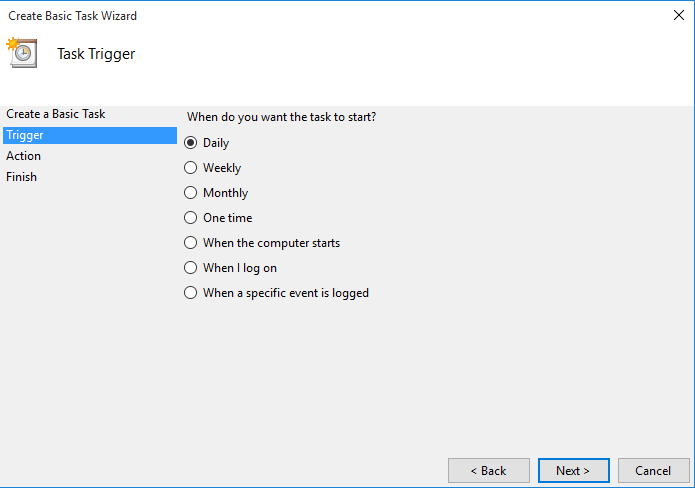
Note: You'll be asked to add additional settings depending on the trigger you select. This will allow you to customize the settings to fit your specific needs.
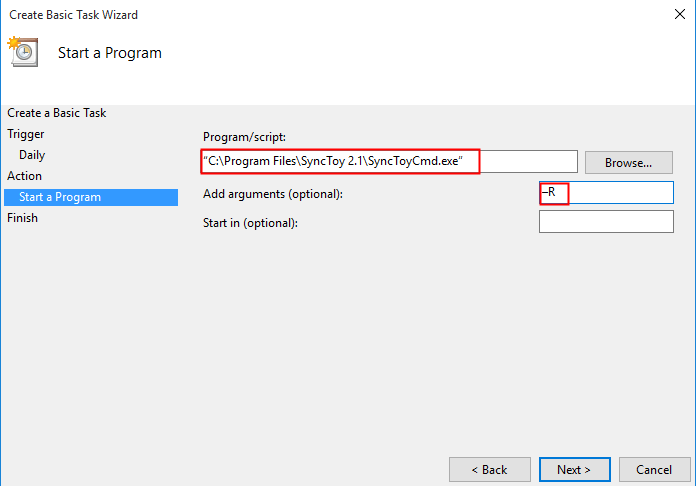
5. On the "Action" step, select "Start a Program" as the option for the task to perform.
6. In the "Program/script" box, enter "C:\Program Files\SyncToy 2.1\SyncToyCmd.exe" including the quotes, or click on "Browse" to locate SyncToyCmd.exe. In the "Add arguments" box, enter –R to run all syncs each time.
Notes:
● To run only one sync each time, enter –R followed by the name of the sync in quotes if it contains spaces.
● If you leave out the quotes in the "Program/script" box, Task Scheduler will ask if you want to run C:\Program with the remainder as an argument. Click "No" to keep it like you entered, and Task Scheduler will add the quotes correctly for you.
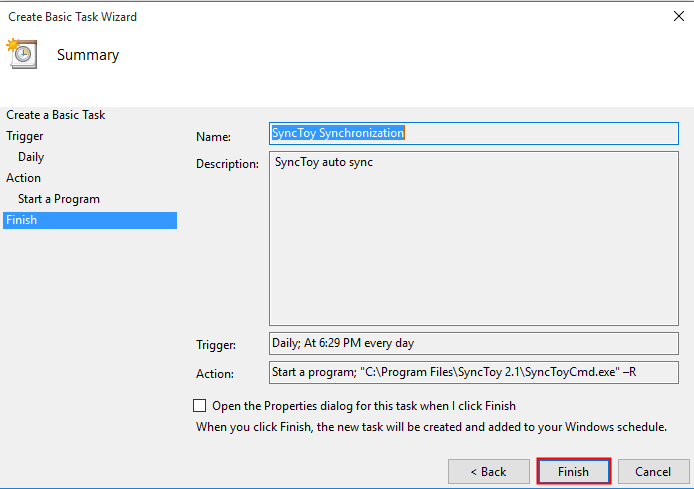
7. Confirm the task information on the "Summary" interface and click Finish to save the changes.
While Windows Task Scheduler can help schedule SyncToy in Windows 10, the process is complex. Additionally, users may encounter errors such as SyncToy not copying all files, failing to create folder pairs, or being denied access, making the task even more challenging. Is there a simpler way to achieve automatic file sync?
Yes, you can use another free file sync software. One option is to use a free file sync software that allows for scheduled sync. This software can be used to automatically sync files between devices at set intervals, making it a convenient option for keeping files up-to-date across multiple devices.
Easier way to perform automatic file sync in Windows 11/10/8/7
To make automatic file sync easier on Windows 10/11, you can consider a SyncToy alternative, and a top free file sync software option is Qiling Disk Master Standard.
✭ The script supports syncing files, including changed and newly added files, from a source directory to a destination directory. By default, deleted files are not synced, but this can be configured to include syncing of deleted files as well.
✭It allows syncing files between different locations or devices, like syncing local folders to OneDrive or two external hard drives, etc.
✭ It is built-in "Schedule Sync" feature allows you to schedule automatic syncs at specific times, ensuring that your data stays up-to-date without any manual effort required. This feature can be particularly useful for users who need to sync their data frequently, such as those who use multiple devices or have a large amount of data to manage.
✭ It supports all editions of Windows 11/10/8.1/8/7/Vista/XP.
Download and install Qiling Disk Master on your Windows PC. Now I'll show you how to create a scheduled file sync task via Qiling Disk Master in detail:
1. Start Qiling Disk Master, click the Backup tab, and select File Sync.

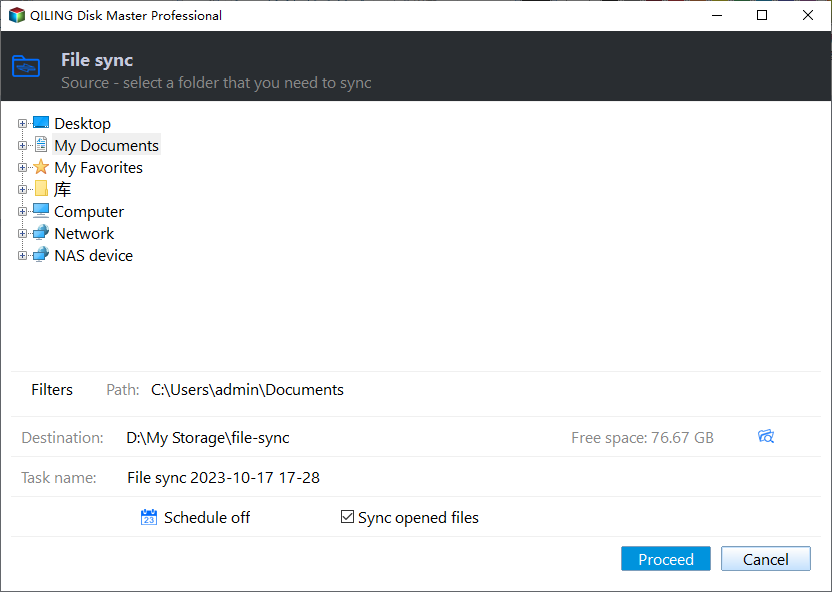
2. Click "Sync Folder" to select the folder which you want to synchronize.

3. Select a destination location to store the synced folder.

Tip: To sync files between two computers, please choose a network location as the sync destination.
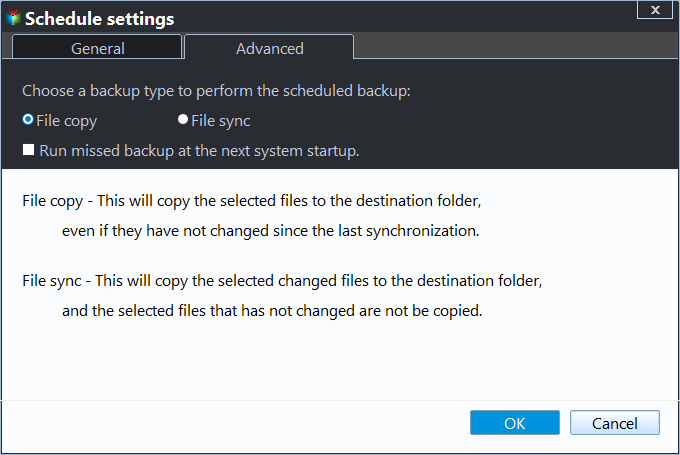
4. To enable schedule sync, click on "Schedule Sync" and then select "Enable Schedule Sync". From there, choose the desired frequency for the task to run.

Tips:
● To run scheduled tasks, wake the computer 2 minutes before the task by checking the box next to "Wake the computer to run schedule tasks". This will ensure your computer is active and ready to run the task at the designated time.
● Configure what your computer will do after the scheduled task. You have 4 options: Shut down, Restart, Hibernate or Sleep. This feature is available in paid versions.
5. The program will sync only added or modified files from the source to destination after first full sync, unless you tick the option to sync deletions in source to destination.
6. Click on the "Proceed" button and select "Add the schedule and Proceed now" to complete the operation.
Notes:
● The program cannot synchronize the source folder anymore if the source folder name is modified after doing file sync.
● To enjoy more advanced sync modes like Mirror Sync, Two-Way Sync and Real-time Sync, please upgrade to higher editions.
Conclusion
To schedule SyncToy in Windows 10 to run automatically, use Windows Task Scheduler. This makes auto sync easier, especially with Qiling Disk Master, which supports syncing files with different frequencies (daily, weekly, monthly) and includes deletions. Higher editions offer more sync modes to meet various needs.
Qiling Disk Master is a professional Windows backup software that offers a sync feature, system protection, and data protection, allowing users to protect their data and systems with ease.
Related Articles
- The Best Free Alternative to Microsoft SyncToy Sync Tool for Windows 10/8/7
- How to Make Windows 10/7 Sync Folders between Drives Easily
- How to Sync Folder to a Network Drive with Ease
- How to Backup QNAP to Another QNAP NAS Easily? (2 Free Ways)
Set up backup QNAP to Another QNAP NAS Easily (2 Free Ways) with practical backup or sync options, storage checks, and safer ways to protect files. - Real Time File Backup in Windows 7/8/10 to Backup Changes
In this article, you will find the best real-time backup software to perform real-time file backup. Any changes made on the source will be synced to the destination immediately.
Products
Articles & Tutorials
- Data Recovery
- Data Backup
- File Recovery
- File Backup
- File synchronize
- System Backup and Restore
- Disk and Partition Clone
- Technical articles
- Disk Master Help
- Windows Deleted File and Disk Recovery Tutorials
- Windows File and Data Recovery Tutorials
- More Windows Tutorials for Install, Security, Files, and PC Tips
- Windows Boot, Repair, and Recovery Environment Tutorials
- Windows Backup Tutorials
- Windows Restore Tutorials
- Windows Clone and Migration Tutorials
- Windows Server Backup, Recovery, and Management Tutorials
- Windows Disk, Partition, and Storage Management Tutorials