Freeware: Install Windows 10 on External USB Hard Drive
Why install Windows 10 on external hard drive?
You want to create a portable Windows OS installation on a storage device, such as an external hard drive, USB flash drive, or HDD enclosure, so you can plug it into any computer and boot from it, creating a single, consistent environment across different machines. Is that correct?
Microsoft's Windows To Go feature allows users to create a portable operating system that can be booted from a certified USB flash drive on any computer, making it possible to achieve the BYOD (bring your own device) anywhere concept. This feature is available in the Enterprise edition of Windows 8, 8.1, and 10.
The ENTERPRIZE edition of Windows 10 allows for installing the operating system on an external USB hard drive, but this feature is not available for the Home or Pro versions. If you want to install Windows 10 on an external drive without purchasing the ENTERPRIZE edition, you can try a command line installation, which is a more complex and time-consuming process.
You can also try using Windows To Go Creator, a feature embedded in the freeware Qiling Disk Master Standard, to create a bootable USB drive with a Windows 10 ISO file, making it easy and fast to run Windows 10 from a USB flash drive or SSD.
Before you do
To prepare a Windows 10 installation, you will need a 13 GB or larger SSD or USB flash drive, and an ISO file, installation disc, or ESD file of Windows 10.
Tips:
- Windows To Go Creator could create the bootable drive in any OS as long as you have prepared the USB drive, Windows ISO file, and a computer with a compatible operating system.
- Holding a bigger USB drive will get you a better result, as it will complete the task faster on a computer with a USB 3.0 port compared to using a USB 2.0 drive.
- If you have a Windows 10 or Windows 8 ISO/ESD installation file, extract it to a proper place using WinRAR or WinZIP, or mount it as a virtual drive using third-party software like DAEMON Tools Lite.
- The external hard drive will be reformatted to NTFS and backed up to another drive if necessary.
How to install Windows 10 to USB external hard drive?
Download Qiling Disk Master Standard, connect the external hard drive to your PC and ensure it's detected by Windows.
Step1. Install and launch Partition Assistant. Select "Tools" >"Create bootable media" in the left side.

Step 2. Select USB and click "Browse" to choose ISO file.

Step3. Click "Proceed" and wait for the process to be finished.
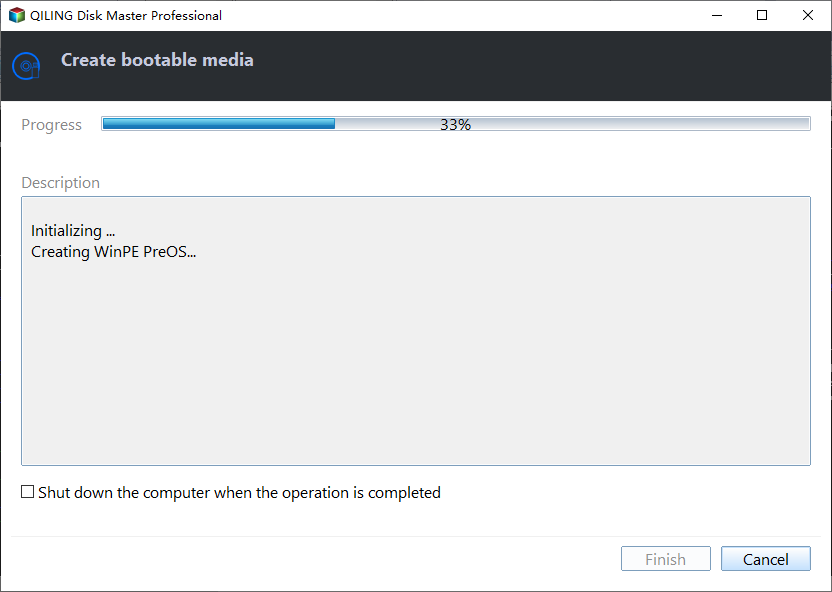
Note: To boot Windows 10 on other computers, you'll first need to enter the BIOS settings and set the bootable USB drive as the primary boot device.
You can install Windows 10 on an external hard drive in just three steps without any complicated operations or payment. Qiling Disk Master Standard also supports creating bootable drives for Windows 8, 8.1, and 7 ISO files, making it a versatile tool. In addition to the feature mentioned, this program offers basic disk and partition operations, including migrating an OS to an SSD, splitting and merging partitions, and quick partitioning.
Make bootable USB on Windows 10 via Diskpart
To create a bootable USB drive using Windows 10's built-in tools, you can use the DiskPart utility. This process requires an ISO file, installation disc, or ESD file of Windows 10, which is necessary for the task. With DiskPart, you can complete the task and have a bootable USB drive ready to use.
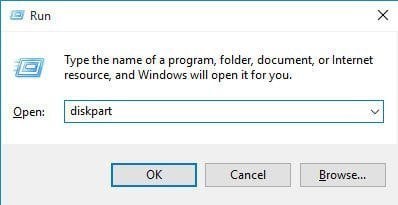
Step 1: To start the process, insert a USB flash drive into a running Windows computer. Next, press the Windows key + R to open the Run dialog box, and then type "diskpart" in the Command Prompt window that appears.
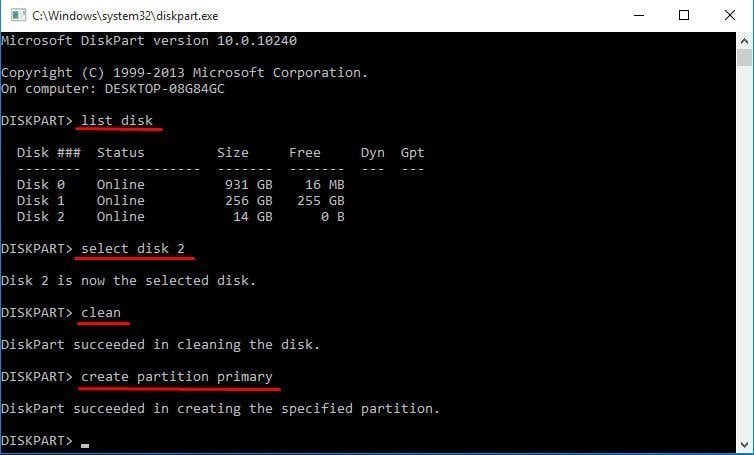
Step 2: type below syntaxes in order and each command is with followed by pressing Enter.
- list disk
- To select the external USB drive, type "select disk n" in the command prompt, where "n" is the number of the external USB drive.
- clean
- create partition primary
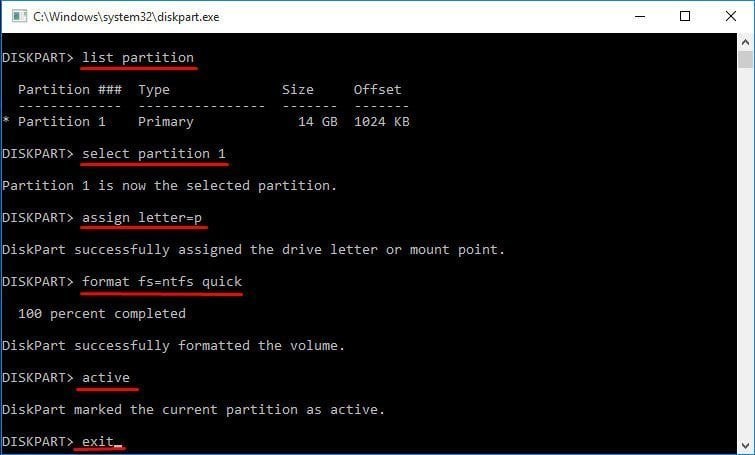
- list partition
- select partition 1
- assign letter=P
- select partition P
- format fs=ntfs quick
- active
- exit
Step 3: To save the prepared custom image to the root of the USB flash drive, you can use the `dd` command in Linux or the `copy` command in Windows. For Linux, use `sudo dd if=your_image.
Tips: You can try changing the boot priority in the BIOS settings to see if you can boot Windows 10 from a USB stick. This involves entering the BIOS settings, typically by pressing a key like F2, F12, or Del when the computer first turns on, and then adjusting the boot order to prioritize the USB drive over the hard drive.
Summary
Regardless of the method you prefer, the final step is to install Windows 10 on an external hard drive and successfully boot up. If you're an IT expert, company administrator, or supercomputer enthusiast, you may want to try the Qiling Disk Master Professional edition, which offers advanced features like allocating free space between partitions, moving an OS from a GPT disk to a GPT/MBR SSD or disk, and converting dynamic disks to basic, among others.
For company administrators, the Qiling Disk Master Unlimited edition allows unlimited computer installations within one company, making it a cost-effective option for colleagues to use the software with just one purchase.
Related Articles
- How to Backup Computer Before Factory Reset?
Factory reset will overwrite data on the hard drive, so it is recommended to backup computer before factory reset in Windows 10/8/7. - Disk Backup vs Clone: Which One to Choose and How to Do it
This article tells the differences between backup vs clone, help you to make the choice and offers a step-by-step guide to do disk backup or clone on Windows. - How to Backup Windows 7 for Windows 10 Upgrade? [2 Ways]
Learn how to Backup Windows 7 for Windows 10 Upgrade with clear steps, key checks, and practical tips. - How to Fix C Drive is Full Easily (6 Ways)
Fix C drive is full in Windows with six practical methods, including cleanup, moving files, extending partitions, and managing disk space safely. - Dynamic Disk Manager
Qiling Dynamic Disk Manager, a feature-rich dynamic volume management and powerful disk converter for Windows PCs and Servers. - Best Free Way: Check Backup Image and Ensure Data Integrity
It's better to do an image file checking before restoring important data to your computer. Free backup software - Qiling Disk Master can help you make it.
Products
Articles & Tutorials
- Data Recovery
- Data Backup
- File Recovery
- File Backup
- File synchronize
- System Backup and Restore
- Disk and Partition Clone
- Technical articles
- Disk Master Help
- Windows Deleted File and Disk Recovery Tutorials
- Windows File and Data Recovery Tutorials
- More Windows Tutorials for Install, Security, Files, and PC Tips
- Windows Boot, Repair, and Recovery Environment Tutorials
- Windows Backup Tutorials
- Windows Restore Tutorials
- Windows Clone and Migration Tutorials
- Windows Server Backup, Recovery, and Management Tutorials
- Windows Disk, Partition, and Storage Management Tutorials