How to Let Yahoo Mail Export Emails: Two Ways
Can I Export Emails from Yahoo Mail?
Yahoo Mail does not provide a direct full-mailbox export button for all users. To export Yahoo emails to a desktop computer, you can connect Yahoo Mail to Outlook and export messages to a PST file, or save individual emails as PDF files with the Print feature.
Yahoo Mail, one of the oldest email services, offers various features to help users manage their emails. However, many users are now looking to export their emails from Yahoo, with reasons ranging from personal preferences to the need to switch to a different email service.
This guide explains why users export Yahoo emails, how to save Yahoo messages with Outlook or Print to PDF, and how to create a more complete Yahoo Mail backup with email backup software.

Why Export Emails from Yahoo Mail?
Before exporting emails from Yahoo Mail, it's helpful to understand the common reasons for doing so. This might include archiving important messages, backing up email data, or even switching to a different email service.
Backup and Prevention: Users are motivated to create a backup of their emails as a precautionary measure to prevent data loss in case of unexpected events or system failures, driven by past incidents like the 2014 security breach and 2013 outage.
Free up Server Space: Yahoo Mail users can free up server space by exporting emails and storing them locally, allowing them to optimize their storage limit of 1 TB.
Offline Accessibility: Exporting emails to a local device ensures users have uninterrupted access to their emails, even during downtime or when an internet connection is unavailable.
How to Let Yahoo Mail Export Emails
Yahoo Mail doesn't offer a direct export feature, but there are two workarounds to export emails. You can use the Microsoft Outlook client to access your Yahoo account and export emails, or you can use the Print function on Yahoo Mail to print emails and then save them as a PDF. Both methods are detailed below.
Way 1. Export Yahoo Emails with Microsoft Outlook
To export Yahoo emails with Outlook, first add your Yahoo account to Outlook, then use Outlook's Import/Export Wizard to export Yahoo mailbox folders to a PST file.
Step 1. Configure Yahoo Mail in Microsoft Outlook
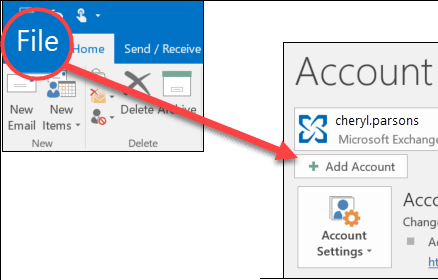
1. Launch the Outlook client, navigate to the File tab, and click on the Add Account button.
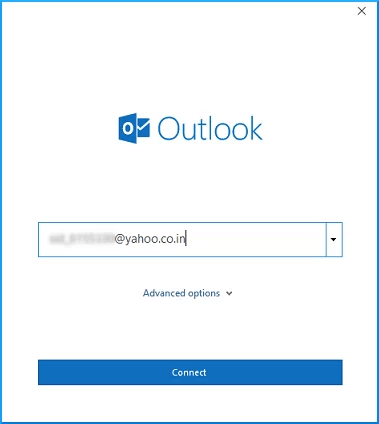
2. To connect your Yahoo account, first enter your Yahoo email address and click Connect. Next, enter your Yahoo Mail password and tap Connect again.
- Note:
- If you're having trouble connecting your Yahoo account with Outlook or experiencing issues with Yahoo Mail on Outlook, you might need to use a special App password for login instead.
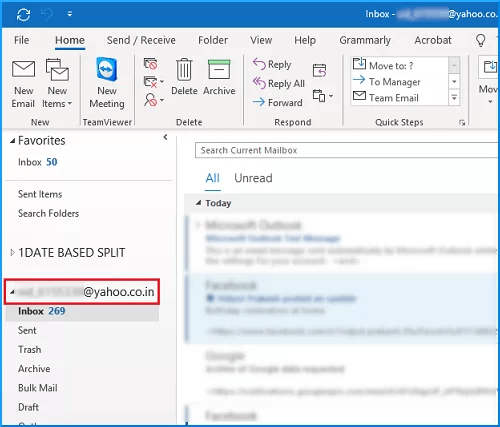
3. After Yahoo Mail is connected, open the Outlook desktop client and confirm the Yahoo mailbox appears in the folder list.
Step 2. Export Yahoo emails from Outlook to PC
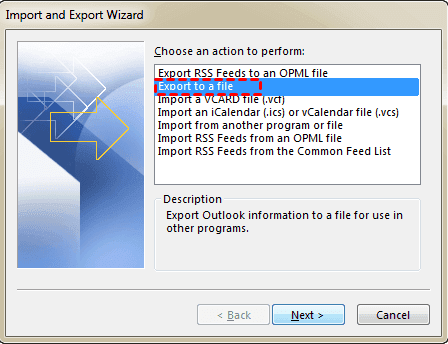
1. To initiate the process, go to File > Open & Export > Import & Export.
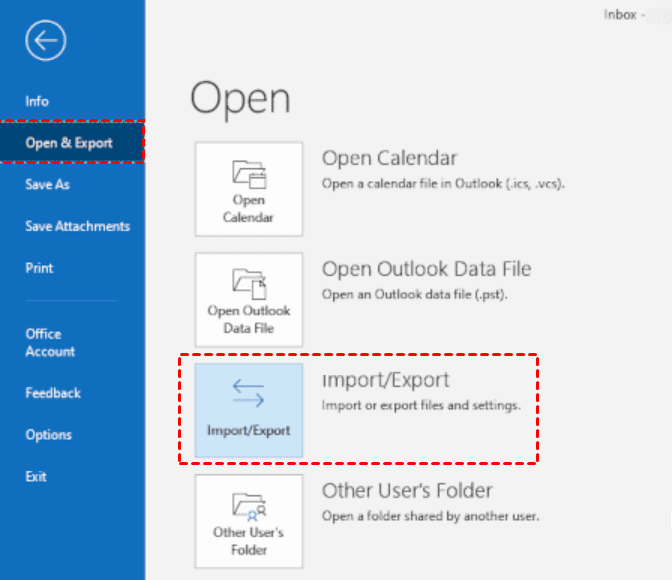
2. Opt for Export to a file and click on Next.
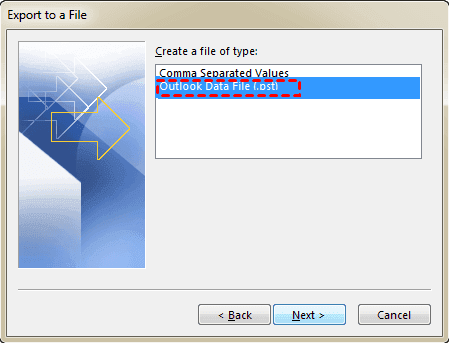
3. Choose the Outlook Data File(.pst) option and then click Next.
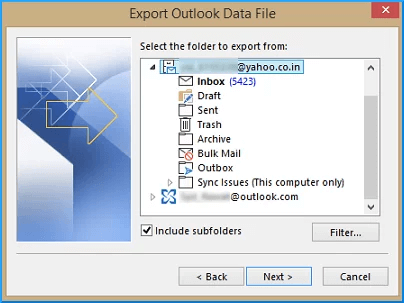
4. Select the specific Yahoo folders you wish to export from and make sure to include subfolders, then click Next.
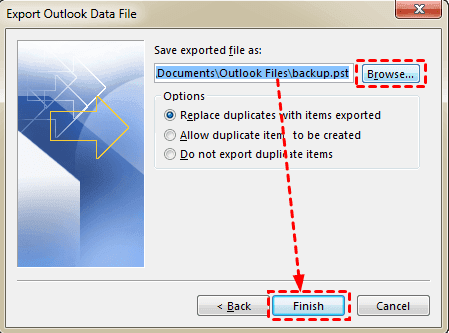
5. Save the exported file to a designated location by clicking "Finish" after selecting the desired location.
While it's technically possible to export Yahoo emails using Microsoft Outlook, there are some significant limitations to consider, including complex configuration for Yahoo accounts, the need for a single mailbox backup, and the risk of incomplete data export or manual errors, making this method not ideal for non-technical users.
Way 2. Export Yahoo Emails by Print
You can export individual Yahoo emails by saving them as PDF files with Yahoo Mail's Print feature. Follow these steps:
Step 1. Access Yahoo Mail and log in using your credentials.
Step 2. Open the specific email message you want to export, then click on the More button.
Step 3. At the appeared drop-down menu, select Print.
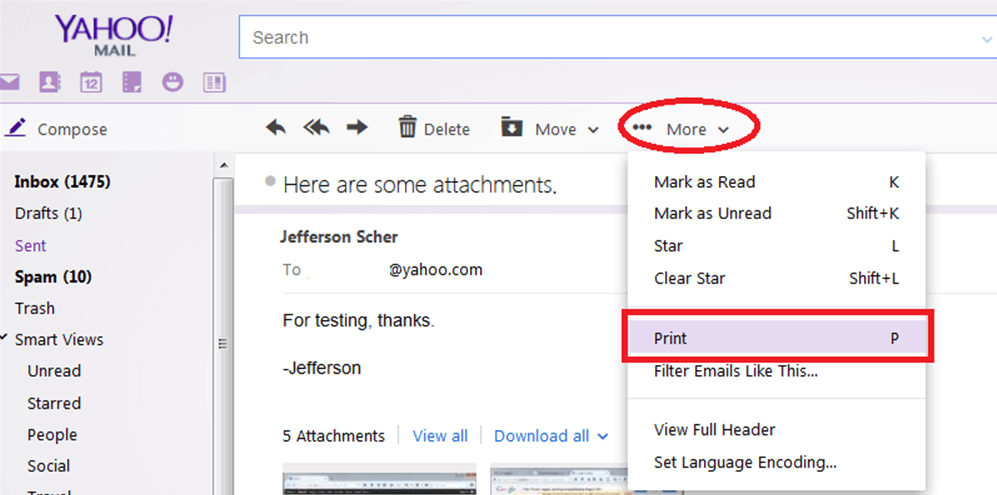
Step 4. On the Print window, choose Save as PDF on the destination column. Click on Save.
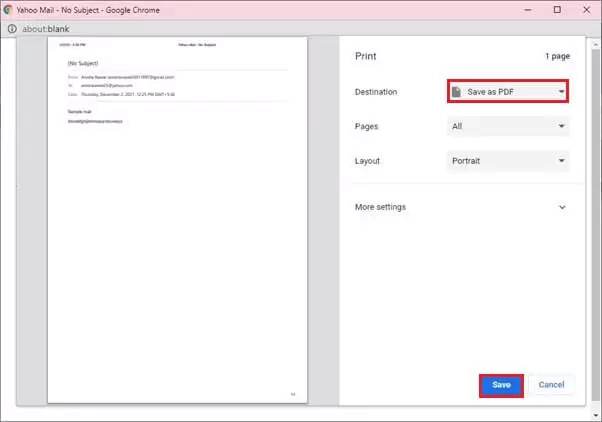
Step 5. Then, you will be asked to name the print file, and save it on a target path.
The drawback of this method is that it can only save one email as a PDF at a time, making it impractical for saving multiple emails into PDF documents, which can be a time-consuming process.
Better and Easier Way to Backup Yahoo Mail to Hard Drive
If you're looking to back up your Yahoo emails for safekeeping, consider using a professional email backup software like Qiling Disk Master Professional. This tool allows for automated and efficient backups of your Yahoo emails, saving them to various locations such as local drives, external drives, network locations, NAS, and cloud drives.
- The Email Backup feature allows users to back up their emails from various services, including Yahoo Mail, Gmail, iCloud Mail, Exchange, Outlook Mail, and Zoho Mail, among others.
- The software allows you to back up any Yahoo mailbox folder you want, such as Inbox, Drafts, Notes, Synced messages, and more.
- It can create auto backups for emails with options like Daily, Weekly, Monthly, and Event triggers, and it can wake your computer to run scheduled tasks.
- It is compatible with a wide range of Windows PC operating systems, including Windows 11/10/8.1/8/7/XP/Vista, and also supports Server users with Qiling Disk Master Server.
To back up Yahoo emails automatically, download Qiling Disk Master and follow the guide below. It helps save Yahoo emails to a local drive, external drive, NAS, or other backup destination.
Step 1. Install and launch Qiling Disk Master on your computer. Click on Backup and select File Backup.

Step 2. To back up your Yahoo email account, click on "Add Email Data" and then select the items you want to back up from the popup window. You can choose to back up your entire email account or specific subfolders within it.

Step 3. To save the email backup image, select a destination path where you want to store the backup, such as a local hard drive or external storage, and specify the path to save the backup.

Step 4. To set up automatic backups, click Schedule Backup and choose a suitable backup frequency, then select the option Wake the computer to run scheduled tasks.

Step 5. Finally, click Proceed to initiate the Yahoo email backup process.
To Sum it up
Users export Yahoo Mail emails to create backups of their essential data, or to achieve wider accessibility and enhance privacy, which can be done using the Outlook client or the Print feature within Yahoo Mail.
Qiling Disk Master offers a more flexible way to back up Yahoo emails. Its restore feature also helps recover backed-up emails when needed.
Related Articles
- How to Get Zoho Mail Backup: 3 Easy Ways
This article covers 3 easy ways to do Zoho Mail backup, and using Qiling Disk Master to create an automatic backup of your Zoho emails is particularly recommended. - Full Guide| How to Move Windows 10 to Another Hard Drive
This guide explains Full Guide| How to Move Windows 10 to Another Hard Drive with clear steps, key checks, and practical tips. - How to Validate a Windows 10 System Backup Image?
Learn how to validate a Windows 10 system backup image during or after backup so you can restore Windows 10 from a system image successfully. - How to Fix Inaccessible Boot Device on Windows 10 SSD?
Since many computer users get stuck in inaccessible boot device on Windows 10 SSD, we'll discuss the problem thoroughly in this page.
Products
Articles & Tutorials
- Data Recovery
- Data Backup
- File Recovery
- File Backup
- File synchronize
- System Backup and Restore
- Disk and Partition Clone
- Technical articles
- Disk Master Help
- Windows Deleted File and Disk Recovery Tutorials
- Windows File and Data Recovery Tutorials
- More Windows Tutorials for Install, Security, Files, and PC Tips
- Windows Boot, Repair, and Recovery Environment Tutorials
- Windows Backup Tutorials
- Windows Restore Tutorials
- Windows Clone and Migration Tutorials
- Windows Server Backup, Recovery, and Management Tutorials
- Windows Disk, Partition, and Storage Management Tutorials