How to Fix Inaccessible Boot Device on Windows 10 SSD
Error: Inaccessible boot device on Windows 10 SSD
The issue of an inaccessible boot device on Windows 10 SSD is a common Blue Screen of Death error that can occur after upgrading or resetting a computer. It can cause a boot loop, where Windows repeatedly attempts to fix the error but fails, leading to a stuck startup process.
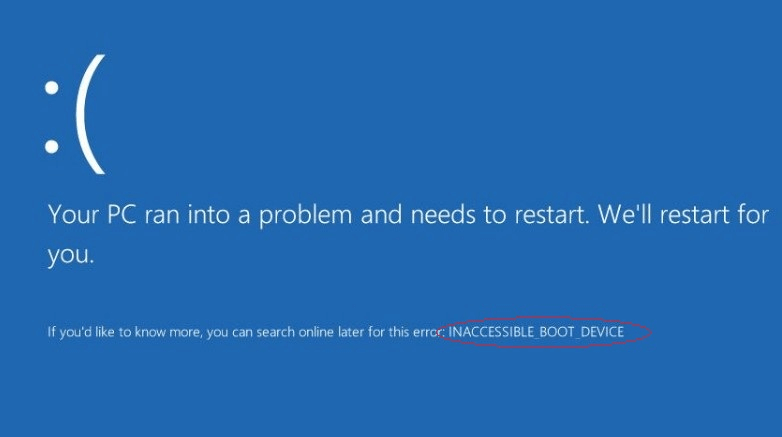
The "Inaccessible Boot Device" error occurs when your computer cannot read the Windows partition on the hard drive it boots from, which could be due to total hard drive failure or a simple driver or boot record failure.
What causes the inaccessible boot device error and how to fix it?
There are two possible causes I'd like to share with you:
▶ Incompatible graphic card driver
Microsoft programmers have analyzed the inaccessible boot device error in Windows 10, attributing it to imperfect system code and poor compatibility of previous versions, which can lead to incompatibility of graphic card drivers with system code, ultimately causing the error. To resolve this issue, users can take measures as advised by programmers.
1. No operations can be performed until the computer automatically restarts. When it does, it will prompt that it's attempting to repair and display a screen. Choose "Advanced options" from this screen.
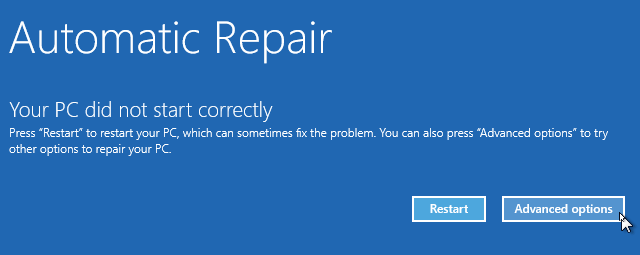
2. To access advanced startup settings, go to Troubleshoot > Advanced options > Startup Settings. Then, click the Restart button.
3. After the computer restarts, press 4 or F4 to start your computer in Safe Mode.
4. To uninstall your graphics driver, start by right-clicking on the Start icon and selecting Device Manager. Then, expand the Display adapters section, right-click on your graphics driver, and choose Uninstall. This will remove the current driver, allowing you to reinstall a new one.
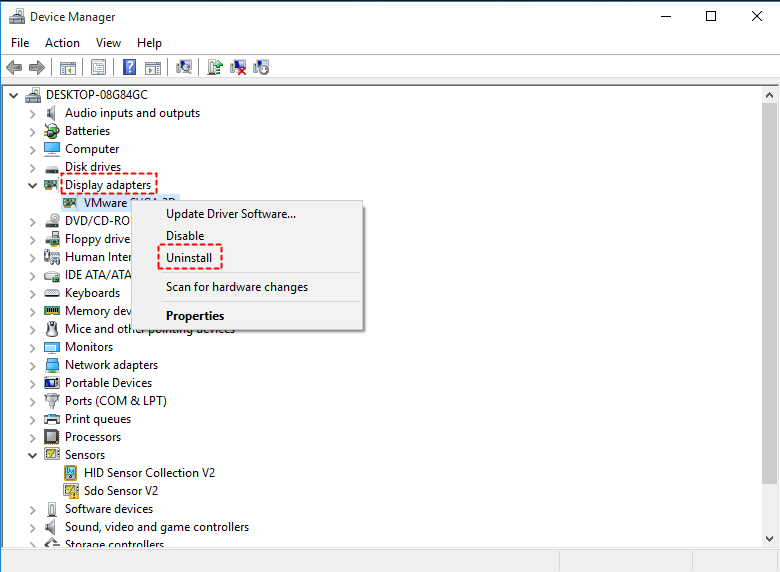
5. After uninstalling the graphic card driver, your computer should restart. Upon restarting, visit the manufacturer's website to download a new driver for your graphic card.
▶ Corrupted boot information
If the boot information of your computer is corrupted, it may result in an inaccessible boot device error, which can be fixed by checking the system partition for errors and rebuilding the boot information.
Step-by-step: Fix inaccessible boot device on Windows 10 SSD
Qiling Disk Master Professional can rescue you from inaccessible boot device error caused by corrupted boot information and provides a "Make Bootable Media" feature to help in case of boot failure, supporting all Windows PC operating systems including Windows 11/10/8.1/8/7/Vista/XP.
To fix the inaccessible boot device issue on Windows 10 SSD, download the software and follow the instructions to resolve the problem.
Step 1. To create a Windows 10 bootable USB drive, plug in a USB drive to a computer running Windows 10, click on "Tools" and then "Make Bootable Media" from the main interface, and follow the on-screen wizard to complete the process.

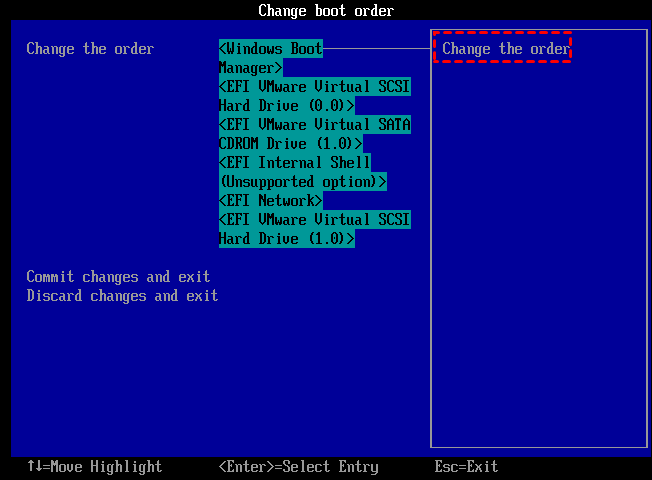
Step 2. Insert the bootable USB into the computer with a boot problem and boot from the USB by changing the boot drive.
Step 3. After logging in, you'll see the Qiling Disk Master interface. Right-click the system partition (e.g.
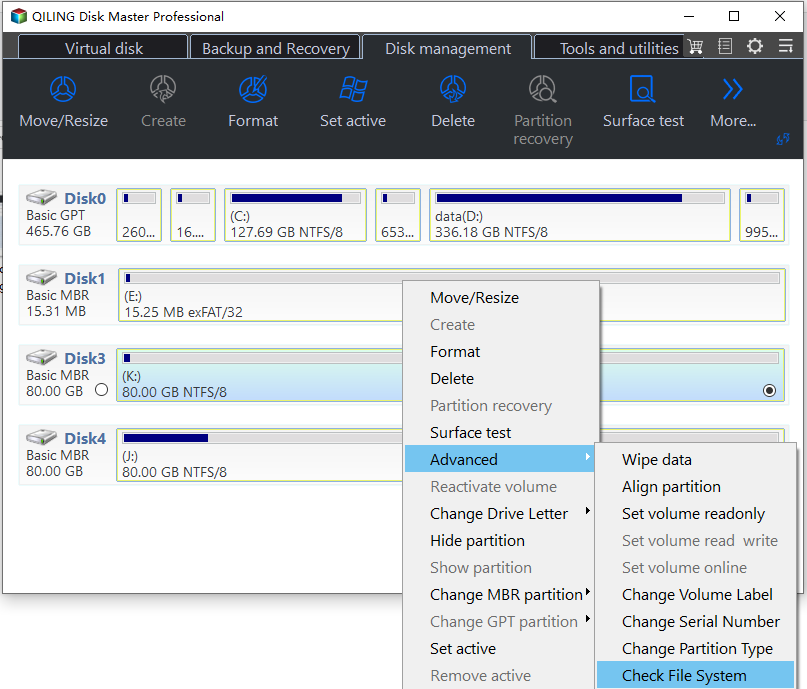
Step 4. To check errors, select the method you want to use and click "OK" to begin the process.
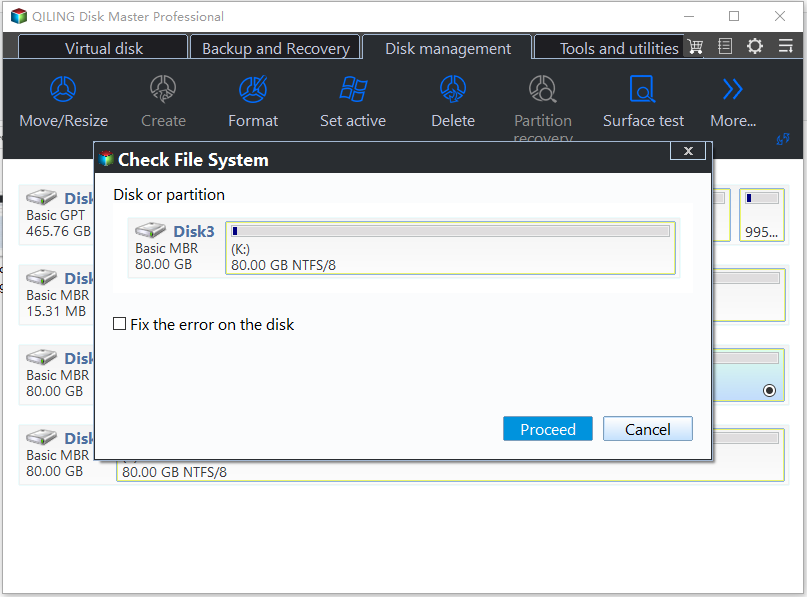
Tip: The first option to check and fix errors on the system disk can be chosen. However, it takes more time as the process is more complicated.
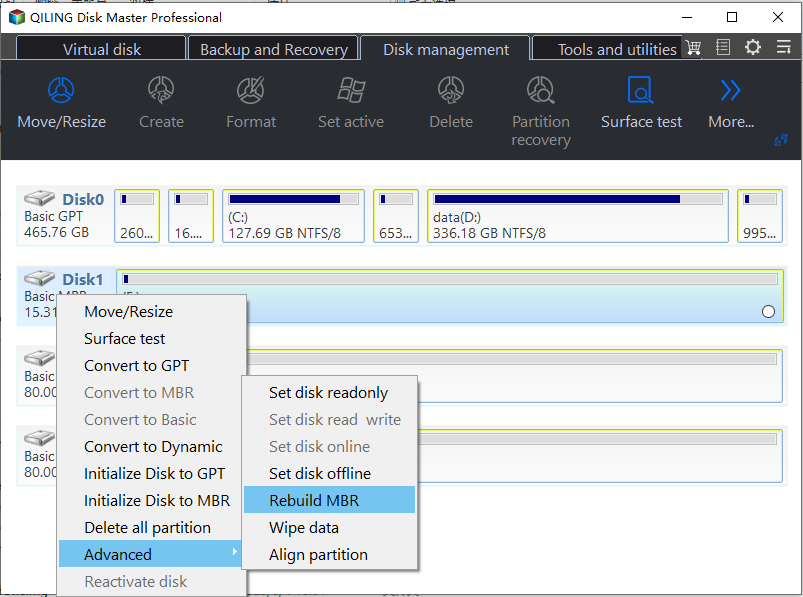
Step 5. After checking the system partition for errors, rebuild the boot information by right-clicking on the system disk (e.g. disk 1) and selecting "Rebuild MBR".
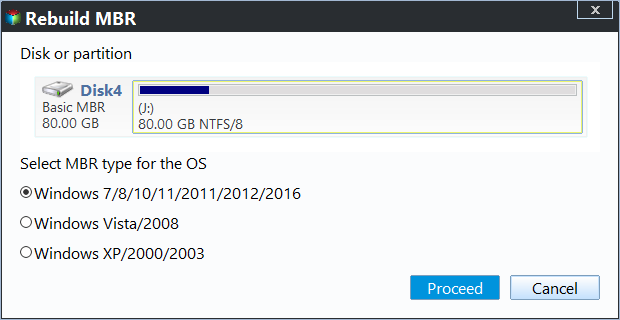
Step 6. To set the type of MBR for Windows 10, open the Command Prompt as an administrator and type the command `bcdboot C:\Windows /s C: /f UEFI`, followed by `bootrec /fixmbr` and
Step 7. The system will now commit the pending operations. You can restart your computer later to complete the process.
Conclusion
When encountering an inaccessible boot device on a Windows 10 SSD, you can resolve the issue by uninstalling the graphics card driver or rebuilding the Master Boot Record (MBR). Additionally, tools like Qiling Disk Master can help fix problems such as mbr2gpt validation or no bootable device found in Windows 10. For Windows Server systems, the Server Edition can be used to resolve these issues.
Related Articles
- Scan and Fix Error: There Is a Problem with This Drive (Solved)
If you want to fix "There is a problem with this drive" issue on Windows 11, 10, 8, and 7, you can refer to this post to find the answer. - How to Remove Write Protection on Micro SD Card SanDisk?
Learn how to Remove Write Protection on Micro SD Card SanDisk with clear steps, key checks, and practical tips. - How to Repair Partition Table in Windows 11, 10, 8, 7?
When the partition table is corrupted or damaged, you might be unable to access the hard drive. This article shows you how to repair and rebuild partition table in Windows 11, 10, 8, 7. - Free Resize Bootcamp Partition without Reinstalling Window
Sometims, you might need to resize Bootcamp partition to make it bigger, then you can use the free Qiling Partition software, and it allows you to add more space to Bootcamp partition with simple steps. - Backup or Sync Files to Cloud Drive | Which Is Better?
This article illustrates the differences between cloud backup, cloud sync and cloud storage and how to backup or sync files to cloud drive easily. - Backup Data to NAS Devices with Best Free Software
Qiling Disk Master is a free software that allows you to backup and restore data from a network-attached storage (NAS) drive to a Windows computer.
Products
Articles & Tutorials
- Data Recovery
- Data Backup
- File Recovery
- File Backup
- File synchronize
- System Backup and Restore
- Disk and Partition Clone
- Technical articles
- Disk Master Help
- Windows Deleted File and Disk Recovery Tutorials
- Windows File and Data Recovery Tutorials
- More Windows Tutorials for Install, Security, Files, and PC Tips
- Windows Boot, Repair, and Recovery Environment Tutorials
- Windows Backup Tutorials
- Windows Restore Tutorials
- Windows Clone and Migration Tutorials
- Windows Server Backup, Recovery, and Management Tutorials
- Windows Disk, Partition, and Storage Management Tutorials