3 Methods: Fix MBR2GPT Validation Failed (Video Tutorial Attached)
Scenario: Encounter MBR2GPT Windows 10 disk layout validation failed problem
"I am using a 4TB HDD as a storage drive on my pc, with a 500GB SSD for the OS and other programs. I can only partition 2TB of my HDD due to it having an MBR partition style, and I would like to convert it to GPT so I can use all of its available space. The 2TB partition is almost full and only has 67GB remaining, so I am trying to convert it."
To resolve the 'Disk layout validation failed for disk 1' error after running the 'mbr2gpt /validate /disk:1 /allowFullOS' command, you can try the following steps: Run the command 'mbr2gpt /validate /disk:1' without the '/allowFullOS' parameter to validate the disk layout without attempting to convert the disk to GPT. If the validation fails, you can try running the command 'mbr2gpt /convert /disk:1' to convert the disk to GPT and then validate it. If the issue persists, you may need to check the disk for errors or corruption using the 'chkdsk' command and then try the conversion again. If none of these steps resolve the issue, you may need to seek further assistance from a Windows expert or Microsoft support.
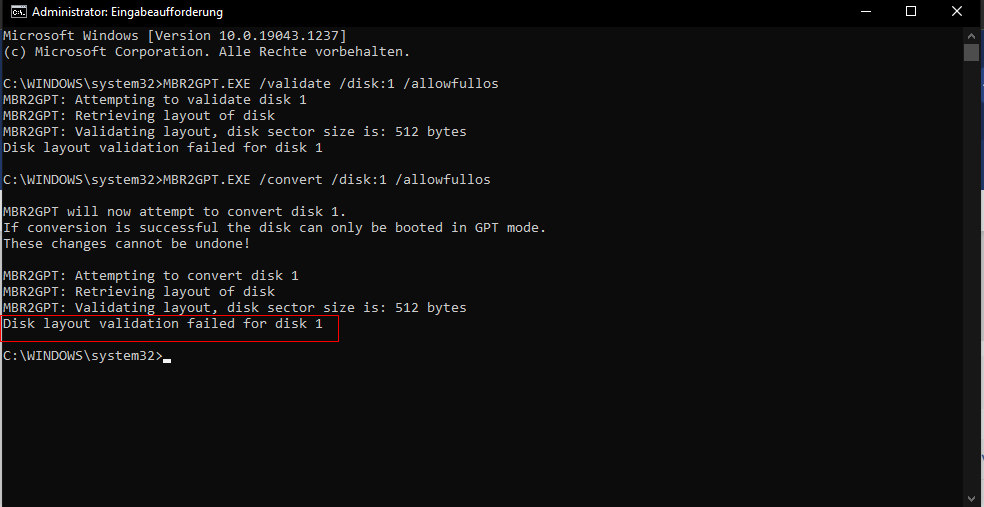
Error: MBR2GPT validation failed on Windows 10
MBR2GPT is a tool by Microsoft that converts a boot disk from the MBR to GPT partition style without modifying or deleting data, making it useful for larger hard drives (over 2TB) and for creating more than 4 primary partitions.
Microsoft has made Windows 11 upgrade from Windows 10 require UEFI boot mode, which means a conversion from MBR to GPT is necessary. However, some users have encountered issues with the MBR2GPT utility, such as the Windows 10 disk layout validation failed error, making the upgrade process more complicated.
To solve the problem, we may figure out the causes first.
Causes and solutions to MBR2GPT validation failed
1. Inapplicable Windows system
The MBR2GPT program only applies to Windows 10 version 1703 (also known as the Creator's Update) or later. Applying it to an inapplicable Windows system can result in an MBR2GPT disk layout failure.
▪ If you're using a computer running Windows 7, 8, or 8.1, please upgrade the operating system to Windows 10.
▪ If you've previously installed earlier versions of Windows 10 (versions 1507, 1511, and 1607), you'll need to run the tool while booting into Windows 10 version 1703 or later and perform an offline conversion.
2. Non-system disk
MBR2GPT is a tool that converts an attached MBR-formatted system disk to the GPT partition format. Note that it cannot be used to convert non-system disks from MBR to GPT, but you can achieve this in Windows 10 via Disk Management or Command Prompt, albeit with the risk of losing data as all partitions or volumes on the disk must be deleted before conversion.
The issue may arise if the target MBR disk already has four primary partitions, causing the conversion to fail. In such cases, removing one of the primary partitions may resolve the issue.
The best solution to MBR2GPT disk layout validation failed
If you encounter an MBR2GPT conversion failure, you can consider using Qiling Disk Master Professional as an alternative, which can efficiently and safely convert MBR to GPT without risking data loss.
Qiling Disk Master is a powerful tool that can convert a system disk from MBR to GPT and a storage disk without deleting any partition or data, overcoming the shortcomings of MBR2GPT. It supports all versions of Windows 11, 10, 7, and 8/8.1, making it a versatile solution for disk management. With Qiling Disk Master, you can easily fix MBR2GPT validation failed issues quickly and efficiently.
PS.: you can download the demo version to have a free trial.
Step 1. Install and launch Qiling Disk Master, right-click the disk you want to convert and select "Convert to GPT".
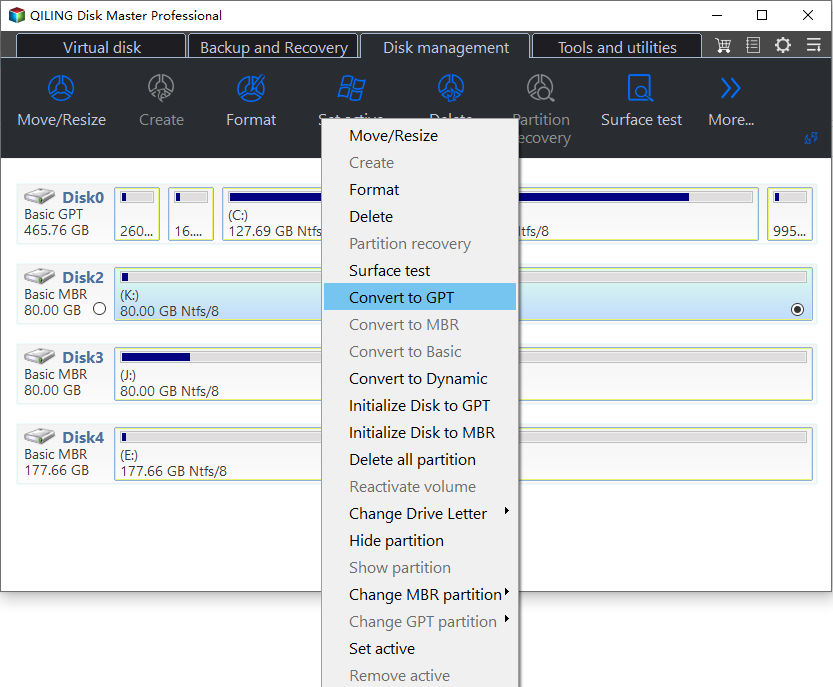
If you convert a system disk to GPT, you will get a prompt that the GPT disk boots from UEFI mode, which may cause some issues with older systems that only support MBR.
Step 2. Waiting for a while to convert the disk.
Tips:
▪ To convert a system disk, you need to switch the firmware to boot from UEFI mode after the conversion is complete.
▪ To convert MBR and GPT without loading the operating system in Windows PE with Qiling Disk Master, use the "Make Bootable Media" feature to complete the task.
▪ Qiling Disk Master can convert GPT to MBR and vice versa without data loss.
Summary
To avoid the "MBR2GPT validation failed error" when using the MBR2GPT tool, you can use the Qiling Disk Master, which supports MBR and GPT conversion on all Windows versions, including Windows 11, without data damage.
Disk Master offers a range of features, including disk cloning, OS transfer, and partition recovery. It also supports various file systems, such as NTFS, FAT, and HFS+, and can handle both MBR and GPT disk formats. The software is user-friendly and comes with a simple interface, making it easy to navigate and use.
FAQs about MBR2GPT validation failed
1. What are common reasons for MBR2GPT validation failure?
Common reasons include:
- The disk has more than three primary partitions.
- The disk already has an EFI system partition (ESP).
- There is not enough space to create the necessary partitions.
- The disk is not a system disk, meaning it does not contain an operating system.
- The disk has unsupported partition types.
- The disk size exceeds the limits supported by MBR.
2. How do I ensure there's enough space for the conversion?
MBR2GPT requires sufficient unallocated space at the end of the disk to create the EFI system partition (ESP) and other necessary structures.
3. Can I use MBR2GPT on any disk?
MBR2GPT is designed for system disks with an operating system, not for data-only disks or disks that already have a GPT partition table.
4. Can I force the conversion even if validation fails?
While forcing the conversion (mbr2gpt /convert /allowFullOS
)
In cases where the operating system fails to boot, attempting to boot in safe mode or using a live USB might work in some scenarios, but it is generally not recommended as it can lead to data loss or an unbootable system if the underlying issues are not resolved.
Related Articles
- How to Fix MBR2GPT Error in MBR to GPT Conversion in Windows 10?
If you faced "MBR2GPT error" when convert MBR to GPT, try alternative Qiling Disk Master, which can make disk conversion between MBR and GPT easily and safely. - Best Free MBR to GPT Converter for Windows 10/8/7 (No Data Loss)
In this post, we will share you with 3 free MBR to GPT converters. Two are Windows built-in tools and the third is a piece of software, which can convert MBR to GPT without losing data for free in Windows 11,10, 8, 7. - MBR vs GPT: Which One Is Better for You?
This guide explains MBR vs GPT: Which One Is Better for You with clear steps, key checks, and practical tips. - Can I Run Windows Disk Speed Test with Command Line? Sure, Your Guide Is Here
The speed of your drive is crucial for a faster and smoother experience, as it gets data to the processor quickly. To assess this, two reliable approaches for a Windows disk speed test command line are available. - How Big Is Valorant | Download Size & System Requirement🔍
To play Valorant, you'll want to know its system requirements and how to free up disk space for a smooth gaming experience. This guide provides detailed information and tips for cleaning up your disk to ensure Valorant runs smoothly on your device. - How to Find Large Files on Windows 10 | Quick Guide💡
If you're running low on storage space on your Windows 10 device, this article can help you identify and delete large files that are taking up valuable space. It will also provide tips and ideas for freeing up disk space and optimizing your computer's storage capacity.
Products
Articles & Tutorials
- Data Recovery
- Data Backup
- File Recovery
- File Backup
- File synchronize
- System Backup and Restore
- Disk and Partition Clone
- Technical articles
- Disk Master Help
- Windows Deleted File and Disk Recovery Tutorials
- Windows File and Data Recovery Tutorials
- More Windows Tutorials for Install, Security, Files, and PC Tips
- Windows Boot, Repair, and Recovery Environment Tutorials
- Windows Backup Tutorials
- Windows Restore Tutorials
- Windows Clone and Migration Tutorials
- Windows Server Backup, Recovery, and Management Tutorials
- Windows Disk, Partition, and Storage Management Tutorials