Solved: Lenovo Laptop Running Slow Windows 10
- Lenovo laptop running slow on Windows 10 can be due to various reasons such as outdated drivers, disk space issues, malware, or resource-intensive programs. To resolve this, one can try restarting the laptop, checking for updates, running a disk cleanup, and ensuring that the laptop has sufficient RAM and storage.
- Why your Lenovo laptop running slow in Windows 11/10/8/7?
- How to speed up Lenovo laptop?
- Method 1. Clean out the dust
- Method 2. Check your hard disk
- Method 3. Free up disk space or replace hard drive with a larger one
- Method 4. Upgrade antivirus software
- Method 5. Reinstall Windows
Scenario: Lenovo laptop is running very slow on Windows 10
"My Lenovo G50 laptop with good specs is running extremely slow on Windows 10, taking 8-10 seconds to open folders, struggling to load apps like Photoshop, and frequently shutting down or freezing, which is frustrating given its specs."
Why your Lenovo laptop running slow in Windows 11/10/8/7?
Many Lenovo laptop users have experienced slow performance, and several possible reasons contribute to this issue. These include outdated drivers, a cluttered registry, malware or viruses, insufficient RAM, overheating, and a full hard drive. Additionally, issues with the operating system, such as Windows updates or corrupted system files, can also cause slow performance.
1. The dust inside your laptop.
2. Hard drive's performance reduction.
3. Low disk space.
4. Antivirus software may cause your Lenovo laptop running slow.
5. Windows 10 update may also cause your PC running slow.
How to speed up Lenovo laptop?
If your Lenovo laptop is running slow on Windows 10, there are several reasons that could be causing the issue. Fortunately, there are methods that can help speed up your laptop.
Method 1. Clean out the dust
As dust accumulates in a computer's fans and vents over time, it can impact the system's ability to cool itself, potentially affecting performance and lifespan, especially in older laptops, where a thorough cleaning of the vents can make a significant difference.
A brush or a can of compressed air is a good tool for clearing the dust.
Method 2. Check your hard disk
For Lenovo laptop users, checking hard drive properties is essential, especially when your laptop is running slow. To test your hard drive, you can use a tool like Qiling Disk Master, a hard disk manager that can quickly scan and test your hard drive. You can even download its demo version to give it a try!
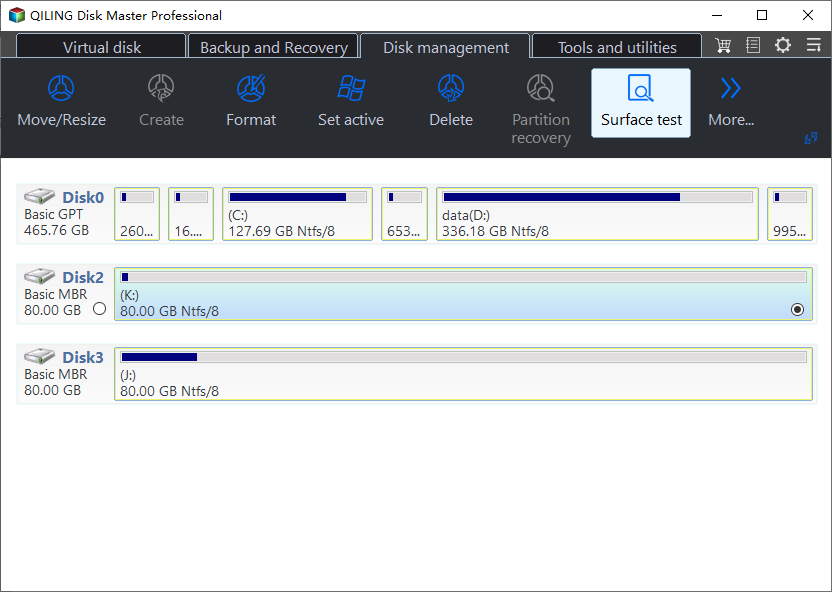
1. Install and launch the software on your Windows 10 Lenovo laptop. Click on the hard disk and select the "Surface Test" option.
2. Check the option of Quick Check, click Proceed, it will check for bad sectors on the hard drive.
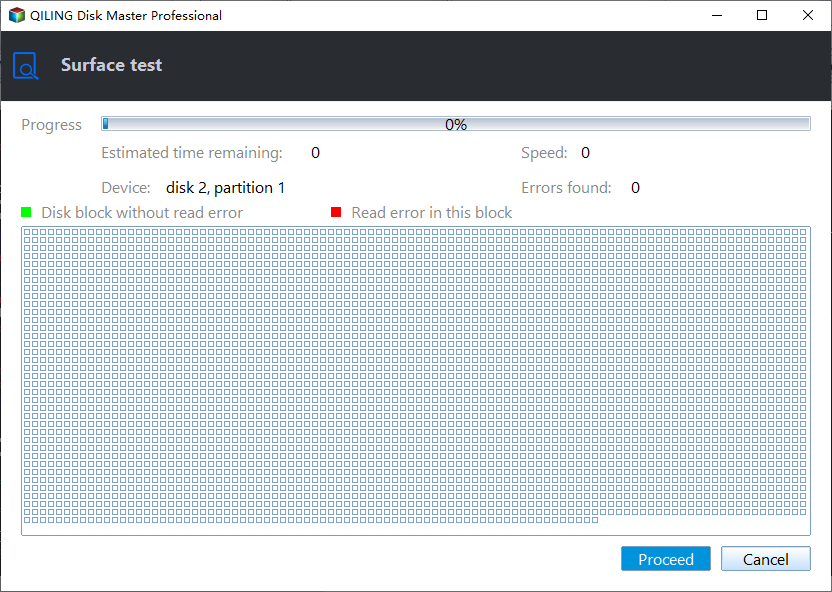
If your hard drive has a bad sector, you can use Qiling Disk Master Standard to check for partition errors and potentially fix them.
Method 3. Free up disk space or replace hard drive with a larger one
To speed up your Lenovo laptop, free up disk space or enlarge the disk space as low disk space is another reason that causes Lenovo laptop to run slow.
1. Uninstall useless programs
To free up storage space and boost laptop performance, press Windows key + R, type "control panel", and open Control Panel to identify and remove unnecessary software. If you still want to use the apps, you can move them from the C drive to another drive.
2. Extend system partition
C: drive running out of space can affect Lenovo
If your laptop's C: drive is almost full, it can cause your Lenovo laptop to slow down. To speed it up, you can try extending the system partition. This should help improve your laptop's performance.
Windows Disk Management can't extend system partition if there's no unallocated space next to C drive, but Qiling Disk Master can help by allocating free space from one hard drive to another, allowing system partition extension with free space on other partitions.
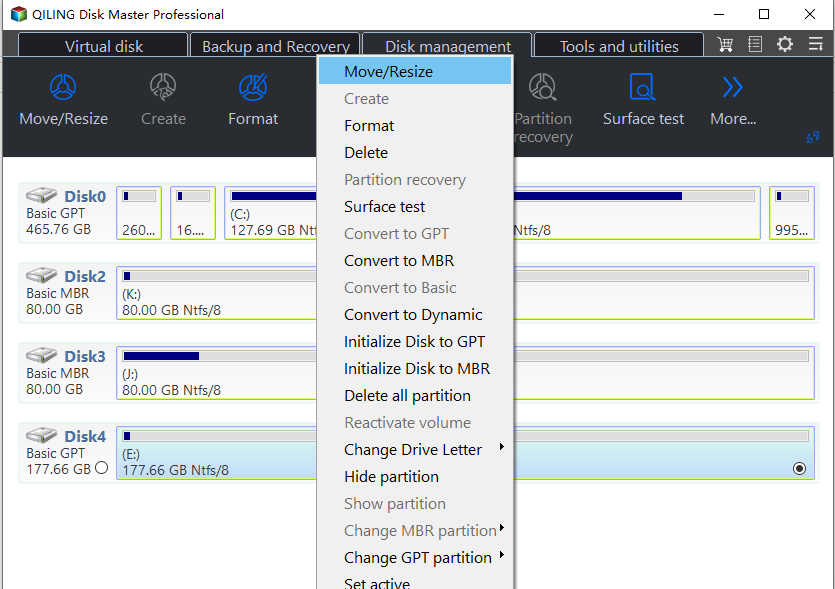
Step 1. Launch Qiling Disk Master Professional, right-click the D: drive, and select "Allocate Free Space" to allocate free space on the D: drive.
Step 2. Allocate free space from D: drive to C: drive by selecting C: drive in the Disk Management console and then selecting the "Extend Volume" option. This will allow you to add free space from D: drive to the C: drive, effectively increasing the size of the C: drive.
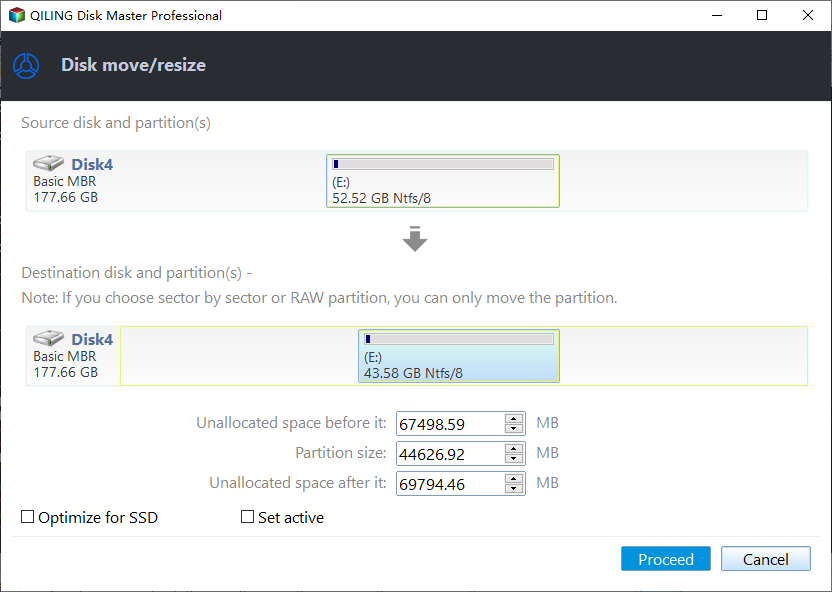
Step 3. Click Proceed to submit the operation.
3. Replace the small hard drive with a larger one
If you're running out of disk space due to a small hard drive, consider replacing it with a larger one. Alternatively, you can use Qiling Disk Master Professional to upgrade your hard drive without reinstalling Windows. This tool allows you to change your hard drive without the need for a fresh OS installation.
Connect a new larger hard drive to your Lenovo laptop via a USB cable, ensuring it can be detected by the system.
Launch Qiling Disk Master Professional, click "Tools" and then "Clone Disk".

2>. Then, choose the original disk as the source disk.

Here you can select the copy method: Clone Disk Quickly (recommended) or tick "Sector-by-sector Clone".
4>. Choose the new disk as the target disk.

Qiling Disk Master allows you to edit partitions on the destination disk, either during the copy process or after it's completed by repartitioning the hard drive.

6>. Click Proceed button to clone disk.
7>. Read the Note, and then, click Finish.

After copying the disk, you can shut down your Lenovo laptop, manually replace the old hard drive with the cloned one, and you're good to go.
Method 4. Upgrade antivirus software
If your Windows 10 Lenovo laptop suddenly runs slow, try upgrading your antivirus software to see if it resolves the issue.
Method 5. Reinstall Windows
If the above methods don't work, you may need to reinstall Windows 11/10/8/7. This process can be time-consuming, but it's necessary. Before reinstalling, it's recommended to back up your data and hard drive to prevent any loss of information. Reinstalling Windows will erase all data, so it's crucial to have a backup in place.
If your Lenovo laptop is running slow in Windows 11/10/8/7, there are several steps you can take to improve its performance. First, ensure that your laptop's drivers are up-to-date, as outdated drivers can cause system slowdowns.
Related Articles
- How to Make Your Computer Faster for Gaming [3 Effective and Simple Ways]?
If you find your game applications load slowly, read this post and you can learn how to make your computer faster for gaming in Windows 10, 8, 7. Several different methods are available for your selection. - Guide to Test Seagate Expansion Speed with Pictures in 2024
If you're looking for a Seagate Expansion hard drive and want to know which one is best for you, this blog post is for you. It provides the information you need to make an informed decision and also offers tips on how to test the speed of the drive. - Tools to Run Toshiba Hard Drive Test - Health & Speed 2024
Discover the essential tools to run a Toshiba hard drive test and maintain optimal health and speed. It's crucial for peak performance and detecting potential issues. Our recommended tools provide in-depth analysis, allowing you to monitor health and optimize speed effectively. - Unable to Extend C Drive? Fix It Now
If you're having trouble extending the C drive on your Windows computer, this article can help. It provides causes and practical solutions to resolve the issue. - How to Boot Windows 10 from USB Flash Drive
If you want to install Windows or run the same OS on different devices, you can create a bootable USB and boot Windows 10 from USB by following this guide. This will allow you to install Windows on different devices or run it on multiple machines. - Best Bootable Manager Software for Windows 2024 Recommend
This guide explains Best Bootable Manager Software for Windows 2024 Recommend with clear steps, key checks, and practical tips.
Products
Articles & Tutorials
- Data Recovery
- Data Backup
- File Recovery
- File Backup
- File synchronize
- System Backup and Restore
- Disk and Partition Clone
- Technical articles
- Disk Master Help
- Windows Deleted File and Disk Recovery Tutorials
- Windows File and Data Recovery Tutorials
- More Windows Tutorials for Install, Security, Files, and PC Tips
- Windows Boot, Repair, and Recovery Environment Tutorials
- Windows Backup Tutorials
- Windows Restore Tutorials
- Windows Clone and Migration Tutorials
- Windows Server Backup, Recovery, and Management Tutorials
- Windows Disk, Partition, and Storage Management Tutorials