How To Convert Guid Partition Table (GPT) To Master Boot Record (MBR)?
Why Convert GUID Partition Table to MBR?
Although GUID Partition Table (GPT) has its advantages, there are still situations where converting it to Master Boot Record (MBR) is necessary. For example, some users may need to convert GPT to MBR for specific reasons, as seen in computer forums where users seek help with this process. These situations highlight the need to understand how to convert GPT to MBR, despite the benefits of the newer disk layout.
1. To install Windows 7 on your Lenovo U510, you'll need to convert the SSD and hard drive from GPT to MBR (Master Boot Record) format, which is required for Windows 7 installation. You can use a tool like Qiling Partition Manager to convert the partitions. Once converted, you can install Windows 7 on the converted drive. Note that you may also need to resize the existing partitions to make space for Windows 7.
2. You can use the built-in `diskpart` command in Windows to convert a GPT disk to MBR. To do this, open Command Prompt as Administrator, type `diskpart`, and then follow these steps:
3. When I start my computer, it won't boot from the hard drive, and the BIOS says it can't boot. However, when I take the drive out and put it into another computer, it shows up as a healthy GPT drive in the storage utility, but doesn't appear in Windows Explorer, and has no drive letter assigned to it.
Convert GUID Partition Table(GPT) to Master Boot Record(MBR)
There is a professional partition software called Qiling Disk Master Professional that can convert a system disk between GPT and MBR without data loss. This tool supports Windows 11/10/8/8.1/7/XP/Vista systems, making it a helpful tool for Windows users to manage their devices.
Method 1. Convert GUID partition table to MBR via Qiling Disk Master
Step 1. Install and run Qiling Disk Master Professional Edition. Right-click Disk 1 and select "Convert to MBR" or click the disk and choose "Convert to MBR" from the right column.
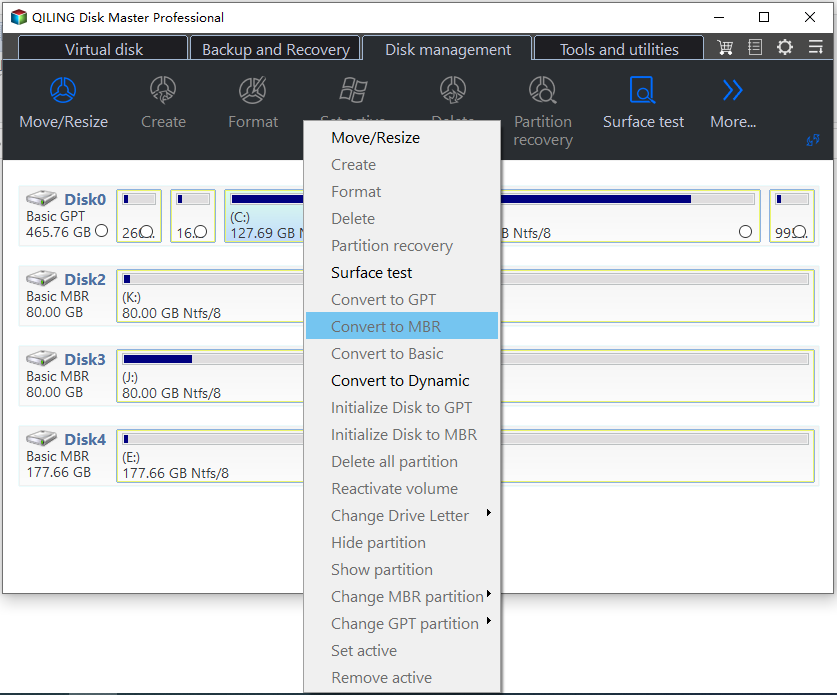
Step 2. Waiting to proceed this operration.
Converting GPT to MBR is a relatively simple process that can be completed in just a few steps, ensuring that your data remains intact. By following these steps, you can successfully convert your GPT disk to MBR without any data loss.
Method 2. Convert GPT to MBR with CMD
This method converts a GUID Partition Table (GPT) to a Master Boot Record (MBR) using the command line.
Step 1. Right-click Command Prompt, and then click "Run as administrator".
Step 2. You need to type the following commands and hit enter after each one:
• The command `list disk` will display a list of all the disks available on the system, along with their disk numbers. This will allow you to identify the disk you want to delete. For example, the output might look something like this: `Disk 0/0/0 [4.
• Type select disk [number]
• Type clean.
• Type convert mbr
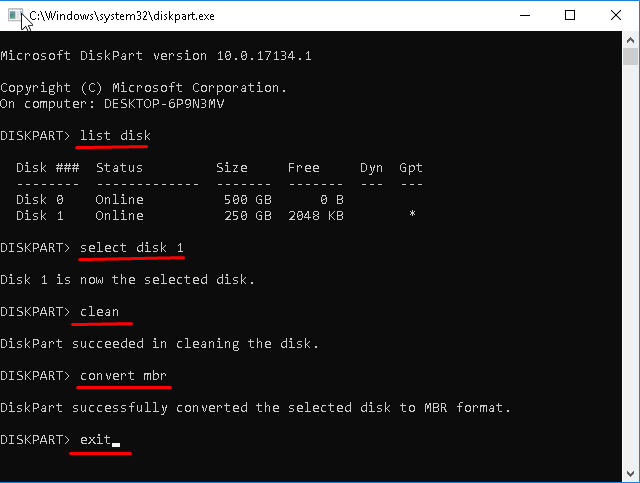
This method requires an empty disk with no volumes, so you should delete and clean it first. I recommend backing up volumes using free backup software before proceeding.
Method 3. Convert GPT to MBR with Disk Management
This method converts a GUID Partition Table (GPT) to a Master Boot Record (MBR) using Windows disk management.
Step 1. Log on as an administrator.
Step 2. Right-click Computer and select Manage.
Step 3. Select Disk Management from the left pane under the Storage category.
Step 4. On the right pane, ensure the hard disk drive you want to reinstall Windows on has no partitions, deleting any existing ones if necessary, to enable the "Convert to MBR" option.
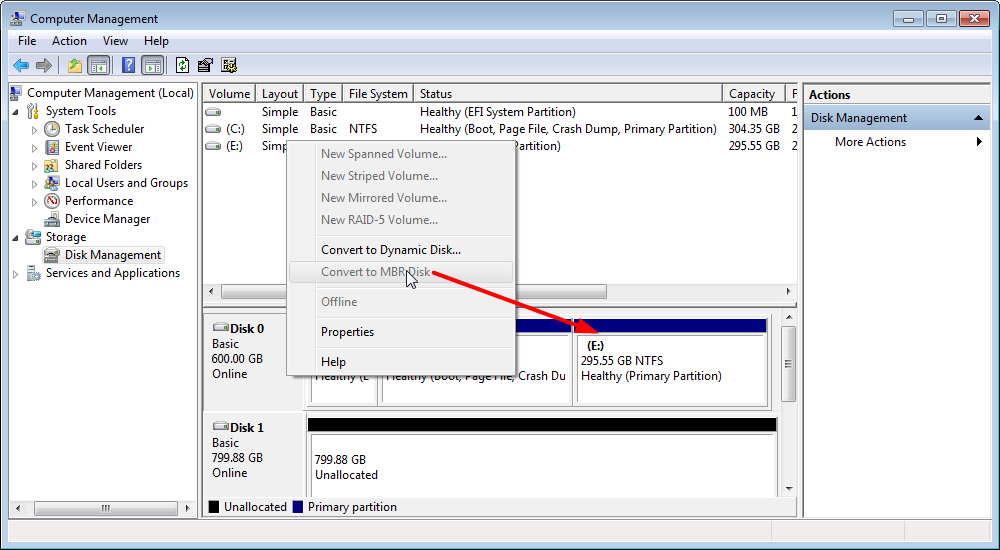
Step 5. Then right-click the name of the disk (e.g. Disk 1) and click Convert to MBR from the context menu.
This method requests that the disk is empty and contains no partitions.
Summary
Both methods 2 and 3 require deleting data on the disk, but the first method is more convenient as it doesn't care if the disk is empty or not. Qiling Disk Master is a professional and safe tool that offers additional features such as migrating OS to SSD, cloning disk, converting file system between FAT32 and NTFS, and making Windows 11 go USB. It also has a Server edition for Windows Server users.
Related Articles
- How to Wipe Write-Protected SSD, Help
Learn how to Wipe Write-Protected SSD, Help with clear steps, key checks, and practical tips. - How Can I Write a USB Drive Formatted as EXT4 in Windows 11?
On this page, you will learn the detailed answer and steps of how to write to a USB drive formatted as ext4 in Windows 11. And you will also get one of the best tools to help you with the formatting operation. - Best FAT32 Converter Free Download [Tried and Free]
This guide explains Best FAT32 Converter Free Download with clear steps, key checks, and practical tips. - How to Change BIOS Mode from Legacy to UEFI Windows 10/11
If you're running Legacy BIOS, you may need to convert Legacy BIOS to UEFI to take advantage of its new feature. This process is relatively simple, but it will require you to boot into your BIOS and change a few settings. If you're ready to make the switch, here's what you need to do. - Does Deleting a Partition Erase All the Data? | Solid Way to Recover
Deleting a partition removes its file system and access entry, but the data may still be recoverable before being overwritten. Learn safer deletion and recovery options. - How to Download Windows 11 23H2 Update from Microsoft✅
Recently, Microsoft released the Windows 11 23H2 version, and many users wonder if they can get this update. This post contains a full guide on how to download Windows 11 23H2 Update.
Products
Articles & Tutorials
- Data Recovery
- Data Backup
- File Recovery
- File Backup
- File synchronize
- System Backup and Restore
- Disk and Partition Clone
- Technical articles
- Disk Master Help
- Windows Deleted File and Disk Recovery Tutorials
- Windows File and Data Recovery Tutorials
- More Windows Tutorials for Install, Security, Files, and PC Tips
- Windows Boot, Repair, and Recovery Environment Tutorials
- Windows Backup Tutorials
- Windows Restore Tutorials
- Windows Clone and Migration Tutorials
- Windows Server Backup, Recovery, and Management Tutorials
- Windows Disk, Partition, and Storage Management Tutorials