Upgrade to Windows 11: What You Need to Know?
About Windows 11
Windows 11, set to be released in late 2021, brings a revamped user interface, a new Start menu, and a refreshed Windows logo. The operating system promises faster performance in areas like waking from sleep and browsing, and introduces the ability to install and run apps. Additionally, the "Direct Storage" feature enables games to directly upload assets to the graphics card, resulting in faster game launches and a better gaming experience. These changes, along with others, aim to enhance the overall user experience.
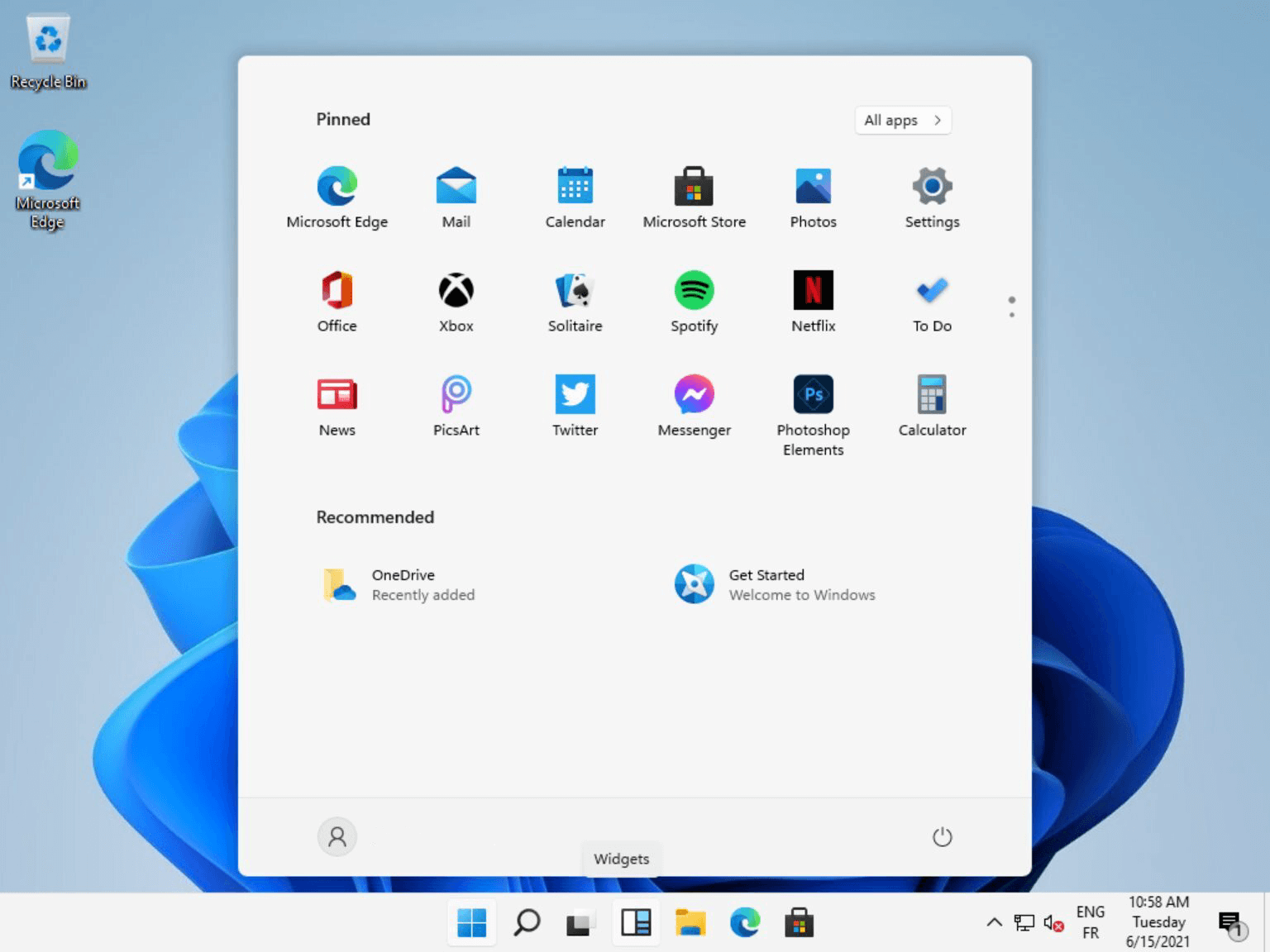
Full guide on how to upgrade to Windows 11
Before upgrading to Windows 11 from Windows 10/8/7, it's essential to refer to a guide that outlines what you should know before the update, the detailed steps to upgrade, and what you need to know after the update. This guide will help you prepare and navigate the process of upgrading to the new OS.
▐ Section 1: Before upgrading to Windows 11
Before upgrading your current OS to Windows 11, it's essential to check if your PC hardware is compatible with the new OS, ensuring a smooth transition.
☞ To view your computer's processor, RAM, right-click This PC and choose "Properties".
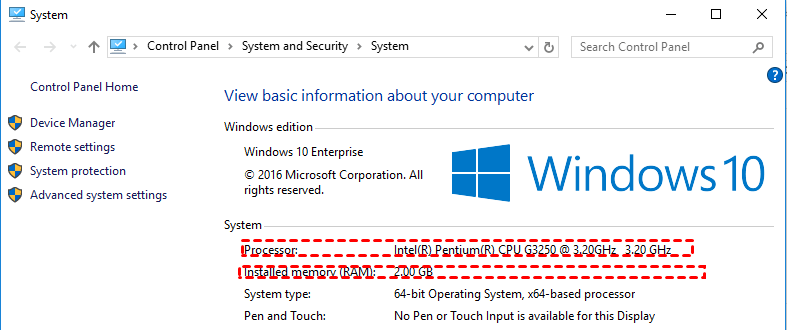
☞ To check TPM version of your PC, follow these steps:
Step 1. Press "Windows" + "R", input "tpm.msc" and press Enter.
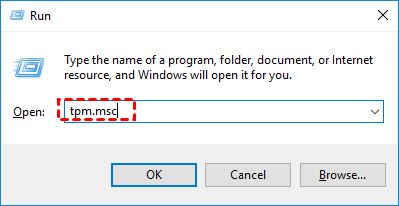
Step 2. In the pop-up window, you can view the TPM specification version that your chip supports.
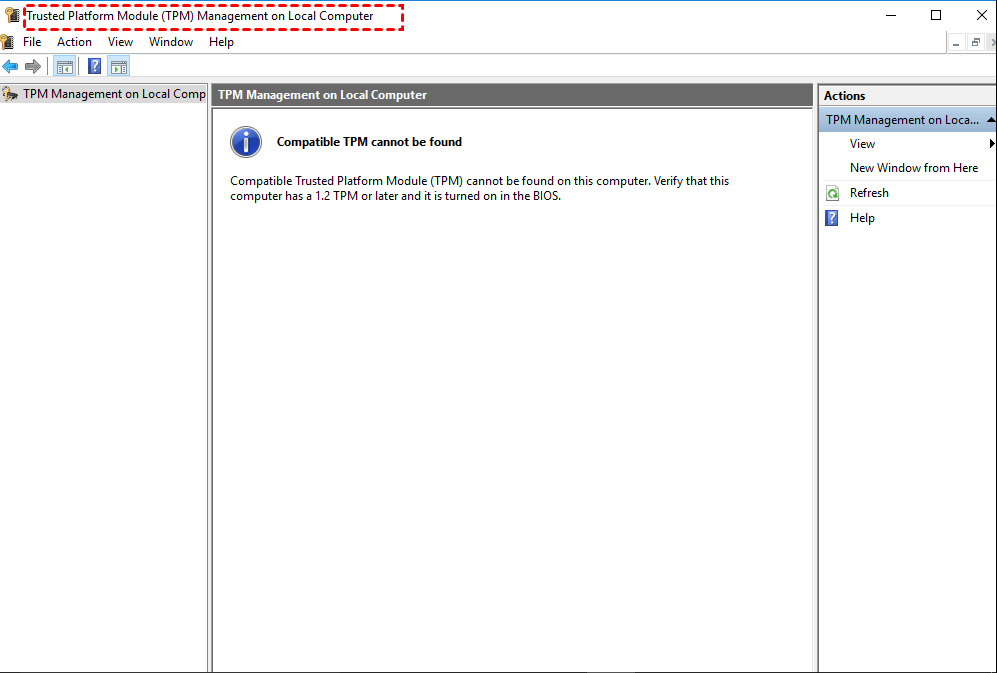
Note: If you see the message "Comptiabel TPM cannot be found", you can enable TPM in BIOS by entering the BIOS settings, changing to "Advanced Mode", going to the "Settings" or "Miscellaneous" section, and enabling TPM.
☞ To check the graphics card on your computer, walk through the steps below:
Step 1. In the Search box, type "System Information" and click it to open it.
Step 2. Expand "Components" and click "Display".
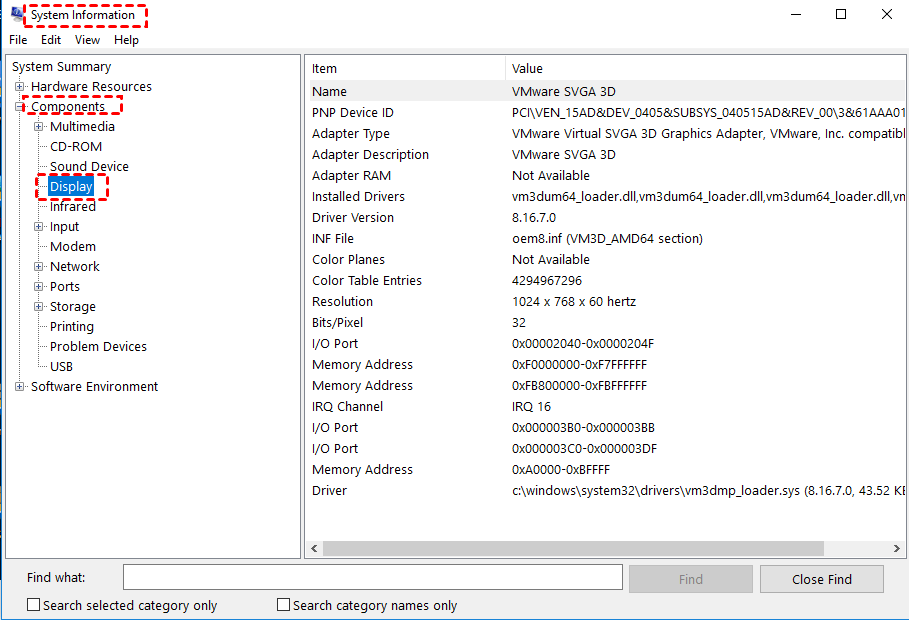
Step 3. Then, you'll see the type of Graphics card.
The PC Health Check app can help you determine if your PC is eligible for an upgrade to Windows 11, making it easier to check the requirements on your PC.
To avoid data loss during the Windows 11 update, back up your system and important files in advance.
▐ Section 2: Steps to upgrade to Windows 11
With a complete hardware check and system & files backup in place, you can now proceed with the Windows 10 to Windows 11 update process, which will be available after Windows 11's release.
Step 1. Click "Start" and "Settings".
Step 2. On the window, click "Update & Security".
Step 3. On the "Update & Security" window, click "Check for update" and Windows 11 will show up in the Download updates section, allowing you to proceed with the installation.
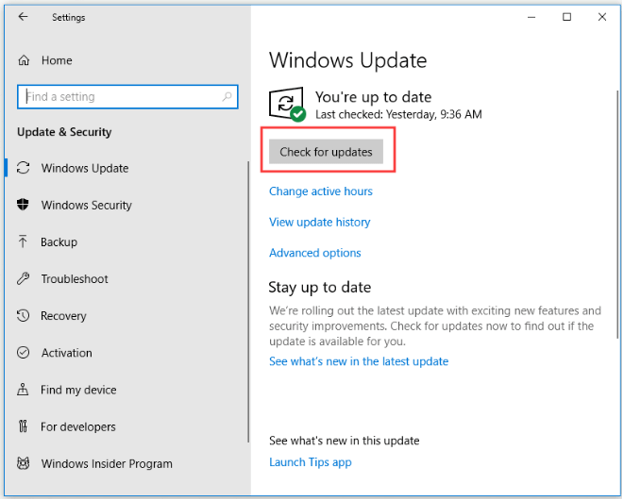
Step 4. Then, wait for the update to download and install.
▐ Section 3: After upgrading to Windows 11
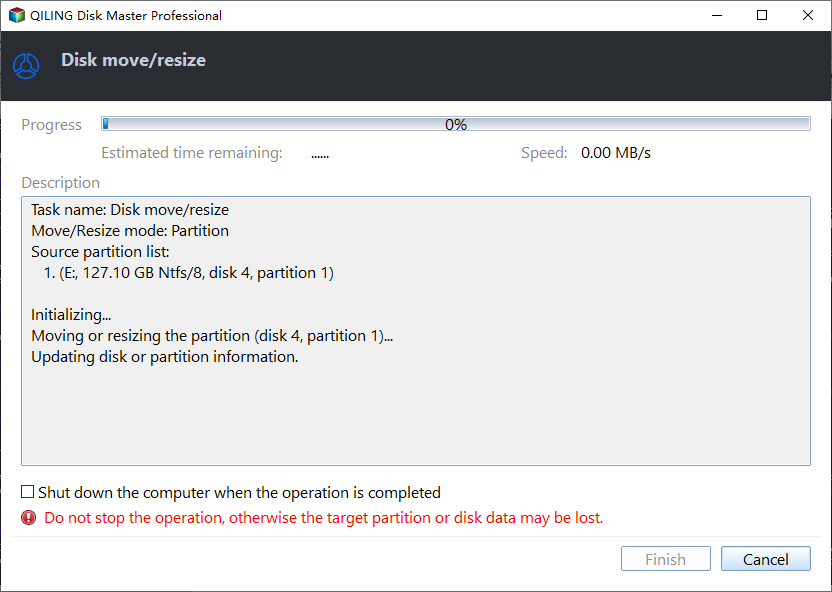
After updating to Windows 11, you can explore its new features, but if you find that a device isn't compatible or you prefer Windows 10, you can downgrade to a previous version. If you encounter a full C drive after the update, consider using a professional partition manager like Qiling Disk Master Professional to adjust the partition size. This tool allows you to extend the C drive by allocating unallocated space or by taking space from another drive on the same disk, helping to solve the inadequate space issue after upgrading from Windows 10.
Step 1. Right-click the drive that has extra unused space and choose "Move/resize".
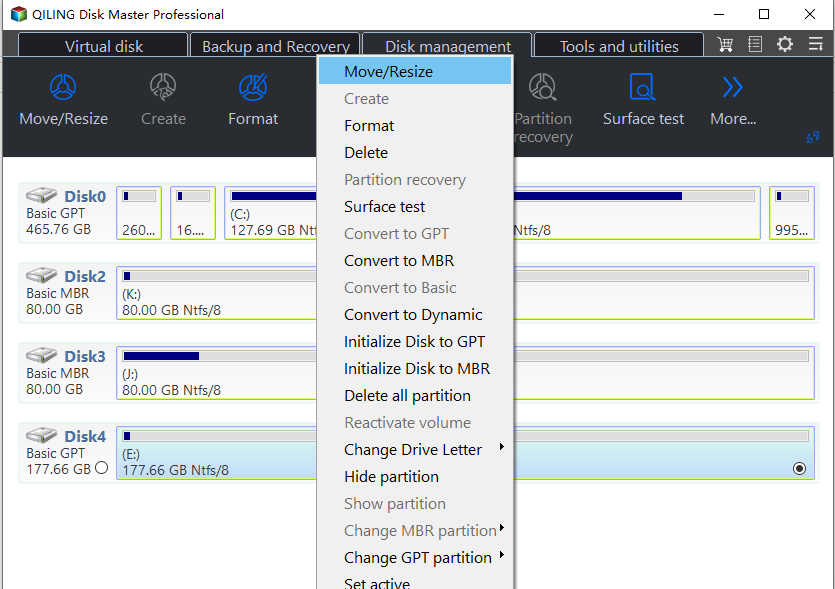
Step 2. Input how much space that you want to allocate from partition D and choose C drive as the target space.
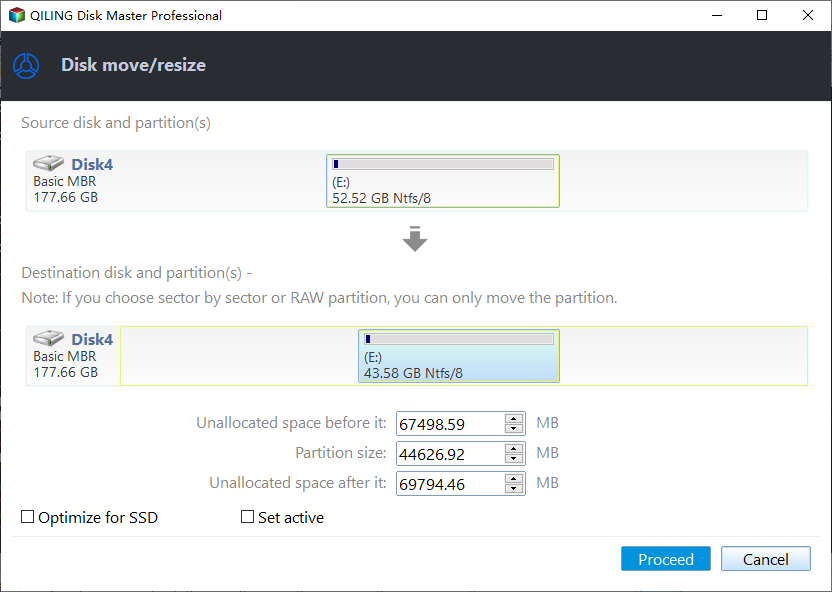
Step 3. Now, you can preview what will happen after you allocate free space to C drive, click "Proceed" after you confirm it.
Notes:
▪ To free up space on your C drive, you can run Disk Cleanup, disable hibernation, move installed apps to another drive, and consider other space-saving options.
▪ The partition tool allows for various operations such as cloning a hard disk drive to a solid state drive, converting a GUID Partition Table (GPT) to a Master Boot Record (MBR), and performing other tasks.
Related Articles
- How to Clone Windows to a New Drive [2024 Full Guide]
This article covers a professional tool to help you clone Windows to new drive and provides detailed steps on how to clone the operating system to a new drive. - How to Format My 1TB Hard Drive to FAT32? 2024 Guide for Beginners
Briefly state the goal of this page, and call Windows users to follow this page to learn how to efficiently 1TB hard drive to FAT32 successfully. - How Do I Format Hard Drive on Windows 11? 2024 Complete Guide
Briefly state the goal of this page, and call Windows users to follow this guide, tell them they'll successfully format their external hard drive without losing any data on Windows 11/10/7 computers. - How to Format Galaxy S5 SD Card [2024 Newest Solutions]
This passage will help you figure out the reasons for formatting the Galaxy SD card and offer three solutions to teach you how to format Galaxy S5 SD card on Windows, Mac, and Android. - How to Clone Windows 7 to USB [Full Guide]
To clone Windows 7 to USB, you'll need a USB drive with a capacity of at least 8 GB. First, download and install the Windows 7 USB/DVD Download Tool. Next, insert the USB drive and run the tool. - Guide to Clone SSD to NVMe SSD (with Pictures🏞️)
Use this guide for Guide to Clone SSD to NVMe SSD (with Pictures), with cloning or migration steps, boot checks, and tips to keep data safe during the move. -
Install Windows 11 on an Old PC
Check hardware, drivers, backup, and rollback options before installing Windows 11.
Products
Articles & Tutorials
- Data Recovery
- Data Backup
- File Recovery
- File Backup
- File synchronize
- System Backup and Restore
- Disk and Partition Clone
- Technical articles
- Disk Master Help
- Windows Deleted File and Disk Recovery Tutorials
- Windows File and Data Recovery Tutorials
- More Windows Tutorials for Install, Security, Files, and PC Tips
- Windows Boot, Repair, and Recovery Environment Tutorials
- Windows Backup Tutorials
- Windows Restore Tutorials
- Windows Clone and Migration Tutorials
- Windows Server Backup, Recovery, and Management Tutorials
- Windows Disk, Partition, and Storage Management Tutorials