Get GPT to MBR Converter Software Free Download Here! (3 Tools)
- What is the best free MBR to GPT converter?
- How to use free GPT to MBR converter software step-by-step
- ▶Solution 1. GPT to MBR conversion software free download
- ▶Solution 2. Convert to MBR Disk via Windows Disk Management
- ▶Solution 3. Convert to MBR in Windows Command Prompt
- The difference between GPT disk and MBR disk
- Summary
- FAQs about GPT to MBR converter software free download
Setting the disk to GPT has become the norm, especially since Windows 11 requires a GPT disk to boot from UEFI. If you're upgrading from a previous Windows version, your system disk needs to be converted to GPT. If you still have an MBR disk, you'll need to use an MBR to GPT converter software. This article recommends three top-rated software options for converting MBR to GPT, and also provides information on converting GPT to MBR if needed.
What is the best free MBR to GPT converter?
To convert GPT to MBR without data loss, you can use a third-party partition manager like Qiling Partition Master, which can safely convert the disk from GPT to MBR. Alternatively, you can use the built-in Disk Management tool in Windows or the gdisk command in Linux to convert the disk, but be cautious as this may require manual intervention and data loss is possible if not done correctly. It's also recommended to back up your data before attempting any conversion to ensure your data's safety.
| MBR to GPT converter | Complex Level | Suitable Users |
|---|---|---|
| Qiling Disk Master | Low | Beginners |
| Disk Management | Moderate to High | Experts |
| Command Prompt | High | Experts |
Qiling Disk Master is the best disk management tool due to its user-friendly interface and features. To use the free GPT to MBR converter, you can continue reading for the detailed steps.
How to use free GPT to MBR converter software step-by-step
To convert a disk from one format to another, you can use a tool like Qiling Disk Master. These tools can clone the disk, which means they create an exact copy of the original disk, including all data, operating systems, and applications.
▶Solution 1. GPT to MBR conversion software free download
To convert a GPT disk to MBR without losing data, you can use a GPT to MBR converter software such as Qiling Disk Master Standard, which can be downloaded for free. This software allows you to convert your GPT data disk to MBR in a few simple steps, ensuring that your data remains intact throughout the process.
Tip: To convert a system disk from GPT to MBR without losing data, upgrade to the Professional Edition.
Step 1. Launch Qiling Disk Master. Right-click on the disk you want to convert and select "Convert to MBR".
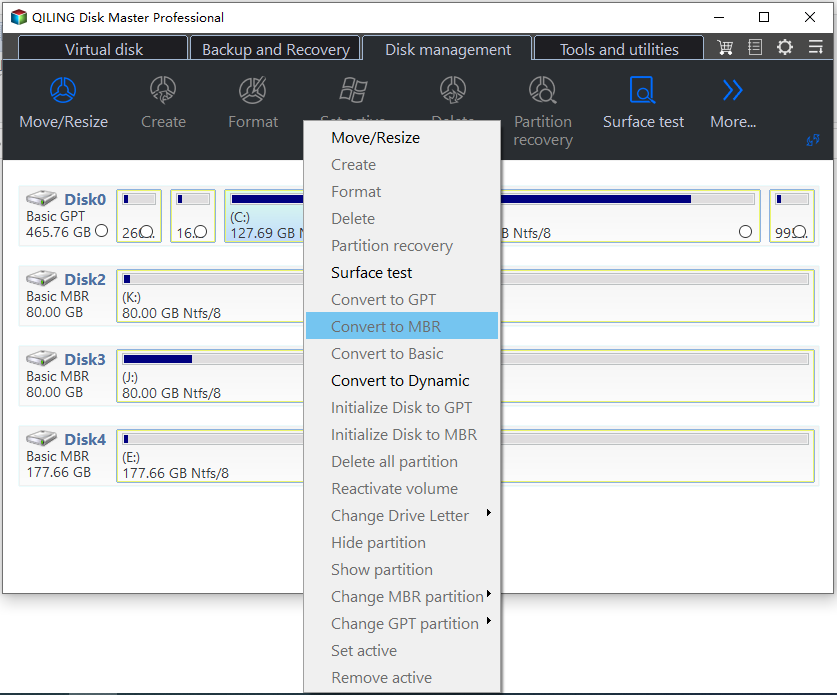
Step 2. Waiting for a while to execute the operation.
▶Solution 2. Convert to MBR Disk via Windows Disk Management
Disk Management, a Windows native tool, allows users to perform basic disk partition management tasks such as formatting, creating, deleting, extending, and shrinking partitions. To convert a MBR disk to a GPT disk using this tool, you must first delete all partitions on the target MBR disk, turning it into unallocated disk space, before completing the conversion.
1. Press the Win+R keys to open Run, type diskmgmt.msc in Run, and click on OK to open Disk Management.
2. Right-click on the disk you want to convert, delete each partition, and click delete volume until the disk is unallocated.
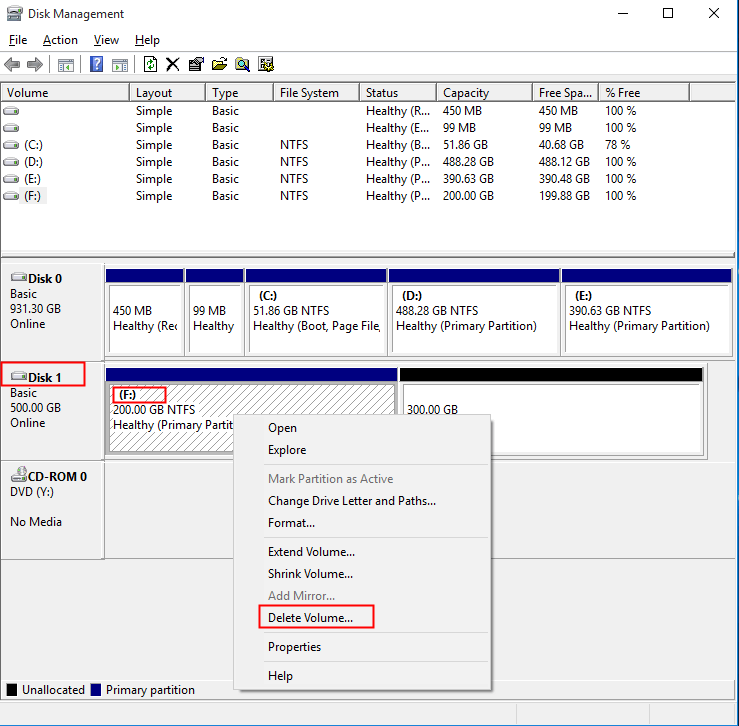
3. Right-click on the disk box of the GPT disk you want to convert to MBR, and click Convert to MBR Disk.
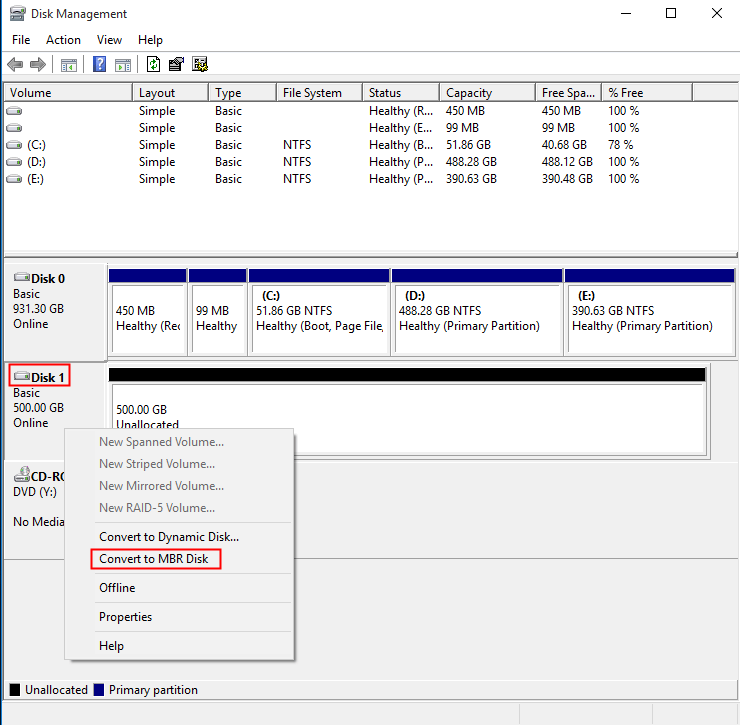
4. You can create a new simple volume on the unallocated MBR disk by specifying the volume size, assigning a drive letter or path, and formatting the partition step by step with the help of the New Simple Volume Wizard.
▶Solution 3. Convert to MBR in Windows Command Prompt
Similar to Disk Management, Diskpart is a Windows built-in tool for users to manage their disk partition. However, it only supports converting an empty disk to GPT, requiring users to delete all volumes on the disk before using it as a free MBR to GPT converter.
1. To open the Diskpart window, press the Windows key + R on your keyboard, type "diskpart" in the Run dialogue, and press Enter. This will open the Diskpart window.
2. In the Diskpart windows, then run the following commands in turn and press Enter after each one.
● list disk
● select disk 1
● clean
● convert mbr
● exit
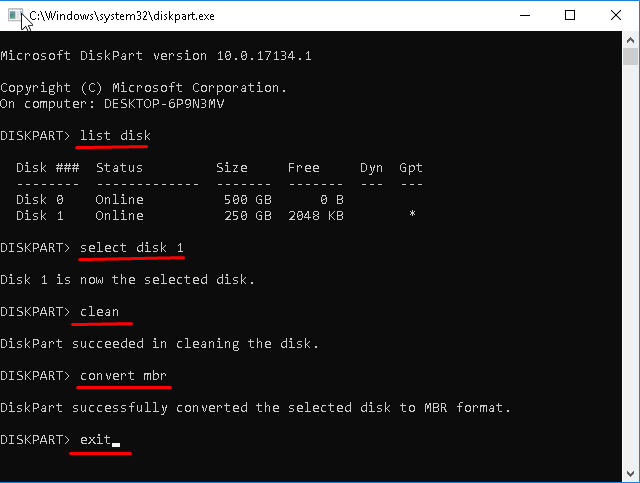
Converting a disk from GPT to MBR requires deleting all partitions or volumes, or backing up the data to avoid loss. However, if you don't have a full backup, all data will be deleted. Fortunately, there are tools like Qiling Disk Master that can free convert a disk to MBR and GPT without data loss, making the process simpler.
The difference between GPT disk and MBR disk
GPT (GUID Partition Table) and MBR (Master Boot Record) are two common partition styles used to store data on hard drives and solid-state drives. GPT disks, which are more modern and widely used, use globally unique identifiers to label partitions, making it easier to manage and recover data. In contrast, MBR disks, which are older and less common, use a single table to store partition information, which can lead to limitations and potential data loss. While both styles can be used to store various types of data, GPT disks are generally preferred due to their improved functionality and reliability.
✦ The MBR (Master Boot Record) disk has limitations, allowing only 4 primary partitions or 3 primary partitions plus 1 extended partition. In contrast, GPT (GUID Partition Table) has no such restrictions, enabling the creation of more partitions and supporting larger hard drive capacities, with Windows supporting up to 128 partitions. Additionally, GPT has no maximum disk size limit, unlike MBR which is capped at 2TB.
✦ The MBR hard drive has better compatibility with the Windows system, while GPT is slightly worse.
✦ The MBR (Master Boot Record) disk is booted by BIOS, whereas the GPT (Guided Partition Table) disk is booted by UEFI (Unified Extensible Firmware Interface).
✦ MBR compatibility is better than GPT.
✦ Partitioned disks with redundant primary and backup partition tables are designed to ensure the integrity of the partition data structure by having a duplicate set of partition information, which can be used in case of corruption or loss of the primary partition table. This redundancy provides a safeguard against data loss and ensures that the disk can still be accessed and utilized even if one of the partition tables becomes damaged or is deleted.
While GPT disks have several advantages over MBR disks, we will still use the MBR partition style for compatibility reasons. Therefore, you will need to convert GPT to MBR in certain situations.
◉ If you have a Windows 95/98/ME, Windows NT4, Windows 2000, Windows 2003 32-bit, or Windows XP 32-bit version, your computer will not support GPT partitions.
◉ MBR (Master Boot Record) is compatible with both Legacy BIOS and UEFI boot modes, making it a more versatile option. In contrast, GPT (GUID Partition Table) is only compatible with UEFI boot mode, limiting its compatibility with operating systems. This means MBR disks can be used with a wider range of operating systems than GPT disks.
◉ When you plug an external hard drive into your computer, it may appear as a "GPT Protective Partition" instead of being recognized as an external hard drive. This issue can occur if the external hard drive has a GPT (GUID Partition Table) partition scheme, which is a type of partition table used by some operating systems.
This guide offers 3 free tools to convert GPT to MBR, allowing you to optimize your computer's performance by making the best choice among them.
Summary
To convert a GPT disk to MBR without losing data, it's recommended to back up disk data first if using Windows Disk Management and Command Prompt. Alternatively, you can use free software like Qiling Disk Master, which allows for safe GPT to MBR conversion. For Windows Server users, Qiling Disk Master Server is specifically designed to solve various partition problems, making it a reliable solution.
FAQs about GPT to MBR converter software free download
Why would I need to convert GPT to MBR?
You may need to convert a disk from GPT to MBR if you're installing an older operating system or booting from a device that only supports the MBR partitioning scheme. Certain software applications or hardware configurations may also require MBR compatibility, making the conversion necessary.
How do I choose the right GPT to MBR Converter Software?
When choosing a GPT to MBR Converter Software, consider factors like user reviews and ratings, and the software's features and functionalities, and look for a tool with a straightforward interface and reliable performance.
Can you convert GPT to MBR without erasing data?
You can back up data on the target disk, or use Qiling Disk Master to perform a safe GPT to MBR conversion.
Related Articles
- Best Way to Convert MBR to GPT without Data Loss in Windows 11, 10, 8, 7
This guide explains Best Way to Convert MBR to GPT without Data Loss in Windows 11, 10, 8, 7 with clear steps, key checks, and practical tips. - How to Convert GPT to MBR (or MBR to GPT) without Operating System?
Learn how to convert GPT to MBR without operating system via CMD and a handy tool to convert GPT disk to MBR disk without data loss without access to OS. - Convert Disk between MBR and GPT in Windows 10 without Data Loss
Learn how to convert disks between MBR and GPT in Windows using Command Line, Disk Management, MBR2GPT.exe, or a professional converter. - GPT to MBR Converter Software - Free Download
While GPT is the new standard and is gradually replacing MBR, MBR is still the most compatible and is still necessary in some cases. If you are confused with GPT to MBR conversion, read this page patiently. - How to Remove GPT Protective Partition without Data Loss
You can learn what is GPT protective partition from this article and how to solve related problems of GPT protective partition step by step.
Products
Articles & Tutorials
- Data Recovery
- Data Backup
- File Recovery
- File Backup
- File synchronize
- System Backup and Restore
- Disk and Partition Clone
- Technical articles
- Disk Master Help
- Windows Deleted File and Disk Recovery Tutorials
- Windows File and Data Recovery Tutorials
- More Windows Tutorials for Install, Security, Files, and PC Tips
- Windows Boot, Repair, and Recovery Environment Tutorials
- Windows Backup Tutorials
- Windows Restore Tutorials
- Windows Clone and Migration Tutorials
- Windows Server Backup, Recovery, and Management Tutorials
- Windows Disk, Partition, and Storage Management Tutorials