Top 4 Way to Convert MBR to GPT without Data Loss in Windows 11, 10, 8, 7
Want to convert MBR to GPT without data loss
Yes, it's possible to convert a drive from MBR to GPT, but it requires caution to avoid data loss. If you're running Windows, you can use the built-in Disk Management tool to convert the disk. However, this process will erase all data on the disk, so make sure to back up your data before proceeding. If you're running a Linux distribution, you can use tools like `gdisk` or `parted` to convert the disk. These tools can be used to non-destructively convert the disk, but it's still essential to back up your data first. Be aware that converting a disk from MBR to GPT will not increase the visible drive size, but it will allow you to utilize the full capacity of the disk. So, the answer is yes, it's possible to convert a drive from MBR to GPT, but it's crucial to take necessary precautions to avoid data loss.
Many Windows users are searching for a solution to convert MBR to GPT without losing data, as Microsoft has announced that upgrading to Windows 11 requires UEFI and GPT, making the conversion surge in demand.

The transition from MBR to GPT has been a significant one, with MBR being widely used in older versions of Windows and GPT being the newer, more advanced partition style supported by modern operating systems. If you need to convert MBR to GPT without losing your data, you're in the right place, and we'll guide you through the process, starting with an overview of the key differences between these two partition styles.
MBR VS. GPT: What is the difference?
MBR, an older partitioning scheme, has limitations such as a maximum disk size of 2TB and support for only four primary partitions. In contrast, GPT offers numerous advantages, including support for larger disk sizes, unlimited partitions, and improved data integrity.
The difference between MBR and GPT, as well as personal situations, provide a reasonable explanation for why people need to convert MBR to GPT without data loss.
▶The MBR hard disk can only support a 2TB hard disk at most, whereas GPT can support up to 256TB.
▶On an MBR disk, users can create a maximum of 4 primary partitions or 3 primary partitions and 1 extended partition, whereas a GPT disk can support up to 128 primary partitions.
▶Some booting mainboards, like those on MAC systems, cannot support Master Boot Records (MBR) as their system drive.
Converting an MBR hard disk to GPT during or after Windows installation can be done in various ways, but some methods require deleting the existing partition, including the data inside, while others do not. The outcome varies depending on the chosen method, so it's essential to choose a method that preserves the data.
Best way to convert MBR to GPT without data loss in Windows 11/10/8/7
Windows built-in tools, such as Command Prompt and Disk Management, can convert MBR to GPT only after deleting all partitions on the target disk. They also cannot convert a running system disk inside Windows because the system partition cannot be deleted while Windows is in use.
You can convert the data disk or boot disk from MBR to GPT without losing data by using a third-party MBR to GPT converter like Qiling Disk Master Professional.
Qiling Disk Master Professional can help convert both system and data disks from MBR to GPT within Windows, as long as the OS boots successfully. You do not need to delete partitions beforehand, so it is a more convenient option for data-safe conversion.
This tool works on Windows 11, 10, 8/8.1, 7, XP, and Vista, with a demo edition available for trial use.
- ★Tips:
- When converting the MBR system disk to GPT, make sure your motherboard supports EFI/UEFI boot mode, or the system won't boot properly after conversion.
- It's recommended to back up important data before starting to avoid potential data loss due to incorrect operations or unexpected errors.
- If you're running Windows 10 version 1703 or higher, you can use the Windows 10 MBR2GPT convert tool to convert your system disk from Master Boot Record (MBR) to GUID Partition Table (GPT) style.
Step 1. Install the software, right-click the MBR disk you want to change, and then choose Convert to GPT or click the disk and choose Convert to GPT from the right column.
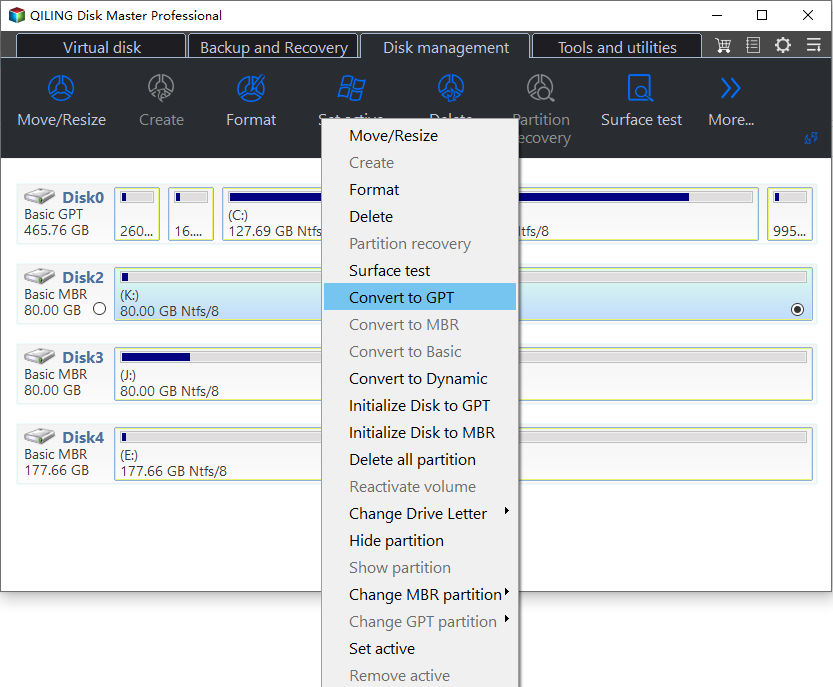
Step 2. Waiting to operate, and then your disk will be changed into GPT disk style.
Converting a disk from MBR to GPT or vice versa can be easily done with the Qiling Disk Master without losing any data. For Server 2012/2016/2019, the Server Edition of the software is required, which supports both Server and Windows OS. This allows for seamless transitions between MBR and GPT disk formats without compromising data integrity.
Another 3 methods to convert MBR disk to GPT on Windows 11/10/8/7
You can also use Windows built-in utilities, including Diskpart, Disk Management, and MBR2GPT.exe, to convert MBR to GPT. However, Diskpart and Disk Management require deleting partitions first. MBR2GPT.exe is mainly used for converting eligible system disks from MBR to GPT.
The process of converting a disk from MBR to GPT or vice versa requires deleting all existing partitions on the target disk, making it a high-risk operation. It is recommended to convert non-system disks with less important data. If you need to convert a disk with partitions, back up the required files first and then follow the detailed tutorial.
Method 1. Use Diskpart to convert MBR disk to GPT
As one of the Windows built-Diskpart is a common tool used to convert disk or format disk partition. It can help convert MBR to GPT by following these steps.
Step 1. To open the Command Prompt as an administrator and run the Diskpart command, press the Windows key + R key simultaneously, and input "diskpart" in the box, then press Enter.
Step 2. The command "list disk" is used to display a list of all disks connected to a computer, including internal and external hard drives, solid-state drives, and other types of storage devices. This command is often used in operating systems such as Windows, Linux, and macOS to provide users with a visual representation of the available storage options on their system.
Step 3. To convert a disk from MBR to GPT, you need to select the disk you want to convert by typing "select disk n" in the command prompt, where n is the number of the MBR disk you want to convert.
Step 4. To delete all partitions existing on the target disk, simply input "clean" when prompted.
Step 5. Input "convert gpt".
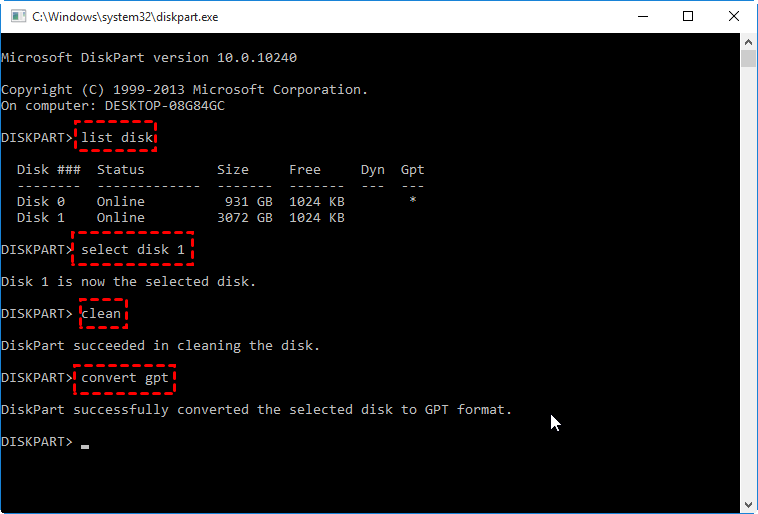
Note: To convert the system disk to MBR or GPT using the Command Prompt, you need to boot your computer from the Windows installation media, press Shift+F10 at the Windows Setup screen to open the Command Prompt window, and then execute the necessary commands to convert the boot disk.
Method 2. Use Disk Management to Convert MBR to GPT
You can use Disk Management to change MBR to GPT without data loss, but you need to delete partitions first, as it won't allow conversion on a disk with partitions.
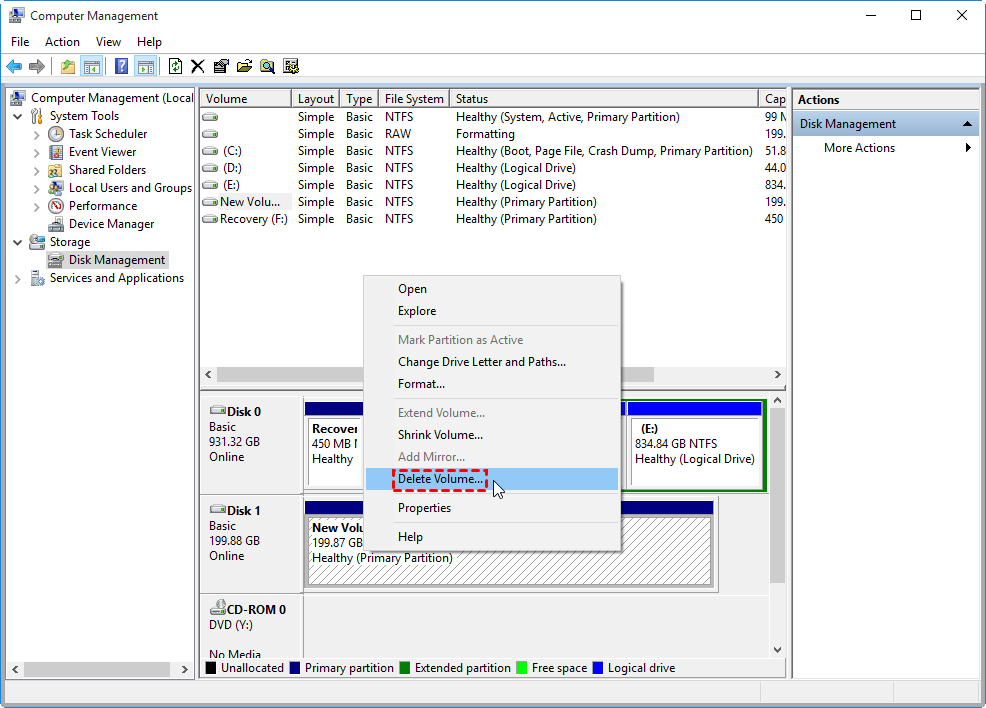
Step 1. Enter Disk Management by right-clicking My Computer > Manage > Disk Management.
Step 2. Right-click the partition on the disk you want to convert from MBR to GPT, choose "Delete Volume," and repeat this operation until all partitions are removed successfully.
Warning: This operation only works when you are converting a non-system disk, because you are not allowed to delete the system partition within Windows.
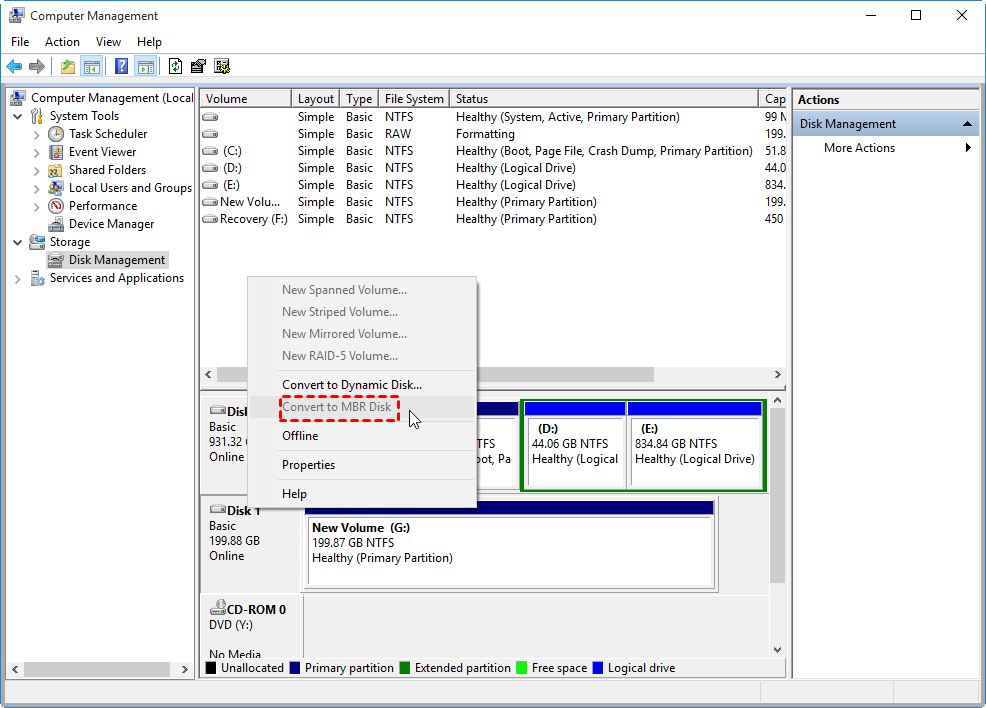
Step 3. Then, right-click the disk and click on "Convert to MBR Disk" from the extended menu.
Method 3. Use MBR2GPT.exe to Convert MBR to GPT
MBR2GPT.exe is a Windows built-in tool that converts MBR to GPT without data loss on Windows 10, making it a preferred choice for experienced users, but it's only available in Windows 10 version 1730 and later.
Step 1. On the sign-in screen, click Start > Power > Restart while holding the Shift key to open Advanced Startup.
Step 2. Then, navigate to "Troubleshoot > Advanced options > Command Prompt".
Step 3. In Command Prompt, input the following commands and press Enter after each command line.
mbr2gpt /validate
mbr2gpt /convert
FAQs about convert MBR to GPT
★ Q1: Can I convert MBR to GPT without losing my data?
Yes. Use a conversion tool that supports non-destructive conversion, or use MBR2GPT.exe when your system disk meets its requirements.
★ Q2: Will converting from MBR to GPT improve my system performance?
GPT offers several advantages over MBR, including support for larger volumes and improved data integrity, which can indirectly improve performance.
★ Q3: Is it necessary to back up my data before converting?
To prevent data loss, it's essential to back up your data before performing any disk-related operations. This ensures that your data is safe in case of unforeseen errors or system crashes.
★ Q4: Can I convert the system disk from MBR to GPT?
Converting the system disk from MBR to GPT is possible, but it's a more complex process that requires additional steps to ensure a successful conversion.
★ Q5: Can I convert GPT back to MBR if needed?
Yes. You can convert GPT back to MBR. If you use Windows built-in tools, you need to delete all partitions first, so back up your data before attempting the conversion.
Final Words
Qiling Disk Master can convert MBR to GPT or vice versa without deleting partitions, while Diskpart and Disk Management require removing partitions or volumes first. Choose MBR or GPT based on your disk size, boot mode, and operating system requirements.
Related Articles
- How to Check/View Disk Storage/Usage on Windows 10/11
Learn how to Check/View Disk Storage/Usage on Windows 10/11 with clear steps, key checks, and practical tips. - 3 Best CHKDSK Alternatives for Disk Error Checking Free Download [Beginners' Guide]
CHKDSK can check and fix disk errors, but command lines may be hard for beginners. This guide introduces 3 easier CHKDSK alternatives. - How Do I Clear My Laptop Before Selling It on Windows 10
You are going to learn the full guide on how to clear my laptop before selling it. To stop data leakage, you need to wipe and reset your laptop's hard drive. Thus, you can sell it without leaking privacy. - How to Convert NTFS to FAT32 Without Losing Data
This page introduces you how to convert NTFS to FAT32 with 4 NTFS to FAT32 converters. For a straightforward and efficient tool, try Qiling Partition Master Free to easily change NTFS to FAT32 with ease. - Solved: Ender 3 Not Reading SD Card [Quick Fixes]
If your Ender 3 is having trouble reading an SD card, there are quick and effective solutions to get you back up and running. - Top 3 Ways to Factory Reset Windows 11 Without Password
This guide explains Top 3 Ways to Factory Reset Windows 11 Without Password with clear steps, key checks, and practical tips.
Products
Articles & Tutorials
- Data Recovery
- Data Backup
- File Recovery
- File Backup
- File synchronize
- System Backup and Restore
- Disk and Partition Clone
- Technical articles
- Disk Master Help
- Windows Deleted File and Disk Recovery Tutorials
- Windows File and Data Recovery Tutorials
- More Windows Tutorials for Install, Security, Files, and PC Tips
- Windows Boot, Repair, and Recovery Environment Tutorials
- Windows Backup Tutorials
- Windows Restore Tutorials
- Windows Clone and Migration Tutorials
- Windows Server Backup, Recovery, and Management Tutorials
- Windows Disk, Partition, and Storage Management Tutorials