How to Convert FAT32 to NTFS Windows 10 without Data Loss?
If you're using an external hard drive or USB flash drive formatted with FAT32 in Windows 10, you might need to convert it to NTFS for some reasons, such as improved data security, larger file size support, and better performance.
NTFS & FAT32
FAT32 is a legacy file system that was used in the 1980s and has limitations, including a maximum partition size of 32 GB in Windows and 2 TB on MacOS, and a single file size limit of 4 GB, making it impractical for modern use, prompting users to convert it to NTFS in Windows 10.
NTFS is a modern file system that offers improvements over FAT, including file and folder permissions, encryption, and file compression.
- This system supports larger partition and file size, eliminating any realistic file-size or partition size limits, allowing for virtually unlimited storage capacity.
- More efficient disk space management.
- Support partition, folder and file compression.
- Reasonable system sources allocation improves system security.
- Granting access permission to shared source, folder and file can enhance security by controlling who has access to sensitive information and resources, thereby reducing the risk of unauthorized access and potential security breaches.
How to convert FAT32 to NTFS in Windows 10 without data loss?
To change the FAT32 file system to NTFS, there are three methods available. The first method involves formatting the drive and then converting it to NTFS using the built-in Windows format tool.
Method 1: Convert FAT32 to NTFS in Windows 10 using CMD
Cmd (also known as Command Prompt) is the command-line interpreter built into Windows OS, allowing users to manage disk partitions through various commands, such as formatting, deleting, and copying partitions.
To convert FAT32 to NTFS in Windows 10 with Command Prompt, you should do the following.
Step 1. To convert a partition to NTFS, press Windows + R, type "cmd" and hit Enter, then type "convert D: /fs:ntfs" in the command prompt, replacing "D" with the actual drive letter you want to convert.
Step 2. The process of converting a drive from FAT32 to NTFS involves typing the command "convert" followed by the drive letter, then the current volume label of the drive, and finally, the new file system type, which is NTFS. After entering the label name, the conversion process begins, and upon completion, a message is displayed in the command prompt stating that the conversion is complete.
Limitations of converting FAT32 to NTFS with Command Prompt:
- Once you convert FAT to NTFS, you can't change it back to FAT or FAT32, and you'll get an error saying "Convert is not available for NTFS drive". You'll need to reformat the drive or partition to FAT32 instead.
- To convert FAT32 to NTFS on Windows 10 using cmd, first, run the command `chkdsk /f /r` to check and fix disk errors. Then, run `chkdsk /f /r` on each partition you want to convert. After that, run `convert /fs:ntfs` on each partition.
Method 2. Format FAT32 to NTFS Windows 10 with Disk Management
Similar to Command Prompt, Disk Management is a native partition tool for Windows 10 and other operating systems. It can also convert FAT32 to NTFS by formatting, but this process will delete all data on the partition, so it's essential to backup the partition in advance to avoid data loss.
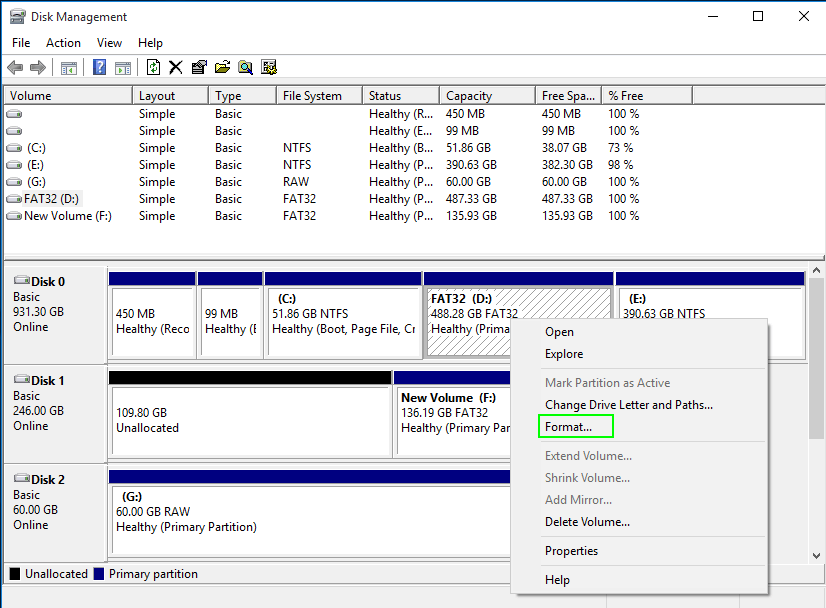
Step 1. To convert a partition to a different file system, open the Run dialog by pressing "Windows + R", type "diskmgmt.msc" and click OK. Then, right-click the partition you want to convert and select the "Format" option.
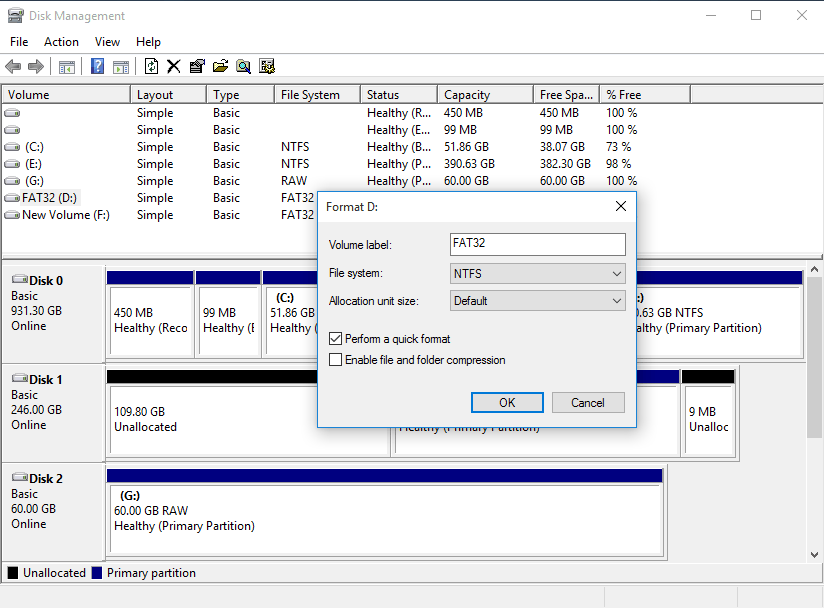
Step 2. To format the USB drive, type the volume label, select NTFS as the file system, and check the box to perform a quick format, then click "OK".
After converting the FAT32 file system to NTFS, you can restore the partition image to the NTFS partition, making sure that the partition table and file system are compatible.
Method 3: Convert FAT32 to NTFS Windows 10 without data loss via partition software
To convert FAT32 to NTFS or NTFS to FAT32 without losing data or formatting, the best approach is to use a third-party partition management tool like Qiling Disk Master Professional. This tool allows you to perform the conversion safely and efficiently, ensuring that your data remains intact throughout the process.
This software offers a special feature, the NTFS to FAT32 Converter, which enables users to convert file systems between FAT32 and NTFS without losing data or formatting, and is compatible with all Windows editions, including Windows 10/8/7 and Windows XP/Vista.
Step 1. Install and launch the Qiling Disk Master Professional.
Step 2. Click "File Backup" to start performing the conversion.
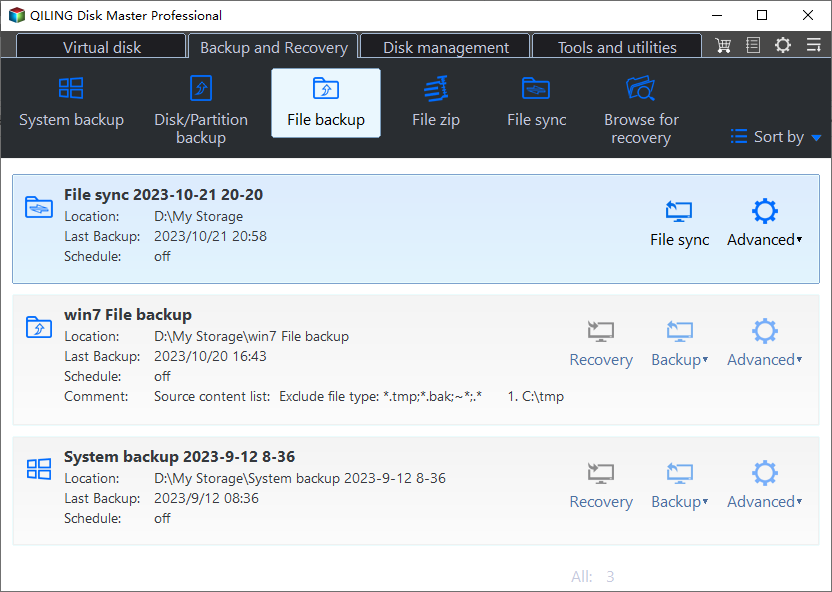
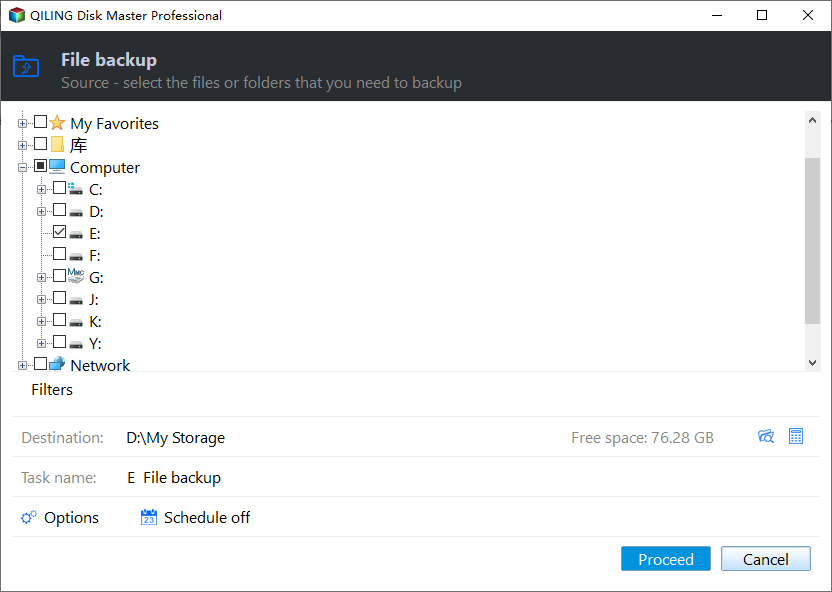
Step 3. Select the E partition and click "Proceed" to initiate the backup process for that partition.
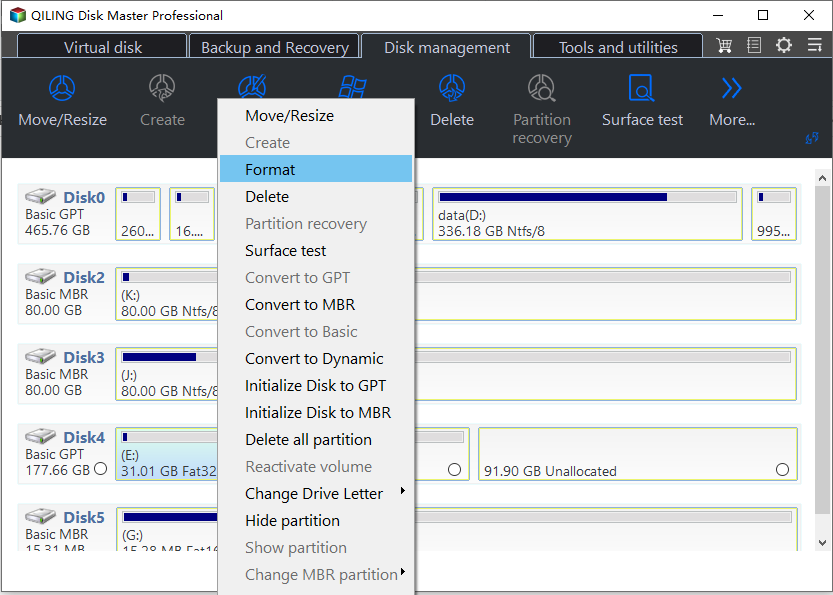
Step 4. To convert a partition to a different file system, go to the "Disk management" tab, right-click the partition you want to convert, and select "Format".
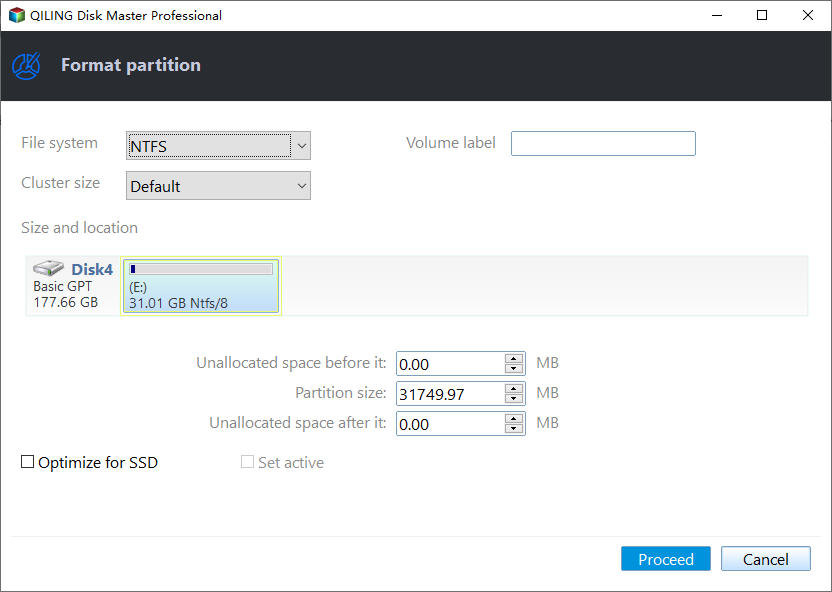
Step 5. Select NTFS formant, click "Proceed" to start performing the conversion.
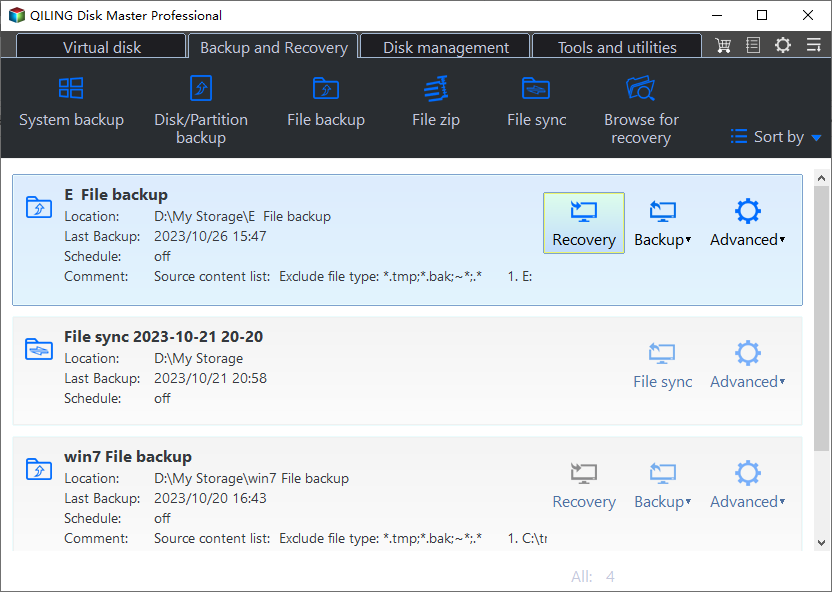
Step 6. To initiate the backup process, click on "File Backup" and select the desired backup task. Subsequently, navigate to the list window and click on "Recovery" to proceed.
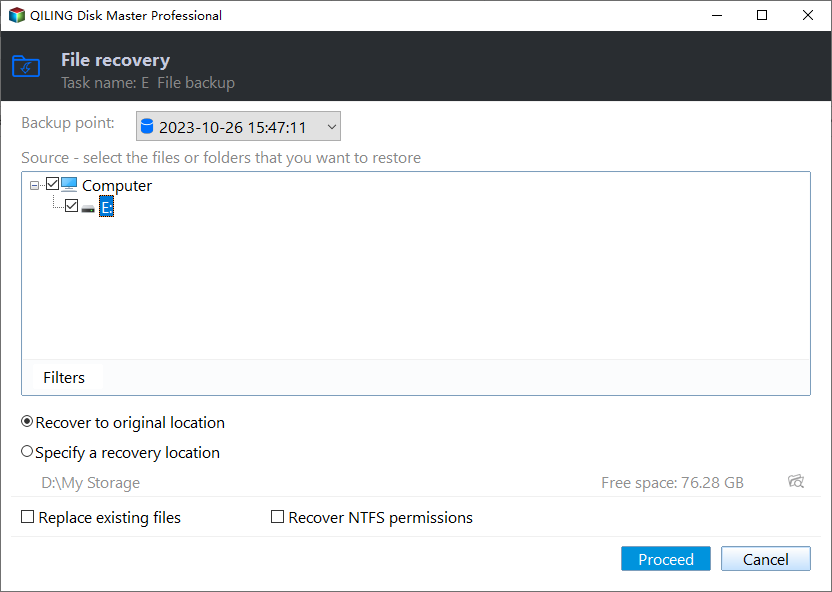
Step 7. Click "Proceed" to restore the files.
To convert a partition to NTFS or FAT32, click the "Convert" button on the toolbar and select "Convert to NTFS/FAT32". Choose the partition to convert and confirm the operation by clicking "Proceed".
With the help of Qiling Disk Master Professional, you can safely clone or backup your data without formatting the partition, reducing the risk of data loss. It's still a good idea to back up important files or folders beforehand to be safe.
Other great features you might be interested in:
● Move partition to another location
● Format partition to Ext4/Ext3/Ext2 on Windows
● Split a large partition into two smaller ones
● Extend NTFS system partition without rebooting the computer
● Allocate free space from one partition to another one
● Change partition serial number
● Quick partition a large hard disk within two clicks.
Summary
You can convert FAT32 to NTFS in Windows 10 using one of three methods, which are quick and easy. To do so without losing data, Qiling Disk Master Professional is a recommended tool. If you're working on a Server computer, you can use Qiling Disk Master Server instead.
Related Articles
- Fix CHKDSK Is Not Available For RAW Drives in Windows 10
Fix CHKDSK is not available for RAW drives error in Windows 10. Learn how to convert RAW to NTFS without data loss, recover files from RAW drives, and use Qiling Disk Master for disk repair. - How to Convert FAT32 to NTFS Windows 10 without Data Loss?
Follow the steps to convert FAT32 to NTFS Windows 10 without losing data or formatting. Three methods are listed for changing FAT32 to NTFS. - Convert Primary Partition to Logical in Windows 7 with Ease
If you are in need of converting primary partition to logical in Windows 7, read this article patiently to get effortless methods. - Change File System between NTFS and FAT32 without Formatting
This guide explains Change File System between NTFS and FAT32 without Formatting with clear steps, key checks, and practical tips. - How to Remove GPT Protective Partition without Data Loss
You can learn what is GPT protective partition from this article and how to solve related problems of GPT protective partition step by step. - GPT to MBR Converter Software - Free Download
While GPT is the new standard and is gradually replacing MBR, MBR is still the most compatible and is still necessary in some cases. If you are confused with GPT to MBR conversion, read this page patiently. - Convert FAT32 to NTFS File System in Windows
Convert FAT32 to NTFS with Windows tools or a partition utility, and back up files before changing the file system.
Products
Articles & Tutorials
- Data Recovery
- Data Backup
- File Recovery
- File Backup
- File synchronize
- System Backup and Restore
- Disk and Partition Clone
- Technical articles
- Disk Master Help
- Windows Deleted File and Disk Recovery Tutorials
- Windows File and Data Recovery Tutorials
- More Windows Tutorials for Install, Security, Files, and PC Tips
- Windows Boot, Repair, and Recovery Environment Tutorials
- Windows Backup Tutorials
- Windows Restore Tutorials
- Windows Clone and Migration Tutorials
- Windows Server Backup, Recovery, and Management Tutorials
- Windows Disk, Partition, and Storage Management Tutorials