Fix CHKDSK Is Not Available For RAW Drives in Windows 10
CHKDSK is not available for RAW drives in Windows 10
You inserted your Kingston 16GB USB drive into a Windows 10 computer, but it showed up as RAW in File Explorer. Running a command prompt as admin and using `chkdsk H: /f` returned an error saying the drive is RAW and CHKDSK isn't available for RAW drives. This error message indicates that the drive's file system is corrupted and CHKDSK can't be used to fix it. To make your USB drive usable again, you'll need to format it, which will erase all data on the drive. If you have important files on the drive, you'll need to recover them before formatting. If not, you can proceed with formatting the drive to restore it to a usable state.
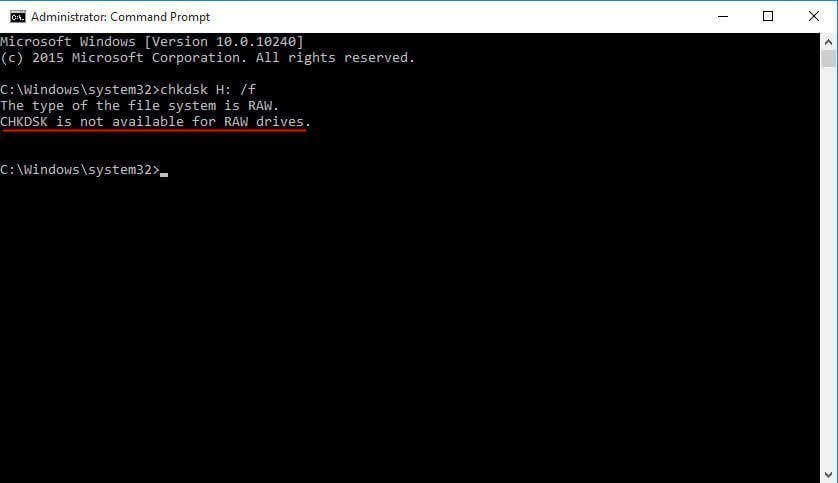
The CHKDSK error on RAW drives is not exclusive to USB flash drives, but can also occur on SD cards, pen drives, and external hard drives in Windows 7, 8, 10, and 11, preventing the use of the built-in disk checking tool.
The error "Convert is not available for RAW drives" typically occurs when a drive is in a RAW state, meaning it's been damaged or corrupted to the point where it can't be recognized by the operating system. This can happen due to various reasons such as a power outage during a write operation, a virus attack, or physical damage to the drive. In such cases, the drive appears as RAW in Disk Management or Disk Utility, and CHKDSK (Check Disk) is also unable to repair it. The error message indicates that the drive is in an unstable state and needs to be recovered or restored to a healthy state before it can be used.
What does CHKDSK is not available for RAW drives mean?
CHKDSK cannot be used on a drive with a RAW file system because Windows cannot access the drive, and many Windows commands don't work on RAW drives. A RAW drive is an unallocated drive that Windows cannot read or write to, often caused by a failed disk check or other issues.
A RAW format drive is an internal hard drive or SSD that hasn't been formatted with a readable file system like NTFS, FAT32, or exFAT by Windows. It can occur due to a corrupted file system or severe bad sectors, making data on the drive unreadable and unusable.
After understanding what a RAW drive is and why CHKDSK is not available for RAW drives on SD cards or other storage devices, it's essential to know how to resolve this issue.
How to fix CHKDSK is not available for RAW drives error effectively?
When you encounter the CHKDSK not available error, don't worry. Take some actions to see if you can recover any data. Then, change the RAW format to a file system that Windows can recognize, and perform the disk checking.
Recover partition if possible
Qiling Disk Master is a partition manager that can recover deleted and formatted partitions, as long as no new data has been written to them, and supports Windows 10 (32bit and 64bit). It can be downloaded for free to try.

1. Install and launch Qiling Disk Master, then click on "Recover" and select "Partition Recovery" from the toolbar.
2. Select the disk that contains lost/deleted partition.
3. Select a search method, Fast Search (recommended) or Full Search.
4. Select the partition you want to recover, click Proceed, and wait for the process to complete, which may take some time depending on the amount of data on the partition.
Check bad sectors on RAW drive with another tool
A drive becomes RAW due to serious bad sectors, which can be confirmed through disk checking. However, Windows built-in tools may not be able to perform this task, so alternative tools like Qiling Disk Master can be used to check bad sectors on the disk in a short time.
1. Open Qiling Disk Master, select the disk you want to check, and go to the Disk management tab page, then click on Surface Test.
2. To complete the process, select the "Quick Check" option and then click "Proceed". This will initiate the process, which should be completed in a short while.
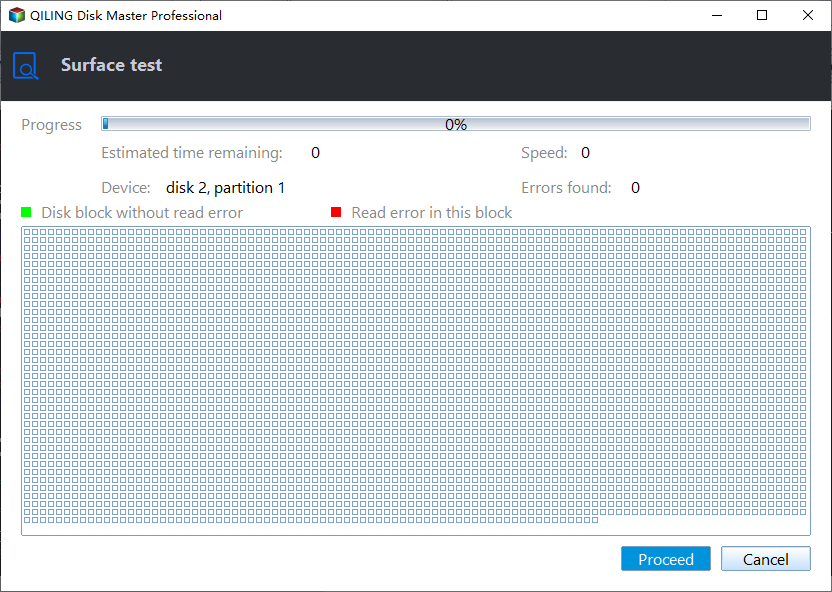
Tips: To check for bad sectors on a RAW drive in Windows, right-click on the drive, select Advanced, then Check Partition, and finally Check whether there is bad sector on the partition. This will open the Start interface, where you can follow the instructions to check for errors. For more detailed information, refer to the article on checking hard drive for errors in Windows 10.
Change RAW drive to NTFS/FAT32/exFAT
If you can't run disk checking on RAW format drives, you'll need to convert the RAW format to a Windows-recognized file system like NTFS, FAT32, or exFAT to make it readable by Windows.
- ▪ Convert is not available for RAW drives
When running the convert command on a RAW drive in the Command Prompt, you'll likely encounter the error "CONVERT is not available for RAW drives." This is because the reasons for this issue were previously discussed, and as a result, you'll need to switch to a different command, specifically the format command.
- ▪ Format aborted and format failed in CMD
To resolve the issue, you can try running the command prompt as administrator and typing `chkdsk H: /f` instead, where `H:` is the RAW drive. This command checks the disk for errors and can potentially resolve the issue. If the problem persists, you may need to try a different approach or seek further assistance.
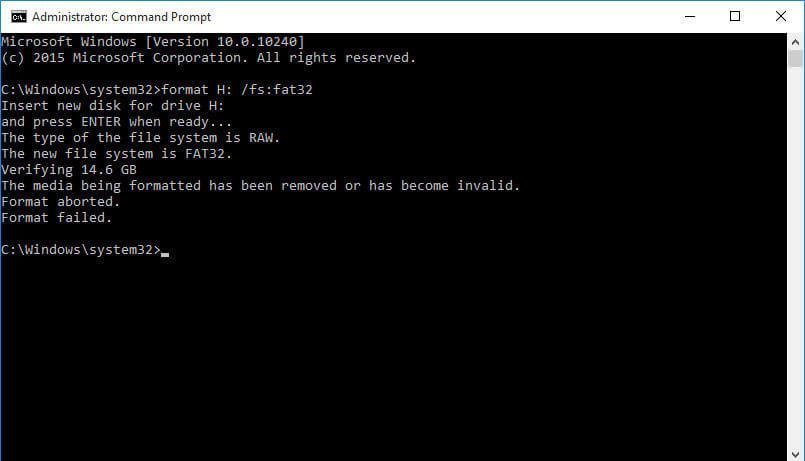
If you're getting an error while formatting a drive, even if you're sure nothing was removed, you can try using the Diskpart tool in Windows to format the RAW drive. This is a separate tool from the standard formatting process, and it may be necessary to resolve the issue.
- ▪ Format RAW drive using Diskpart in Windows 10
Type diskpart in CMD and press Enter. Input these commands and press Enter after each command:
list volume To format a RAW drive, select the volume number of the RAW drive, then type "format fs=fat32 quick" (you can replace fat32 with ntfs or exfat), and finally type "exit".
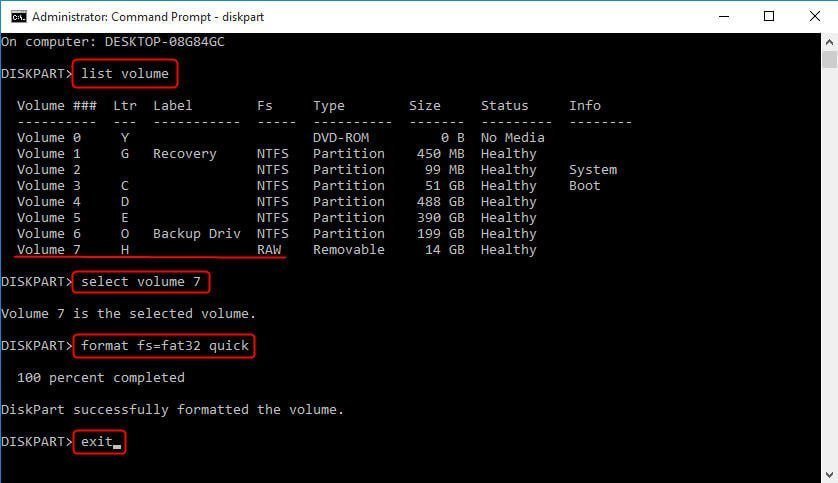
Note: Windows allows formatting a removable storage (flash drive or memory card) with exFAT file system, but formatting a partition with exFAT on an internal hard drive may not complete.
- ▪ Format RAW drive in an easier way
The partition manager, Qiling Disk Master, can format a RAW drive to NTFS, FAT32, or exFAT, regardless of the partition's location. It also surpasses Windows' built-in formatting tool's limitations, allowing it to format 64GB SD cards to FAT32.
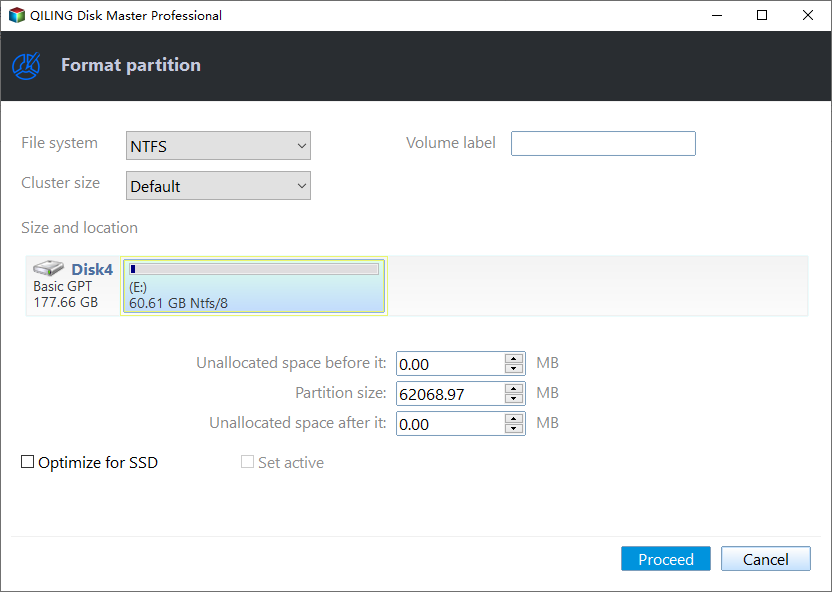
1. Launch Qiling Disk Master, right-click the RAW drive, and select Format Partition.
2. In the next window, select the file system you want to use, specify a partition label, and choose the cluster size.
3. Click Proceed to execute.
Tips: For users accustomed to command line operations, Qiling Disk Master Professional offers a command line formatting feature. Those familiar with this can refer to the steps outlined in the guide on how to fix a RAW drive to NTFS using CMD for detailed instructions.
After converting a RAW drive to a readable file system, you can run the CHKDSK command to check and repair any disk errors on the external hard drive, SD card, or USB flash drive.
To solve CHKDSK is not available for RAW drives in Server 2008, 2012, 2016 or 2019, you can use Qiling Disk Master Server edition to imitate the above methods.
Summary
To fix the error "The type of the file system is RAW" in Windows 10 or Windows 7, don't panic. Instead, you can recover possible data, check bad sectors in another way, format the RAW drive to a readable file system, and then do disk checking. This approach allows you to salvage your data while also ensuring the drive's integrity.
Qiling Disk Master Standard is a good assistant to solve other issues as well. For instance, you can perform SSD data wiping without hurting its lifespan.
Related Articles
- How to Solve Convert to Basic Disk Greyed Out Question?
Learn how to Solve Convert to Basic Disk Greyed Out Question with clear steps, key checks, and practical tips. - How to: Change Partition Style to GPT or MBR without Data Loss
This guide explains How to: Change Partition Style to GPT or MBR without Data Loss with clear steps, key checks, and practical tips. - How to Remove GPT Protective Partition without Data Loss
You can learn what is GPT protective partition from this article and how to solve related problems of GPT protective partition step by step. - [Fixed] The Selected Disk Has an MBR Partition Table
This guide explains The Selected Disk Has an MBR Partition Table with clear steps, key checks, and practical tips. - 3 Methods: Convert MBR to GPT without Deleting Your Partitions
Learn 3 ways to convert MBR to GPT without deleting partitions, including safer options to keep existing data during conversion.
Products
Articles & Tutorials
- Data Recovery
- Data Backup
- File Recovery
- File Backup
- File synchronize
- System Backup and Restore
- Disk and Partition Clone
- Technical articles
- Disk Master Help
- Windows Deleted File and Disk Recovery Tutorials
- Windows File and Data Recovery Tutorials
- More Windows Tutorials for Install, Security, Files, and PC Tips
- Windows Boot, Repair, and Recovery Environment Tutorials
- Windows Backup Tutorials
- Windows Restore Tutorials
- Windows Clone and Migration Tutorials
- Windows Server Backup, Recovery, and Management Tutorials
- Windows Disk, Partition, and Storage Management Tutorials