How to: Change Partition Style to GPT or MBR without Data Loss
Navigation
✎ What is (MBR/GPT) partition style?
✎ Why change partition style of your hard drive?
✎ Two methods to change partition style in Windows 11/10/8/7
✎ Summary
What is (MBR/GPT) partition style?
The partition style defines how a disk records partition information. The two main types are Master Boot Record (MBR) and GUID Partition Table (GPT). MBR is older and has partition and disk-size limits, while GPT is newer and works well with UEFI-based computers.
A GPT disk supports up to 128 partitions in Windows and can handle disks larger than 2 TB, while an MBR disk supports up to 4 primary partitions and is limited to about 2 TB of usable space.

Why change partition style of your hard drive?
Reasons for you to change partition style to GPT:
1. In MBR, you can create up to 4 primary partitions or 3 primary and 1 extended partition, but in GPT, there's no limit, allowing up to 128 partitions.
2. MBR disks have a capacity limit of less than 2 TB, while GPT disks can support up to 18 EB, making GPT a better choice for large-capacity needs.
3. To resolve the error message "Windows cannot be installed on this disk. The selected disk has an MBR partition table. On EFI systems, Windows requires a GPT partition table," convert the target disk from MBR to GPT. If the disk already contains data, back it up first or use a tool that supports conversion without deleting partitions.
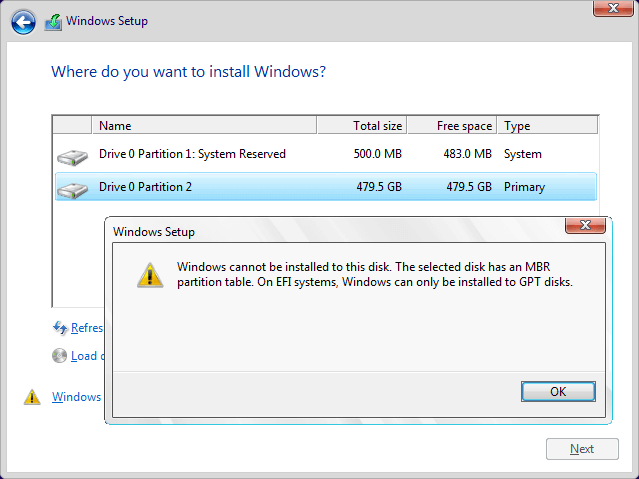
4. Microsoft has stated that Windows 11 only supports UEFI boot mode when directly upgrading from Windows 10, requiring a GPT disk.
Reasons for you to change partition style to MBR:
1. Your computer doesn't have EFI firmware, so you can't boot from a GPT hard disk. If you don't have EFI, switching to MBR is a good option.
2. When booting from a new hard drive installation, you may receive the message "The selected disk is of the GPT partition style". To resolve this, simply convert the GPT disk to an MBR disk, which is a simpler partition style.
Two methods to change partition style in Windows 11/10/8/7
Here are two methods to change a disk's partition style in Windows 11/10/8/7. You can select the one that fits your situation.
Change partition style via Diskpart
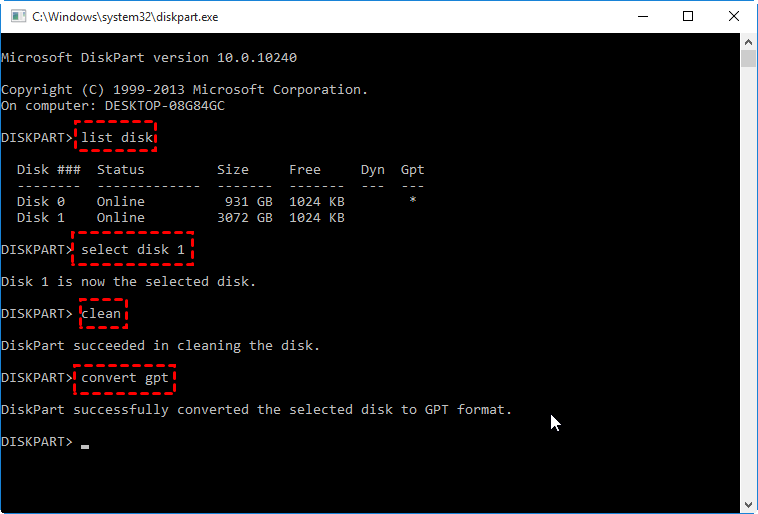
Diskpart is a Windows built-in command-line tool for disk management. To change the partition style with Diskpart, press Windows + R, input diskpart, and click OK. Then run commands such as list disk, select disk #, clean, and convert gpt or convert mbr.
۰list disk
۰select disk
۰clean
۰convert gpt
- Notes:✎...
- To convert a disk to MBR, replace the command "convert gpt" with "convert mbr" in the Diskpart command.
- The "clean" command will delete all volumes and data on the selected disk, so it's essential to back up important data before running it.
Convert partition style via the third party partition manager
If your disk is not empty and you don't want to delete volumes on it, you can use the free partition manager Qiling Disk Master Standard to convert the partition style to GPT or MBR without deleting any partitions. This tool allows you to explore its features and functionality by downloading and trying it out.
Step 1. Install and launch the software, then right-click the disk whose partition style needs to be changed to GPT and choose "Convert to GPT".
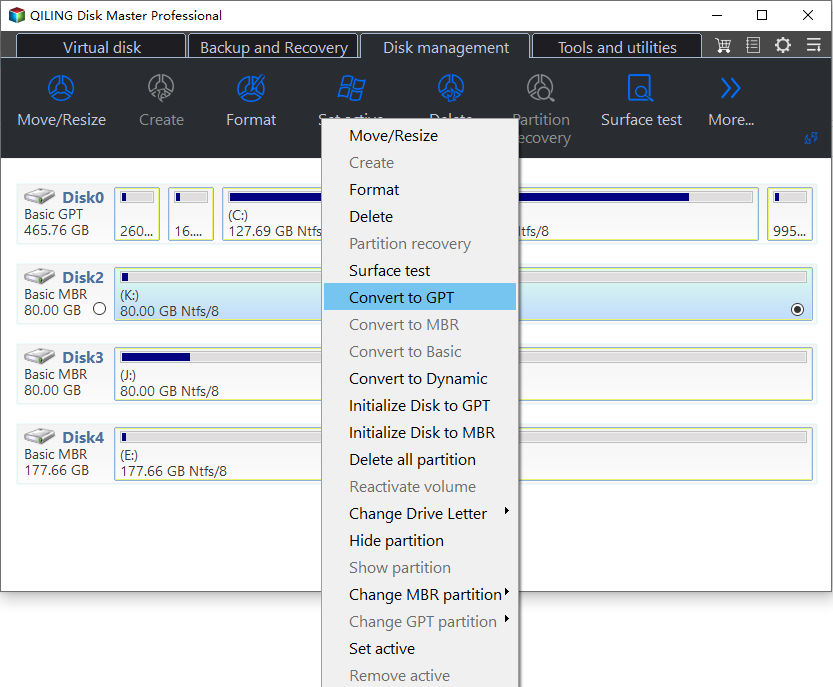
Step 2. You can see the disk you select to convert in a moment.
- Notes:✎...
- If your disk is being used by other programs, Qiling Disk Master will give you three options: Retry, which is the recommended choice, allowing you to close other operations and then execute this operation; Restart Now, which lets the operation finish in PreOS mode; and other options.
- To avoid Windows boot failure, don't convert the disk containing the Windows OS to GPT, as Windows 32-bit OS can't be installed on a GPT disk and Windows booting from MBR requires BIOS mode, while booting from GPT needs UEFI mode.
- Qiling Disk Master Standard allows converting non-system disks between MBR and GPT without data loss, while Qiling Disk Master Professional is required for system disk partition style changes.
Summary
After reading this post, you'll understand what partition style is and how to convert between MBR and GPT when necessary. If you need to make the conversion without deleting partitions or data, the Qiling Disk Master is a recommended tool. It can also perform other tasks such as cloning partitions, migrating an OS to an SSD, merging partitions, wiping data, and more.
Related Articles
- Solved: Conversion from FAT32 to NTFS is not available in Windows
Find practical guidance for Solved: Conversion from FAT32 to NTFS is not available in Windows, including disk, partition, file system, or Windows troubleshooting steps. - Dynamic Disk VS Basic Disk: What's the Difference and How to Convert ?
Dynamic disk vs basic disk, this article will tell you the difference between dynamic disk and basic disk. - Top 3 Free Ways: The Volume Is Too Big for FAT32 in Windows 7/8/10
This guide explains Top 3 Free Ways: The Volume Is Too Big for FAT32 in Windows 7/8/10 with clear steps, key checks, and practical tips. - Convert Basic Disk to Dynamic |When and How?
Learn how to Convert Basic Disk to Dynamic |When and How with clear steps, key checks, and practical tips. - Is UEFI with GPT or MBR?
This guide explains Is UEFI with GPT or MBR with clear steps, key checks, and practical tips. - How to Convert FAT32 to NTFS Windows 10 without Data Loss?
Follow the steps to convert FAT32 to NTFS Windows 10 without losing data or formatting. Three methods are listed for changing FAT32 to NTFS.
Products
Articles & Tutorials
- Data Recovery
- Data Backup
- File Recovery
- File Backup
- File synchronize
- System Backup and Restore
- Disk and Partition Clone
- Technical articles
- Disk Master Help
- Windows Deleted File and Disk Recovery Tutorials
- Windows File and Data Recovery Tutorials
- More Windows Tutorials for Install, Security, Files, and PC Tips
- Windows Boot, Repair, and Recovery Environment Tutorials
- Windows Backup Tutorials
- Windows Restore Tutorials
- Windows Clone and Migration Tutorials
- Windows Server Backup, Recovery, and Management Tutorials
- Windows Disk, Partition, and Storage Management Tutorials