Convert Basic Disk to Dynamic |When and How?
Basic Disks VS Dynamic Disks
Basic disks are commonly used with Windows and contain partitions such as primary partitions and logical drives. They support both MBR and GPT partition styles and are compatible with most Windows systems.
Dynamic disks use the Logical Disk Manager or Virtual Disk Service to track dynamic volume information, allowing volumes to span two or more disks. They are not supported by all Windows editions, but they are commonly used in supported Windows Server and Windows desktop systems.
Converting a basic disk to a dynamic disk offers several benefits. With a dynamic disk, you can create spanned volumes, which allows you to combine unallocated space across multiple disks. You can also create striped volumes to improve read-write performance and mirrored volumes to protect data.
Convert basic disk to dynamic easily [two ways offered]
To convert a basic disk to a dynamic disk and enjoy its advantages, you have two options. Before proceeding, ensure you're not in one of the following conditions:
The disk contains unknown or OEM partitions that may become inaccessible after conversion.
If you plan to install Windows, use a basic disk for the installation first. Dynamic disks are not suitable for all Windows installation scenarios.
The computer is running a Windows operating system that does not support dynamic disks.
PS.: Converting a basic disk containing the OS is acceptable, as it still allows booting from the system disk. However, it's not recommended to convert a basic disk that has a dual-boot setup.
Option A. Convert to dynamic disk via Disk Management
1. Press Windows + R simultaneously to open Run dialogue.
2. Input diskmgmt.msc and click OK to open Disk Management.
3. Right-click the basic disk you want to convert and select "Convert to Dynamic Disk".
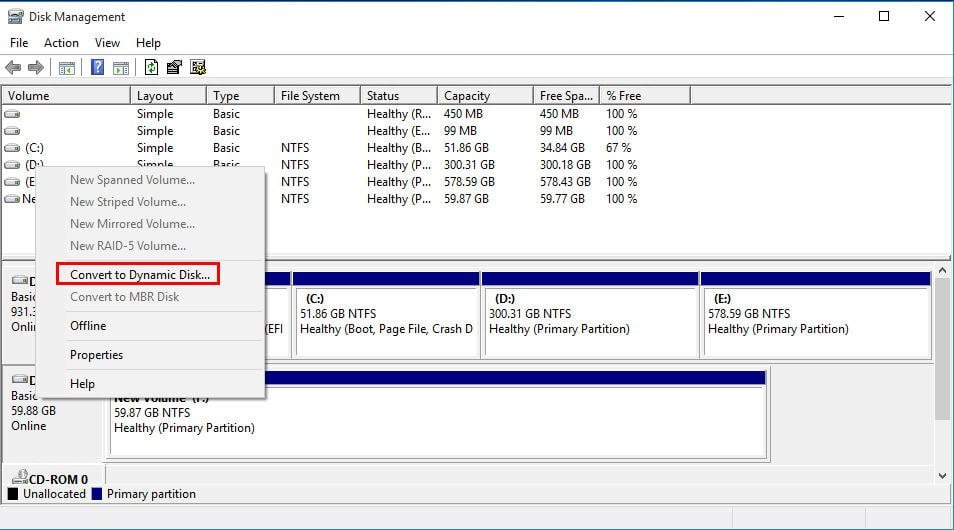
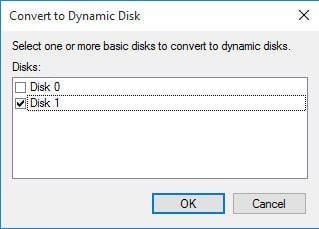
4. Check if the disk you need to convert is selected in the pop-up dialogue, and click OK if it is.
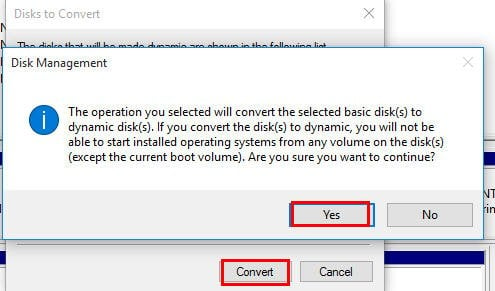
5. Click "Convert" and you'll receive a message telling you what will happen after the disk is converted to dynamic. Click "Yes" to confirm.
Option B. Convert to dynamic disk via Diskpart
1. Open Run window, input diskpart and hit Enter.
2. In the diskpart interface, input commands as follows:
- list disk
- select disk n (replace n with the number of the disk you want to convert)
- convert dynamic
3. Type exit and hit Enter to close this window.
Notice: Before converting a basic disk to a dynamic disk, it's recommended to back up the disk to a safe place to prevent data loss.
How to solve “Convert to Dynamic Disk” greyed out issue?
Converting a basic disk to a dynamic disk can be successful in many cases, but it may not work for larger disks, specifically MBR disks over 2TB, as they cannot be converted to dynamic disks or have partitions beyond the 2TB mark.
To convert a large MBR disk to a dynamic disk, you need to first convert the disk from MBR to GPT. However, using Disk Management or Diskpart to convert the disk to GPT requires deleting all partitions on the MBR disk, which can lead to data loss. A more reliable solution is to use a powerful MBR to GPT converter like Qiling Disk Master Professional, which can convert a large MBR disk to GPT without losing any data. This tool allows you to convert the disk to GPT without deleting any partitions, making it a safer and more efficient option.
PS.: You can download its demo version to try it first.
Step 1. Install and run the software. In the main interface, right-click the target disk and choose "Convert to GPT".
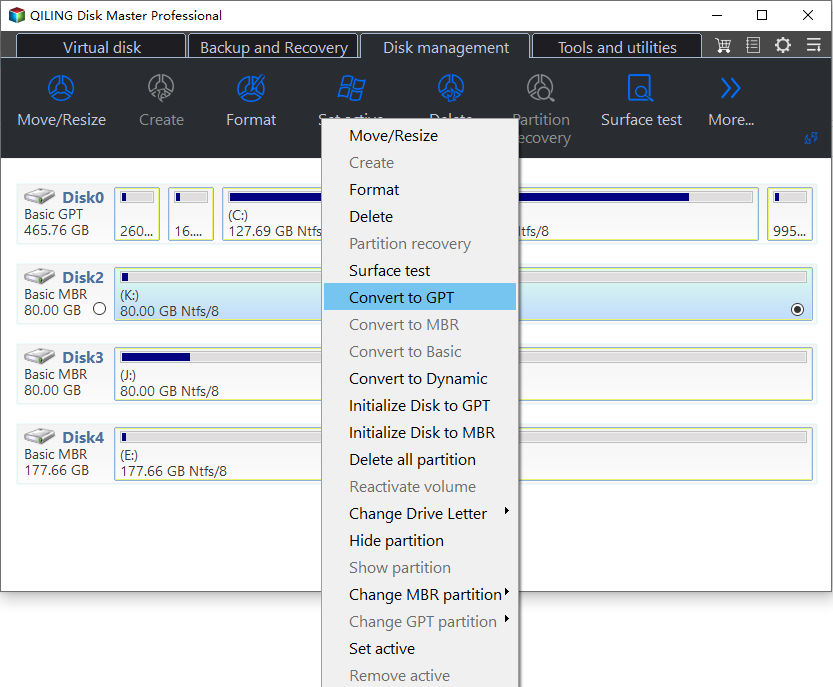
Step 2. The disk will be converted to a GPT disk immediately. Please wait.
After converting the large disk to GPT, you can open Disk Management and convert it to a dynamic disk if your Windows edition supports dynamic disks.
Notes:
☞To convert a disk into a dynamic disk, you need at least 1MB of unallocated space at the end of the MBR basic disk to resolve the insufficient space issue.
☞If you mistakenly convert the wrong disk to dynamic, you can convert the dynamic disk back to basic with Qiling Disk Master Professional without deleting volumes.
☞The software is compatible with various Windows versions, including Windows 11/10/8.1/8/7, XP, and Vista, both 32-bit and 64-bit. It also supports Windows Server 2022/2019/2016/2012/2008/2003, where Qiling Disk Master Server should be used instead.
Conclusion
If "Convert to Dynamic Disk" is greyed out, check whether the disk is an MBR disk larger than 2TB, whether it lacks required unallocated space, or whether the Windows edition supports dynamic disks. Convert MBR to GPT first when needed, and back up important data before changing disk type.
After converting to dynamic disk, you can manage dynamic disk volumes flexibly using Qiling Disk Master Professional's Dynamic Disk Manager tool, which allows you to extend, shrink, delete dynamic volumes, add drives to RAID, and convert dynamic disks to basic disks.
Related Articles
- Convert Primary Partition to Logical in Windows 7 with Ease
If you are in need of converting primary partition to logical in Windows 7, read this article patiently to get effortless methods. - Change File System between NTFS and FAT32 without Formatting
This guide explains Change File System between NTFS and FAT32 without Formatting with clear steps, key checks, and practical tips. - Solved: Conversion from FAT32 to NTFS is not available in Windows
Find practical guidance for Solved: Conversion from FAT32 to NTFS is not available in Windows, including disk, partition, file system, or Windows troubleshooting steps. - Dynamic Disk VS Basic Disk: What's the Difference and How to Convert ?
Dynamic disk vs basic disk, this article will tell you the difference between dynamic disk and basic disk. - What Are Dynamic Disk and Dynamic Volume?
Understand dynamic disks and dynamic volumes in Windows, including volume types, advantages, limits, and safe management tips.
Products
Articles & Tutorials
- Data Recovery
- Data Backup
- File Recovery
- File Backup
- File synchronize
- System Backup and Restore
- Disk and Partition Clone
- Technical articles
- Disk Master Help
- Windows Deleted File and Disk Recovery Tutorials
- Windows File and Data Recovery Tutorials
- More Windows Tutorials for Install, Security, Files, and PC Tips
- Windows Boot, Repair, and Recovery Environment Tutorials
- Windows Backup Tutorials
- Windows Restore Tutorials
- Windows Clone and Migration Tutorials
- Windows Server Backup, Recovery, and Management Tutorials
- Windows Disk, Partition, and Storage Management Tutorials