DiskPart: Convert to GPT in Windows 11, 10, 8, 7
What are MBR and GPT disks?

MBR and GPT are two different disk partition styles. Unlike MBR, GPT has no limits on hard disk capacity (2TB) and the number of primary partitions (4), making it a more popular choice. When a hard disk is initialized with a partition style set, it can be used to store data, including the operating system.
The difference between MBR and GPT are as follows:
● GPT supports larger disk sizes than MBR, with a maximum size of 2^32 sectors, which translates to a maximum size of 8 ZB (zettabytes) or 9.4 x 10^21 bytes.
● MBR booted by Legacy BIOS, GPT booted by UEFI.
● A GPT disk supports much larger volumes (up to 18EB) and more partitions (128) compared to a MBR disk, which is limited to 2TB volume size and 4 primary partitions.
● A partitioned disk has redundant primary and backup partition tables, which helps ensure the integrity of the partition data structure.
● Some Windows systems can only run on MBR or GPT disk. If you plan to upgrade to Windows 11, Windows 11 only supports UEFI boot mode, so it's recommended to convert the MBR system disk to GPT for Windows 11.
Some users want to convert their MBR disk to GPT to increase partition size, be compatible with UEFI, or get more partitions.
Factors to consider before converting
Before converting the partition style of your disk, please pay attention to these factors. First, you need to ensure that your system supports the partition style you intend to convert to, such as UEFI firmware for GPT.
It's essential to back up your data before converting the partition style to avoid loss, and also ensure your system meets the requirements for the desired partition style, as older systems may have limited GPT support.
How to use DiskPart to convert to GPT
DiskPart is a command-line disk partitioning utility provided by Microsoft, allowing users to manage disks, partitions, and volumes on Windows operating systems. It enables various operations such as creating, deleting, formatting, and resizing partitions, as well as converting between MBR and GPT partition styles.
- Notes:✎...
- To convert a disk from MBR to GPT, first back up the MBR disk to keep the data safe, as DiskPart only allows users to convert empty disks from MBR/GPT to MBR/GPT.
- To convert GPT to MBR during Windows 7 install, press Shift + F10 to open Command Prompt when the Windows Setup window appears.
Step 1. Press the "Windows + R" key simultaneously, and input "diskpart" in the box. Press Enter.
Step 2. To list all disks connected to your computer, type "list disk" and press Enter.
Step 3. Enter the command "select disk n" (where n is the number of the disk you want to convert to GPT) and press Enter to select the disk.
Step 4. To delete all partitions existing on the target disk, type "clean" and press Enter. It's recommended to backup the disk before doing so.
Step 5. Input "convert gpt" and press Enter.
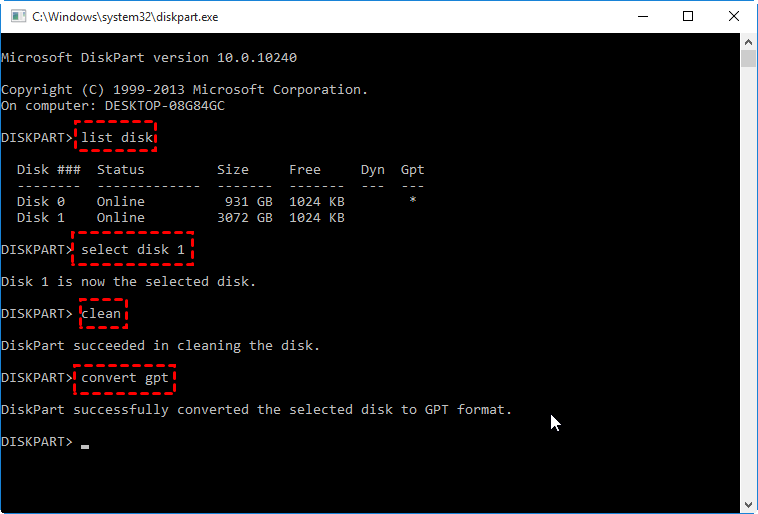
After that, input "exit" to exit Diskpart.
Alternative to DiskPart: convert MBR to GPT without data loss
Using DiskPart to convert a Master Boot Record (MBR) to a GUID Partition Table (GPT) is relatively straightforward, but it's still a challenge for non-technical users due to the need to access the command prompt. Furthermore, this method requires wiping all data on the hard drive, and it's not possible to convert the system disk to GPT while Windows is running, as it doesn't support cleaning system disk data.
To solve the problem of converting MBR to GPT or vice versa, I recommend using Qiling Disk Master Professional, a powerful tool that can convert MBR to GPT and vice versa without clearing data, and can be used as an alternative to DiskPart. Its operation is simple, requiring only three steps to achieve conversion.
The software not only converts a disk to GPT, but also offers various tools to efficiently manage disk partitions, including allocating free space, shredding files or folders, wiping hard drives, migrating the OS to another disk, and recovering lost data.
To convert an MBR disk to a GPT disk in Windows, download the demo to see how it's done in Windows 11/10/8/7.
Step 1. Install and launch Qiling Disk Master Professional. After opening it, select the target disk and click "Convert" at the top toolbar. Select the "Convert MBR/GPT" option.
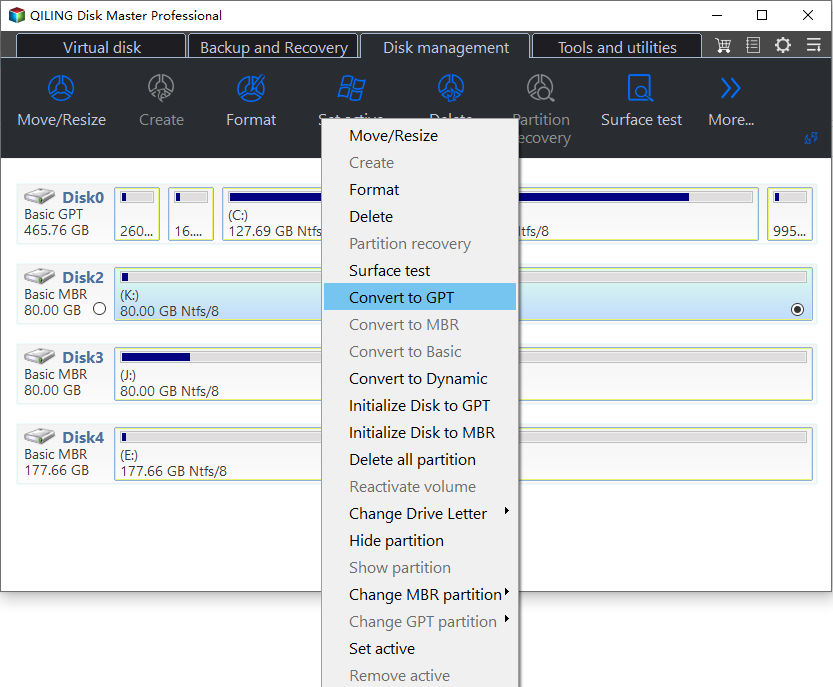
Step 2. Ensure that the Legacy BIOS has been converted to UEFI, and wait for the conversion to be completed.
After the conversion is complete, you can verify the result by going to "This PC" and opening "Properties" -- the partition table will now show as GPT. If you are converting a system disk, you need to change the BIOS to UEFI to boot the GPT system disk when restarting.
FAQs about convert disk to GPT
✎ Q1: Is it possible to convert a disk to GPT without losing data?
To convert a disk to GPT without losing data, it's essential to back up your data first. This can be done by copying all files and folders to an external drive or cloud storage. Once backed up, you can use a disk management tool, such as the built-in Disk Management tool in Windows, to convert the disk to GPT.
✎ Q2: Can I convert the system disk to GPT?
You can convert the system disk to GPT, but it requires additional steps and precautions, and it's recommended to consult official documentation or seek professional assistance.
✎ Q3: Will converting a disk to GPT improve performance?
Converting a disk to GPT itself does not directly improve performance, but it unlocks the benefits of GPT, such as support for larger partition sizes and more robust data structures, which can indirectly contribute to better performance in modern systems.
✎ Q4: Can I convert a GPT disk back to MBR?
Converting a GPT disk to MBR is possible, but it involves deleting all existing partitions, resulting in data loss, so it's essential to back up your data before attempting the conversion.
✎ Q5: Is there any risk involved in converting a disk to GPT?
Converting a disk to GPT is a generally safe process, but it carries potential risks, including data loss if not done correctly, making it essential to follow instructions carefully and back up data beforehand to minimize risks.
Summary
Converting MBR to GPT via DiskPart can be achieved using Qiling Disk Master, a straightforward approach that avoids data loss. This tool allows seamless conversion between MBR and GPT formats, eliminating the need to delete existing partitions.
If you're trying to use it in Windows Server, please upgrade to Qiling Disk Master Server.
Related Articles
- How to Break Windows 10 Hard Drive Limit without Data Loss?
Learn how to Break Windows 10 Hard Drive Limit without Data Loss with clear steps, key checks, and practical tips. - How to Move Windows 10 Recovery Partition without Data Loss?
If Windows 10 Recovery partition is in the way of extending C: partition, you can move recovery partition in Windows 10 safely with a free tool. - Windows 10 Not Detecting USB (Fixed with 5 Free Ways)
This guide explains Windows 10 Not Detecting USB (Fixed with 5 Free Ways) with clear steps, key checks, and practical tips. - [Fixed] Windows 10 System Reserved Partition Too Small
In Windows 10, system reserved partition too small will interfere in the OS update or upgrade. To fix this issue, you can read this post to try some solutions. - How to Transfer Windows Server 2022/2019/2016 to HDD/SSD
This page provides a step-by-step guide on how to transfer a Windows Server system to a new HDD or SSD without having to reinstall the operating system. - How to Migrate Windows 7 to SSD in Two Easy Ways
Learn how to Migrate Windows 7 to SSD in Two Easy Ways with clear steps, key checks, and practical tips.
Products
Articles & Tutorials
- Data Recovery
- Data Backup
- File Recovery
- File Backup
- File synchronize
- System Backup and Restore
- Disk and Partition Clone
- Technical articles
- Disk Master Help
- Windows Deleted File and Disk Recovery Tutorials
- Windows File and Data Recovery Tutorials
- More Windows Tutorials for Install, Security, Files, and PC Tips
- Windows Boot, Repair, and Recovery Environment Tutorials
- Windows Backup Tutorials
- Windows Restore Tutorials
- Windows Clone and Migration Tutorials
- Windows Server Backup, Recovery, and Management Tutorials
- Windows Disk, Partition, and Storage Management Tutorials