Windows 10 Not Detecting USB (Fixed with 5 Free Ways)
Why Windows 10 not detecting USB drive?
USB devices are widely used for storing and transferring data between devices, and can even serve as bootable media. However, sometimes when you plug a USB into your Windows computer (Windows 11, 10, 8, 7), it may not be detected by the system. If you're experiencing this issue, continue reading to find out why it happens.
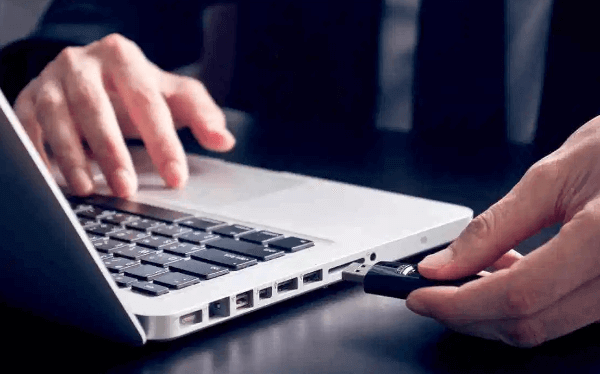
Usually, this is caused by the following reasons:
☞ Physical damage
☞ Virus or malware attack
☞ USB port failure
☞ Out-dated USB driver
☞ Bad sectors on USB
☞ Damaged USB file system
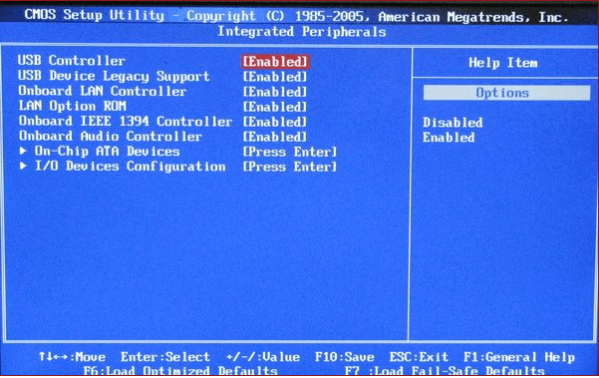
☞ USB controller may be disabled in the BIOS
How to fix Windows 10 not detecting USB
If you're having trouble seeing your USB drive in Windows 10, the article provides detailed solutions to help you resolve the issue. Please read carefully and patiently to find the solution that works for you.
│Method 1. Simple solutions
If a USB device is not being recognized by a computer, before looking for technical solutions, it's a good idea to try some simple troubleshooting methods first. This can involve plugging the USB into another USB port on the computer to see if it will be recognized. If the device is recognized, it indicates that the original USB port was faulty, and the issue can be resolved by using a different port. This simple step can often resolve the problem without the need for more complex technical solutions.
If your USB drive still can't be recognized, try plugging it into a different computer to see if it works. If it doesn't work on another computer, it's likely that your USB drive is physically damaged and needs to be replaced.
If a computer is attacked by viruses or malware, it may not recognize a USB. To resolve this, scan the computer with antivirus software and reinsert the USB to see if the issue is resolved.
│Method 2. Update USB driver
The out-A dated driver may also be the reason that causes Windows 10 not to recognize a USB drive. Therefore, you can update your driver.
-
1. Right-click on "This PC" and select Properties, then click on Device Manager and expand "Universal Serial Bus Controllers".
2. Right-click the USB device, select Properties, and then choose Update Driver under the Driver option.
-

3. Then, click Search automatically for updated driver software.
4. After that, restart your computer and connect the USB drive to see if it can be detected.
│Method 3. Enabled USB Controller in the BIOS
If the USB port isn't working, the USB controller might be disabled, preventing Windows from detecting the USB.
To resolve the issue of a disabled USB port, enable it in the BIOS by restarting the computer, pressing the prompt key to enter the BIOS, navigating to "Advanced" and finding "USB Controller", changing its status from disabled to enabled, saving the changes and exiting the BIOS, usually by pressing the F10 key.
│Method 4. Repair bad sectors on USB drive
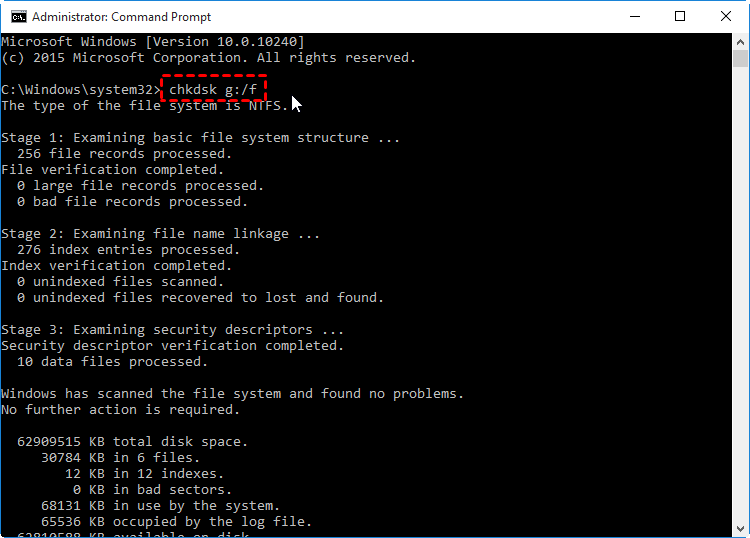
Running the CHKDSK.exe tool can help identify and fix bad sectors on the USB drive, which may resolve the issue of the USB not being recognized by Windows 10.
1. To run the Command Prompt as an administrator, click the Start button, type "cmd" in the search field, right-click the Command Prompt icon that appears, and select "Run as administrator".
2. To check and repair bad sectors on a flash drive, open the command prompt window and enter the command "chkdsk g: /f", where "g" is the letter assigned to the USB drive, and press Enter. This will scan the drive for errors and attempt to fix any bad sectors found. Note: Replace "g" with the correct drive letter assigned to your flash drive.
Tip: If you're having trouble accessing the command prompt, you can use a simple bad sector repair tool to remove bad sectors from your hard disk permanently.
│Method 5. Fix the damaged file system
You may have unplugged the USB without safely ejecting it, causing the file system to be damaged, but you can use Qiling Disk Master Standard to format the USB to FAT32 or NTFS, which can also clean up viruses and restore the USB's original performance.
Note: Upgrading to the Professional Version allows users to try more advanced features, including allocating free space and moving installed apps from one drive to a USB drive.
1. Download the freeware, install and launch it, right-click the RAW USB drive and select "Format Partition" to resolve the issue.
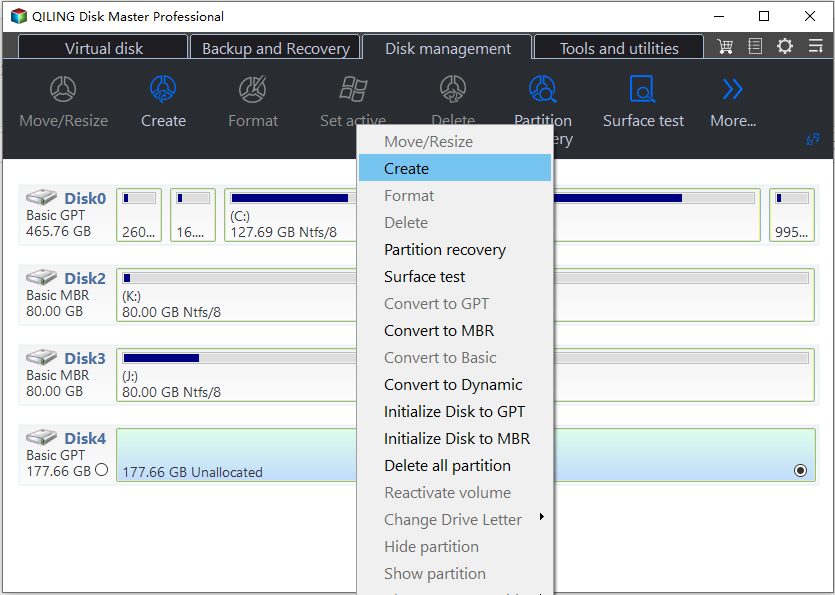
2. Select a proper file system among the offered options, then click "OK".
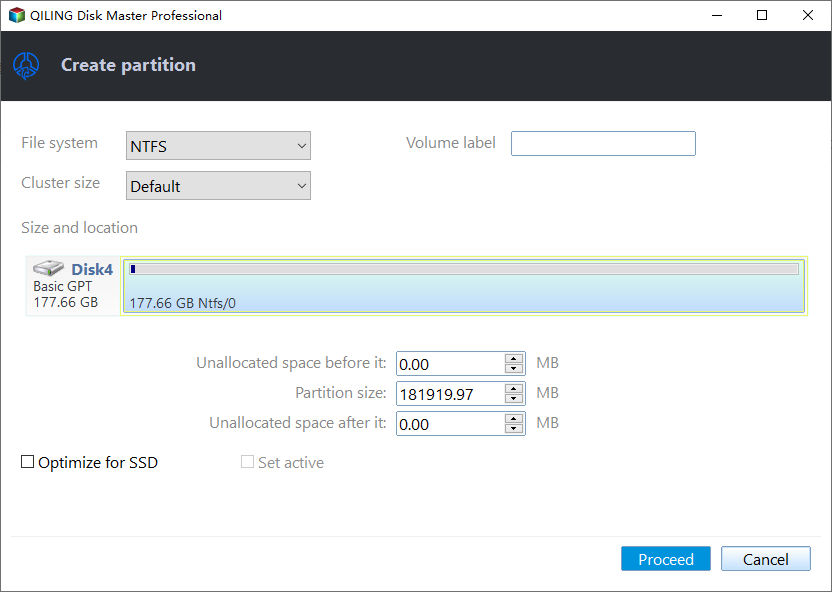
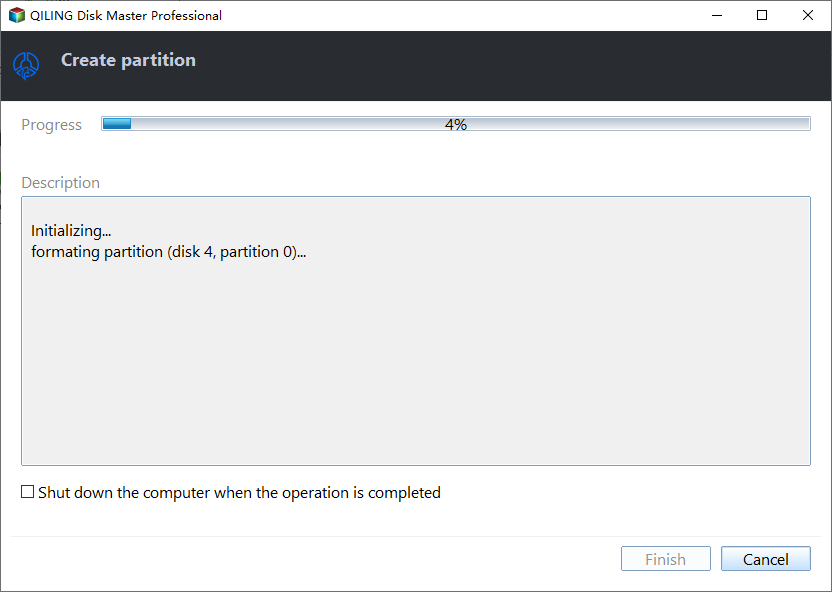
3. To execute the pending operation, click "Apply" and then "Proceed" on the main interface.
Tip: When the USB encounters write protection, Qiling Disk Master can remove write protection from a USB drive.
Conclusion
If Windows 10 is not detecting your USB device, you can try one of five methods to resolve the issue. Alternatively, if you plan to use Qiling Disk Master in Windows Server, you may need to switch to the Server Edition.
Related Articles
- Solved: Samsung 850 EVO Not Detected on Windows 10
This guide explains Solved: Samsung 850 EVO Not Detected on Windows 10 with clear steps, key checks, and practical tips. - Solved: exFAT Drive Not Recognized in Windows 11
This guide explains Solved: exFAT Drive Not Recognized in Windows 11 with clear steps, key checks, and practical tips. - How to Fix SanDisk 128GB USB Flash Drive is not Recognized on the Computer?
This article will assist you to fix SanDisk 128GB USB flash drive like Ultra series and Cruzer series that is not recognized on the computer in Windows 7/8/10/11 step by step. - Save You from Disk Boot Failure in Windows 10 Right Now
This guide explains Save You from Disk Boot Failure in Windows 10 Right Now with clear steps, key checks, and practical tips. - How Can I Check M.2 SSD Temperature Like an Expert in Windows 11/10
If you're concerned about your M.2 SSD's health, you can check its temperature in Windows 11/10. To do this, you'll need to follow essential techniques to monitor your SSD's temperature like a pro, which are outlined in this comprehensive article. - How to Check NVMe Temperature in Windows 10/11 [100% Working Solutions]
Use this guide for How to Check NVMe Temperature in Windows 10/11, with cloning or migration steps, boot checks, and tips to keep data safe during the move.
Products
Articles & Tutorials
- Data Recovery
- Data Backup
- File Recovery
- File Backup
- File synchronize
- System Backup and Restore
- Disk and Partition Clone
- Technical articles
- Disk Master Help
- Windows Deleted File and Disk Recovery Tutorials
- Windows File and Data Recovery Tutorials
- More Windows Tutorials for Install, Security, Files, and PC Tips
- Windows Boot, Repair, and Recovery Environment Tutorials
- Windows Backup Tutorials
- Windows Restore Tutorials
- Windows Clone and Migration Tutorials
- Windows Server Backup, Recovery, and Management Tutorials
- Windows Disk, Partition, and Storage Management Tutorials