Save You from Disk Boot Failure in Windows 10 Right Now
Help! My computer says disk boot failure
When I turn on my HP Pavilion computer that running Windows 10, it doesn't boot normally but gives a black screen with the error message as follows:
DISK BOOT FAILURE, INSERT SYSTEM DISK AND PRESS ENTER
To fix disk boot failure in Windows 10, try restarting your computer in Safe Mode and then enable the Windows Boot Genius or Windows Boot Manager. If that doesn't work, you can use a Windows installation media to repair your system. If the issue persists, you may need to run a disk check and repair any corrupted files. Additionally, you can try running a System File Checker (SFC) scan to identify and replace any corrupted system files.
Analysis of disk boot failure in Windows 10
The DISK BOOT FAILURE, INSERT SYSTEM DISK AND PRESS ENTER error can be caused by various events, including a faulty or missing system disk, a malfunctioning hard drive, a corrupted boot sector, or a problem with the computer's BIOS settings. This error message is often displayed when the computer is unable to find the operating system on the disk it is trying to boot from, or when there is an issue with the boot process itself.
- Boot from an external drive that is without boot files
- Hard drive cables are not working.
- Windows system files are corrupted.
- System hard disk drive or solid-state drive is damaged.
How to fix disk boot failure in Windows 10?
Having realized how DISK BOOT FAILURE, INSERT SYSTEM DISK AND PRESS ENTER error occurs, it is time to learn how to solve this issue. Firstly, you can try some quick solutions such as checking the boot order in BIOS, trying to boot from a different drive, or using a bootable USB drive. If these methods don't work, you may need to reinstall your operating system or seek further assistance from a professional.
▶ Disconnect all external storage devices like USB flash drive, external hard drive and so on. Then, reboot your computer.
▶ Examine whether cables are loose or dead.
▶ Check the boot order. Press a key (the key can be different on various computers and you can refer to the user manual of your computer if you don't know the accurate key to enter BIOS) to access BIOS upon rebooting and see whether the hard drive contains Windows is listed first in boot order. If not, set it as the first boot device and reboot your machine.
If the methods mentioned above are not effective, you can try resolving the issue using a Windows installation disc or a third-party software.
Fix disk boot failure with Windows installation disc
If you're having trouble booting your laptop or desktop, and you're sure the operating system is on the correct hard drive, try booting from a Windows installation CD/DVD. This might allow you to troubleshoot and fix the disk boot failure in Windows 10.
1. Check hard drive error
To check and fix errors on a hard drive, follow these steps:
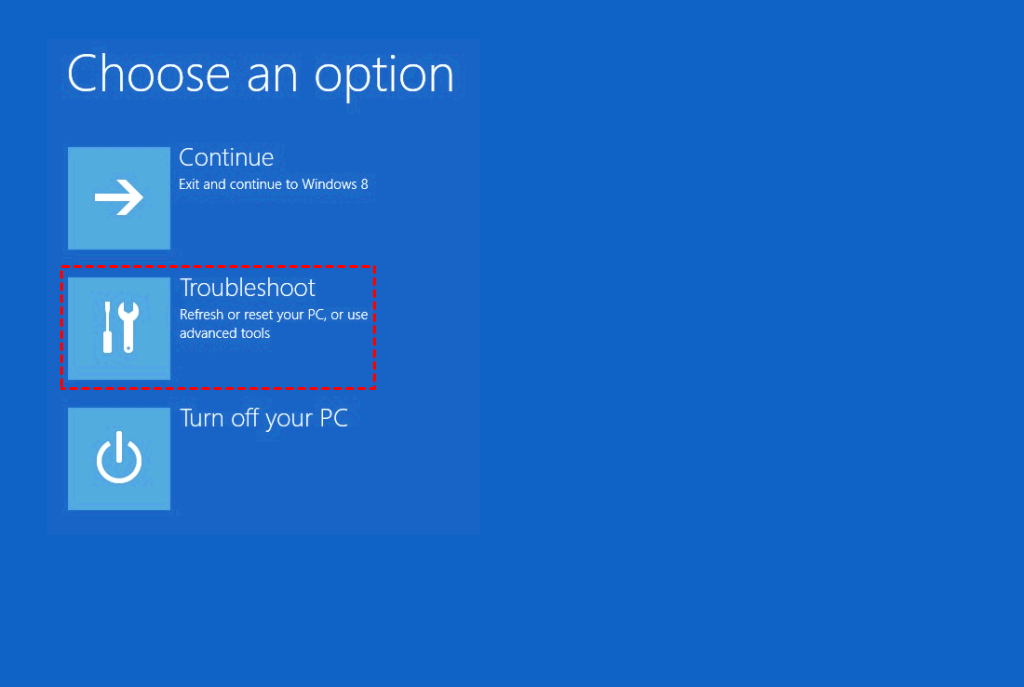
1. Go to Repair your computer >Troubleshoot; then, choose Advanced options and Command Prompt.
2. Type chkdsk /r c: and hit Enter key.
3. Exit the Command Prompt, remove the installation disc, and reboot from the repaired hard drive.
Notes:
▪ The "r" parameter locates bad sectors on your hard drive and fixes errors.
▪ If the boot drive is not "C", you should replace "C" with the correct bootable drive letter for your computer.
2. Fix corrupted Windows system files
System File Checker is a tool that allows you to scan for corruption in system files and restore corrupted files. To run it, you can follow these steps:
1. Access Command Prompt interface.
2. Input sfc/scannow and press Enter key.
After checking and fixing errors or repairing system files, exit the Command Prompt. Remove the Windows installation disc and try booting the computer from its system hard drive to see if it boots successfully.
To fix the issue with SFC Scannow not working in Windows 7, 8, or 10, try running the command as an administrator, check for corrupted system files using the command `sfc /scannow /offwindows`, or use the DISM tool to repair corrupted system files. You can also try running the command in a Command Prompt window with elevated privileges.
Fix disk boot failure without CD/DVD
If you don't have a Windows installation CD/DVD, you can use the free repair tool Qiling Disk Master Standard to solve disk boot failure issues in Windows 10, including problems with inserting a system disk and pressing Enter. This tool allows you to create a bootable device, check for hard drive errors, and more. You can download it and learn how to use it to repair boot failure issues.
The first stage: Create bootable USB drive
Warning: All data on the USB drive will be erased.
Step 1. Connect a USB drive to a working Windows-based computer.
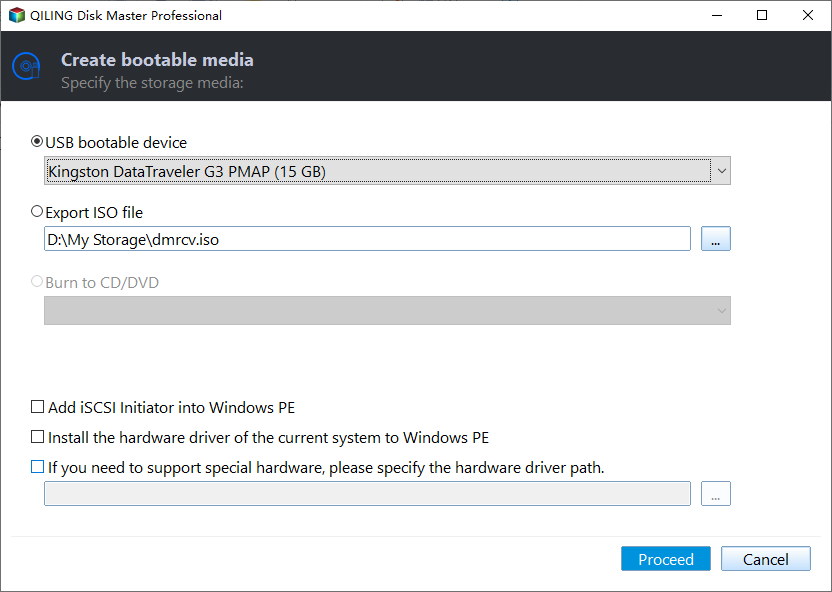
Step 2. Install and run Qiling Disk Master, then click Tools > Create Bootable Media.

Step 3. In the pop-up window, select one of the correct options and click Proceed.
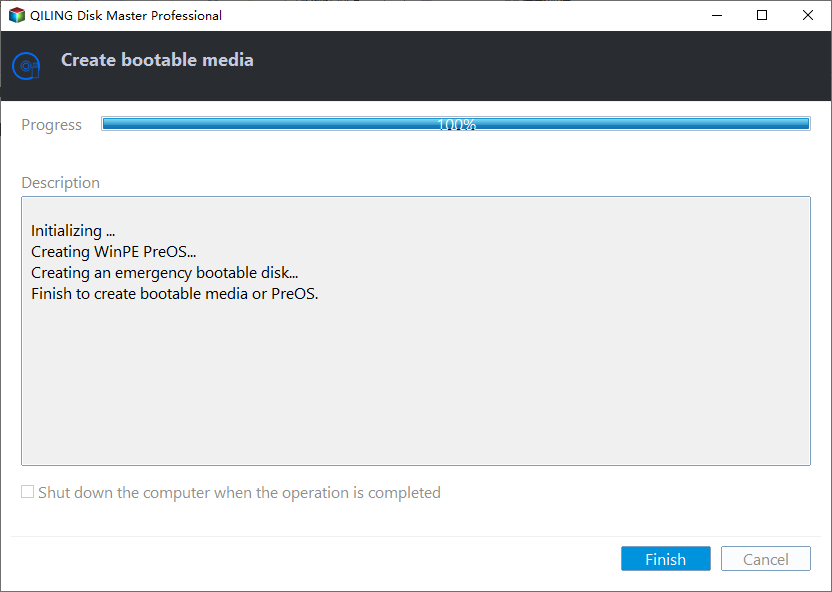
4. Click on Finish.
The second stage: fix the error with the bootable media
Connect the bootable USB drive to the unbootable computer and boot from it. This will take you to the main console of Qiling Disk Master Standard.
Step 1. Right-click on system partition and go to Advanced > Check File System.
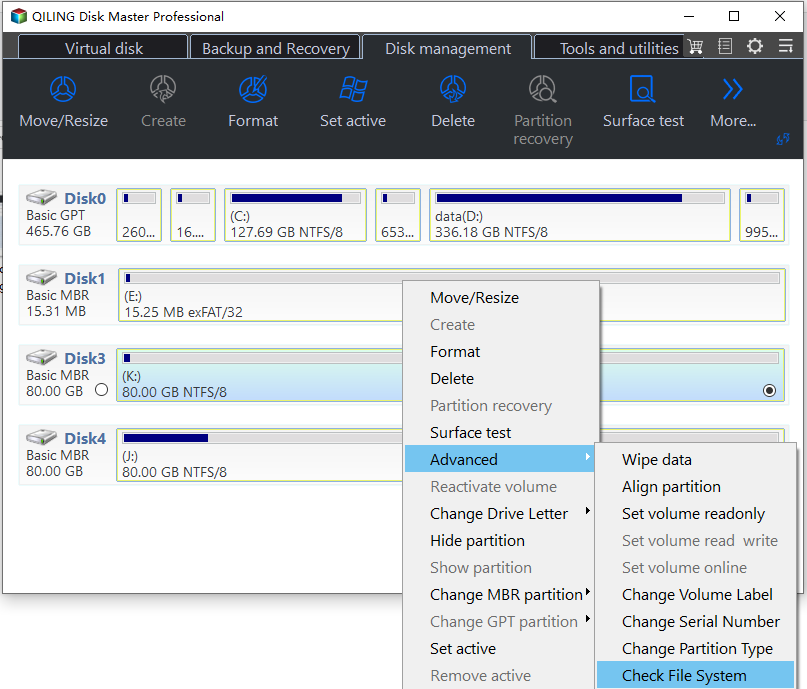
Step 2. Choose "Check Partition and fix error in this partition by using chkdsk.exe" among the three options.
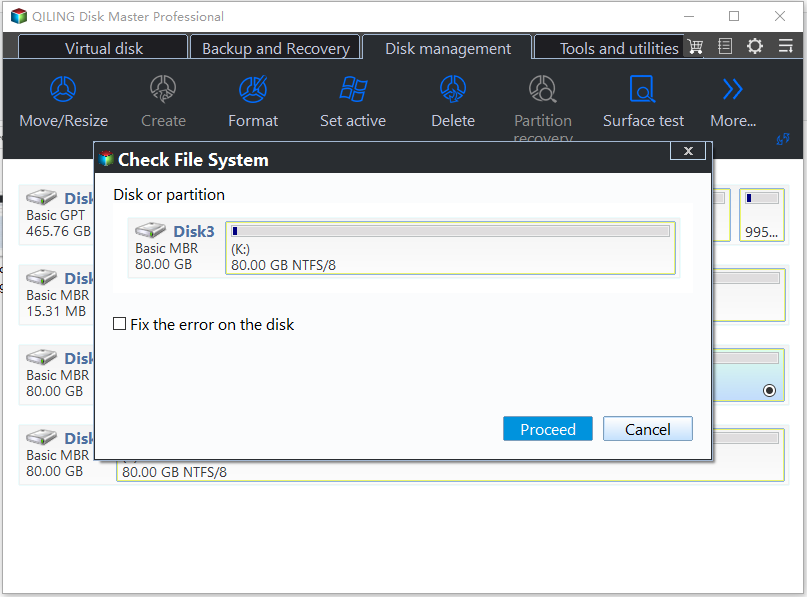
Step 3. After the operation completes, click Proceed.
Notes:
☞ To check bad sectors, you can select "Check whether there is a bad sector" on the partition in Step 2.
☞ If you encounter boot errors like invalid partition table, you can rebuild MBR via Qiling Disk Master.
☞ To avoid issues like accidentally deleting the boot partition or upgrading the system disk without reinstallation, consider upgrading to Qiling Disk Master Professional. This tool can help you manage and upgrade your disk more safely and efficiently.
Wrap thing things up
If you're experiencing disk boot failure in Windows 10, you may have already figured out how to resolve the issue. However, it's impossible to guarantee that the boot problem will always be fixed. If you're unable to resolve the issue, you may need to wipe your hard drive and reinstall Windows from scratch or, if you've made a system image backup, you can restore your system to its previous state and boot your computer normally.
Related Articles
- How to: Fix restart to Repair Drive Errors on Windows 10
restart to repair drive errors. Click to restart your PC is an annoying problem that can occurs in Windows 10, 8, 7. This post tells how to deal with the issue effectively. - How to Solve My WD Hard Drive Not Recognized in Windows 10?
When WD hard drive not recognized/ showing up in Windows 10 or 11, realize the possible causes and find out effective solutions in this post. - How to Fix Disk Management All Options Greyed Out on Windows
Follow practical steps to perform Windows 10 Bootable Clone within Few Clicks How to Fix Disk Management All Options Greyed Out on Windows while keeping files, partitions, and boot settings safe. - Windows Boot Manager Not Showing in BIOS | Fixed
Discover how to fix the issue of Windows Boot Manager not showing in BIOS. Our step-by-step guide will help you resolve this problem and get your computer back up and running smoothly. - Windows Install Stuck on Windows Logo: 100% Working Fixes
If your Windows installation process gets stuck on the Windows logo, This guide will walk you through the steps to fix the issue and get your Windows installation back on track.
Products
Articles & Tutorials
- Data Recovery
- Data Backup
- File Recovery
- File Backup
- File synchronize
- System Backup and Restore
- Disk and Partition Clone
- Technical articles
- Disk Master Help
- Windows Deleted File and Disk Recovery Tutorials
- Windows File and Data Recovery Tutorials
- More Windows Tutorials for Install, Security, Files, and PC Tips
- Windows Boot, Repair, and Recovery Environment Tutorials
- Windows Backup Tutorials
- Windows Restore Tutorials
- Windows Clone and Migration Tutorials
- Windows Server Backup, Recovery, and Management Tutorials
- Windows Disk, Partition, and Storage Management Tutorials