How to Move Windows 10 Recovery Partition without Data Loss?
What is the recovery partition?
Many people find that after upgrading to Windows 10, a 450MB recovery partition is created behind the C: drive. This partition helps restore the factory OS settings in case of system failure, but has no drive letter, making it invisible in Windows File Explorer, and only accessible in Disk Management.
Can I move Windows 10 recovery partition?
When you need to extend the system partition, but the recovery partition is in the way, taking up space between the system partition and unallocated space, you may need to move the recovery partition to free up that space. This can be done to make room for the system partition to be extended.
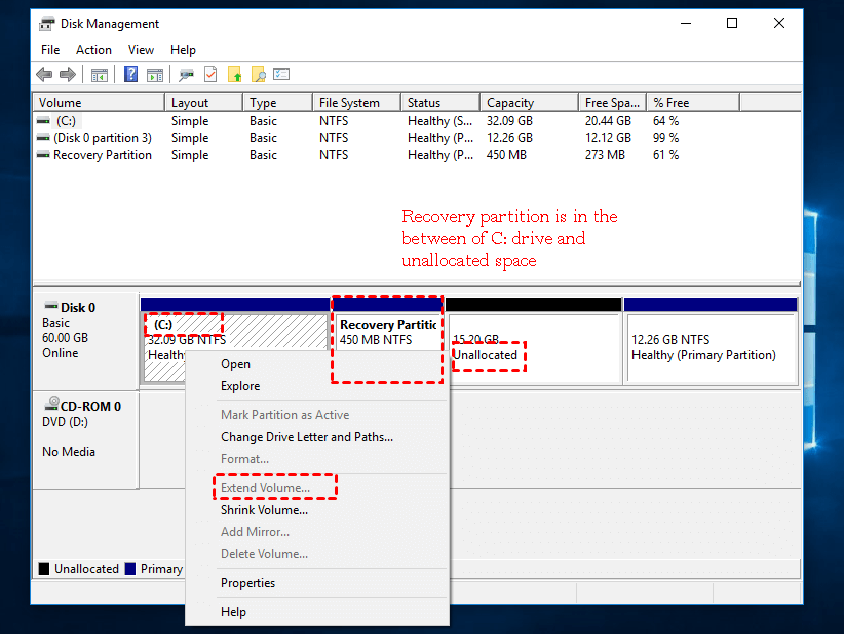
You may be aware that the Windows Disk Management tool allows you to extend a partition when there's contiguous unallocated space behind it, but this is not possible if the system partition is next to the Windows recovery partition. This is because the recovery partition is located in the contiguous unallocated space, making it difficult to extend the system partition. As a result, users are often left wondering whether it's safe to delete the recovery partition, but this is generally not recommended as it may be needed in the future. Instead, users are searching for ways to move the Windows 10 recovery partition to the end of the disk, allowing them to extend the C: drive with unallocated space successfully.
Easily move the recovery partition in Windows 10/11 with freeware
To move a recovery partition without losing data, use specialist software like Qiling Disk Master Standard. Before moving, ensure there is unallocated space after the partition. If none exists, shrink or delete a partition to create some. Download Qiling Disk Master Standard to get started.
1. Open Qiling Disk Master is a software that is compatible with Windows 11, 10, 8, and 7.
2. If the recovery partition is between the partition you want to extend and the unallocated space, right-click on the recovery partition and select Resize/Move Partition.
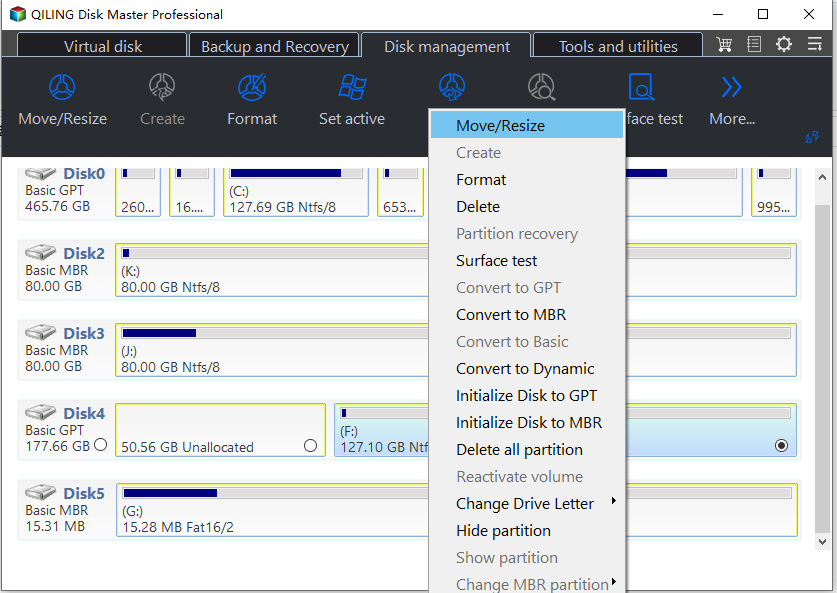
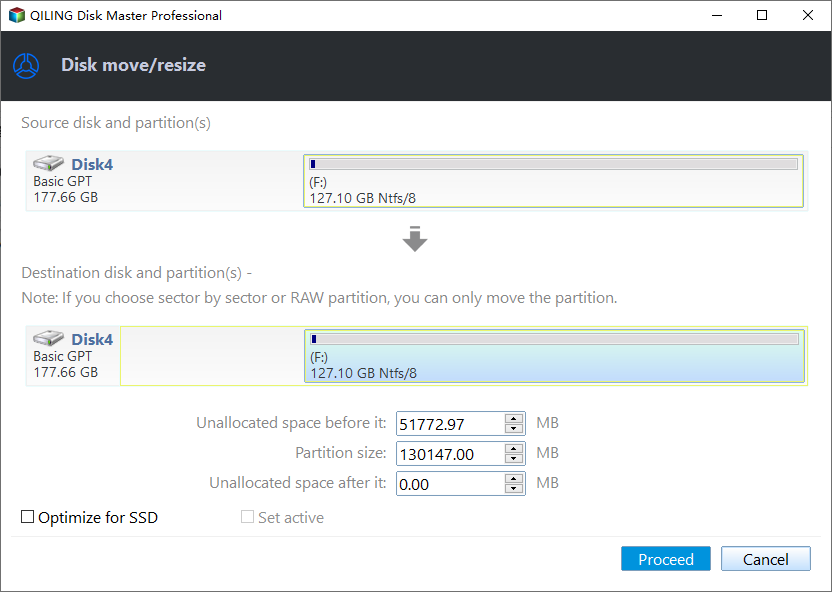
3. In the Move Partition screen, click and hold to drag the recovery partition towards the right hand side.
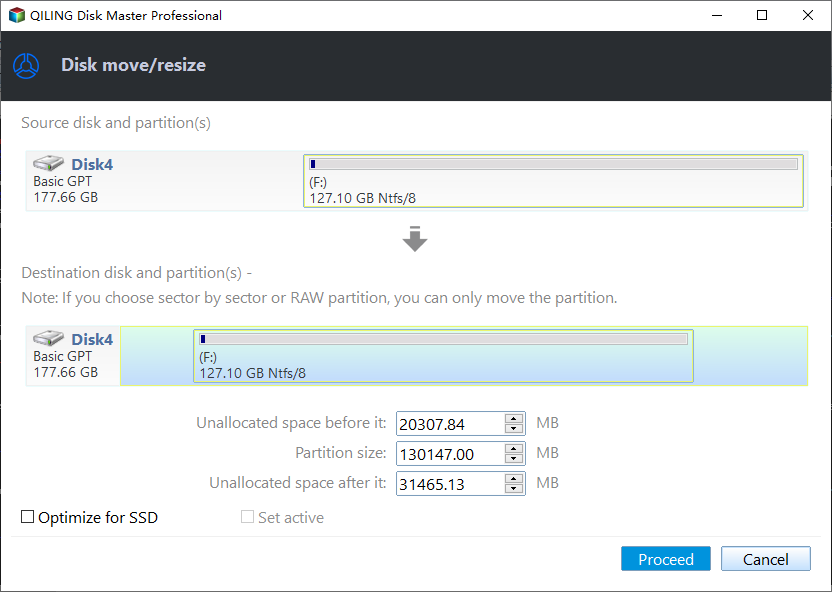
4. Now you can preview the partition layout after moving the recovery partition in Windows 10. If everything looks good, click Proceed to save the changes.
To add unallocated space to the C: drive, right-click on C: and select "Resize Partition" to extend the system drive. Alternatively, use "Merge Partitions" in Qiling Disk Master Standard to combine the unallocated space with another partition.
Move recovery partition to USB
To remove the recovery partition and still have recovery options, you can move Windows recovery to a USB flash drive and delete the recovery partition. Windows 10 has a feature called "Create a Recovery Drive" that lets you troubleshoot and fix PC problems, even when it can't boot, by backing up system files to the recovery drive. This way, you can reinstall Windows when needed.
To create a recovery drive in Windows 11 as example:
▪Connect a USB drive to your PC and ensure it is detected successfully.
▪To create a recovery drive, search for "Create a recovery drive" in the search box on the taskbar, and then select it.
▪When the tool opens, select Back up system files to the recovery drive and then Next.
▪Select the inserted USB drive and then click on Next.
▪The system will copy many files to the recovery drive, which may take some time.
You can safely delete the Windows recovery partition after creating a recovery drive with complete recovery options. This is because the recovery drive now contains all the necessary tools to restore your system, making the partition redundant. Deleting the partition will free up space on your hard drive.
Summary
To successfully extend another partition in Windows 10, you can move the recovery partition to a new location. This process can also be used to move the recovery partition to a USB drive and then delete the original recovery partition on the disk, ensuring data safety throughout the process. By following the steps outlined, you can safely relocate the recovery partition without losing any data.
You can use free partition management software to add unallocated space to your system partition, even if the recovery partition is in the way. For more advanced features like migrating your OS to an SSD, transferring free space between partitions, or moving applications to a different drive, you can upgrade to the Professional version of the software.
Related Articles
- How to Delete Recovery Partition in Windows 10/8/7 Safely?
Learn how to safely delete recovery partition to reclaim disk space since Windows 7/8/10/11 has one or more recovery partitions on a disk, which takes much space. - 2 Free Ways to Create Partition Windows 10 without Losing Data
This guide explains 2 Free Ways to Create Partition Windows 10 without Losing Data with clear steps, key checks, and practical tips. - Windows 10 Booting From Wrong Drive - Fix Easily
This guide is designed to help fix the issue of Windows 10 booting from the wrong drive and explore the potential causes behind it. If you're experiencing the same problem, this guide is for you, and by following it, you can resolve the issue and get your system up and running smoothly. - How to Fix Windows 11 Startup Repair Not Working | 7 Tips
Resolve Windows 11 startup issues with ease using our comprehensive guide, featuring easy solutions and expert tips to fix 'Windows 11 startup repair not working' and get your computer up and running smoothly. - How to Check Hard Drive Health on Windows 7 [Detailed Guide]
The health of your hard drive is crucial, as it's the primary location for storing data on your computer. To ensure its well-being, it's essential to keep a close eye on its health, and there are four tried-and-true methods to do so in Windows 7. These methods will help you monitor and maintain - How to Check If Disk Is Healthy on Windows [Step-by-Step Guide]
You can check if a disk is healthy using various methods, including built-in Windows features or third-party software, with five effective ways outlined in this article.
Products
Articles & Tutorials
- Data Recovery
- Data Backup
- File Recovery
- File Backup
- File synchronize
- System Backup and Restore
- Disk and Partition Clone
- Technical articles
- Disk Master Help
- Windows Deleted File and Disk Recovery Tutorials
- Windows File and Data Recovery Tutorials
- More Windows Tutorials for Install, Security, Files, and PC Tips
- Windows Boot, Repair, and Recovery Environment Tutorials
- Windows Backup Tutorials
- Windows Restore Tutorials
- Windows Clone and Migration Tutorials
- Windows Server Backup, Recovery, and Management Tutorials
- Windows Disk, Partition, and Storage Management Tutorials