What Are Dynamic Disk and Dynamic Volume?
Windows uses basic disks by default, but some computers and servers may use dynamic disks for flexible volume management. A dynamic disk can hold several types of dynamic volumes, such as spanned, striped, mirrored, and RAID-5 volumes. These features can help in specific storage scenarios, but they also make recovery and migration more complex.
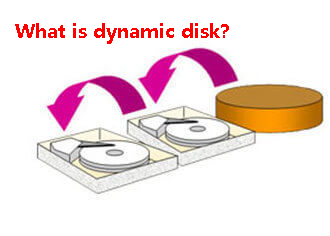
What is a dynamic disk?
A dynamic disk stores its volume information in a database instead of relying only on standard partition entries. This allows Windows to create volumes that use space from one or more disks. Dynamic disks are mainly used when a user needs advanced storage layouts that Disk Management cannot build on a basic disk.
Common dynamic volume types
- Simple volume: Uses free space on one dynamic disk. It is closest to a standard partition.
- Spanned volume: Combines unallocated space from multiple disks into one drive letter. If one disk fails, the whole volume can become unreadable.
- Striped volume: Writes data across multiple disks for speed, but it has no fault tolerance.
- Mirrored volume: Keeps two copies of data on two disks. It can keep running if one disk fails.
- RAID-5 volume: Uses three or more disks with parity. It is available on some Windows Server editions.
When should you use dynamic disks?
Dynamic disks can be helpful for server storage, mirrored data volumes, or testing advanced Windows storage layouts. For most home computers, SSD upgrades, system migration, and simple data drives, a basic disk is usually easier to manage and recover.
Risks before conversion
Before converting a disk, confirm that your operating system supports dynamic disks and that your backup is current. Some boot environments, cloning tools, recovery media, and non-Windows systems may not read dynamic volumes correctly. If the disk contains important files, back it up before changing the disk type.
Manage dynamic disks with Qiling Disk Master
 Qiling Disk Master
Review dynamic disk status, back up important data, and convert or manage supported disks with a visible preview.
Step 1. Open Qiling Disk Master and identify whether the disk is basic or dynamic in the disk map.
Step 2. Review each volume and note its drive letter, capacity, file system, and status. Back up important files or clone the disk before converting any dynamic volume, especially when the disk stores boot files or business data.
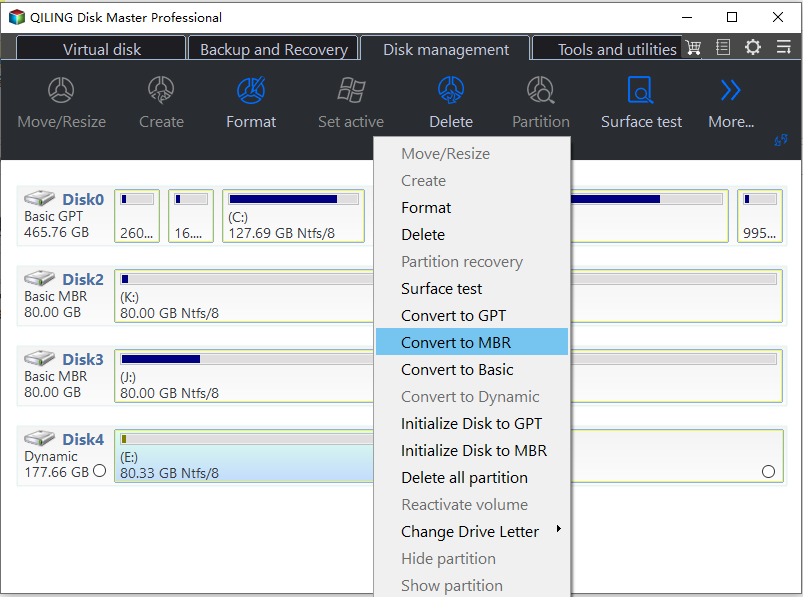
Step 3. If you need to change the disk back to a basic disk, right-click the target dynamic disk and choose Convert to Basic. Make sure you select the correct disk, not another data disk in the list.
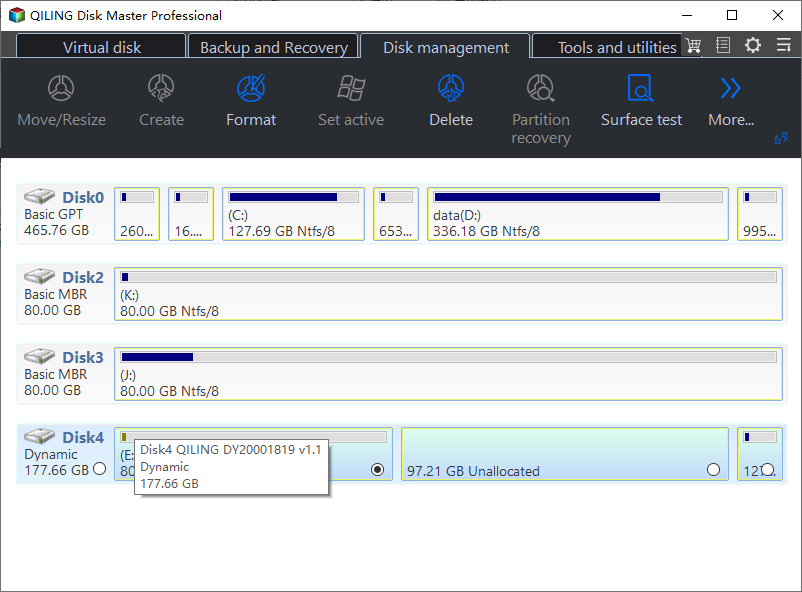
Step 4. Check the preview in the disk map. The program should show the selected disk changing from dynamic to basic before any operation is applied.
Step 5. Click Proceed to apply the pending conversion. Keep the computer powered on until the operation finishes, and do not disconnect the target disk during the process.
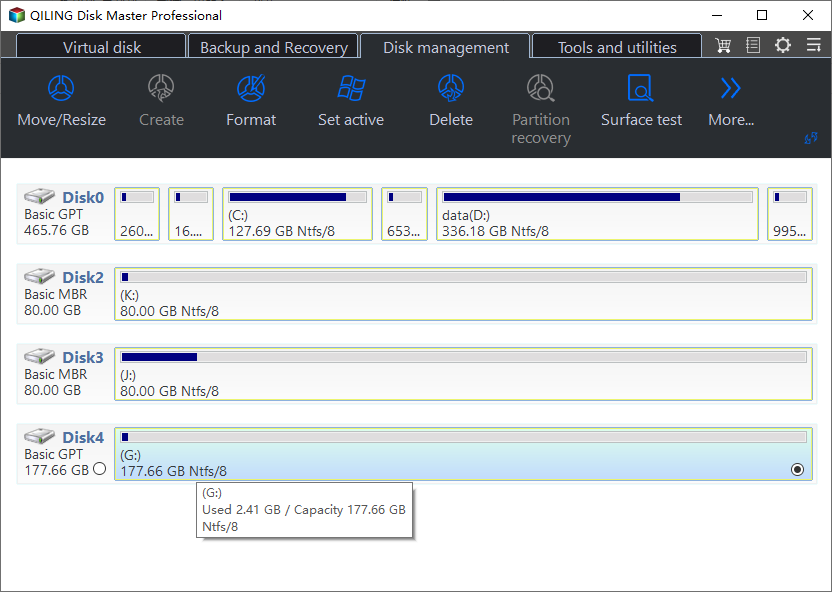
Step 6. After the conversion finishes, return to the disk map and confirm that the disk is shown as a basic disk and that the volumes are accessible.
Conclusion
Dynamic disks provide flexible storage layouts, but they require more care than basic disks. Use them only when their volume features are truly needed, and keep a backup before conversion, resizing, or migration.
Related Articles
- Convert Dynamic to Basic Without Deleting
Convert a dynamic disk back to basic while protecting important files and volumes. - Dynamic Disk Missing
Check why a dynamic disk becomes missing and how to recover access without unnecessary formatting. - Windows XP Dynamic Disk: What You Need to Know
Understand Windows XP dynamic disk limits, compatibility, backup needs, and safer conversion planning.
Products
Articles & Tutorials
- Data Recovery
- Data Backup
- File Recovery
- File Backup
- File synchronize
- System Backup and Restore
- Disk and Partition Clone
- Technical articles
- Disk Master Help
- Windows Deleted File and Disk Recovery Tutorials
- Windows File and Data Recovery Tutorials
- More Windows Tutorials for Install, Security, Files, and PC Tips
- Windows Boot, Repair, and Recovery Environment Tutorials
- Windows Backup Tutorials
- Windows Restore Tutorials
- Windows Clone and Migration Tutorials
- Windows Server Backup, Recovery, and Management Tutorials
- Windows Disk, Partition, and Storage Management Tutorials