[Fixed] The Selected Disk Has an MBR Partition Table
The error message states that Windows cannot be installed to the selected disk because it has a Master Boot Record (MBR) partition table, but Windows requires a GUID Partition Table (GPT) disk for installation on an EFI system.
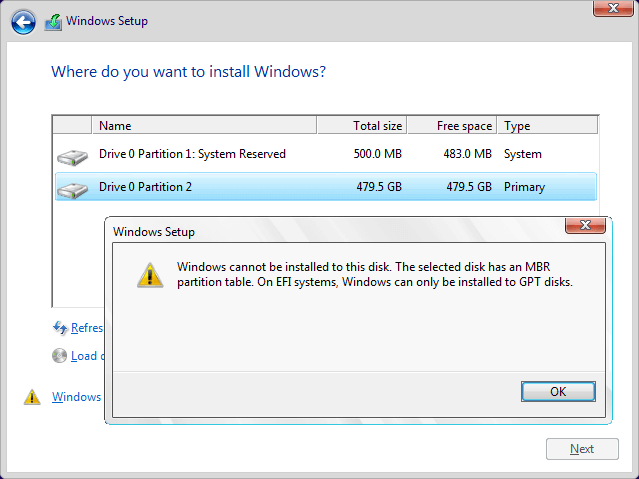
When "the selected disk has an mbr partition table on EFI systems" error comes?
This error message occurs when you install Windows, likely due to a corrupted installation or a problem with the system files.
▶ You're trying to upgrade to Windows 11 from Windows 10 using BootCamp, but you're getting an error when selecting the hard drive for installation. The issue is that your disk has a Master Boot Record (MBR) partition table, but Windows 11 requires a GUID Partition Table (GPT) disk for installation on an EFI system. You'll need to convert your disk to GPT before proceeding.
▶ You're getting an error while trying to install Windows from a USB, specifically that Windows can't be installed to a disk with a Master Boot Record (MBR) partition table, which is only compatible with BIOS systems, not EFI systems. You need to install Windows to a disk with a GUID Partition Table (GPT) partition table, which is compatible with EFI systems.
▶ You're trying to install Windows 7 64-bit on an Intel motherboard using EFI, but it's complaining about the disk partition table. Specifically, it's saying the disk has a Master Boot Record (MBR) partition table, which isn't compatible with Windows 7 64-bit on EFI systems. Windows 7 64-bit requires a GUID Partition Table (GPT) disk.
▶ You're trying to install 64-bit Windows 7 on a 64-bit laptop that currently has 32-bit Vista. You created a new partition, copied your data, and started the custom install, but got an error message saying Windows can't be installed on an MBR partition table disk, which is required for EFI systems.
Solution: Convert system disk to GPT without data loss
The error message is resolved by converting the MBR to GPT disk, a process that requires cleaning all data on the disk. This can be done using CMD or Disk Management, but be aware that any important data on the disk will need to be backed up first.
If you're planning to convert a system disk, we recommend choosing Qiling Disk Master Professional, which has a "Convert to GPT Disk" function specifically designed for this purpose. The conversion process is safe and won't result in data loss, and can be completed in just 3 steps.
Tip: 32-bit operating systems only support MBR disks, while 64-bit operating systems can boot from either MBR or GPT disks. If you need to convert a system disk between MBR and GPT, you will need to change the boot mode from UEFI to Legacy or vice versa, depending on the operating system you are using.Legacy to UEFI.
Step 1. To convert a disk to GPT, launch the program, right-click on the target disk in the main window, and select "Convert to GPT" from the context menu, or click on the disk and choose "Convert to GPT" from the right column.
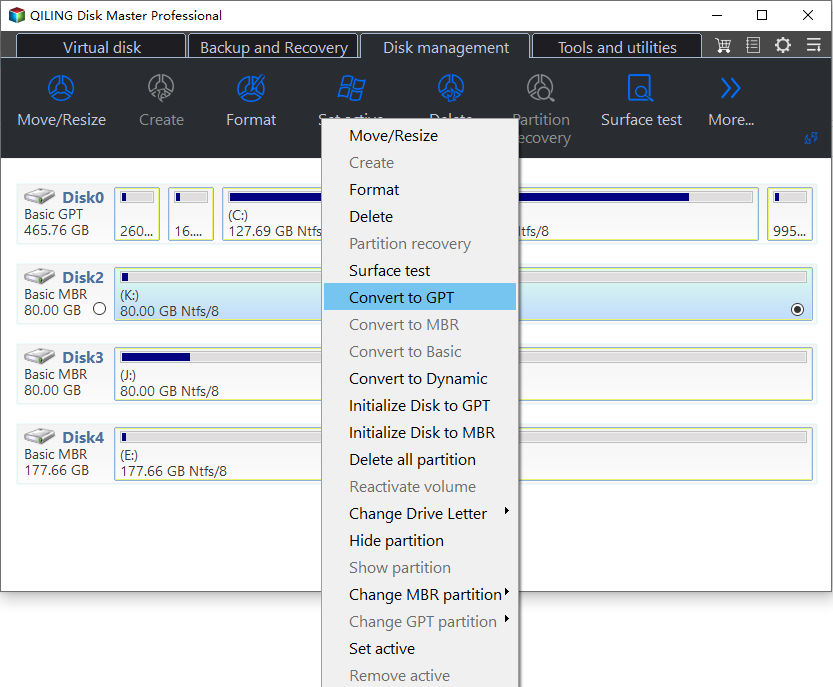
Step 2. Waiting to perform the pending operations.
To sum up
The error "Windows cannot be installed to this disk. The selected disk has an MBR partition table. On EFI systems, Windows can only be installed to GPT disks" occurs only when installing an EFI system on an MBR disk. Converting the disk to a GPT partition scheme resolves this issue.
Qiling Disk Master Professional is a partition converter that can fix 'The selected disk has an MBR partition table on EFI system' issue by converting between MBR and GPT, and also converting FAT/FAT 32 to NTFS, moving programs, and migrating OS to another disk without reinstalling. It offers a Server edition for Windows Server users to organize their devices.
Related Articles
- Solved: Conversion from FAT32 to NTFS is not available in Windows
Find practical guidance for Solved: Conversion from FAT32 to NTFS is not available in Windows, including disk, partition, file system, or Windows troubleshooting steps. - Dynamic Disk VS Basic Disk: What's the Difference and How to Convert ?
Dynamic disk vs basic disk, this article will tell you the difference between dynamic disk and basic disk. - Top 3 Free Ways: The Volume Is Too Big for FAT32 in Windows 7/8/10
This guide explains Top 3 Free Ways: The Volume Is Too Big for FAT32 in Windows 7/8/10 with clear steps, key checks, and practical tips. - Convert Basic Disk to Dynamic |When and How?
Learn how to Convert Basic Disk to Dynamic |When and How with clear steps, key checks, and practical tips.
Products
Articles & Tutorials
- Data Recovery
- Data Backup
- File Recovery
- File Backup
- File synchronize
- System Backup and Restore
- Disk and Partition Clone
- Technical articles
- Disk Master Help
- Windows Deleted File and Disk Recovery Tutorials
- Windows File and Data Recovery Tutorials
- More Windows Tutorials for Install, Security, Files, and PC Tips
- Windows Boot, Repair, and Recovery Environment Tutorials
- Windows Backup Tutorials
- Windows Restore Tutorials
- Windows Clone and Migration Tutorials
- Windows Server Backup, Recovery, and Management Tutorials
- Windows Disk, Partition, and Storage Management Tutorials