How to Change Legacy to UEFI without Reinstalling Windows 11, 10, 8, 7
Why change Legacy to UEFI?
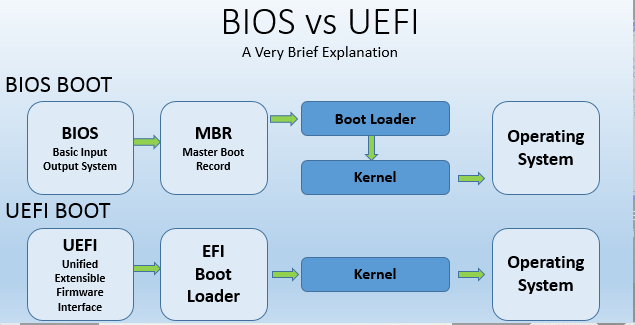
Legacy and UEFI are two firmware interfaces for computers. They work like an interpreter between the OS and platform firmware. When you boot up a computer, the interface (Legacy or UEFI) will initialize the hardware components and start the OS installed on the disk. But many users wonder what's the difference, or which one is worth using over the other one. On the whole, UEFI is better than Legacy BIOS with the following advantages:
● Legacy BIOS commonly boots from an MBR disk, while UEFI usually works with a GPT disk. GPT supports larger disks and more partitions than MBR.
● If you want to use a large hard drive or prepare for a newer Windows system, the boot mode and partition style should match each other.
● UEFI also supports Secure Boot, which adds a layer of protection during startup compared with traditional BIOS.
Compared with Legacy BIOS, UEFI offers better hardware support, faster startup, and stronger security features. That is why many users want to switch from Legacy to UEFI.
Is it necessary to reinstall Windows for Legacy to UEFI switch?
You do not always need to reinstall Windows when switching from Legacy to UEFI. The key is to convert the system disk from MBR to GPT first, and then change the boot mode in firmware settings.
1. After you convert Legacy BIOS to UEFI boot mode, you can boot your computer from a Windows installation disk.
2. At the Windows Setup screen, press Shift + F10 to open a command prompt.
3. If you use Diskpart to convert a disk from Master Boot Record (MBR) to GUID Partition Table (GPT), the disk must be empty first.
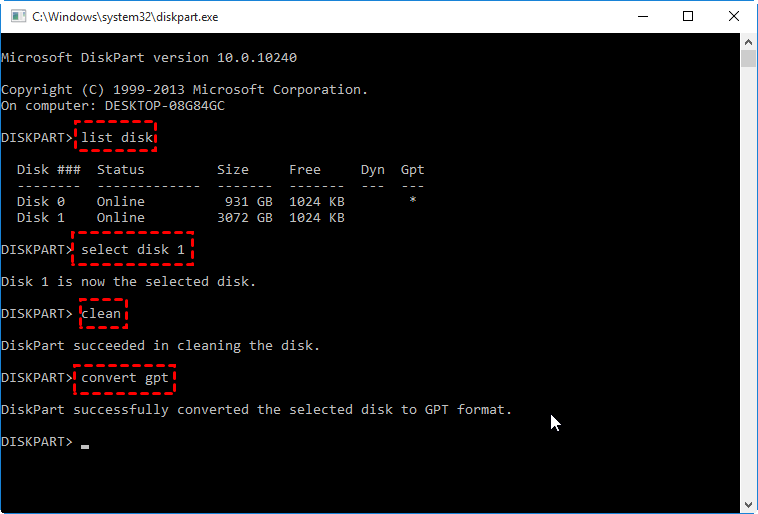
4. After successfully converting a disk from Master Boot Record (MBR) to GUID Partition Table (GPT) using the Diskpart command-line utility, you can proceed with reinstalling Windows on the converted disk.
- ★Tip:
- The "clean" command is required to delete all partitions on the disk because the command prompt can only convert an empty disk.
How to change Legacy to UEFI without reinstalling Windows or losing data?
You can use a professional tool like Qiling Disk Master Professional Edition to convert a disk from MBR to GPT without deleting partitions or losing data. This method is safe and efficient, and it allows you to switch Legacy to UEFI without reinstalling Windows.
Note: Before converting a disk from MBR to GPT, it's a good idea to back up any vital data to prevent loss in case something goes wrong.
To experience the process of changing from Legacy to UEFI, you can download the Demo version of the software.
1. First, download and run Qiling Disk Master Pro.
2. Right-click on the system disk and select Convert to GPT or click the disk and choose Convert to GPT from the right column.
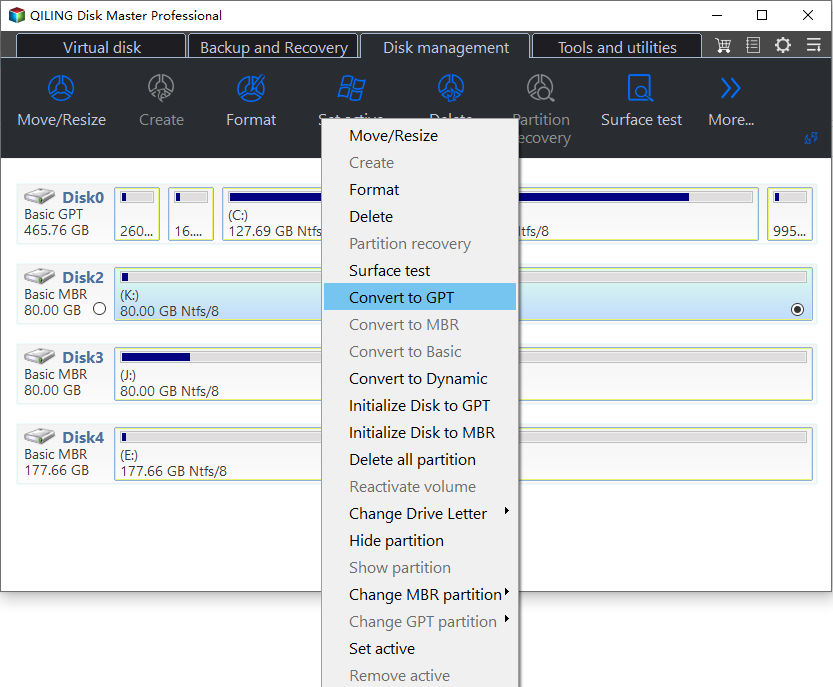
3. Wait for the program to apply the change.
During the process, your computer will reboot into Qiling Pre-OS mode. When it completes, you can go into the BIOS and switch from Legacy to UEFI mode. You can use the same method to convert GPT to MBR without losing data.
How to change BIOS mode from Legacy to UEFI
The steps to turn on UEFI mode vary from computer to computer. You can refer to the following to help you configure yours.
1. Typically, you continuously press a specific key when the computer starts up to enter the EFI Setup menu. Normally, it is Del for desktops and F2 for laptops. If you don't know which key to press, just press Esc. It will give you the full menu, and then you can select BIOS Setup.
2. Normally, you can find the Legacy/UEFI boot mode configuration under the Boot tab. Under the Boot tab, you should disable Legacy and enable UEFI.
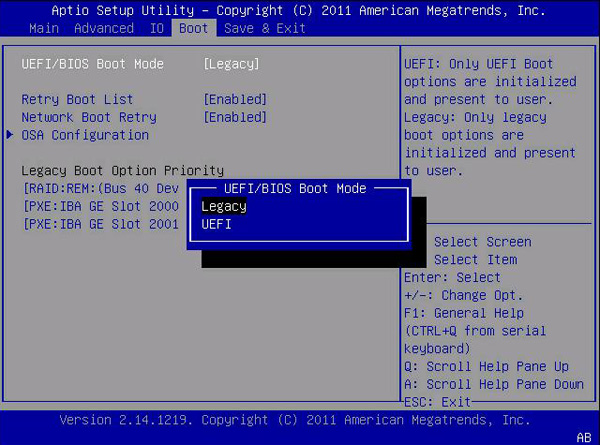
3. Now, press F10 to save the settings and then exit.
In conclusion, if your operating system (OS) is compatible, it is recommended to switch to UEFI boot mode. This change can provide several benefits, including improved security and faster boot times.
FAQs about change Legacy to UEFI
Q: Why would I want to change from Legacy BIOS to UEFI?
A: There are several benefits to switching to UEFI, including faster boot times, improved system security with features like Secure Boot, support for larger hard drives (>2TB), and compatibility with newer hardware technologies.
Q: Can I change from Legacy BIOS to UEFI without reinstalling the operating system?
A: Changing from Legacy BIOS to UEFI can be a bit complex, but there are some tools that can help make the process easier. One such tool is Qiling Disk Master Professional.
Q: How can I check if my computer is using Legacy BIOS or UEFI?
A: You can usually check the BIOS/UEFI mode in your computer's firmware settings. Restart your computer and enter the BIOS/UEFI setup by pressing a specific key (e.g., F2, Del, Esc) during startup. Look for an option indicating the firmware mode or legacy support.
Q: Are there any risks involved in changing from Legacy BIOS to UEFI?
A: Converting your computer's firmware from Legacy BIOS to UEFI can be a straightforward process with the right tool. Qiling Disk Master is a popular tool that promises a seamless and secure conversion process.
Q: Can all computers be changed from Legacy BIOS to UEFI?
A: Converting your computer's firmware from Legacy BIOS to UEFI may not be possible for all systems. The compatibility and upgrade requirements depend on the specific hardware and firmware capabilities of your computer.
Related Articles
- How to Remove GPT Protective Partition without Data Loss
You can learn what is GPT protective partition from this article and how to solve related problems of GPT protective partition step by step. - Fix CHKDSK Is Not Available For RAW Drives in Windows 10
Fix CHKDSK is not available for RAW drives error in Windows 10. Learn how to convert RAW to NTFS without data loss, recover files from RAW drives, and use Qiling Disk Master for disk repair. - Convert Primary Partition to Logical in Windows 7 with Ease
If you are in need of converting primary partition to logical in Windows 7, read this article patiently to get effortless methods. - Change File System between NTFS and FAT32 without Formatting
This guide explains Change File System between NTFS and FAT32 without Formatting with clear steps, key checks, and practical tips. - Are UEFI and GPT Required to Install Windows 11?
In this post, you'll learn whether UEFI and GPT are required for Windows 11 installation. Also, the ways to set boot mode as UEFI and to change disks from MBR to GPT will be introduced. - MBR or GPT, Which Is Better for 3TB Hard Drive?
To add more free space to your PC, you can set your 3TB hard drive to either MBR (Master Boot Record) or GPT (GUID Partition Table) mode, depending on your specific needs. This guide will walk you through the process to help you make an informed decision and set up your hard drive accordingly.
Products
Articles & Tutorials
- Data Recovery
- Data Backup
- File Recovery
- File Backup
- File synchronize
- System Backup and Restore
- Disk and Partition Clone
- Technical articles
- Disk Master Help
- Windows Deleted File and Disk Recovery Tutorials
- Windows File and Data Recovery Tutorials
- More Windows Tutorials for Install, Security, Files, and PC Tips
- Windows Boot, Repair, and Recovery Environment Tutorials
- Windows Backup Tutorials
- Windows Restore Tutorials
- Windows Clone and Migration Tutorials
- Windows Server Backup, Recovery, and Management Tutorials
- Windows Disk, Partition, and Storage Management Tutorials