Powerful SSD Data Wiping Software for Windows 10, 8 , 7
What is Secure Erase?
Secure Erase is a data sanitization method that completely overwrites all data on a hard drive, restoring it to a "factory fresh" level, and is often used when selling a drive to others.
The internal architecture of SSDs makes data cleaning significantly different from hard drives. Existing disk sanitization techniques are not effective on SSDs, and operations like deletes and reformats can unexpectedly lead to progressive performance degradation of write operations on these devices.
Secure erase is a widely accepted method for wiping data, meeting legal requirements and ensuring effective and secure data erasure.
ATA Secure Erase and Format: what’s the difference?
In the past, deleting or formatting a hard drive (HDD) was a common practice for freeing up space. However, with solid-state drives (SSDs), this is no longer an option due to the nature of SSD storage, which cannot be easily erased or reformatted like traditional HDDs.
SSDs store data on NAND flash memory chips, which are divided into numerous blocks. Traditional formatting methods overwrite data, but can't access all storage areas, leaving behind blocks like bad blocks and wear-leveling blocks. These unused blocks can be recovered using specialized recovery tools.
The ATA Secure Erase command instructs the SSD controller to reset all storage cells to their empty state, releasing stored electrons, and restoring the drive to its factory settings, thereby maximizing write performance. This command thoroughly and irreversibly erases data from the SSD, making it impossible to recover using known data retrieval techniques.
Frequent erasing of an SSD is not recommended. To maximize its lifespan, use its built-in self-sufficiency feature (SSD TRIM) to properly discard data. For general purposes, such as re-installing an operating system, formatting an SSD or using a manufacturer's sanitizing feature is sufficient.
SSD Secure Erase Software: which one is the best?
Before using a secure erase SSD tool, check if your SSD's manufacturer software, such as Samsung Magician, Kingston Manager, Crucial Storage Executive, or Intel Toolbox, has a built-in "ATA Secure Erase" command, which is the most recommended option for your SSD.
Some SSDs may not have a "ATA Secure Erase" command in their manufacturer software, or the disk utility secure erase may be grayed out. In such cases, third-party software can be used to securely erase the data on the SSD.
Two well-Securely erasing data from an SSD can be done using command-line tools such as HDD Erase and Parted Magic. However, HDD Erase's development stopped in 2008 and requires a DOS boot media, which can be cumbersome, and involves command lines. Parted Magic, on the other hand, can also securely erase data from an SSD, but requires a bootable media, such as a USB flash drive, and costs $4.99. While both utilities are effective, users may encounter issues with secure disk erase, and both tools have specific IDE or AHCI mode requirements.
Fortunately, Qiling Disk Master Professional offers free secure disk wipe software with various features for hard drive data wiping and SSD secure erasing. The SSD Secure Erase feature sends an ATA Secure Erase command line to completely wipe all data on SSD, with no requirement for IDE or AHCI mode. This user-friendly software simplifies complex command line operations, making it suitable for all levels of computer users.
Qiling Disk Master Standard is a secure erasing SSD tool and a perfect disk partition manager that offers additional features such as allocating free space between partitions, migrating the OS to an SSD, moving applications between partitions, creating bootable media, and more.
Wipe Data via Secure Erase SSD Free Software
Whether you want to erase data, recover performance, or sell, you need secure erase SSD. Next, I will show you how to wipe SSD for reuse.
Notes:
1. To secure erase an SSD, connect the SSD to a Windows 7 computer and ensure it's detected by the system.
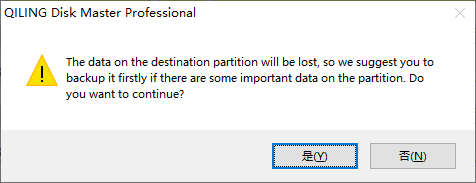
2. Wiping an SSD will completely erase all data on it, so it's essential to back up any important data before proceeding.
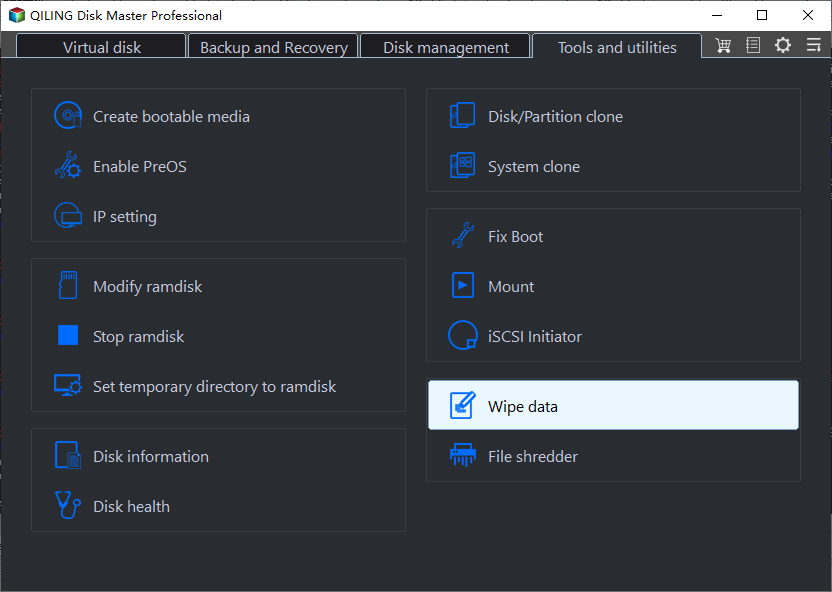
Step 1. To wipe data on Qiling Disk Master Professional, click on "Tools and utilities" in the top toolbar and select "Wipe data".
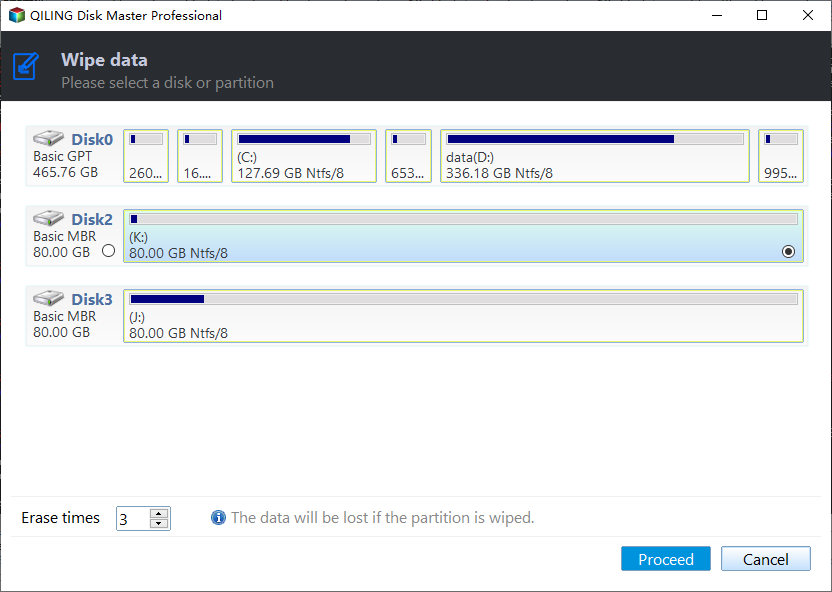
Step 2. Please select the SSD you will securely wipe data from in this page.
Perform a Hot Swap:
1. Find the SSD that needs secure erase from the computer host.
2. Unplug the power cable and disconnect the SATA cable from the SSD.
3. To fix the issue, unplug the power cable and SATA cable from the SSD, wait for 30 seconds, and then reconnect the power cable and SATA cable to the SSD.
Step 3. Click "Proceed" to secure wipe SSD.
Tip: Secure erase SSD on a laptop, such as HP, Lenovo, Sony, or others, typically involves using a combination of hardware and software tools to completely erase all data on the drive. This process is often referred to as a "secure erase" or "zero-fill" and is usually initiated through the laptop's UEFI (Unified Extensible Firmware Interface) settings or a specialized software tool.
Summary
Qiling Disk Master is a tool that can completely erase data on an SSD without causing damage, making it a reliable option for those looking for a safe and easy method to wipe their SSD data.
Related Articles
- Failed to Open Device Getlasterror()=32: Fix Guiformat Error [100% Working Guide]
When you use guiformat.exe to format the SD card, it may fail. In this article, I will introduce a possible solution when you encounter 'failed to open device getlasterror()=32'. And I will recommend the best formatting software to replace Guiformat. - How to Format 64GB SD Card for 3Ds Efficiently
Learn how to Format 64GB SD Card for 3Ds Efficiently with clear steps, key checks, and practical tips. - How Do You Format a Micro SD Card [Step-by-Step Guide on Each Way]
This article gives detailed guides on how do you format a Micro SD card and introduces a professional format tool to help. It elaborates on why format SD card and how to format an SD card. - How to Format EFI System Partition as FAT32? Your Guide Here 2023
There are ways to change the EFI partition to a FAT32 file system, but many users face the challenge of formatting - Top 5 Best SD Card Benchmark Software Recommend 2024
Discover the top 5 best SD card benchmark software of 2024. In this comprehensive guide, we highlight the key features, usability, and performance metrics of each SD card benchmark software, helping you select the optimal tool for testing and enhancing your SD card's performance. - Seagate Hard Drive Repair Tool Free [Fix Seagate Errors Quick & Easy]
This guide explains Seagate Hard Drive Repair Tool Free with clear steps, key checks, and practical tips.
Products
Articles & Tutorials
- Data Recovery
- Data Backup
- File Recovery
- File Backup
- File synchronize
- System Backup and Restore
- Disk and Partition Clone
- Technical articles
- Disk Master Help
- Windows Deleted File and Disk Recovery Tutorials
- Windows File and Data Recovery Tutorials
- More Windows Tutorials for Install, Security, Files, and PC Tips
- Windows Boot, Repair, and Recovery Environment Tutorials
- Windows Backup Tutorials
- Windows Restore Tutorials
- Windows Clone and Migration Tutorials
- Windows Server Backup, Recovery, and Management Tutorials
- Windows Disk, Partition, and Storage Management Tutorials