How to Partition a Hard Drive in Windows 7 Without Formatting?
What the purposes of partitioning a hard drive?
A partition is a section of a hard drive that stores system and data, and some Windows hard drives have a "Recovery Partition" to restore and repair the PC.
People may need to partition a hard drive in Windows 7, 8, or 10 for various reasons, including to organize files and free up space, or to install a new operating system without deleting existing data.
● Better manage hard drive: It helps you to organize data and files, such as videos, photos, and applications, making it easier to manage a large amount of data on your hard drive.
● Protect system and data: Computer manufacturers typically create a C drive (boot partition) when they ship a new PC, but this setup can be problematic as it leaves the entire system vulnerable to data loss or corruption if issues arise with the partition. In contrast, separate partitions on a disk are self-contained and don't affect each other, providing a safer and more secure environment for both the system and data.
Next, we will guide you on how to partition a hard drive in windows 7, 8, 10, without formatting.
How to partition a hard drive in Windows 7 without formatting (2 Methods)?
To partition a hard drive, you can use either the Windows built-in tool, Disk Management, or the GUI freeware, Qiling Disk Master, both of which can help you achieve the desired partitioning.
✍ Note: To partition a disk, you need to check its partition style first. A MBR disk can only have 4 primary partitions or 3 primary and 1 extended partition, while a GPT disk can have up to 128 primary partitions. If your MBR disk is full, you can convert it to GPT.
Content:
- Partition a hard drive with Disk Management
- The best way to partition a hard drive in Windows systems
Partition a hard drive with Disk Management
Step 1. Press "Win + R" to open the Run box, type "diskmgmt.msc" and press Enter to launch Disk Management.
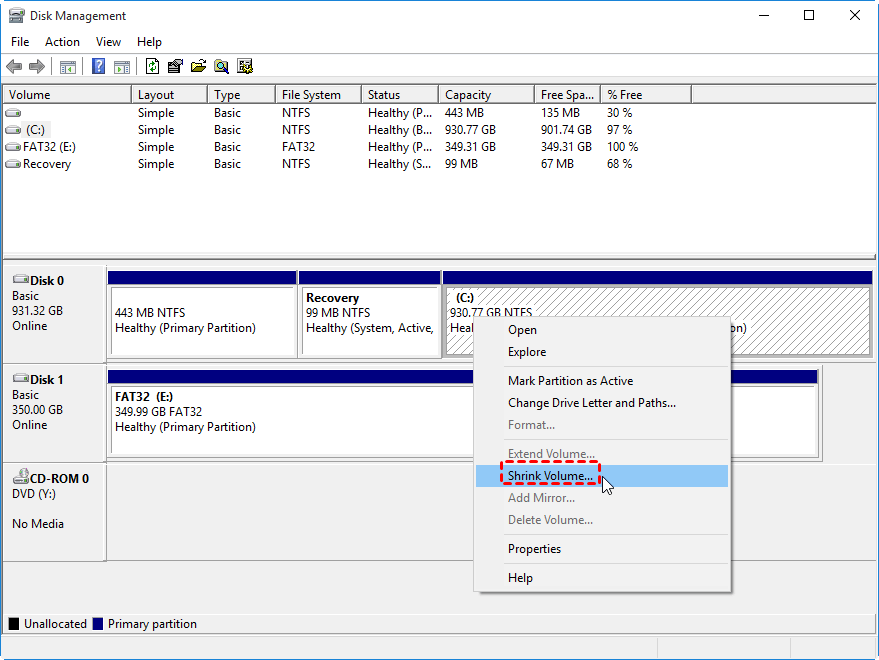
Step 2. You will see all the disks and partitions demonstrated on the Disk Management window. To free up space on a partition, right-click on it and choose "Shrink Volume".
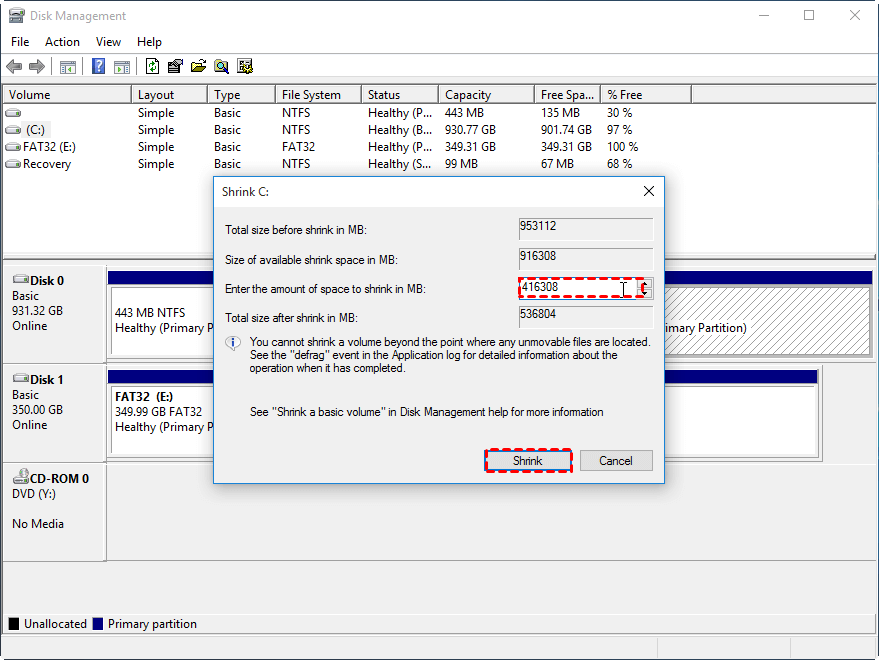
Step 2. And enter an amount of space that will be the maximum size of the new partition. And press "Shrink".
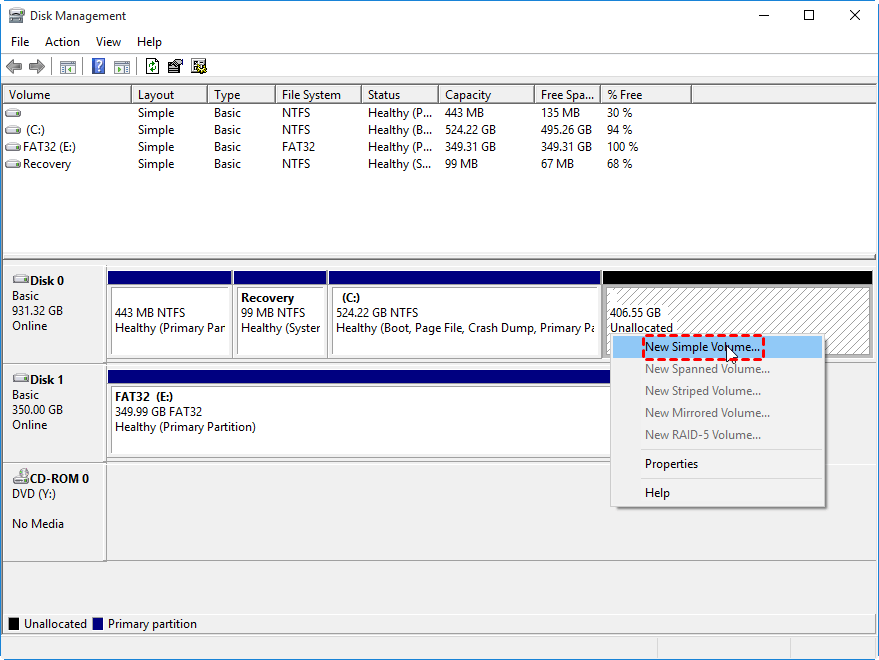
Step 3. When the shrink operation is complete, the reduced space will become unallocated space. Right-click on it, and choose "New Simple Volume" to create a new volume.
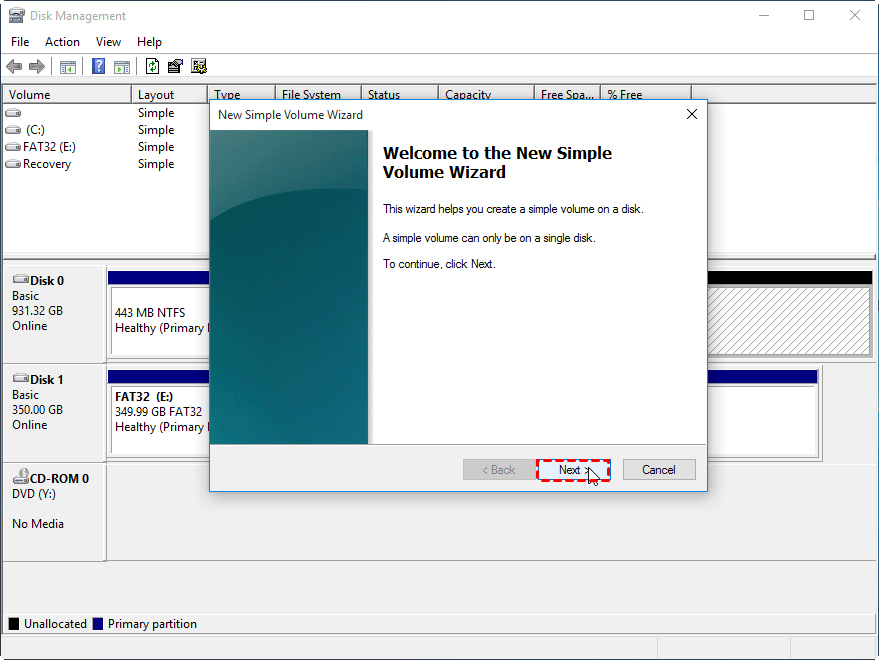
Step 4. And the creating new volume wizard will be launched, and choose "Next".
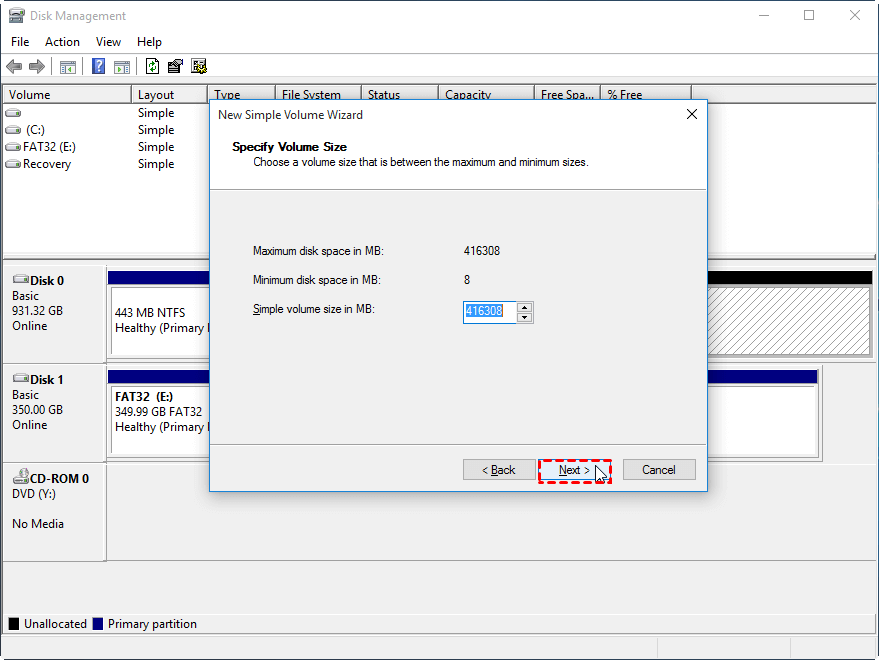
Step 5. And enter the new partition size in this window.
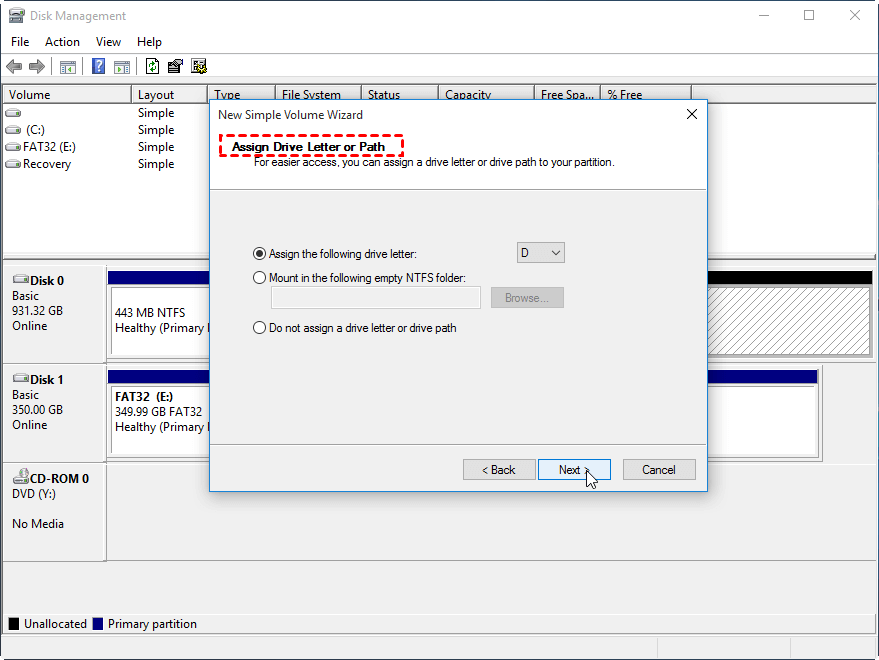
Step 6. Pick a letter for the new partition. And click "Next".
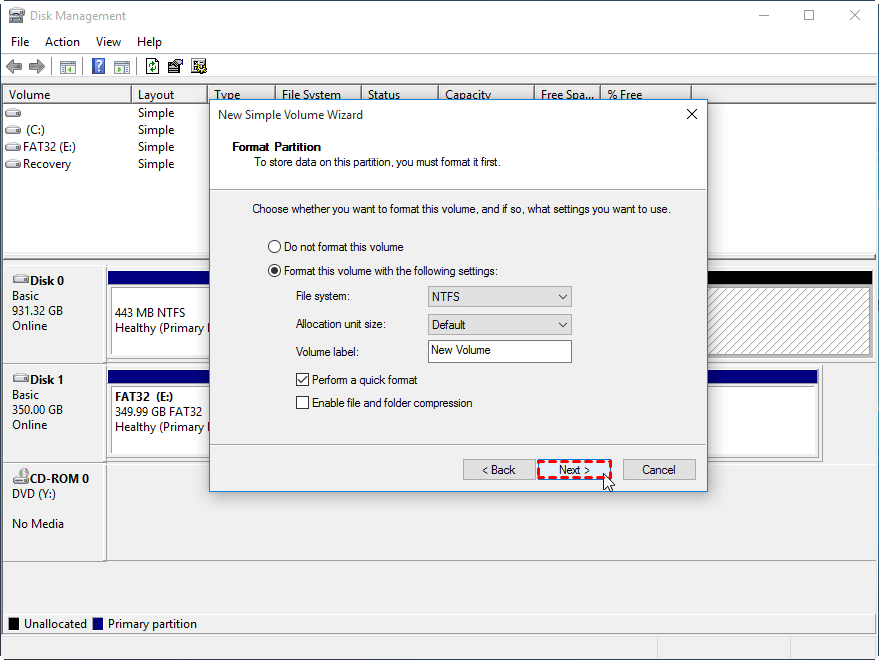
Step 7. To format a USB drive, a format wizard will appear after selecting the drive. You can choose not to format the volume or select a file system like NTFS or FAT32 and proceed.
The process of creating a new partition involves formatting the hard drive and then dividing it into two or more volumes. This can be done by following a series of steps, including selecting the hard drive, choosing the partition scheme, assigning a drive letter, and formatting the partition. Once the process is complete, the hard drive will be divided into two or more partitions, and additional partitions can be created by repeating the steps.
While the built-in Disk Management tool is convenient, it has its limitations. Shrinking a partition is necessary if there's no unallocated space, making it a tedious process. Additionally, as a lightweight tool, it lacks the flexibility to extend a volume without an adjacent unallocated space, making it less convenient for users with complex disk needs.
Best way to partition a hard drive in Windows systems
You can use Qiling Disk Master Standard to partition a hard drive in Windows 7, allowing you to create a new partition or volume on free or unallocated space without formatting, and also resize, delete, format, or copy partitions.
You can download this freeware and follow the steps below to see how it works.
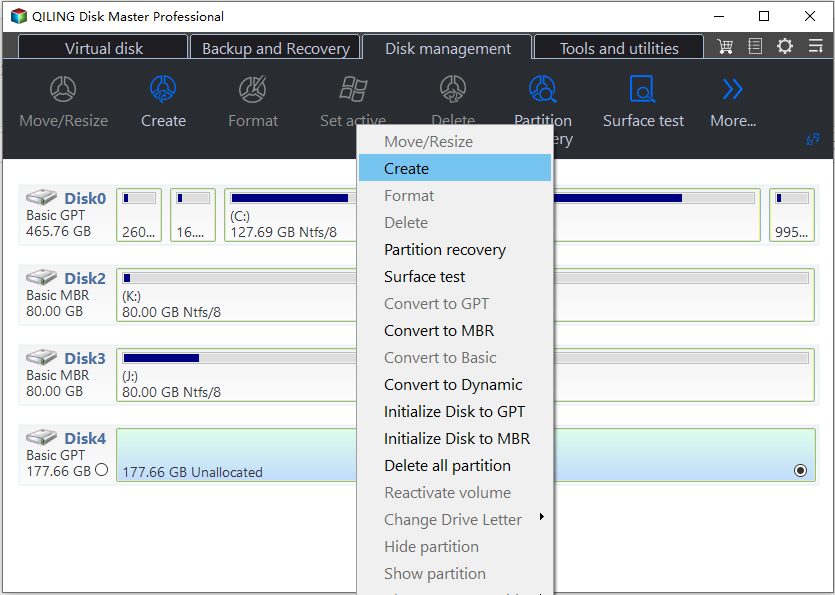
Step 1. Install and open Qiling Disk Master, and right-click on a partition that has enough free space or unallocated space, then select "Create Partition".
Step 2. You can adjust the size of the new partition, assign a drive letter, and choose the file system in this window.
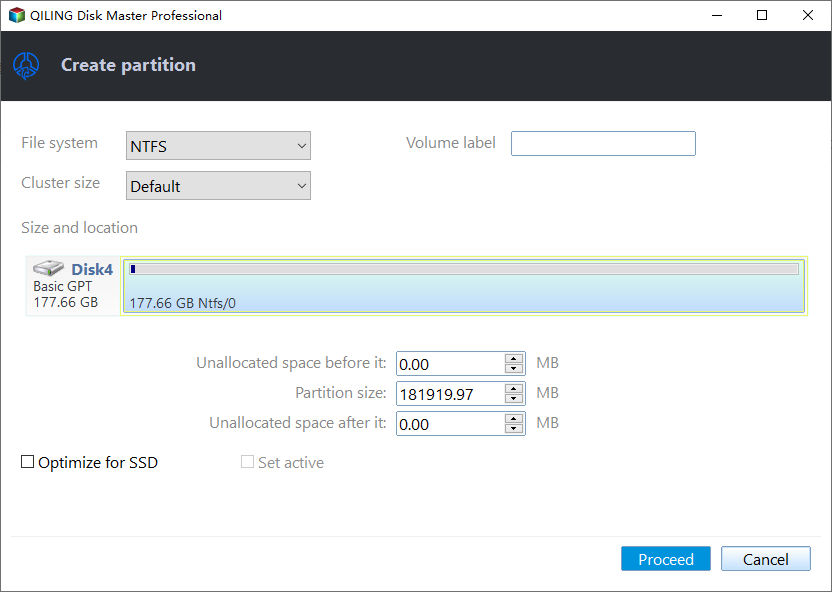
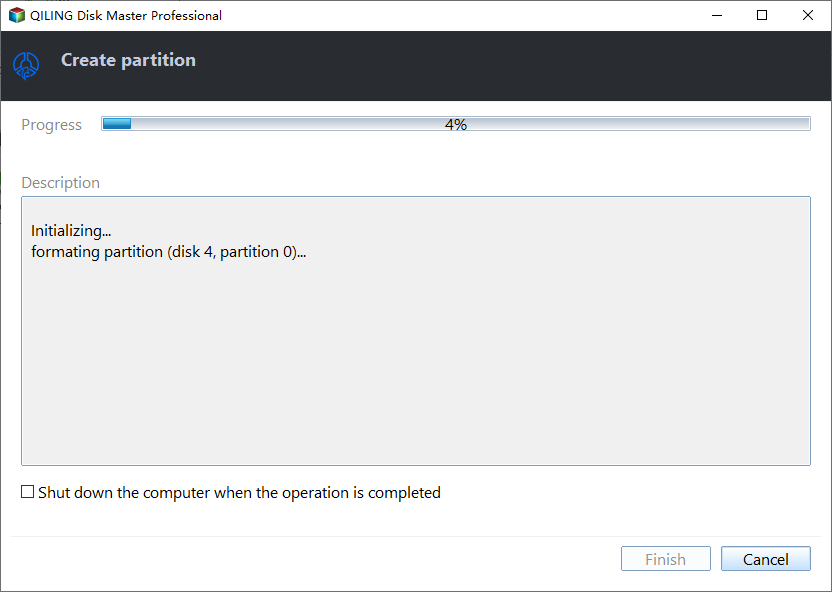
Step 3. And you can preview the change and click "Proceed" to commit the operation.
● Additional content: Partition a new hard drive in Windows 7, 8, 10 before installing Windows
To create multiple partitions on a hard drive before installing Windows, you can upgrade to the Professional edition, which allows for the creation of a bootable WinPE USB and utilizes its "Quick Partition" feature for quick hard drive partitioning.
1. To resolve the issue, install and launch Qiling Disk Master on another PC, then choose "Create Bootable Media" in the main interface and follow the instructions.
2. To create a bootable USB, insert the USB drive into your PC and follow the instructions to create a bootable drive. Once created, insert the USB drive into your PC and turn it on.
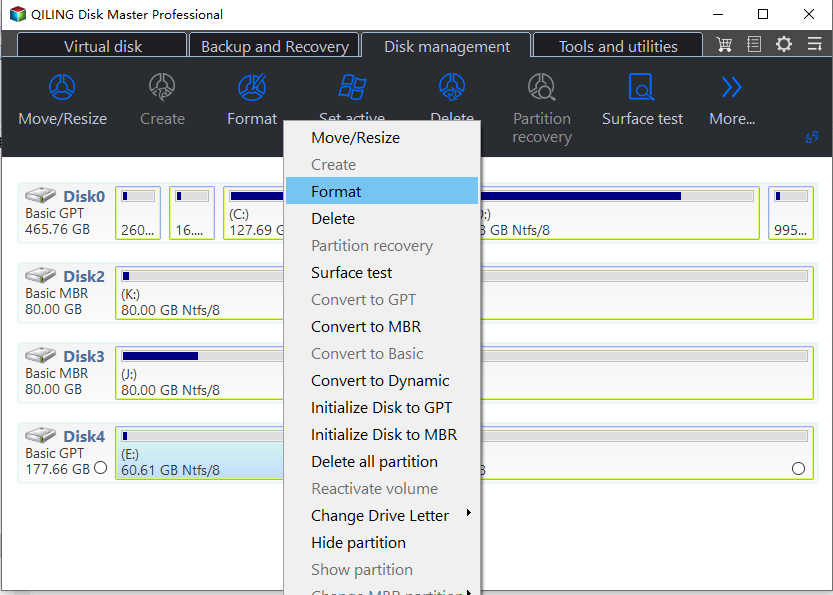
3. To start the partitioning process, click "Quick Partition" in the Disk Operation column of the Qiling Disk Master interface, and then set the desired partition size, label, type, and disk type in the subsequent window. Finally, click "Start Partitioning" to initiate the partitioning process.
Conclusion
Partitioning a hard drive in Windows 7 can be done using Qiling Disk Master, which provides a concise interface to easily and safely complete the operation, even for large drives like 500GB or 4TB. This tool is not only compatible with Windows 7 but also supports Windows 10, 8, XP, and Vista, as well as Windows Server, with Qiling Disk Master Server available for server use.
Related Articles
- How to Repartition Hard Drive without Losing Data in Windows 10/8/7?
Sometimes. you may need to repartition hard drive to make partition allocation more reasonable. Here we will show you how to repartition hard disk without losing data via different methods in Windows 11/10/8/7. - Create Hard Disk Partitions Before Installing Windows 10/8/7
Learn how to create hard disk partitions before installing Windows 11/10/8/7 operating system on your hard drive for your system, applications, games and other data better organized. - Is Seven Pass Secure Erase Good Enough? Get Clear Ideas Here!
Learn how to seven Pass Secure Erase Good Enough safely, including what to check before formatting, wiping, or deleting data. - Completely Wipe External Hard Drive in Windows 10 with Freeware
Learn the best way to securely wipe all data on external hard drive like WD Maxtor external drive completely on Windows 10 with free disk eraser. - Failed to Create a New Partition on the Selected Unused Space
Learn how to fix the error 0x8004240f: failed to create a new partition on the selected unused space when installing Windows 10/8/7. - Best USB Formatter to Format 64GB Flash Drive to FAT32 in Windows
Two reliable FAT32 USB flash drive formatters can help you format USB stick (Sony Bravia, HP/Samsung/Kingston USB), pen drive, USB hard drive, SD card greater than 32GB to FAT32 in Windows 10/8/7.
Products
Articles & Tutorials
- Data Recovery
- Data Backup
- File Recovery
- File Backup
- File synchronize
- System Backup and Restore
- Disk and Partition Clone
- Technical articles
- Disk Master Help
- Windows Deleted File and Disk Recovery Tutorials
- Windows File and Data Recovery Tutorials
- More Windows Tutorials for Install, Security, Files, and PC Tips
- Windows Boot, Repair, and Recovery Environment Tutorials
- Windows Backup Tutorials
- Windows Restore Tutorials
- Windows Clone and Migration Tutorials
- Windows Server Backup, Recovery, and Management Tutorials
- Windows Disk, Partition, and Storage Management Tutorials