Completely Wipe External Hard Drive in Windows 10 with Freeware
Wipe External Hard Drive or Format in Windows 10?
When you want to clear data on an external hard drive, the choice between wiping the hard drive and formatting it depends on your specific needs. The key difference between the two is that formatting will only remove the file system and leave the data intact, while wiping the hard drive will completely erase all data, making it unrecoverable. If you're looking to free up space or prepare the drive for reuse, formatting might be sufficient.
You want to completely and permanently wipe an external hard drive in Windows 10 to protect sensitive information, such as donating, gifting, or reselling it, and ensure that no one can retrieve your data.
You may not need to encrypt your external hard drive on Windows 10 if you're the only one using it. In this case, creating a secure file system on the drive can be sufficient, allowing you to quickly install Windows 10 on it, for instance. Since you're the sole user, there's no need to worry about unauthorized data recovery, making encryption unnecessary.
Wipe External HDD vs. Wipe External SSD: What's the Difference?
Since HDD and SSD are built with different techniques and data storage structures, the methods for wiping data on them should also be different.
HDD data wiping works by overwriting the entire disk multiple times, making it impossible to recover any data, even with professional software. The process involves writing ones and zeros to the master boot record, ensuring that all data on the HDD is completely erased and unrecoverable.
On SSDs, erasing files doesn't truly wipe them, as they can be retrieved. Instead, erasing on SSDs resets all NAND cells, clearing data on each sector. Since the program doesn't know where data is stored on each sector, it's difficult to clean them individually. However, resetting cells also restores the SSD to its factory defaults, which can improve performance. To wipe a hard drive in Windows 10, let's take a closer look at the process.
Freeware to Secure Erase External Hard Drive in Windows 10
Physical destruction via sledgehammer can effectively wipe data, but it's not environmentally friendly. For external disk management, such as wiping a Western Digital external hard drive like the Maxtor, using a manufacturer's application is a viable option. The WD Quick Formatter Tool, also known as WD Advanced Format Drives (AFDs), can be used to wipe Western Digital external hard drives.
If your external hard drive doesn't come with a dedicated data wiping program, or if it doesn't work occasionally, you can try a free alternative to ensure your data is securely erased. This free alternative can help you wipe your data effectively, even if the dedicated program doesn't work.
Qiling Disk Master Standard is a free software that allows you to securely wipe data from external hard drives and solid state drives. With its "Wipe Hard Drive" feature, you can easily erase data from an external hard drive in Windows 10, and repeating the process multiple times ensures that data cannot be recovered. This software provides a reliable way to securely wipe data, making it a useful tool for those looking to securely erase sensitive information.
How to Wipe External Hard Drive in Windows 10 Free?
Note: All data will be cleaned on the external drive, so please backup any important files to a safe place beforehand.
Wipe External HDD Permanently
Step 1. Connect your external hard drive to Windows 10, ensure it's detected, install and run Qiling Disk Master, and then right-click the external HDD at the main interface to select "Wipe Hard Drive" from the list.
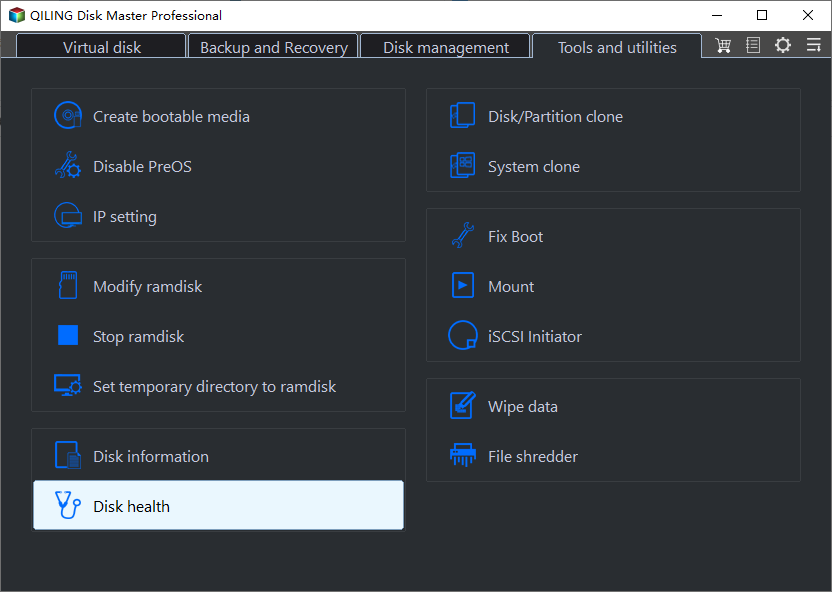
Step 2. In the pop-up small window, choose a wiping method.
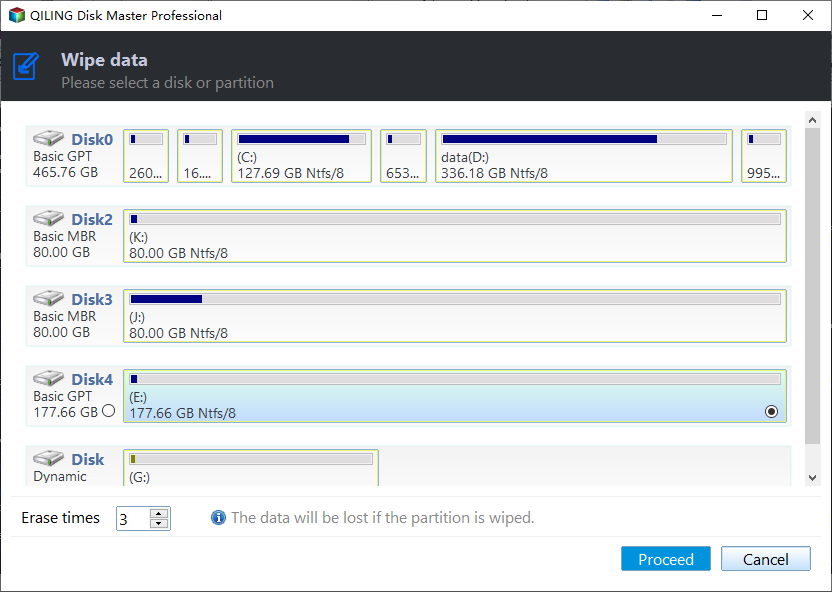
Step 3. Preview the result and click "Proceed" to execute pending operations.

Tips:
● You can set the number of wipes from 1 to 100, which affects the operating time, with larger numbers taking longer and requiring more time on larger disks.
● In Windows 10, you can also wipe your internal hard drive. Create a bootable medium, and it can serve as a hard drive eraser.
● Qiling Disk Master Standard supports Windows 7/8/Vista/XP, allowing for easy wiping of external hard drives on these operating systems.
Secure Erase External SSD without Hurting
You can erase data on an SSD by using the same method, which involves upgrading to the Professional edition to run the "SSD Secure Erase" program specifically designed for wiping data on an SSD.
Connect an external SSD to a Windows 7 computer, ensure it's recognized and not set as the boot disk. Install and run Qiling Disk Master on that computer.
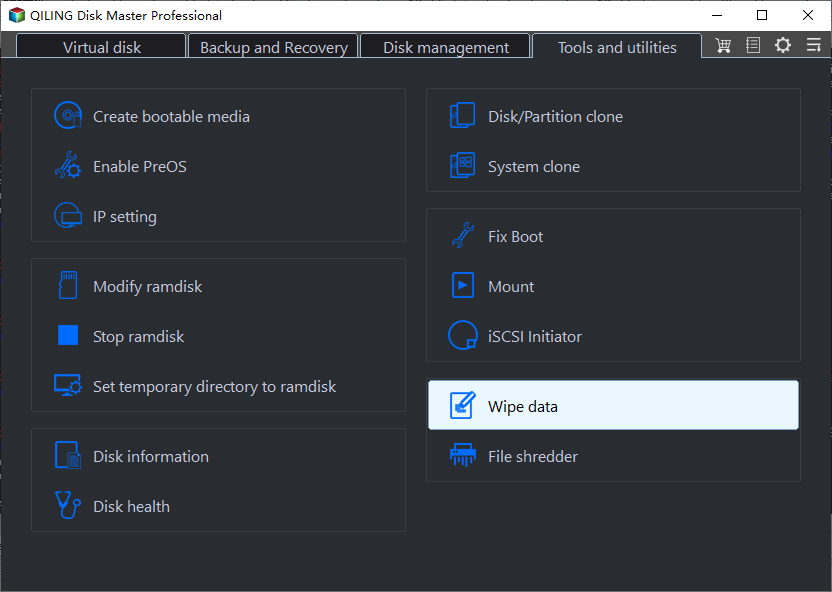
Step 1. In Qiling Disk Master, click on the external SSD and select "Wipe" followed by "SSD Secure Erase".
Step 2. At this page, choose the SSD and click "Next".
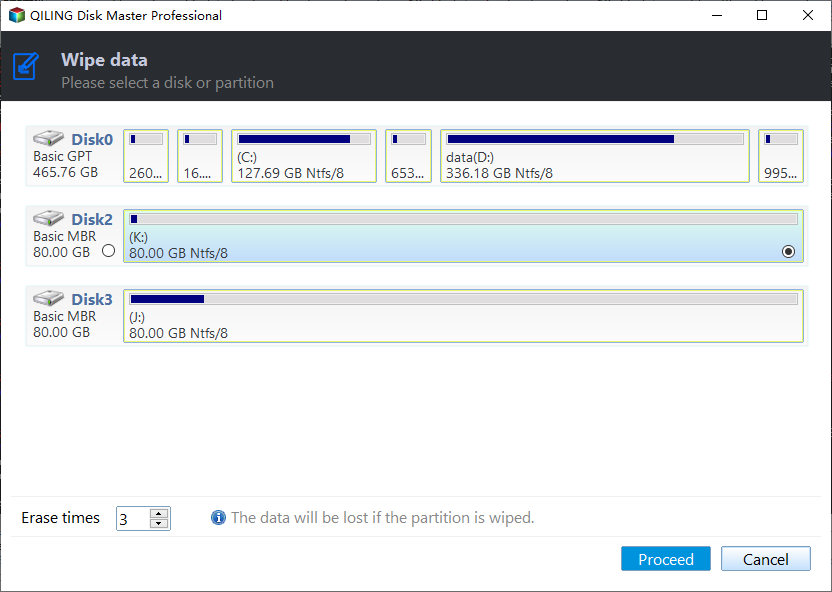
Step 3. To securely erase an external SSD, follow the steps: Connect the external SSD to your computer, open the Disk Utility app, select the external SSD, click "Erase" and choose "Quick Erase" or "Security Options" to erase the data securely. If you choose "Security Options", select the desired erase method, such as "Zero Fill" or "Secure Erase", and follow the on-screen instructions to complete the erase process. Once the erase process is complete, the external SSD will be erased and ready for reuse.
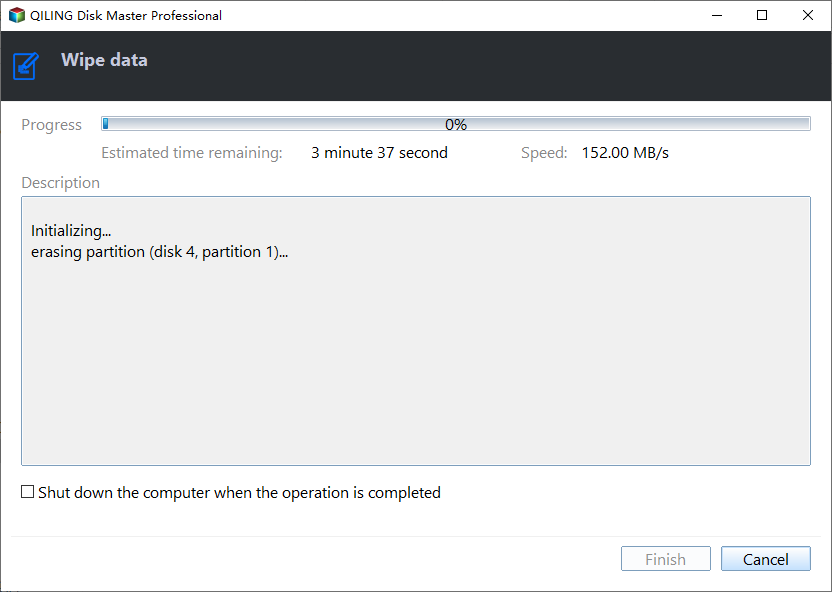
Tips: You can initialize an external hard drive after erasing its content if you want to. This process will wipe the drive clean and prepare it for new data.
Summary
Wiping an external hard drive in Windows 10 can be done easily, but for a worry-free result, you may need some professional tools. Qiling Disk Master is one such tool that not only allows you to wipe the hard drive but also enables you to reformat it to your desired status. In addition to these features, the software also offers other functionalities like Migrate OS to SSD, Disk Copy Wizard, Windows To Go Creator, and more.
Related Articles
- How to Wipe Hard Drive in Windows 8 Permanently?
You can wipe hard drive in Windows 8 from Command Prompt. If the hard drive is with OS installed, you can employ a third-party partition tool, Qiling Disk Master Professional. - Partition WD External Portable Hard Drive in Windows 10/8/7
The simple steps to partition WD (Western Digital) external potable hard drive, so you can make your Windows 10/8/7 files better organized by separating data into multiple sections. - Full Guide to Transcend Elite Backup Software in Windows 11/10/8/7
This tutorial tells what Transcend Elite backup software is and how to use it step by step. A free alternative is offered in case Transcend Elite backup failed. - What Does a Disk Defrag do and Why Do I Need it?
This guide explains What Does a Disk Defrag do and Why Do I Need it with clear steps, key checks, and practical tips. - How to Resize GPT Partition Windows 10 without losing data?
When you need to resize GPT partition in Windows 10, here you can learn 2 effective ways to get it done. Choose a proper method based on your situation to safely resize GPT system partition, reserved partition, etc in Windows computer. - How to Restore Windows 10 Backup to Dissimilar Hardware
Restoring a Windows 10 backup to different hardware is feasible and can be done using a specific method, which also applies to Windows 11 and Windows 7. This process allows users to transfer their operating system and data to a new computer, preserving their settings and applications. The method
Products
Articles & Tutorials
- Data Recovery
- Data Backup
- File Recovery
- File Backup
- File synchronize
- System Backup and Restore
- Disk and Partition Clone
- Technical articles
- Disk Master Help
- Windows Deleted File and Disk Recovery Tutorials
- Windows File and Data Recovery Tutorials
- More Windows Tutorials for Install, Security, Files, and PC Tips
- Windows Boot, Repair, and Recovery Environment Tutorials
- Windows Backup Tutorials
- Windows Restore Tutorials
- Windows Clone and Migration Tutorials
- Windows Server Backup, Recovery, and Management Tutorials
- Windows Disk, Partition, and Storage Management Tutorials