SSD vs HDD - Which One Should We Choose?
SSD vs HDD - What you should know
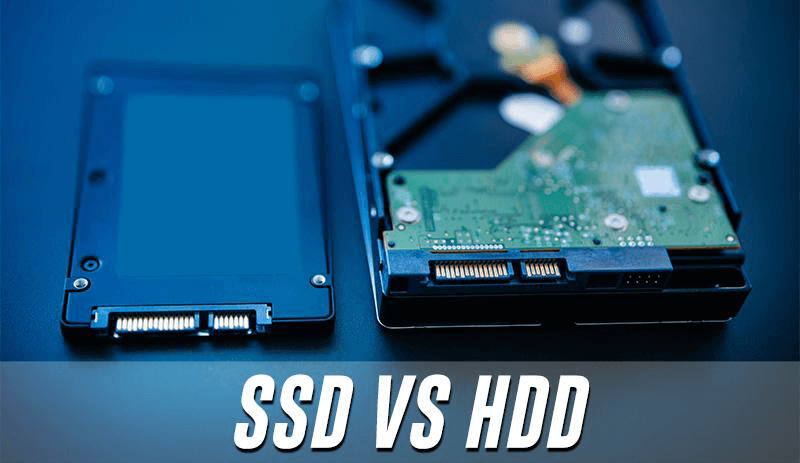
As computers become more prevalent, the demand for hard drives has increased, leading to a common dilemma when configuring a computer: choosing between a Hard Disk Drive (HDD) and a Solid-State Drive (SSD). Many users are unsure about the difference between these two storage options, sparking interest in understanding the characteristics of each. This article aims to provide a clear explanation of what HDD and SSD are, and ultimately, which one is better - SSD vs HDD.
▶ What is HDD and SSD?
Hard disk drives (HDD) and solid-state drives (SSD) are both data storage devices, but they differ in their storage technology, performance, and durability. HDDs use spinning disks and mechanical heads to read and write data, while SSDs use flash memory to store data electronically.
HDD A traditional spinning hard drive, also known as a HDD, contains mechanical components like platters and read/write heads. It stores and accesses data by spinning disks, with speed determined by RPM (revolutions per minute), typically ranging from 4200 to 7200 RPM, with higher RPMs indicating faster performance.
SSD A Solid-State Drive (SSD) is a more advanced storage device compared to a Hard Disk Drive (HDD). It's a solid-state device used under the hood, storing all data in flash memory chips. This allows data to be retained even without power, making it more energy efficient and resistant to wear and tear due to the absence of moving parts.
Major brands of hard disk drives (HDDs) and solid-state drives (SSDs) include Samsung, Kingston, Seagate, Western Digital (WD), Intel, and SanDisk, among others.
▶ Which is better HDD or SSD?
SSD (Solid State Drives) are generally considered better than HDD (Hard Disk Drives). If you're still unsure about the differences between the two, keep reading, as we'll delve into a detailed comparison between them.
✍ SSD vs HDD Components
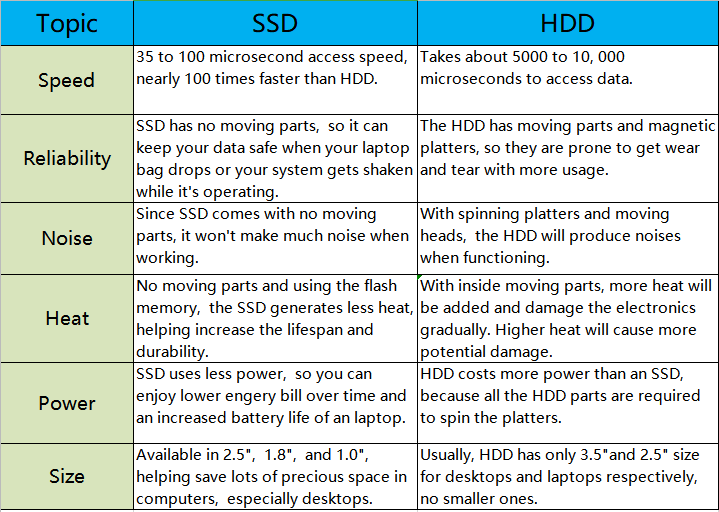
HDDs have moving parts, including a motor-driven spindle that holds one or more flat circular disks coated with magnetic material, while SSDs have no moving parts and are essentially memory chips. SSDs consist of interconnected, integrated circuits with an interface connector, and have three basic components: a controller, cache, and capacitor.
✍ SSD vs HDD Temperature

✍ SSD vs HDD Durability
SSDs are more resistant to damage from vibration and shock because they don't have moving parts like HDDs do, making them a good choice for gamers who often carry their laptops around.
✍ SSD vs HDD Speed

SSDs read up to 10 times and write up to 20 times faster than HDDs, resulting in shorter boot times and loading times. This advantage has led many users to install Windows 10 on an SSD for improved performance.
✍ SSD vs HDD Capacity
SSDs for computers have capacities ranging from 120GB to 30TB, while HDDs range from 250GB to 20TB. Although SSDs appear to be smaller, using one as a system drive can provide sufficient performance.
✍ SSD vs HDD Pricing

SSDs with the same storage capacity as HDDs are generally more expensive, but the price difference is decreasing as SSD prices have dropped significantly in recent years.
Optional: How to migrate Windows from HDD to SSD?
If you're upgrading your hard drive to an SSD, you'll need to migrate your OS to the new drive. To make this process easier, I recommend using a partition manager like Qiling Disk Master Professional to transfer Windows 7, 8, 10, or 11 to the SSD in just a few clicks. If you also want to move all data from one hard drive to another, the disk clone feature can be used for this purpose.
Notes:
●This software enables the migration of an operating system from a Master Boot Record (MBR) to MBR, from MBR to GUID Partition Table (GPT), or from GPT to MBR or GPT.
● If you change the OS from MBR to GPT or GPT to MBR, you'll need to switch the boot mode from Legacy BIOS to UEFI or vice versa for the OS to boot properly.
Step 1. Connect the new SSD to your computer, then install and launch Qiling Disk Master Professional. From there, navigate to the "Tools and utilities" tab page and select "System Clone" to proceed.

Step 2. Select a piece of unallocated space on the new SSD. If there's no unallocated space, check the option to delete all partitions on this disk to migrate the system to the disk. Then, click "Next".

Step 3. Here, you can customize the size of the partition on the SSD. After it's done, hit "Next" to proceed.

Step 4. After completing the migration, you will be able to use the new version of the software.

Once the migration is finished, you can boot your computer from the new SSD.
Conclusion
The main difference between SSD (Solid State Drive) and HDD (Hard Disk Drive) lies in their storage technology. A SSD stores data in a flash memory, making it faster and more energy-efficient, while a HDD uses spinning disks and mechanical heads to read and write data, making it slower and more power-hungry. This comparison highlights the key differences between the two, allowing you to make an informed decision based on your specific needs.
In the final part of the post, I introduced how to migrate OS from HDD to SSD, making your computer run faster, using the impressive Qiling Disk Master Professional tool, which is easy and user-friendly, and also offers additional helpful features such as SSD 4K alignment, secure erase SSD, and more.
Related Articles
- Fixed: Transcend SSD Scope Not Working for System Clone
This guide explains Fixed: Transcend SSD Scope Not Working for System Clone with clear steps, key checks, and practical tips. - Best Tool for Transferring C Drive to SSD in Windows 10/8/7
It is a wise choice to transfer C drive to SSD from HDD since SSD comes with better speed and performance. Here we will teach how to move C drive to a new SSD drive and make it bootable as well. - [Solved]Transfer Data From One SD Card to Another
Learn how to Transfer Data From One SD Card to Another with clear steps, key checks, and practical tips. - [Windows]What Is Unallocated Space And How to Get It?
Here, you are going to learn what is unallocated space and how to get it on Windows 11, 10, 8, 7. - Free Bootable USB Clone Tool: Copy Bootable USB in Windows 11, 10, 8, 7
If you are looking for a bootable USB clone tool to make an exact copy of your USB drive, the free Qiling Disk Master is a great choice. It allows you to free clone a bootable USB drive in Windows 11, 10, 8, 7 with easy steps. - How to Change Boot Drive on Windows 10 [Compatible with Windows 11]
To change the boot drive easily and safely, refer to the detailed tutorial provided, which guides you through the process according to your specific needs.
Products
Articles & Tutorials
- Data Recovery
- Data Backup
- File Recovery
- File Backup
- File synchronize
- System Backup and Restore
- Disk and Partition Clone
- Technical articles
- Disk Master Help
- Windows Deleted File and Disk Recovery Tutorials
- Windows File and Data Recovery Tutorials
- More Windows Tutorials for Install, Security, Files, and PC Tips
- Windows Boot, Repair, and Recovery Environment Tutorials
- Windows Backup Tutorials
- Windows Restore Tutorials
- Windows Clone and Migration Tutorials
- Windows Server Backup, Recovery, and Management Tutorials
- Windows Disk, Partition, and Storage Management Tutorials