How to Repartition Hard Drive without Losing Data in Windows 11, 10, 8,7
When need to repartition a hard drive?
When your storage needs change, you may need to repartition a used hard drive. Repartitioning means adjusting partition size, drive letter, file system, or layout. It is often needed when you want to resize existing partitions, reorganize disk space, or reinstall an operating system with a new partition layout.
▶Resize partition
Resizing existing partitions can be a simple way to meet your new needs. By resizing, you can create unallocated space that can then be used to create a new partition or add to another partition that needs space. This approach can be a convenient and efficient solution.
▶Partition hard drive for Mac and PC Windows
To install dual-boot operating systems, you need to do repartitioning, which involves creating at least two primary partitions that are large enough and formatted with different file systems to store the OS. This is often done by users who want to dual boot different versions of Windows, such as Windows 7 and Windows XP, or Windows 10 and Windows 7.
▶Partition hard drive before installing Windows
To resolve the issue where a hard drive is not recognized while installing Windows, you may want to partition the hard drive before installation. This can sometimes solve the problem.
You may need to repartition a hard disk in other situations as well. The key is to choose a method that fits your disk layout and protects your data.
2 General ways to repartition hard drive in Windows 11/10/8/7
Windows provides two built-in tools for partition management: Disk Management and DiskPart. They can handle basic tasks, but each has limitations.
Method 1. Repartition hard drive in Disk Management
Right-click My Computer, Computer, or This PC and select Manage to open Disk Management. There you can view partition status, drive letters, used space, and other disk details.
1. To extend partition: If adjacent unallocated space is next to the partition, right-click the partition, select "Extend Volume", and follow the wizard to expand it.
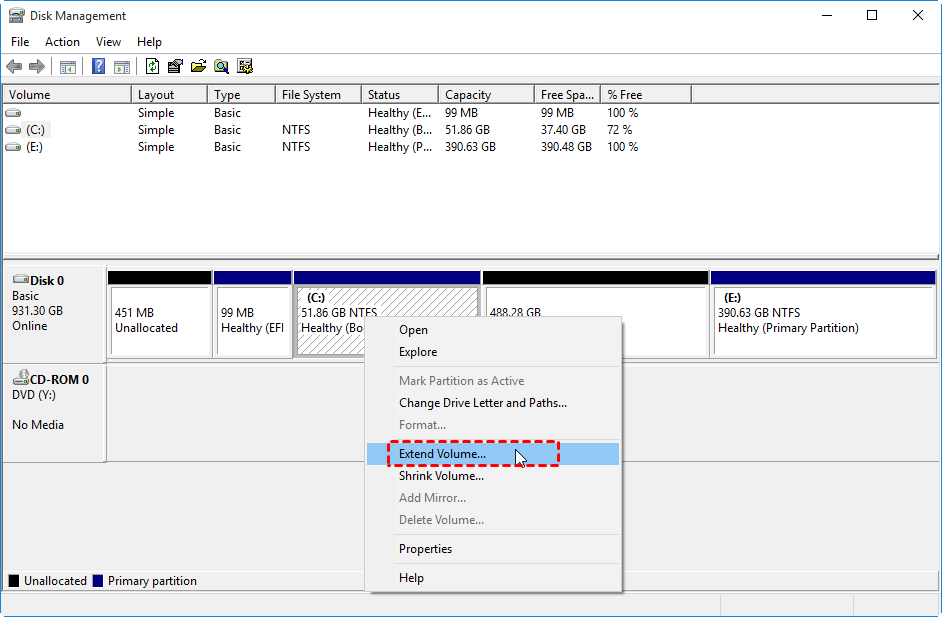
If there's no adjacent free space or unallocated space on the same disk, the "Extend Volume" option will be unavailable.
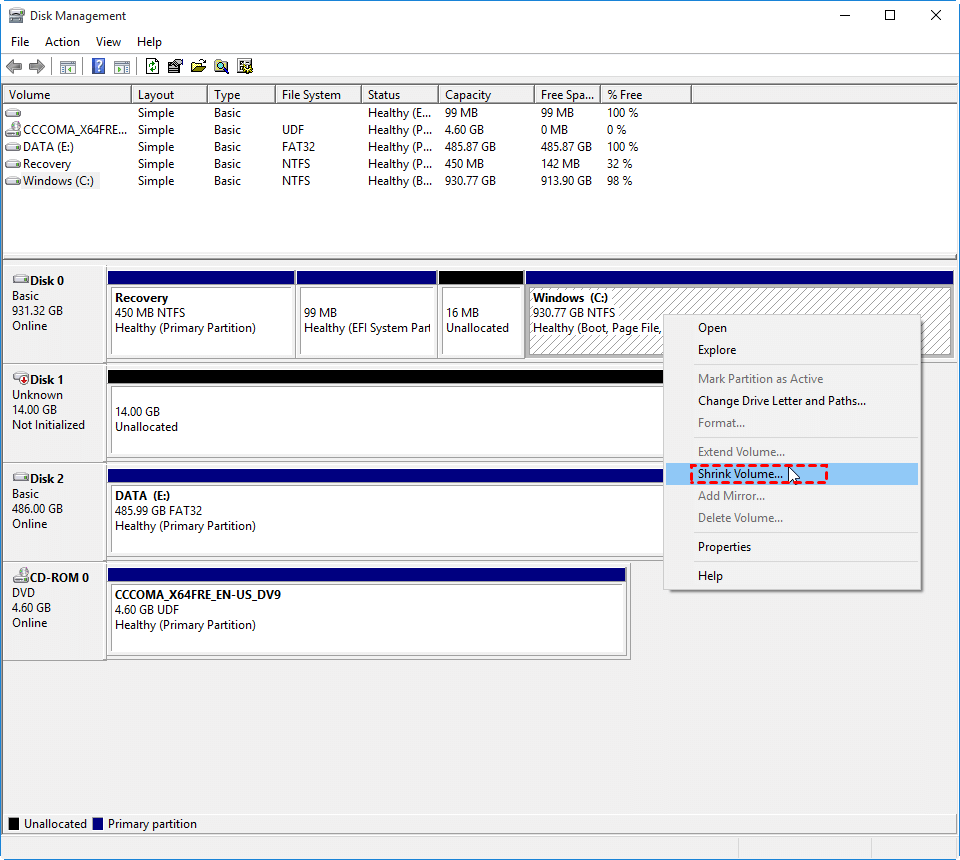
2. To shrink partition: Right-click the partition and select "Shrink Volume". Disk Management may not shrink a partition beyond certain limits, so third-party software may be needed for more flexible resizing.
3. To create new partition: Right-click unallocated space and select "New Simple Volume". Follow the wizard to complete the process. If you need to delete an existing partition to create unallocated space, back up important files first.
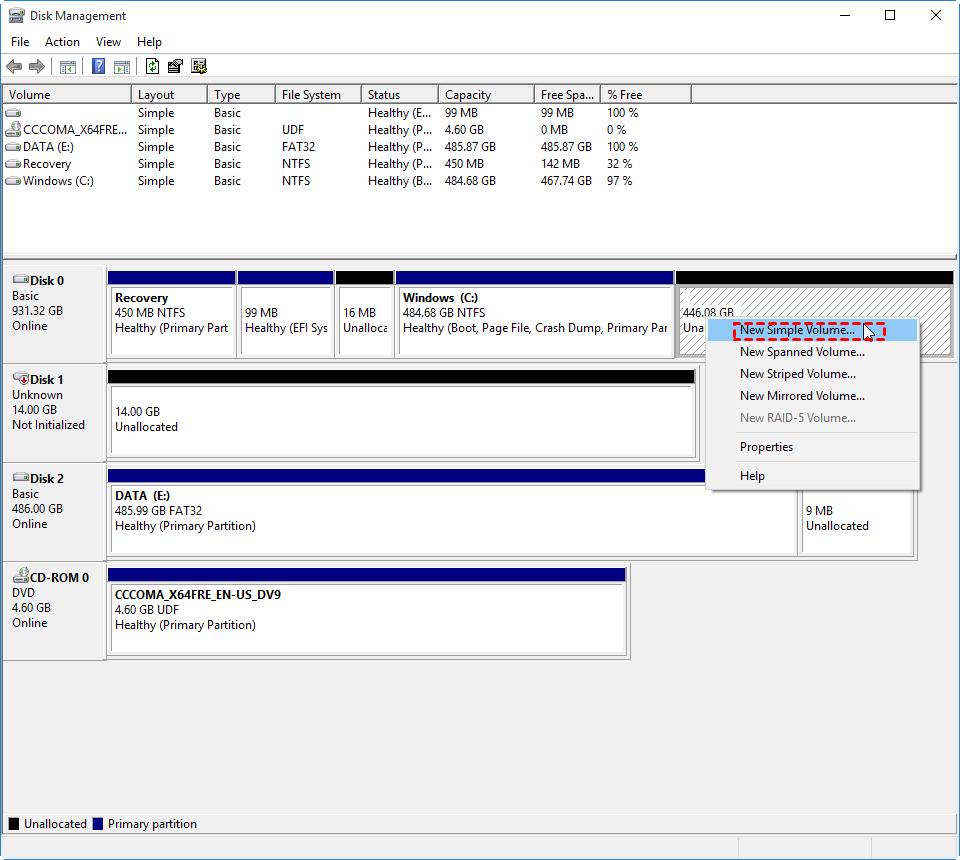
To completely repartition a hard disk, delete existing partitions to create one large unallocated space, then create new partitions as needed. This is suitable for external drives, but Windows does not allow deleting active system partitions from within the running system. You can also format a partition with a different file system if needed.
Method 2. Repartition hard drive Command Prompt
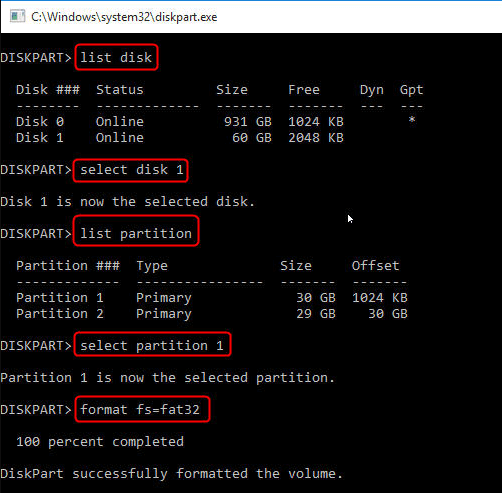
You can also repartition a hard drive with DiskPart in Command Prompt. This method is more direct and is better suited for advanced users.
Step 1. Press Windows + R to open Run. Type diskpart and run it as administrator.
Step 2. To resize a partition, type list volume, select the volume you want to change, and then enter the command to extend or shrink it. Replace the size number with the actual size in MB and press Enter.
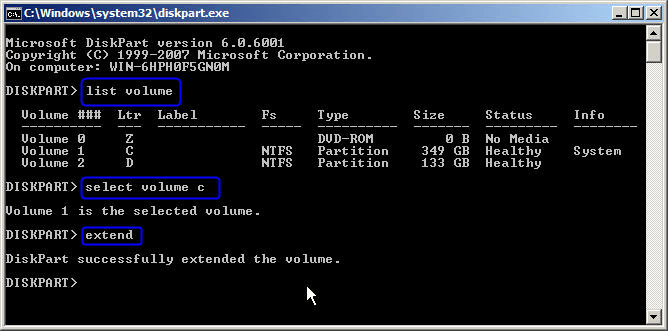
Step 3. To format a specific partition, type: format fs=ntfs (or fat32) after you select the drive.
Tips:
▸You can type: /? to see what diskpart can do for you. Generally, more options than Disk Management can offer. For more information about diskpart.exe, check out Diskpart Windows 10.
▸To extend a partition via Command Prompt, you need to have an adjacent unallocated space immediately after the partition you want to extend, just like in Disk Management. If there's no such space, the process will fail and display an error message.
Best way to repartition hard drive without losing data
Disk Management and DiskPart can shrink or extend only certain partitions, and "Extend Volume" works only when contiguous unallocated space is next to the target volume.
Any partition operation carries a risk of data loss. Changing a file system may require formatting, and extending a partition with non-adjacent unallocated space may require deleting or moving another partition. Back up important files before repartitioning.
To avoid the limitations and risks associated with using the built-in disk manager in Windows, you can switch to a professional disk partition manager like Qiling Disk Master Professional, which supports Windows 10/8/7/XP/Vista. This tool allows you to resize, merge, split, and format partitions, as well as move, copy, and delete them, making it a more powerful and flexible alternative to the built-in disk manager.
▸ You want to allocate free space from one partition to another without needing to shrink and extend, and also create a new partition directly from an existing redundant partition. Is that correct?
▸change file system without formatting between NTFS and FAT32▸;
▸quick partition a hard drive with several partitions in one click;
▸partition internal disk without booting Windows▸ with created bootable media; and more.
You can download the demo version to test the drive resizing feature.
Opt.1. Resize Partition
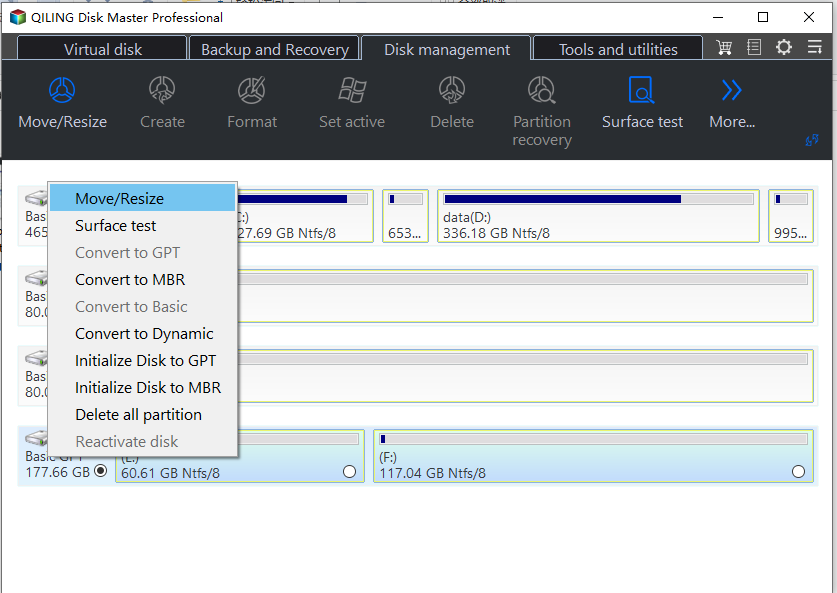
Step 1. Install and run Qiling Disk Master Professional. Right-click volume D or the drive you want to adjust, then select "Resize/Move Partition".
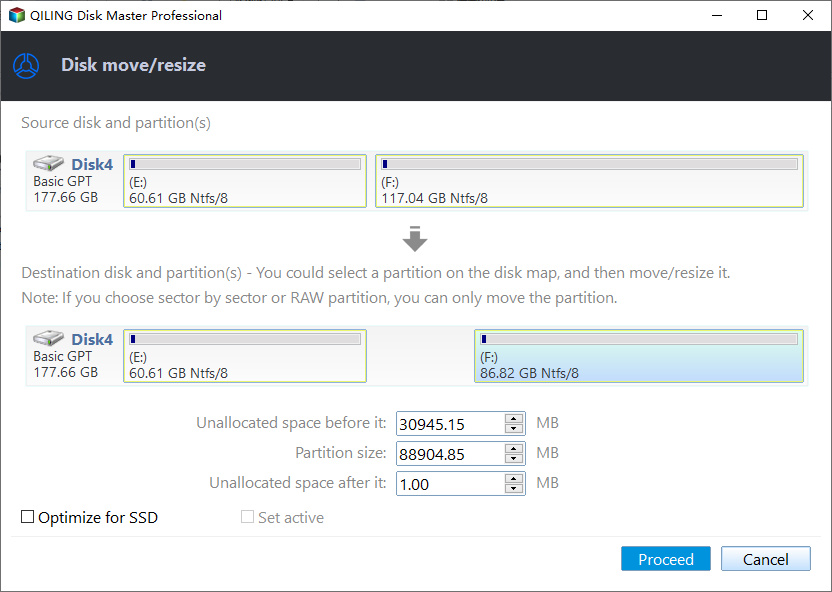
Step 2. Drag the partition bar to release free space. After that, select "Proceed".
With unallocated space, you can create a new partition directly: right-click the unallocated space, select "Create partition" and follow the prompts.
Opt.2. Move Partition
To extend another partition like the C drive, first move the D partition to the right side to make unallocated space contiguous and behind the C drive, and then add it into the C partition.
Step 1. Right-click the D drive and select the resize or move option. Move it to the right to create unallocated space next to the C drive.
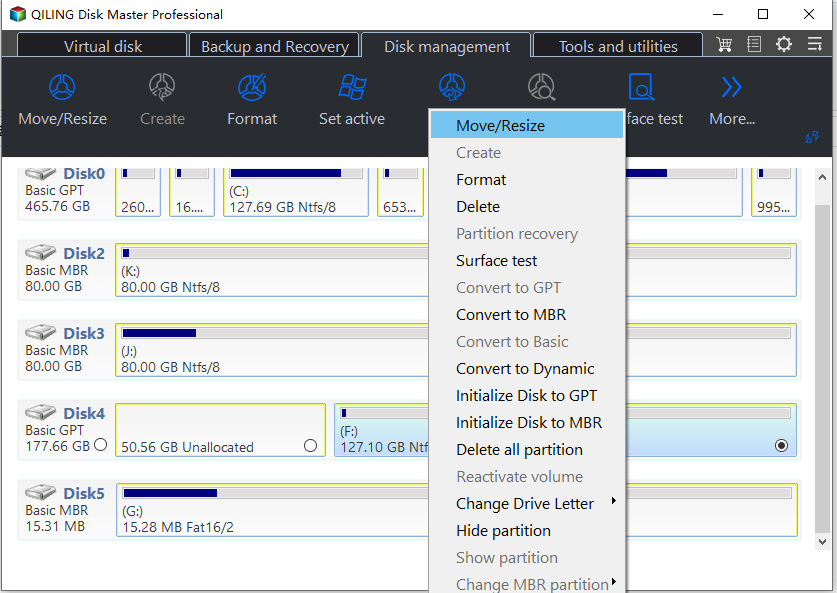
Step 2. Right-click on the C drive, select "Resize Partition", and drag the bar to the right to add space to the unallocated area.
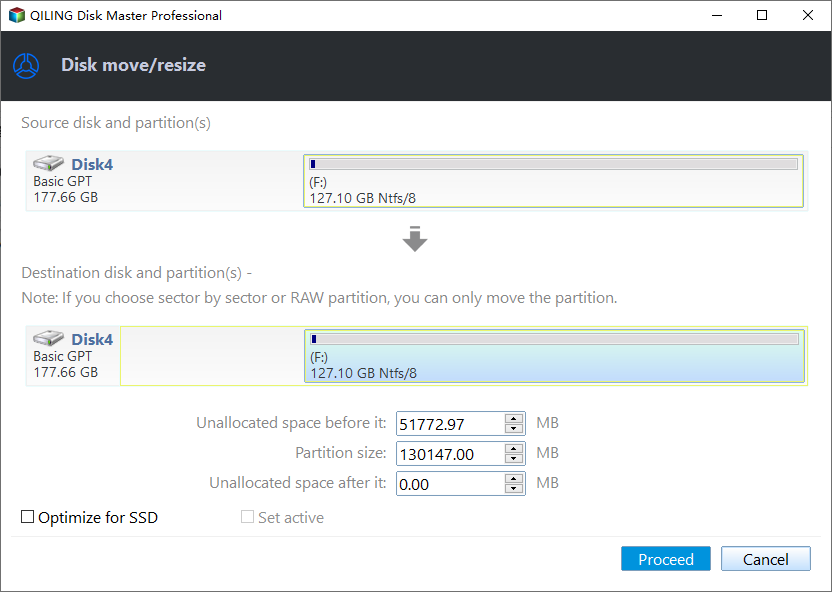
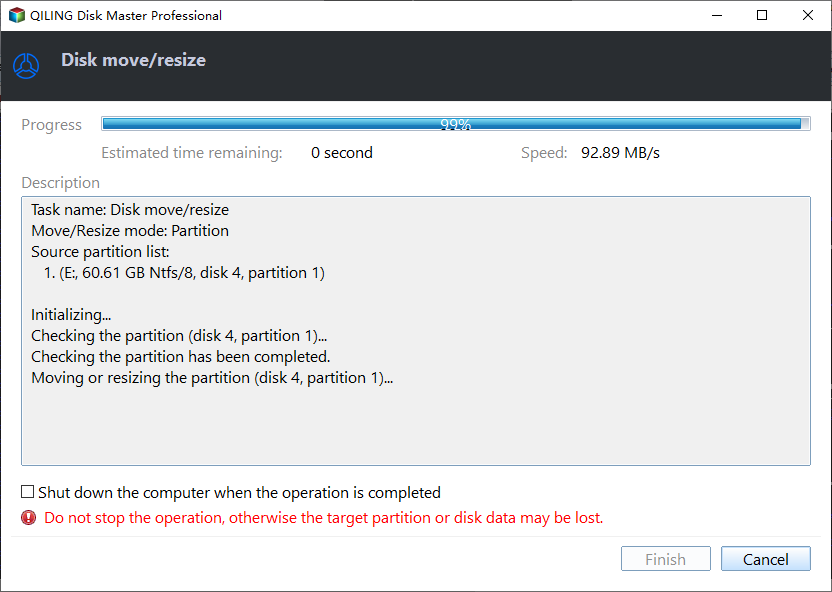
Step 3. Return to the main interface and click "Proceed" to apply the pending operation.
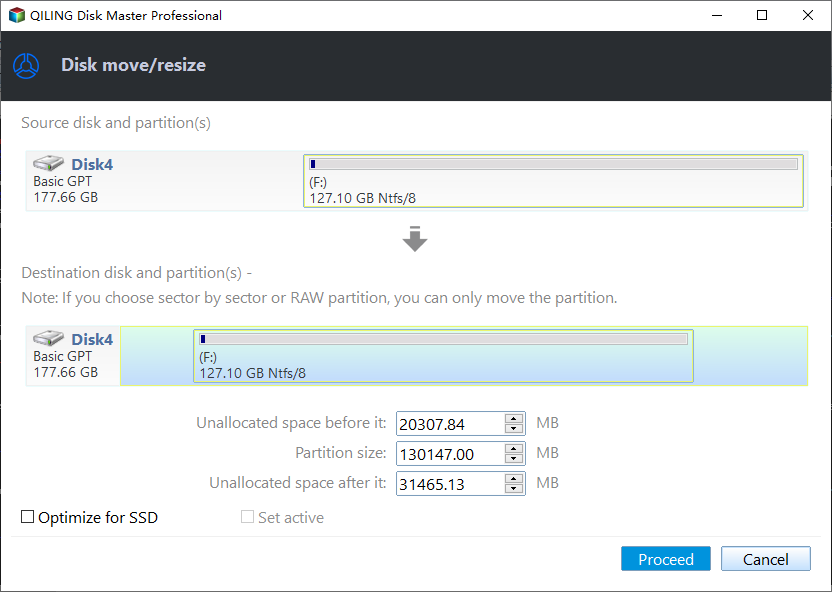
Opt.3. Merge Partitions
With this tool, you can merge non-adjacent unallocated space into another partition or merge two neighboring partitions into one with the "Merge Partitions" feature.
Step 1. Right-click the partition you need to merge (e.g. Partition D) and choose "Move/Resize Partition".
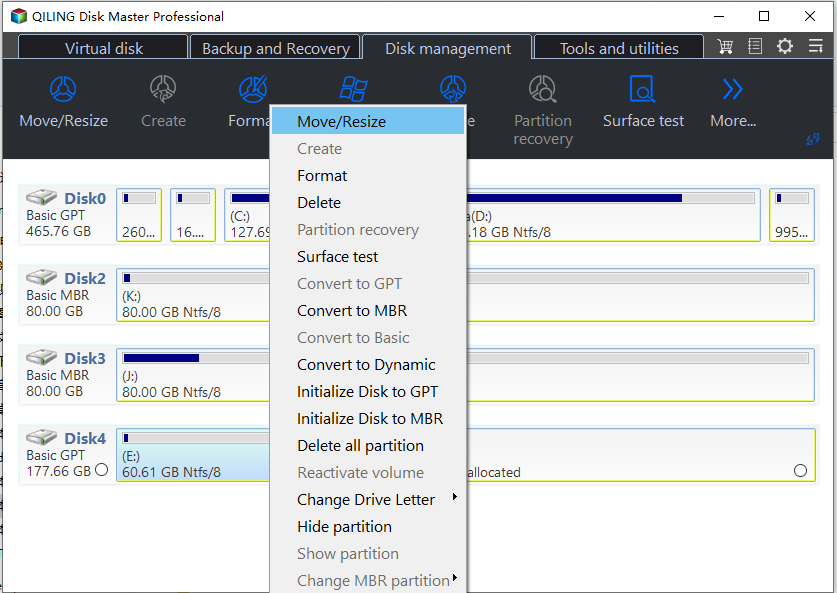
Step 2. Drag the partition bar toward the unallocated space.
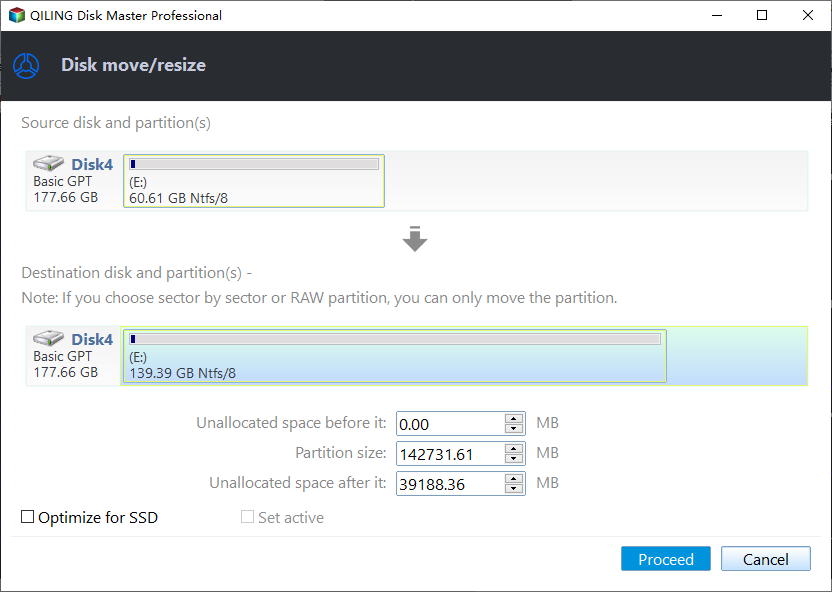
Step 3. In the main interface, after confirming the operation, click Proceed to commit it.
Note: If you decide to wipe your hard drive and repartition the whole disk or you have a new hard disk that needs to be partitioned, you can go through the "Quick Partition" function.
Summary
To repartition a hard drive in Windows 11/10/8/7, you can use Disk Management, DiskPart, or Qiling Disk Master Professional. For safer repartitioning without formatting or data loss, Qiling Disk Master Professional offers more flexible options. Windows Server users can use Qiling Disk Master Server Edition to manage and reallocate hard disks on Server 2000/2003/2008/2012/2016/2019/2022.
Related Articles
- Partition WD External Portable Hard Drive in Windows 10/8/7
The simple steps to partition WD (Western Digital) external potable hard drive, so you can make your Windows 10/8/7 files better organized by separating data into multiple sections. - How to Partition C Drive without Formatting in Windows 10/8/7?
Learn how to partition C drive in Windows 11/10/8/7 using Windows snap-in Disk Management and Qiling Disk Master without formatting C drive and losing data. - Create Hard Disk Partitions Before Installing Windows 10/8/7
Learn how to create hard disk partitions before installing Windows 11/10/8/7 operating system on your hard drive for your system, applications, games and other data better organized. - Guide on Seagate External Hard Drive Transfer Speed
Learn how to check Seagate external hard drive transfer speed and evaluate whether the drive is suitable for video editing, gaming, or large file transfers. - Full Guide to Upgrade PS4 to SSD [Quick & Easy]
Learn how to upgrade PS4 to SSD to improve console performance and make the gaming experience smoother. - How to Upgrade Xbox One X to SSD - Guide with Pictures
Learn how to upgrade Xbox One X to SSD with clear steps and improve gaming performance.
Products
Articles & Tutorials
- Data Recovery
- Data Backup
- File Recovery
- File Backup
- File synchronize
- System Backup and Restore
- Disk and Partition Clone
- Technical articles
- Disk Master Help
- Windows Deleted File and Disk Recovery Tutorials
- Windows File and Data Recovery Tutorials
- More Windows Tutorials for Install, Security, Files, and PC Tips
- Windows Boot, Repair, and Recovery Environment Tutorials
- Windows Backup Tutorials
- Windows Restore Tutorials
- Windows Clone and Migration Tutorials
- Windows Server Backup, Recovery, and Management Tutorials
- Windows Disk, Partition, and Storage Management Tutorials