Error Loading Operating System in Windows 7 – How to Fix It Easily
- What causes "Error Loading Operating System" in Windows 7?
- How to fix error loading operating system in Windows 7 (5 solutions)
- Solution 1: Update BIOS of your computer
- Solution 2: Restore MBR information of the disk
- Solution 3: Use CHKDSK command prompt
- Solution 4: Use Startup Repair tool
- Solution 5: Write zeros to hard drive with Format tool
- How to prevent data loss from "Error loading operating system" again
- Summary
What causes "Error Loading Operating System" in Windows 7?
The "Error Loading Operating System" error with a black screen typically occurs after a fresh Windows installation, sudden power failure, system crash, system restart, or a virus attack, often resulting from a disk that's not properly partitioned.

When you boot your computer, the BIOS and CMOS check the operating system and hardware, but if there's an issue, it can fail to boot. Common reasons for this include hardware problems, such as a faulty hard drive or RAM, or software issues, like a corrupted operating system or driver problems. Additionally, outdated BIOS or CMOS settings, or even a loose or disconnected cable, can also prevent your computer from booting normally. If you're experiencing boot issues, it's essential to troubleshoot and identify the root cause to resolve the problem.
- The system's BIOS does not support the hard drive, so you'll need to update the BIOS from the manufacturer's website to resolve the issue.
- The hard drive is not properly set up in CMOS.
- The computer has wrong MBR information. You are supposed to restore the MBR information of the disk.
- The system file is damaged.
- The system partition was damaged due to a sudden power cut and possibly a virus infection.
- The disk is corrupted completely. You need a new one.
- The operating system cannot be detected due to multiple disks being connected, leading to a situation where the disk containing the operating system cannot be identified.
How to fix error loading operating system in Windows 7 (5 solutions)
If you receive an "error loading operating system" message in Windows 7, you won't be able to access your computer. To resolve this issue, you can create a system repair disc or use the installation disk provided by the manufacturer. This disk can be used to troubleshoot and potentially fix the problem, allowing you to regain access to your computer.
If you're experiencing an error loading operating system on your Dell, ASUS, HP, Acer, or Lenovo laptop, don't worry, solutions exist. Try restarting your computer, checking the boot order in BIOS, or running a System File Checker (SFC) scan to resolve the issue.
Solution 1: Update BIOS of your computer
Step 1. Check out the motherboard in the user manual of your mainboard.
Step 2. Identify the current BIOS version from System Information.
Step 3. Download the latest BIOS update via laptop manufacturer's website.
Step 4. Run the BIOS update and restart your computer to apply the change.
Step 5. Go to the CMOS setup, verify that the disk is detected, and adjust the Access mode to Large or MBA to support large-capacity hard drives.
Solution 2: Restore MBR information of the disk
The MBR (Master Boot Record) contains information about the operating system and how to load it. If the MBR is incorrect or damaged, it can cause errors when booting the system. To resolve this issue, you can use the bootrec.exe tool, which is a Windows Recovery Environment (WinRE) utility.
The first thing is to get command prompt window. To access the Command Prompt, insert the Windows installation disc into your computer and restart it. Then, follow these steps: Repair your computer > Troubleshoot > Advanced Options > Command Prompt.
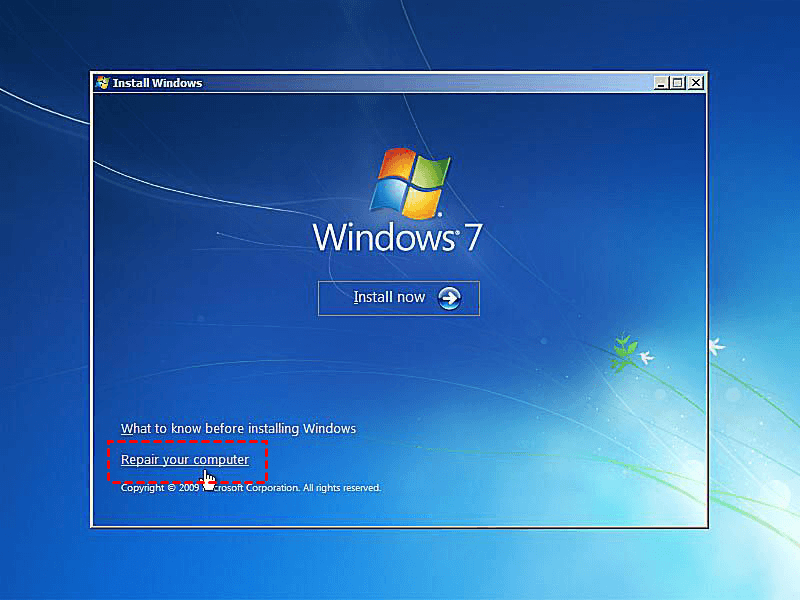
Step 1. After command prompt windows loading, type the following commands and hit Enter.
- bootrec /FixMbr
- bootrec /FixBoot
- bootrec /ScanOs
- bootrec /RebuildBcd

Step 2. To start over, remove the installation disc from the computer. Then, type "exit" and press Enter.
Step 3. Restarting the computer resolved the issue. No further assistance is required.
Solution 3: Use CHKDSK command prompt
The CHKDSK command can fix the corrupted system files on your computer. If there are any system files damaged, you can use follow the steps below:
Step 1. Get to the command prompt window.
Step 2. Run the command "chkdsk C: /r" and press Enter to initiate the disk check operation. If the partition is in use, you will be prompted to run the operation during the next system restart. Confirm by typing "Y" and pressing Enter.
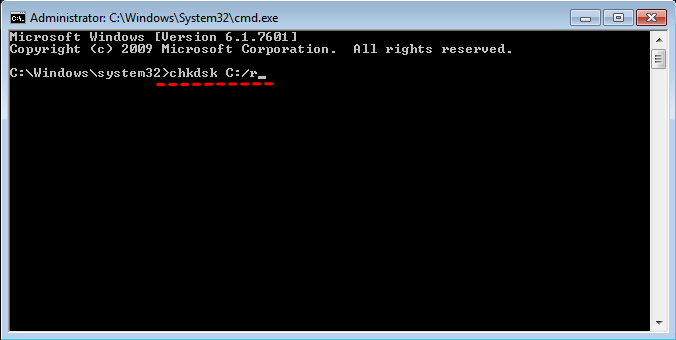
Step 3. Restart your computer and it will run a disk check during the process.
Solution 4: Use Startup Repair tool
Startup repair can fix many startup problems, but if they still persist, using a startup repair from an installation disc may be necessary.
Step 1. Insert Windows installation disc into your computer.
Step 2. To resolve the issue, restart your computer from the provided disc, navigate to the "Repair your computer" option, select "Troubleshoot," then proceed to "Advanced Options," and finally choose "Startup Repair".
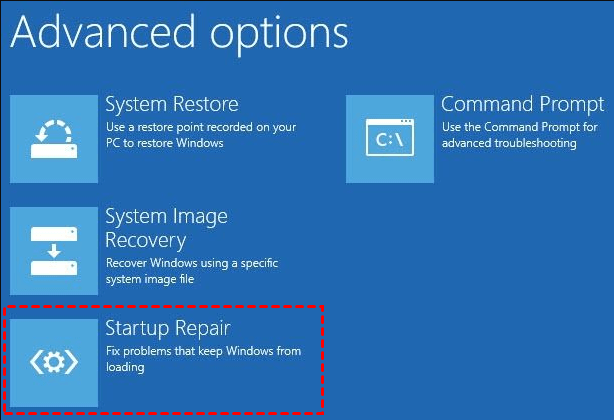
Step 3. Just wait and restart your computer after the operation finish.
Solution 5: Write zeros to hard drive with Format tool
If there's no effective way to solve the "Error loading operating system" issue, you can try using the Format command line to write zeros to the hard drive, effectively formatting the disk.
Step 1. Go to command prompt windows.
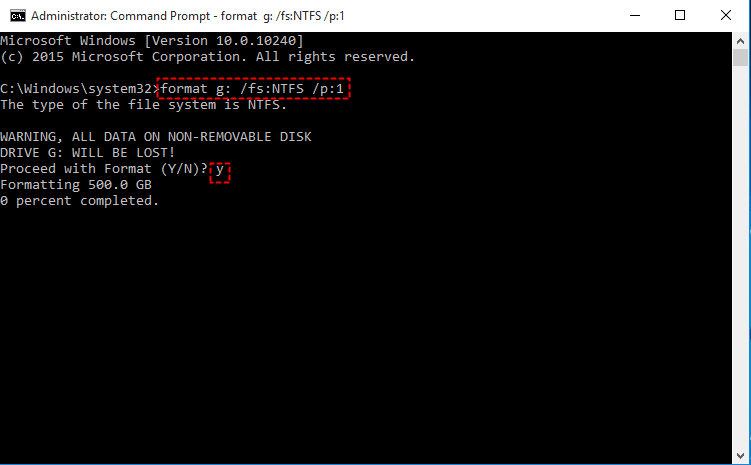
Step 2. To format a partition with the NTFS file system, type `format F: /fs:ntfs /p:1` and press Enter. This command will format the partition and overwrite every sector of the disk with zeros. If prompted to enter a volume label, type the desired label and press Enter.
Step 3. Click Y to confirm that you want to format this partition. Restart your computer after the process ends.
How to prevent data loss from "Error loading operating system" again
The "Error loading operating system" issue may be caused by various reasons, potentially leading to data loss. If the disk is severely corrupted, a full Windows reinstall might be necessary, resulting in the loss of all data.
Creating a system image with a reliable backup software like Qiling Disk Master Standard is suggested. This will include the operating system, system files, drivers, installed programs, stored data, and more. In the event of a system crash, you can restore the system image to a new hard drive or SSD, effectively replacing the bad disk. This approach offers several advantages, including the ability to recover your system and data quickly and easily.
- All-in-one backup solutions: Except for system backup, you can also use it to backup disk, partition or individual files.
- Backup system automatically: This tool allows you to schedule backups at daily, weekly, or monthly intervals, enabling you to back up your data according to your personal habits and preferences.
- Greatly save disk space: You can use Normal or High compression level, Intelligent Sector Backup, Incremental Backup, etc. to optimize your backup process.
- Multiple system support: You can use it on Windows 11/10/8/7/XP/Vista.
This software is easy to use, even for beginners, due to its clear interface. The process is simple and only requires 3 steps. First, download and install the software on your computer. Then, prepare an external device, such as a USB drive, if you want to backup your system to a flash drive.
Step 1. Launch this software, click Backup and System Backup subsequently.

Step 2. Modify Task Name and click where the arrow point to select a location for your backup.

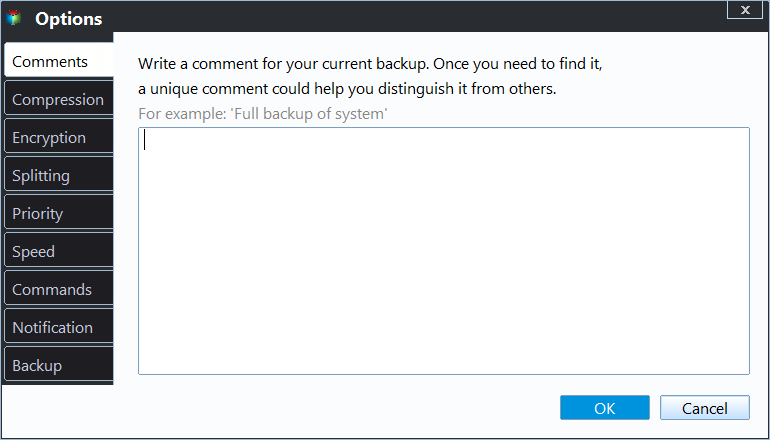
Step 3. In Windows 7, set up backup settings in Backup Options, Schedule, and Scheme to simplify the task, and then click Proceed to backup the system.
- Notes:✎...
- For Backup Options, there are two key features: Compression, which saves disk space, and Encryption (Paid), which ensures the security of your backup.
- In the Backup Schedule, you can set a frequency from daily to weekly, and in the professional version, you can also use Event-trigger or USB plug-in.
✦ A USB plug-in is very useful when you want to quickly and easily transfer data between devices, such as from a computer to a phone or from a camera to a computer, without the need for cables or complicated setup.backup computer to USB flash driveIt will automatically backup system to USB when it's plugged in your computer. - For a backup scheme, consider using differential backup (paid) or incremental backup to save only changed files. Additionally, you can set up a schedule to automatically delete old backups by quantity, time, or frequency (daily, weekly, monthly) to ensure there's always enough space for new backups.
Summary
You can resolve the "Error loading operating system" issue with 5 given solutions. To prevent data loss from this or other startup issues, create a system image with free backup software like Qiling Disk Master Standard, and schedule it to keep changes since the previous backup or last full backup. If you use the advanced version, you can even delete old backup images with Backup Scheme to free up disk space for new backups.
Related Articles
- Error Loading Operating System in Windows 10 - Solved
If you get the error message "Error loading operating system" in Windows 10 while booting your computer, you can refer to four solutions in this article. Data loss prevention measures are included. - Quick Fixes: Loading Operating System, Disk Boot Failure
This guide explains Quick Fixes: Loading Operating System, Disk Boot Failure with clear steps, key checks, and practical tips. - Can I Move Boot Partition in Windows 10/8/7 without Reinstalling
You will find the top 2 ways to move boot partitions in Windows 10. Follow the simple steps listed below to move Windows 10 to SSD without reinstalling. - Best Free Server Backup Software to Ensure Your Data's Safety
This guide explains Best Free Server Backup Software to Ensure Your Data's Safety with clear steps, key checks, and practical tips. - Windows 10 File History vs Backup: Which One Works for Me?
Here is an overall comparison between Windows 10 File History vs backup from third party. By reading through, you can decide which backup plan works for you, and follow the guide to create your own backups of important files, folders, opreating system restore points and anything you wish to protect. - 5 Best Free Windows 10 Imaging Software [Updated 2022]
This article will introduce some best free Windows 10 imaging software to you. Imaging software can help safeguard the safety of your data on a computer. After reading this post, you can know some knowledge about five free Windows 10 imaging software.
Products
Articles & Tutorials
- Data Recovery
- Data Backup
- File Recovery
- File Backup
- File synchronize
- System Backup and Restore
- Disk and Partition Clone
- Technical articles
- Disk Master Help
- Windows Deleted File and Disk Recovery Tutorials
- Windows File and Data Recovery Tutorials
- More Windows Tutorials for Install, Security, Files, and PC Tips
- Windows Boot, Repair, and Recovery Environment Tutorials
- Windows Backup Tutorials
- Windows Restore Tutorials
- Windows Clone and Migration Tutorials
- Windows Server Backup, Recovery, and Management Tutorials
- Windows Disk, Partition, and Storage Management Tutorials