Windows 7 Startup Repair Loop Command Prompt: CHKDSK or Bootrec
Windows 7 won't Boot Normally
"The Windows 7 startup repair loop issue can be frustrating. Fortunately, there are some feasible ways to fix it without reinstalling Windows 7. You can try booting in safe mode, running a System File Checker (SFC) scan, or using a System Restore point to revert to a previous working state. If these methods don't work, you can also try using a Windows 7 installation media to run a repair installation, which might resolve the issue without requiring a full reinstall."
Startup Repair is a tool that helps fix Windows boot issues by scanning and repairing missing or corrupted system files, allowing your computer to boot normally.
Windows 7 may not boot due to various reasons like a damaged system partition, corrupted system files, problematic updates, or viruses, leading to issues such as the Windows 7 Startup Repair loop.
Disable Startup Repair to Prevent Endless Restart
The first step to preventing the Startup Repair loop and endless restarts is to disable it.
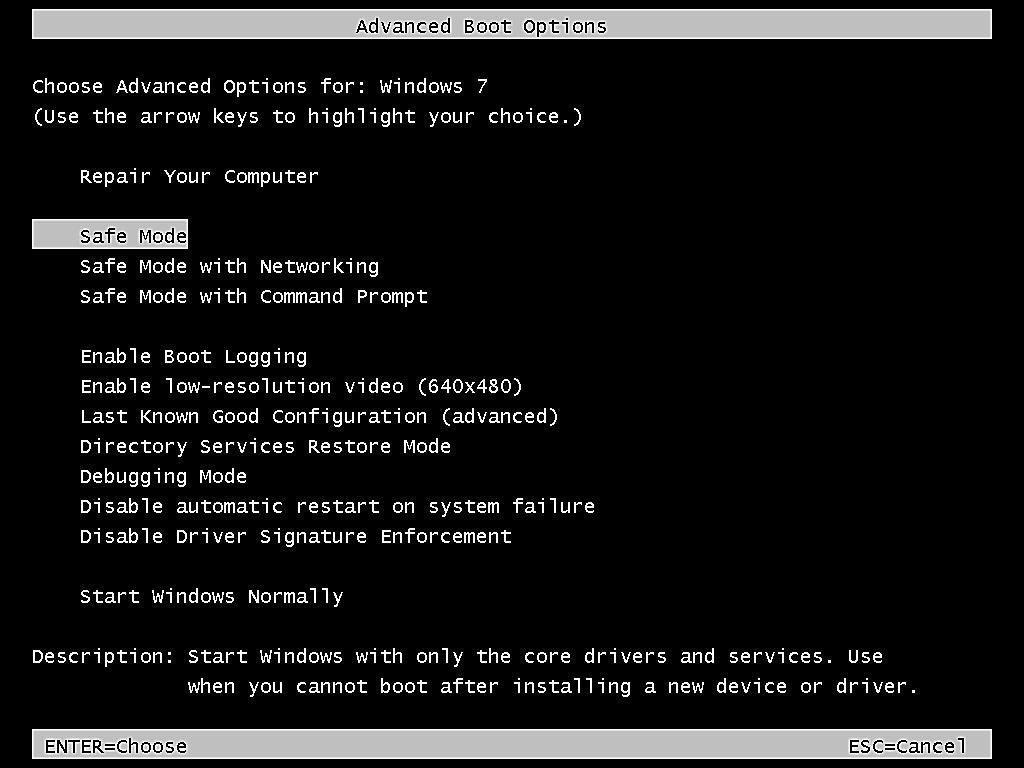
1. To resolve the issue, restart your computer and press the F8 key repeatedly when you see the Windows logo, then release it after you see the Advanced boot options window.
2. Choose "Disable automatic restart on system failure" and press Enter.
How to Fix Windows 7 Startup Repair Loop via Command Prompt
After disabling Startup Repair in the Advanced boot options, you can proceed to fix Windows Startup Repair using Command Prompt CHKDSK or Bootrec.
- The CHKDSK command helps scan the file system for errors or bad sectors and fixes them if found.
- The Bootrec utility helps to fix master boot records, boot sectors, and rebuild the Boot Configuration Data (BCD).
You can try two methods to fix the issue. First, try running the CHKDSK repair command, followed by the steps in that method. If that doesn't work, you can then try using Bootrec. Please follow the steps in each method.
Run CHKDSK in Windows 7 before Boot
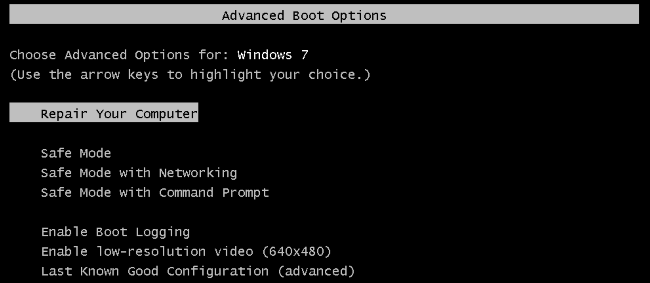
1. To boot your computer in safe mode, start your computer, press and hold F8 until you see the Advanced boot options window, select "Repair your computer" and hit Enter.
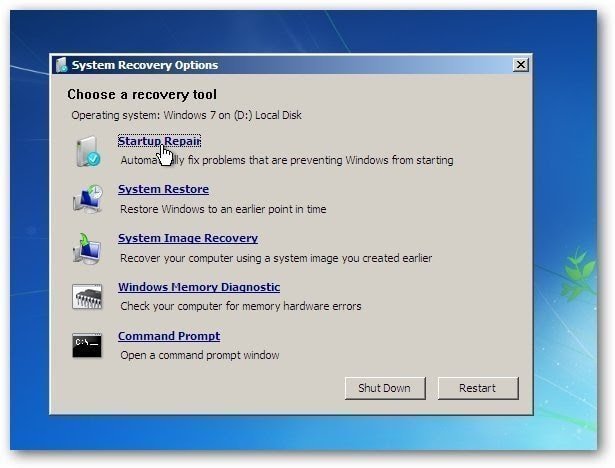
2. To access the System Recovery Options window, you will see a menu with several options. Click on "Command Prompt" to continue.
3. To run a full disk check in the Command Prompt, type "chkdsk /f/r" and press enter.
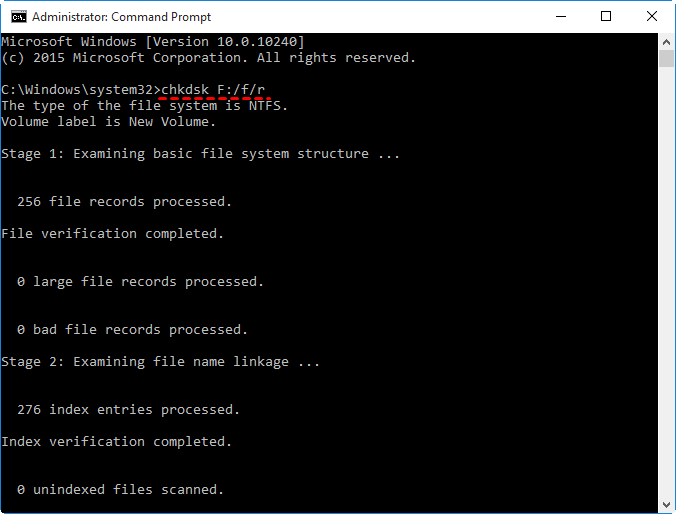
After the process finishes, you can exit from Command Prompt and check if you can boot your Windows 7 computer normally. If not, you can continue to use Bootrec.
Fix Windows 7 Startup Repair Loop via Bootrec
1. Select Command Prompt again in the Advanced boot options window.
2. In the Command Prompt window, type the following commands and hit "Enter" to repair boot sectors or MBR.
- bootrec /fixmbr
- bootrec /fixboot
- bootrec /scannos
- bootrec /rebuildbcd
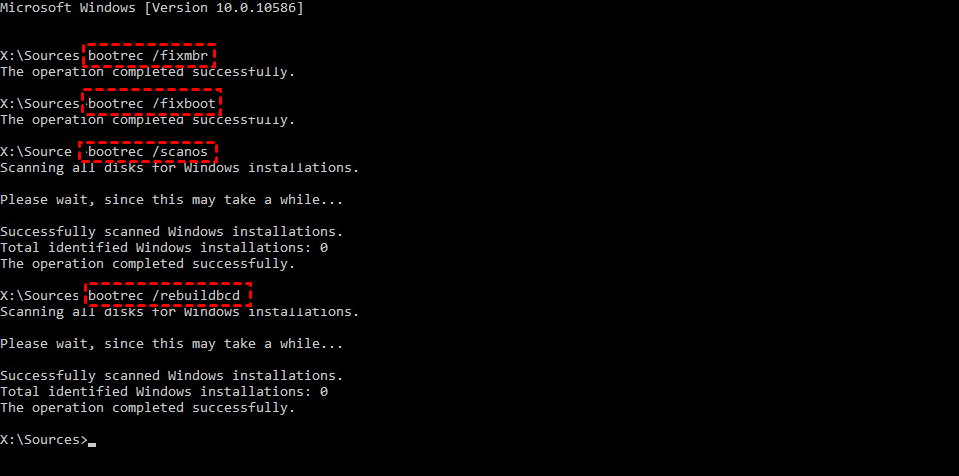
PS: To learn more about the Bootrec commands, you can click here.
Create a System Image to Prevent Windows 7 not Booting Again
If your Windows 7 computer is stuck in a startup repair loop, you can try running the System Restore tool to restore it to a previous working state. If that doesn't work, booting into safe mode and running a System File Checker (SFC) scan can help identify corrupted system files. You can also try running a full disk cleanup and checking for malware or viruses that may be causing the issue. If none of these solutions work, reinstalling Windows 7 may be necessary.
If you want to avoid experiencing system issues again, you can create a system image using free backup software like Qiling Disk Master Standard. This will allow you to easily restore your computer to a previous date and get it working properly again, even if you experience system crashes or hard disk corruption.
- It allows you to schedule backups on a regular basis, such as daily, weekly, or monthly, and set specific dates, times, and intervals for each task.
- Once you enable a scheduled backup, by default, it will back up only changed files, using Incremental Backup, which saves backup time and disk space.
- You can backup your system to a USB flash drive, external hard drive, network drive, or NAS (Network-Attached Storage) device, among other options.
- 7-Zip supports Windows 7, 8, 8.1, 10, 11, XP, and Vista, in both 32-bit and 64-bit versions.
Free download Qiling Disk Master Standard. Install and run it.
1. In the main interface, click "System Backup" under the "Backup" tab, and you can also backup disk, partition or files.

2. Qiling Disk Master will automatically select the system partition and other system-related partitions, and all you need to do is choose a destination path to save your backup, which can be a local path, network or NAS device, or cloud drive.

3. In the Operation Summary window, set backup settings if necessary and click "Proceed" to backup your Windows 7 system.

Tips:
- To set various backup options, click on the "Backup options" tab. This allows you to customize settings such as compression level, image splitting, and backup encryption.
- To schedule a backup, click the "Schedule Backup" button and select the desired frequency, such as daily, weekly, or monthly. Alternatively, you can use event triggers and USB plug-ins on the professional version or higher.
- To set up a backup scheme, click on "Backup Scheme" and select the desired backup methods, such as Full, Incremental, or Differential Backup. Additionally, you can choose cleanup methods based on quantity, time, or space, depending on the selected backup method. This allows for customized backup and cleanup settings.
After this operation, you can create a bootable media using Qiling Disk Master, allowing you to boot your computer even if it fails to start. This requires a USB drive or CD/DVD, but if you don't have either, you can try Recovery Environment or Qiling PXE Boot.

Besides, you can also clone system or disk for OS migration, allowing you to replace HDD with SSD and directly boot from it without restoring a backup image.
Summary
You can resolve the Windows 7 Startup Repair loop using CHKDSK or Bootrec in the Command Prompt, although this may not be user-friendly for all users. For those who want to avoid such issues, creating a system image and saving it to a safe location with free backup software like Qiling Disk Master Standard can be a good solution.
To ensure all your files are up to date, it's essential to schedule backups on your Windows 7 system. Without regular backups, you risk losing changes made after the last backup, which is only stored on the system partition. To manage your backup disk space, you'll need to consider options, backup methods, and cleaning methods to free up more space and maintain a reliable backup system.
Related Articles
- Windows 7 Stuck on Welcome Screen (Fixed with 5 Ways)
If your Windows 7 computer stuck on Welcome screen out of some reasons, you can refer to this article and find effective solutions. - Your PC Ran into a Problem Loop – Fixes for Windows 10/8.1/8
Owing to driver update, system file corruption or a memory issue, your computer may be stuck at a blue screen with error message: your PC ran into a problem loop. - How to Repair Windows Server 2008 R2/2012 R2 Using Command Prompt
You will learn x ways to repair Windows Server 2008 R2 using command prompt and get your computer back normally. Also works for server 2012 R2/2016 R2/2019/2022. - Solutions for Windows Boot Manager Windows Failed to Start
This guide explains Solutions for Windows Boot Manager Windows Failed to Start with clear steps, key checks, and practical tips. - [QuickBooks Online Backup] How to Backup QuickBooks Online to Desktop
Backing up QuickBooks Online involves two main scenarios: backing up files from QuickBooks Online to QuickBooks Desktop, and creating a local backup copy on the Windows Desktop. This allows users to transfer data between the two platforms or have a local copy of their files for added security. - [Newest Tips] How to Backup Steam Cloud Saves
Steam Cloud's automatic mode can lead to lost game saves or data due to errors, making recovery unlikely. To prevent this, it's recommended not to rely heavily on Steam Cloud and instead regularly back up your game files. This article will guide you on how to specifically back up Steam Cloud saves.
Products
Articles & Tutorials
- Data Recovery
- Data Backup
- File Recovery
- File Backup
- File synchronize
- System Backup and Restore
- Disk and Partition Clone
- Technical articles
- Disk Master Help
- Windows Deleted File and Disk Recovery Tutorials
- Windows File and Data Recovery Tutorials
- More Windows Tutorials for Install, Security, Files, and PC Tips
- Windows Boot, Repair, and Recovery Environment Tutorials
- Windows Backup Tutorials
- Windows Restore Tutorials
- Windows Clone and Migration Tutorials
- Windows Server Backup, Recovery, and Management Tutorials
- Windows Disk, Partition, and Storage Management Tutorials