Solutions for Windows Boot Manager Windows Failed to Start
- Windows boot manager Windows failed to start
- What are the causes of Windows boot manager failure
- How to fix "Windows boot manager Windows failed to start"?
- Method 1: Remove newly installed hardware or external devices and reboot
- Method 2: Perform automatic repair
- Method 3: Perform a system restore
- Method 4: Rebuild BCD configuration
- How to prevent data loss
- Conlusion
Windows boot manager Windows failed to start
Windows Boot Manager (BOOTMGR) is a small software that helps Windows operating systems start, but sometimes it fails to start with error codes 0xc00000f, 0xc00000e, or 0xc00000d on screen.
When the Windows boot manager fails to start on Lenovo or HP Windows, there are several causes and solutions to consider. The issue may be caused by a faulty boot order, corrupted system files, or a malfunctioning boot device. To resolve the problem, users can try resetting the boot order, running a System File Checker (SFC) scan, or checking the boot device for any issues.
What are the causes of Windows boot manager failure
Windows startup failure can be caused by various reasons, including corrupted system files, malware infections, driver issues, and hardware problems. Additionally, incorrect BIOS settings, outdated or incompatible drivers, and registry errors can also contribute to startup failures.
1. BCD file missed or corrupted. This issue may be caused by disk write errors, power outages, boot sector viruses, or manual BCD configuration errors.
2. File integrity compromised for the same reasons above. If the PC is turned off while in the middle of writing crucial data to the boot sector, the problem may occur more frequently.
3. There is something wrong with HDD data cable. A faulty hard drive cable can cause read and write errors, leading to issues with the loading process.
4. A required device is inaccessible. A recent hardware or software change might be the cause.
How to fix "Windows boot manager Windows failed to start"?
Method 1: Remove newly installed hardware or external devices and reboot
Remove newly installed hardware or external devices and reboot to see if the problem has been solved.
Method 2: Perform automatic repair
1. To access the BIOS settings, go into the BIOS by pressing the designated key (usually F2, F12, or Del) and change the boot device to the CD/DVD drive. Save the changes by pressing F10, then exit the BIOS. Once the computer boots up, follow the on-screen instructions to set the language, time, and currency format, and click "Next" to proceed.
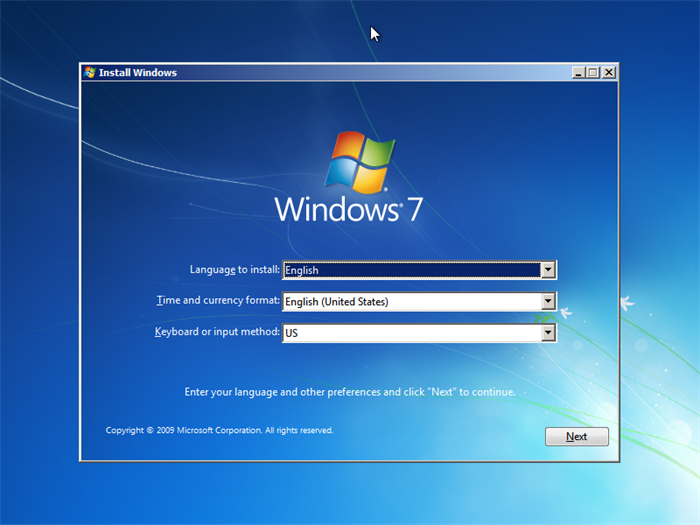
2. Click "Repair your computer" from the lower left corner.

3. Click "Startup Repair" in the "Choose a recovery tool" screen, which will automatically run automatic repair if there's a system issue, or prompt a restart if the system is fine.
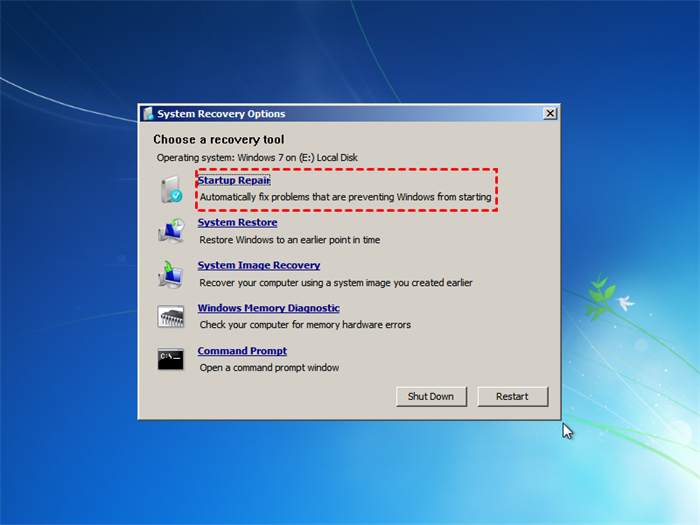
4. Follow the instructions on-screen to complete the Automatic Repair.
Method 3: Perform a system restore
1. Boot from the Windows installation disk.
2. In the Windows Setup interface, you can set language and other preferences and then click Next.
3. Click the button: "Repair your computer".
4. Click "System restore" in the "System Recovery tool" screen.
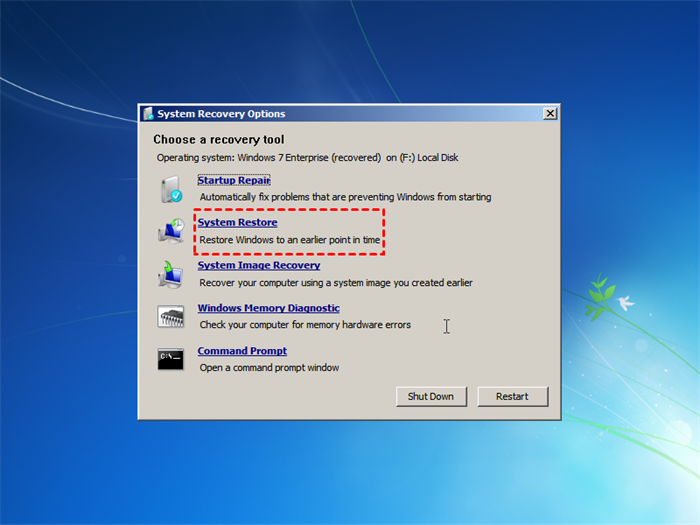
5. Confirm your restore point and click "Finish" to perform this operation.
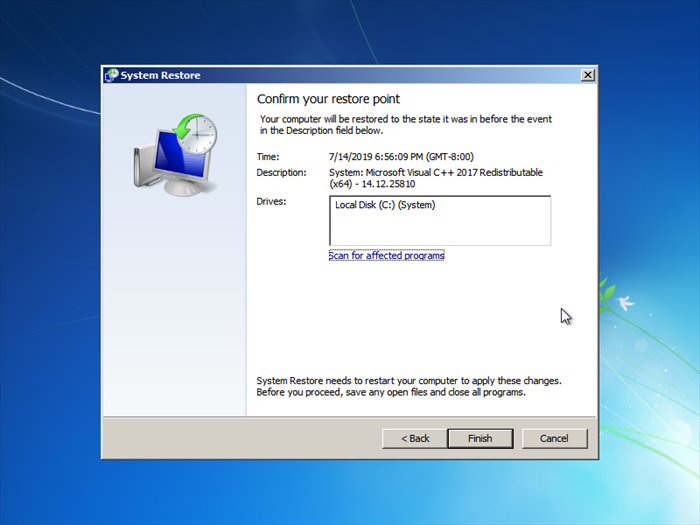
6. To restore the computer to an earlier state when it was working fine, follow the on-screen instructions. This process will revert the computer's settings and programs to a previous point in time, effectively undoing any changes or issues that may have caused problems.
Method 4: Rebuild BCD configuration
1. To boot from a Windows installation disc, press any key when the "Press any key to boot from CD" message appears on your screen.
2. To proceed, simply enter your preferred language and other settings, then click the "Next" button. This will guide you through the installation process.
3. Select the Windows operating system you want to repair, and then select "Next".
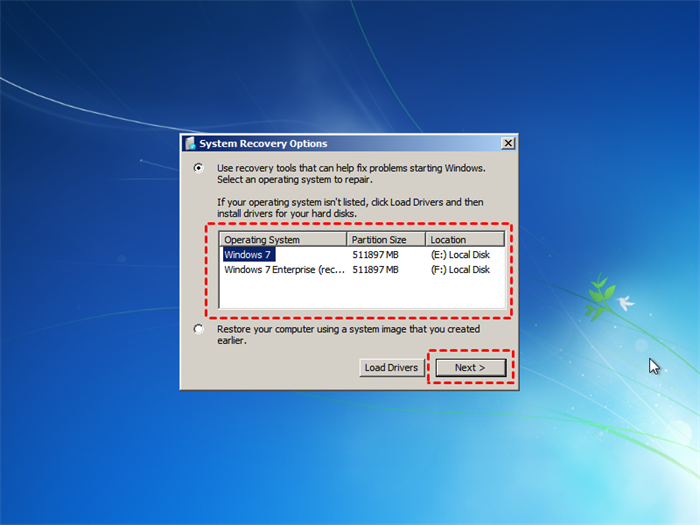
4. Click "Command Prompt" on "System Recovery Options" page.
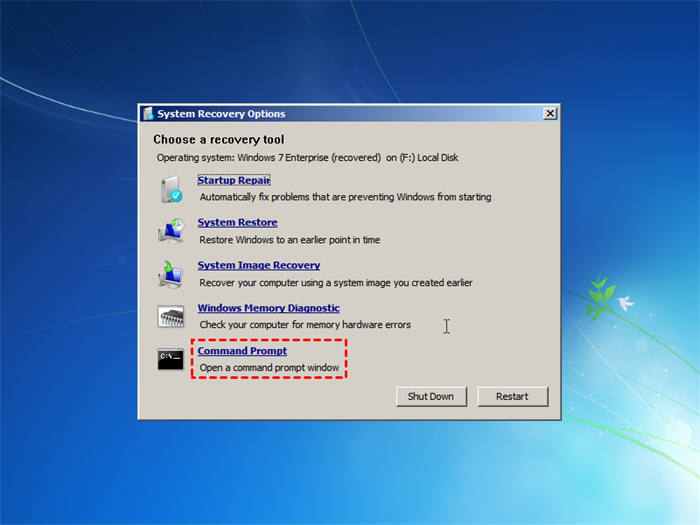
5. Input the following commands in the Command Prompt window and press Enter after each one.
- bootrec.exe /fixmbr
- bootrec.exe /fixboot
- bootrec.exe /rebuildbcd
How to prevent data loss
Despite trying various methods to fix a Windows boot manager failure, sometimes a computer may not return to normal. In such cases, reinstallation is the only option, which can result in the loss of important data. To avoid this, it's essential to back up important files and system data with a third-party software in advance.
Qiling Disk Master Standard is a free and trustworthy backup software that I recommend. It allows you to back up files, systems, disks, and more, and can be used to restore these images whenever needed. Compatible with Windows 11/10/8.1/8/7/Vista/XP, this software provides a reliable solution for easily restoring files or systems in case of issues on your computer.
If you want to enjoy more advanced functions, you can upgrade to Qiling Disk Master Professional.
Now, learn the steps to back up files and folders and restore them.
Download Qiling Disk Master Standard, install and launch it, then perform a backup by selecting "Backup" and "File Backup" in the left tab page, and follow the prompts to complete the file backup operation.

Start to restore. Click the "Restore" and "Select Task" option, select the backup image you want to restore, and follow the prompts to complete the restore operation.

Note: If you can't boot into Windows to run the program for the restore, you can create a bootable media with Qiling Disk Master in advance, and then boot from that media.
Conclusion
If you're experiencing issues with your Windows boot manager, creating a backup is essential to prevent data loss. With a backup in hand, you can restore your computer to a good state even if you encounter problems like the Windows boot manager failing to start. Qiling Disk Master offers different versions to cater to various users, including Qiling Disk Master Server for Windows Server users. This ensures that you have a reliable solution to create backups and restore your system, saving you from the hassle of reinstalling your computer.
Related Articles
- Fixed Windows 10 won't boot with Startup Repair and BootRec Commands
If you met Windows 10 won't boot problem, you can fix it with Startup Repair and BootRec commands. Learn how to do it from this page. - Windows 10 Startup Repair Not Working: Solved
When you encounter Windows 10/11 Startup Repair not working problems, you can refer to this article and find effective solutions here. - How to Fix Windows 7 via Startup Repair or CHKDSK from Command Prompt?
This article helps to disable Windows 7 Startup Repair and fix Windows 7 Startup Repair loop via CHKDSK or Bootrec command prompt. - How to Save Outlook Email to Hard Drive without PST - PST Alternatives
PST is the file format used to store Outlook data. But sometimes, you may want to save Outlook email to hard drive without PST rather than other formats. If you want to know how to save outlook emails to hard drive without PST, read this post, and get your answer here. - How to Use Windows 7 System Image to Restore a Hard Disk
This guide will show you how to use Windows 7 System Image Recovery in the recovery environment to restore your hard disk, and provide an alternative solution if the first method doesn't work. - Windows 7 Backup Stuck in the Progress [6 Ways + 1 Tip]
In this article, you will find 6 solutions to fix Windows 7 backup stuck at 97% or 57% error, and 1 tip for you to easily create Windows 7 system image.
Products
Articles & Tutorials
- Data Recovery
- Data Backup
- File Recovery
- File Backup
- File synchronize
- System Backup and Restore
- Disk and Partition Clone
- Technical articles
- Disk Master Help
- Windows Deleted File and Disk Recovery Tutorials
- Windows File and Data Recovery Tutorials
- More Windows Tutorials for Install, Security, Files, and PC Tips
- Windows Boot, Repair, and Recovery Environment Tutorials
- Windows Backup Tutorials
- Windows Restore Tutorials
- Windows Clone and Migration Tutorials
- Windows Server Backup, Recovery, and Management Tutorials
- Windows Disk, Partition, and Storage Management Tutorials