Fix Windows 10 Won't Boot with Startup Repair and BootRec
User case: Windows 10 boot failure
How do you repair Windows 10 if it does not boot?
After a Windows 10 update, if it won't boot, try booting in safe mode, then run a System File Checker (SFC) scan and a DISM scan to identify and fix corrupted system files. If that fails, you can try a System Restore to a previous point before the update, or use a Windows installation media to repair the OS. If none of these work, consider reinstalling Windows 10.
- Question from HP Community
Windows 10 users often encounter the problem of their computer not booting successfully when turned on. This common issue can be caused by a variety of reasons, making it a frustrating experience for many users.
Why Windows 10 won’t boot?
To troubleshoot why your Windows 10 won't boot, it's essential to understand the Windows 10 boot process.
When Windows 10 starts, the BIOS or UEFI Firmware is loaded and performs a Power On Self Test (POST) on the hardware. The BIOS then scans the hard disk's master boot record (MBR), which loads the essential file WINLOAD.EXE into main memory.
WINLOAD.EXE initiates the start-up process by loading NTOSKRNL.EXE and HAL, after which Windows 10 begins to start up, performing tasks such as initializing hardware like the mouse and keyboard, and reading the Windows Registry and user profile.
Unfortunately, if there's an issue with WINLOAD.EXE, Windows 10 won't boot, and you'll encounter a black screen with the "Windows Boot Manager" title and an error message that reads:
File: \windows\system32\winload.exe
Status: 0xc0000605
Info: A component of the operating system has expired.
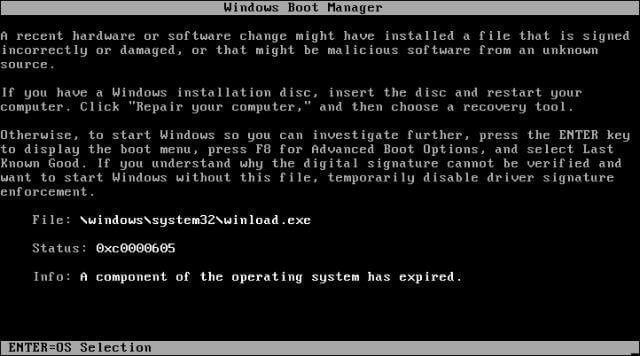
If you're experiencing a serious error with your Windows installation, don't panic. You can potentially fix the issue using Startup Repair or BootRec commands. These tools can help diagnose and resolve problems with your system's startup process, allowing you to boot into Windows normally again.
How to use Startup Repair or BootRec commands to fix Windows 10 won’t boot
A black screen and Windows 10 boot failure often mean that your master boot record is on the fritz. You can try to fix the issue with Startup Repair and BootRec commands.
Run Windows 10 Startup Repair from boot
To boot into Windows recovery environment (Windows RE) and perform a Startup Repair, follow these steps: Boot your computer and immediately start tapping the F8 key. This will take you to the Advanced Boot Options menu, where you can select the Safe Mode option. Once in Safe Mode, go to the Start menu and select the "Settings" icon.
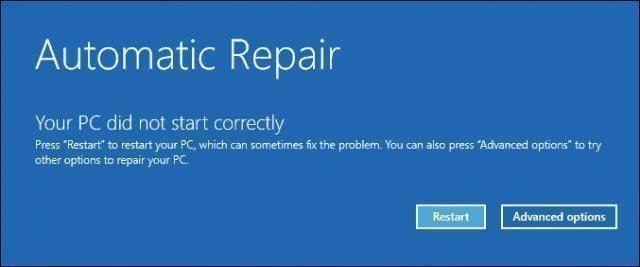
1. To access Windows RE, turn your computer on and off three times, turning it off when seeing the Windows logo, and after the third time, boot into diagnostics mode. Then, click Advanced options on the recovery screen.
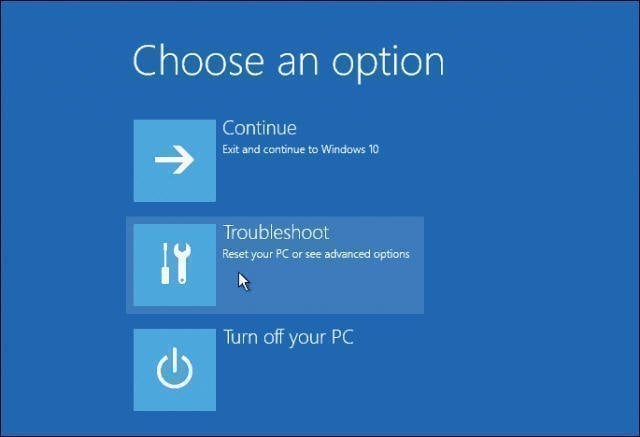
2. Click on the Troubleshoot option to access the Reset your PC or Advanced options screen.
3. Click Advanced options here.
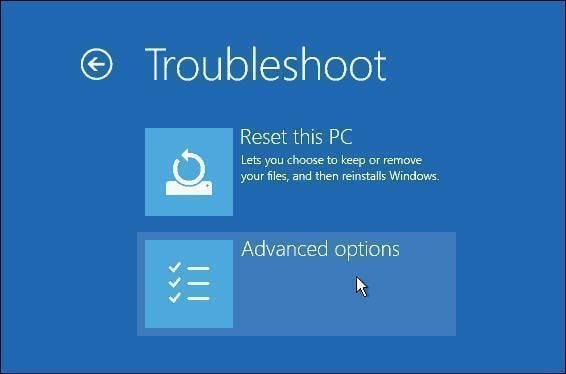
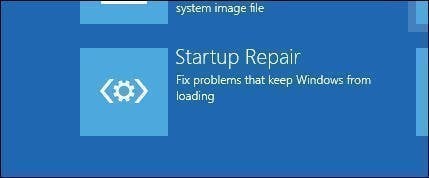
4. If Windows 10 won't boot, click on the "Troubleshoot" option, then select "Startup Repair" to fix the issue.
Run BootRec commands in Windows 10
If the Windows 10 Startup Repair is not working, you can try to fix Windows 10 with BootRec commands.
1. Boot your computer from a Windows installation CD/DVD, then click "Repair your computer" in the Windows Setup window.
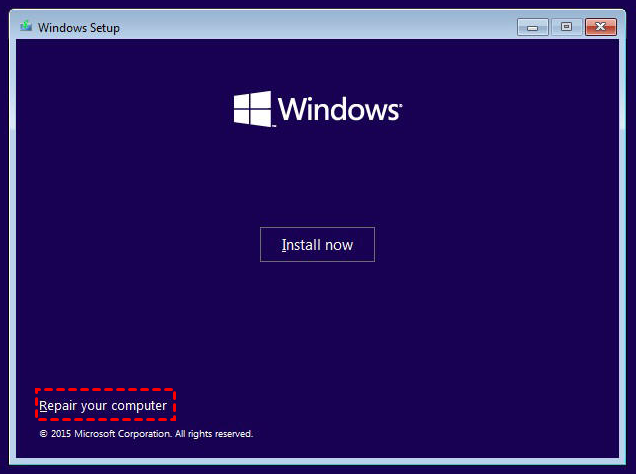
Tip: If you don't have the installation media, you can create a recovery USB drive on a working Windows 10 PC and set up your BIOS to boot from the USB drive.
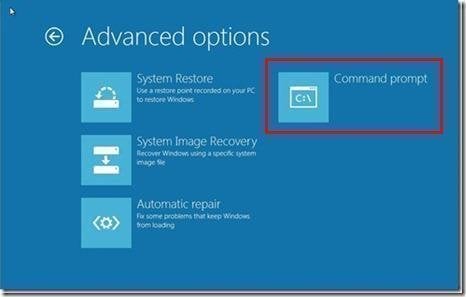
Click "Troubleshoot" then "Advanced Options" and finally "Command prompt" to proceed.
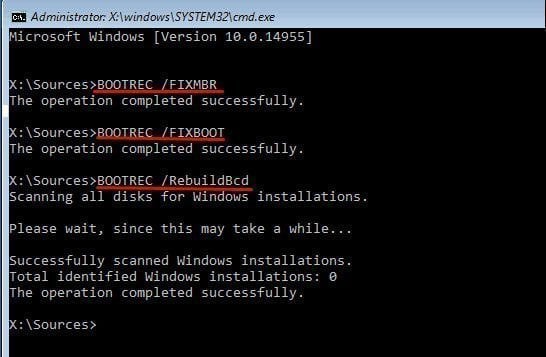
3. Then, in the command prompt, type in the following commands one after the other. You should press Enter after typing each command.
- BOOTREC /FIXMBR (this command will fix any corruption issues with the master boot record)
- BOOTREC /FIXBOOT (this command will attempt to write a new boot sector on the hard disk if Windows detects damage)
- BOOTREC /RebuildBcd The Boot Manager is Missing error can be resolved using a tool like Boot Manager. This tool can fix errors like "Boot Manager is Missing" and also restore boot entries for older versions of Windows, which can be helpful for dual boot configurations.
Easy way to boot Windows 10 computer in case of boot failure👍
Creating a Windows 10 bootable rescue media is a wise precaution against Windows 10 boot failure. To create recovery media for Windows 11/10/8/7, you can use the freeware Qiling Disk Master Standard, which offers a range of useful functions.
- It can help you backup all kinds of data, including Windows OS, internal/external hard drives, specific files and folders, etc.
- It allows users to schedule automatic backups using the "Schedule Backup" feature, enabling them to create backups at regular intervals.
- It allows users to create bootable media using a USB drive, CD, or DVD.
To protect your computer from system crashes or boot errors, create a system backup and a bootable device for recovery before accidents occur, allowing you to restore your computer to an earlier date if Windows 10 fails to boot.
To create bootable media with Qiling Disk Master, follow these steps: First, download and install Qiling Disk Master on your computer. Next, insert a blank USB drive or CD/DVD into your computer. Then, launch Qiling Disk Master and select the media type you want to create (e.
Step 1. Download Qiling Disk Master, install it on your Windows 10 computer, and then click "Tools" and then "Create Bootable Media" to create recovery media.

Step 2. Choose a CD/DVD or USB drive to create bootable recovery media, and click Next to run the progress.

Conclusion
If Windows 10 won't boot, you can try using Startup Repair or BootRec commands to fix the issue. Alternatively, to protect your computer from system crashes or boot errors, you can use Qiling Disk Master to create a system backup and a bootable device for recovery in advance.
Qiling Disk Master offers additional features to ensure data safety, including incremental backup and automatic file synchronization. For more advanced features like system cloning and universal restore, consider upgrading to Qiling Disk Master Professional.
Related Articles
- Windows 10 Startup Repair Not Working: Solved
- How to Repair Windows 10 without CD or USB Quickly?
- Repair Windows 10: Create Repair Boot USB Drive
- Bootrec Fixboot Element Not Found in Windows 7/8/10- Fixed
- Startup Repair or Boot Repair Windows 7 using Command Prompt
- Fixed: Unallocated Space on 4TB Hard Drive that Shows up Only 2TB
If you find your 4TB hard drive only shows 2TB space and the rest storage shows unallocated space in your Windows 11/10/8/7, since here we will explain why the unallocated space appears on 4TB drive and how to deal with it safely. - Fix Error Code 0xc0000225 in Windows 10 Without CD
Fix Windows 10 error code 0xc0000225 without CD by using recovery options, boot repair, and data protection steps. - Windows 11 Not Booting Up: Step-by-Step Fixes
Fix Windows 11 not booting up by checking hardware, Startup Repair, boot files, disk health, and file recovery options.
Products
Articles & Tutorials
- Data Recovery
- Data Backup
- File Recovery
- File Backup
- File synchronize
- System Backup and Restore
- Disk and Partition Clone
- Technical articles
- Disk Master Help
- Windows Deleted File and Disk Recovery Tutorials
- Windows File and Data Recovery Tutorials
- More Windows Tutorials for Install, Security, Files, and PC Tips
- Windows Boot, Repair, and Recovery Environment Tutorials
- Windows Backup Tutorials
- Windows Restore Tutorials
- Windows Clone and Migration Tutorials
- Windows Server Backup, Recovery, and Management Tutorials
- Windows Disk, Partition, and Storage Management Tutorials