Windows 11 Not Booting Up: Step-by-Step Fixes
Windows 11 may fail to boot after updates, driver changes, disk errors, power loss, or boot partition damage. The best fix depends on how far startup gets.
Understand the problem
If the disk may be failing or Windows loops during startup, recover important files before reset or reinstall. Repeated forced shutdown can worsen file system damage.
- Confirm the exact disk, partition, file system, Windows version, boot mode, or sync setting before making changes.
- Back up or recover important files before wiping, formatting, converting, cloning, reinstalling, or repairing Windows.
- For boot and update tasks, prepare recovery media and check BIOS or UEFI settings before deeper repair.
Use Windows built-in tools
Use recovery options in order.
- Disconnect unnecessary USB devices and restart.
- Enter Windows Recovery Environment.
- Run Startup Repair.
- Use Command Prompt for chkdsk, SFC offline repair, or bcdboot when needed.
- Recover files before reset or clean installation.
Use Qiling tools for guided steps
 Qiling Disk Master
Create bootable media and recover files when Windows 11 cannot boot normally.
Function. Create bootable media for repair or recovery
Step 1. Prepare an empty USB drive. Back up existing USB files because the drive may be formatted.
Step 2. Open Qiling Disk Master and choose Create Bootable Media.
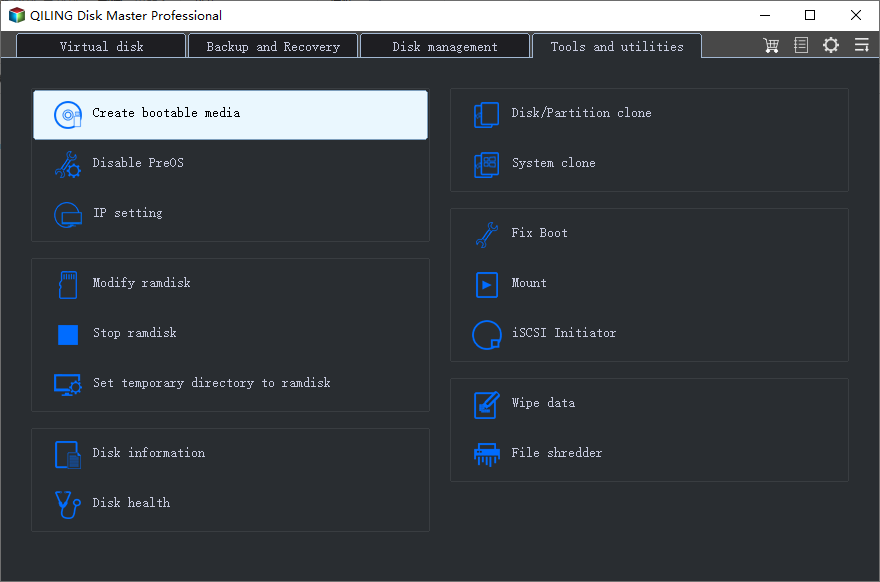
Step 3. Select the USB boot device option, then choose the correct USB drive by capacity and drive letter.
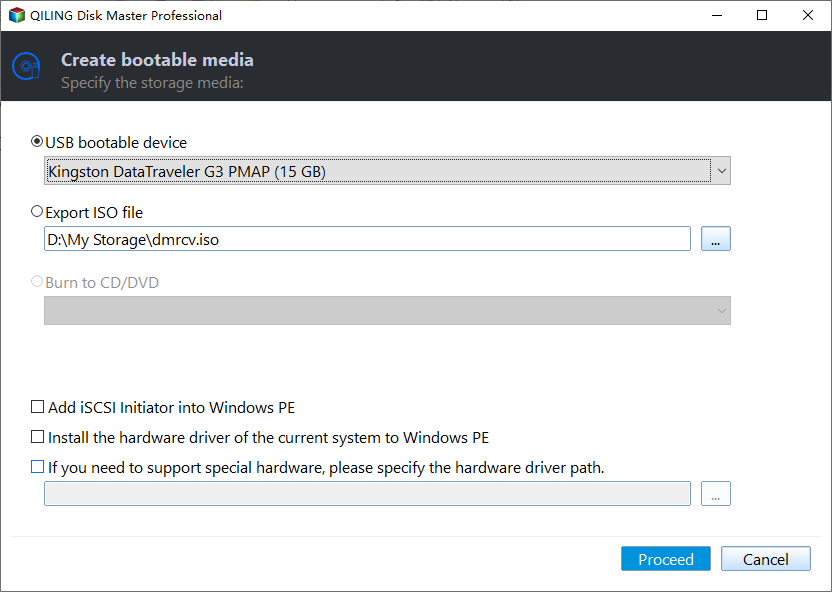
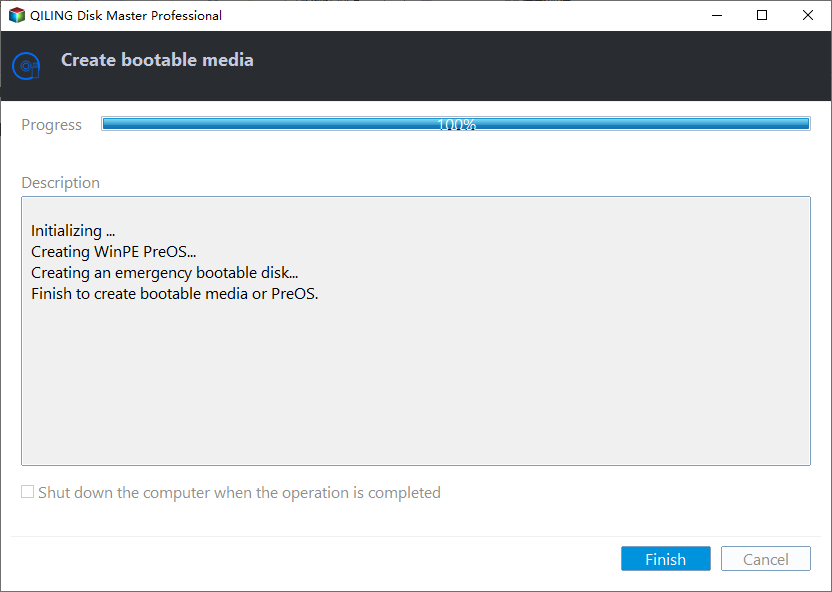
Step 4. Click Proceed and wait for the media to be created. Use it for Windows 11 startup repair and offline file access.
Function. Recover files with Fast Scan
Step 1. Stop saving new files to the Windows 11 system drive. If possible, install Deep Data Recovery on another drive.
Step 2. Launch Deep Data Recovery and choose Fast Scan first. Fast Scan helps recover files before reset or reinstall.
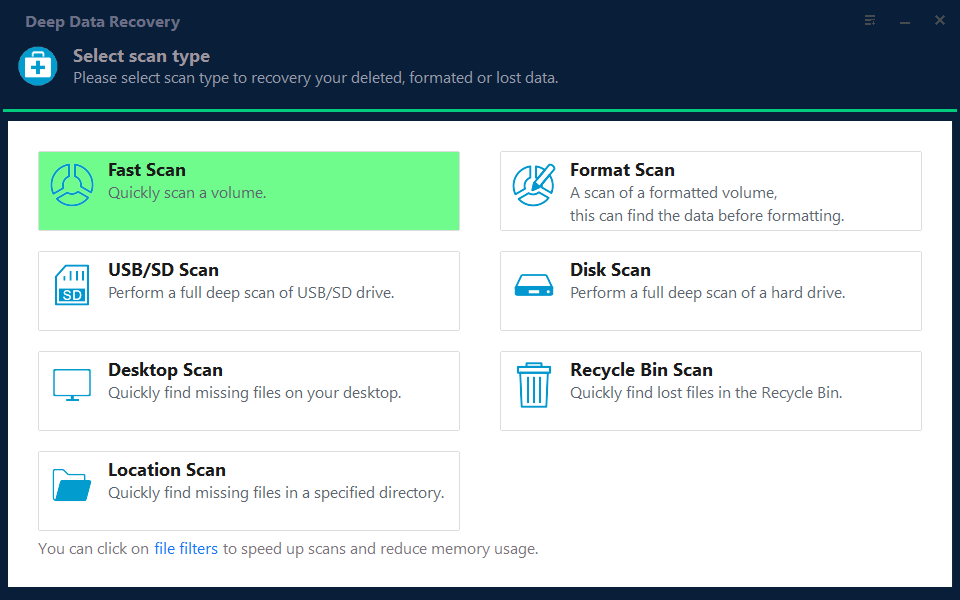
Step 3. Select the Windows 11 system drive as the scan location. If the original folder is missing, scan the whole partition.

Step 4. Wait for the scan to complete. Use file type, name, date, and path filters to narrow results.
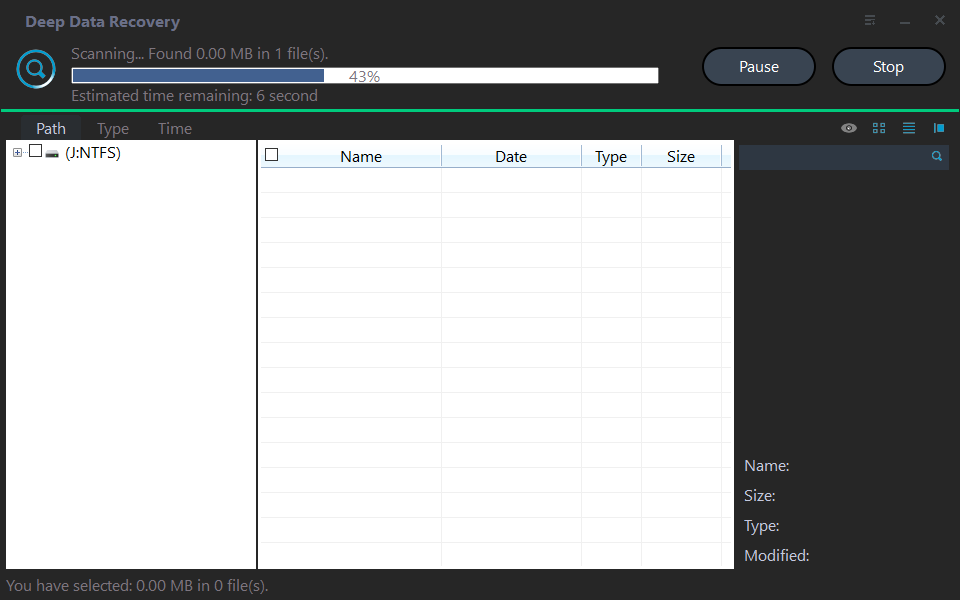
Step 5. Preview files, select what you need, and recover them to another disk or external drive.

Check the result
After repair, confirm Windows starts normally, then check disk health, update history, and device drivers.
Related Articles
- Repair Windows 11 UEFI Bootloader
Repair UEFI boot files when Windows 11 cannot start. - Lenovo Black Screen on Startup
Troubleshoot startup black screens on Windows 11 laptops. - Windows Black Screen on Boot
Check display output and startup repair options before restoring a system image for a black screen.
Products
Articles & Tutorials
- Data Recovery
- Data Backup
- File Recovery
- File Backup
- File synchronize
- System Backup and Restore
- Disk and Partition Clone
- Technical articles
- Disk Master Help
- Windows Deleted File and Disk Recovery Tutorials
- Windows File and Data Recovery Tutorials
- More Windows Tutorials for Install, Security, Files, and PC Tips
- Windows Boot, Repair, and Recovery Environment Tutorials
- Windows Backup Tutorials
- Windows Restore Tutorials
- Windows Clone and Migration Tutorials
- Windows Server Backup, Recovery, and Management Tutorials
- Windows Disk, Partition, and Storage Management Tutorials