Repair the Windows 11 UEFI Bootloader
A damaged Windows 11 UEFI bootloader can lead to boot loops, no boot device errors, or a system that opens firmware settings instead of Windows.
Understand the problem
Windows 11 usually boots from an EFI System Partition on a GPT disk. Repair steps should match UEFI mode; MBR commands alone may not fix an EFI boot problem.
- Confirm the target disk, partition, drive letter, file system, and capacity before changing anything.
- Back up or recover important files before formatting, deleting, resizing, converting, or reinstalling Windows.
- For boot-related repairs, check BIOS or UEFI mode, boot order, and disk style before editing system partitions.
Use Windows built-in tools
Use Windows Recovery Environment when the EFI partition is intact.
- Boot from Windows installation media and open Repair your computer.
- Run Startup Repair first.
- If needed, open Command Prompt and identify the EFI partition.
- Assign a temporary drive letter to the EFI partition.
- Run bcdboot with the Windows folder and EFI target.
Use Qiling tools for guided steps
 Qiling Disk Master
Create bootable media before repairing the Windows 11 UEFI bootloader or checking partitions offline.
Function. Create bootable media before system repair
Step 1. Prepare an empty USB drive and connect it to a working computer. Back up the USB first because it may be formatted.
Step 2. Open Qiling Disk Master and choose Create Bootable Media. This helps you start a computer when Windows cannot boot normally.
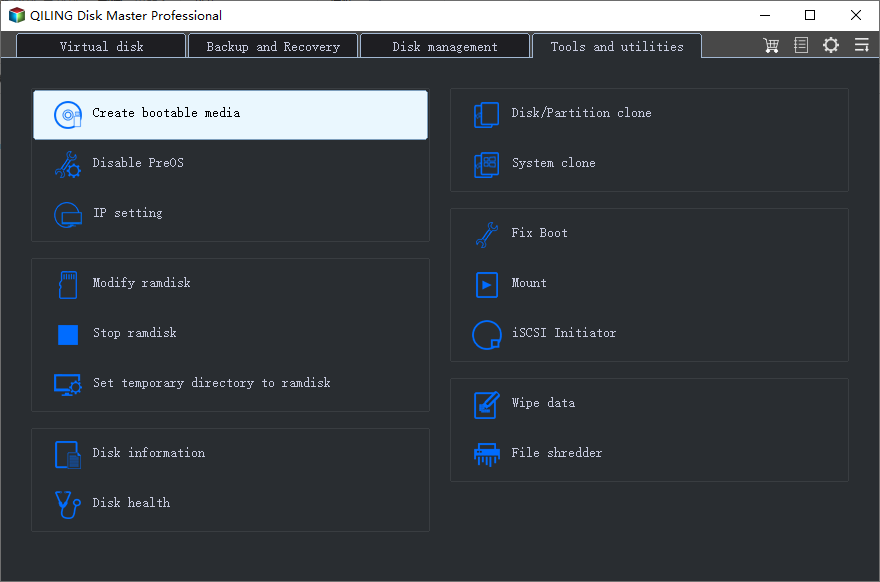
Step 3. Select the USB boot device option and choose the correct USB drive. Confirm the drive letter and capacity before continuing.
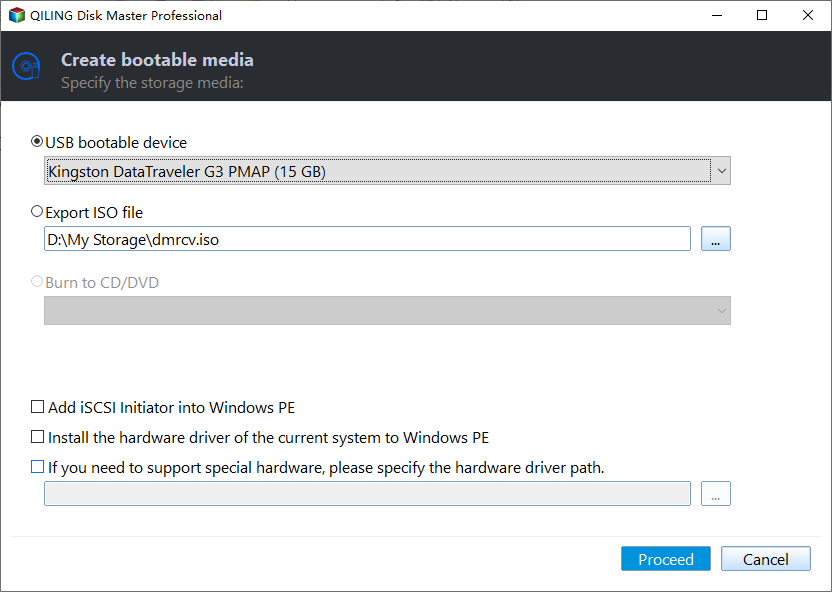
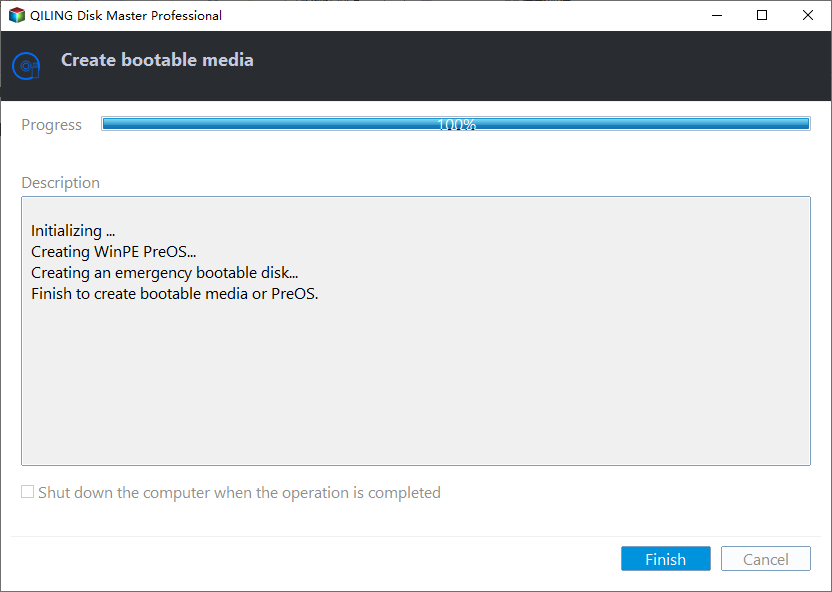
Step 4. Click Proceed and wait for the bootable media to be created. Use it for starting the PC and checking boot partitions outside Windows.
Check the result
Restart into firmware settings and confirm Windows Boot Manager is first. Then boot into Windows and check Disk Management for the EFI partition.
Related Articles
-
Repair EFI Bootloader
Repair EFI boot files on a GPT disk when Windows cannot start. -
Repair Server UEFI Boot
Use similar UEFI boot repair logic on Windows Server systems.
Products
Articles & Tutorials
- Data Recovery
- Data Backup
- File Recovery
- File Backup
- File synchronize
- System Backup and Restore
- Disk and Partition Clone
- Technical articles
- Disk Master Help
- Windows Deleted File and Disk Recovery Tutorials
- Windows File and Data Recovery Tutorials
- More Windows Tutorials for Install, Security, Files, and PC Tips
- Windows Boot, Repair, and Recovery Environment Tutorials
- Windows Backup Tutorials
- Windows Restore Tutorials
- Windows Clone and Migration Tutorials
- Windows Server Backup, Recovery, and Management Tutorials
- Windows Disk, Partition, and Storage Management Tutorials