Best Practice: File Level Backup vs Block Level Backup
Quick Navigation:
- What is file level backup?
- File level backup vs image level backup
- Best free file level backup software for Windows PCs
- Create a file level backup in Windows 10 to protect data safely
- Summary
What is file level backup?
The file level backup creates a backup of individual files or folders, such as documents, photos, music, and videos, and saves them to a recognized drive. This type of backup can also include disk images, which are files, but the resulting backup is not bootable.
In addition to file-level backup, there's also image-level backup, also known as block-level backup, or bare metal backup/recovery. This method involves backing up the entire system, disk, and partition, allowing for a complete restoration of the data or system without downtime.
File level backup vs image level backup
File level and image level backups are both designed to protect data, but they differ in their approach. A file level backup involves copying individual files and folders, allowing for selective recovery of specific data. In contrast, an image level backup captures an entire system or device, including the operating system, applications, and data, creating a snapshot of the system at a particular point in time.
| File level backup | Image level backup | |
| Backup items | Back up files or folders, excluding open files. | Back up system, disk, partition, and files. |
| Backup frequency | More often, even several times in a day. | Lower frequency, and usually in weekly or monthly intervals, except for files which may be updated more frequently. |
| Image size | Much smaller, depending on the data amount. | Relative big. |
| Recovery options | Restore only files or folders. | Restore entire system, disk or partition. |
The file level backup is a good option if you want to backup specific files or folders on a disk, offering multiple backups to minimize data loss in a disaster. However, if you need a fast way to restore an entire system, disk, or partition, an image-level backup is a better choice.
Best free file level backup software for Windows PCs
The best choice for long-term data security and minimizing data loss is a file-level backup. You can try using free backup software like Qiling Disk Master Standard, which offers a Sync feature that allows for easy file-level backups and provides several advantages:
- The Schedule Sync feature allows for synchronization at various frequencies, including daily, weekly, and monthly, with the option to specify a precise sync date, time, and interval.
- Wake the computer to run scheduled task: This software can automatically wake up your computer from sleep mode and sync files or folders at a specified time, making it ideal for off-peak backup during hours when internet usage is low.
- Sync only changed files: The default syncing process only transfers changes from one location to another, excluding deleted files. However, users can enable the option to sync deletions in the settings.
- Verify the integrity of files in the destination directory during synchronization: The command ensures that all files in the source directory are synced, eliminating the need to manually check for missing files.
- Various backup destination: This tool can synchronize files to various external storage devices, including hard drives, USB drives, cloud storage services, network-attached storage (NAS), and network shares.
Click the button below to download Qiling Disk Master and enjoy now. It supports Windows 11/10/8.1/8/7/XP/Vista. For server users, try Qiling Disk Master Server.
Create a file level backup in Windows 10 to protect data safely
1. Open Qiling Disk Master after installing, click the "Backup and recovery" tab and then the "File Sync" option.

2. Selecting Files for Backup: Click the "Folder" button to select all the files you want to back up.

3. Click the second bar to select a destination path, where you have three options to choose from.
Add Share or NAS Devices: To sync files to a network location or NAS, you need to add it by clicking an option and inputting the display name, IP address, username, and password.
Select a cloud drive: It allows you to sync files to Google Drive. If you install OneDrive and Dropbox on your computer, they will automatically sync your files to their respective cloud storage services.
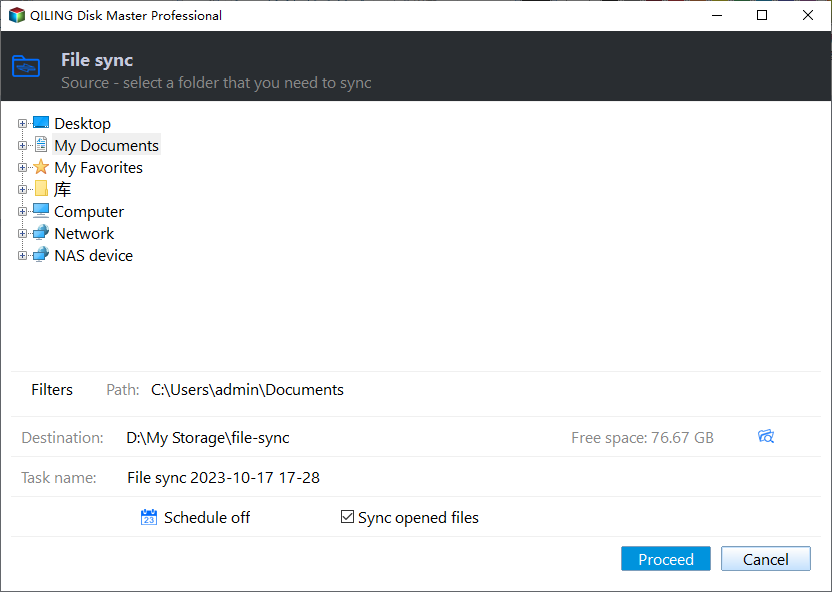
4. To sync a schedule, specify daily, weekly, or monthly sync, and enable email notifications to receive sync results, then click Proceed.

Tips on a fast way to backup files:
A full-level backup will scan every file to detect changes and copy the entire file to the destination directory, taking more time and disk space. In contrast, a block-level backup only backs up changed blocks, resulting in faster and more efficient backups. If you're looking for a quick way to back up files, the File Backup feature in this software is a good option.

Using a different approach, you can add a single file instead of a folder, and this method has the advantage of minimizing disk usage with its multiple features, which include some default features.
Among the most effective ways to manage backups is to enable automatic backup cleanup methods and regularly delete old backup images, while also considering differential backup which is less demanding for backup integrity and ease of recovery, both of which are supported by the professional version.

Summary
File level backup is more suitable for backing up files or folders, while block level backup offers a wider range of options, including backing up systems, disks, partitions, and files. Additionally, block level backup only saves the changed blocks, not the entire file, making it more efficient for tracking changes to files.
You can choose between File Sync and File Backup, both of which allow automatic file copying. The main difference lies in the File Backup feature, which enables automatic deletion of old backup images, ensuring you don't have to worry about disk usage.
You can back up files to cloud storage using Qiling Cloud, which offers 1TB of free storage for 15 days after signing up for an account.
Related Articles
- How to Create Block Level Incremental Backups in Windows
Learn how to Create Block Level Incremental Backups in Windows with clear steps, key checks, and practical tips. - The Best Free Block Level Replication Software
This guide explains The Best Free Block Level Replication Software with clear steps, key checks, and practical tips. - How to Run Automatic File Backup in Windows 10 (2 Ways)
Running automatic file backup is a good way to prevent data loss. Learn how to backup files in Windows 10 with two efficient ways from this page. - How to Easily Perform Continuous File Sync on Windows
This article tells you how to perform continuous file sync on your PC, including 2 possible ways. Choose the one that suits you best. - Easy Way to Mirror Folder to Network Drive in Real-Time
If you want to sync local folder to network drive safely, try to mirror folder to network drive and run it automatically. - How to Monitor a Folder and Move Files Automatically?
Learn how to Monitor a Folder and Move Files Automatically with clear steps, key checks, and practical tips.
Products
Articles & Tutorials
- Data Recovery
- Data Backup
- File Recovery
- File Backup
- File synchronize
- System Backup and Restore
- Disk and Partition Clone
- Technical articles
- Disk Master Help
- Windows Deleted File and Disk Recovery Tutorials
- Windows File and Data Recovery Tutorials
- More Windows Tutorials for Install, Security, Files, and PC Tips
- Windows Boot, Repair, and Recovery Environment Tutorials
- Windows Backup Tutorials
- Windows Restore Tutorials
- Windows Clone and Migration Tutorials
- Windows Server Backup, Recovery, and Management Tutorials
- Windows Disk, Partition, and Storage Management Tutorials