How to Monitor a Folder and Move Files Automatically
How do I automatically copy files from one folder to another?
“So I have a folder and what I want to do is to automatically send everything that's saved to that folder to another.
For example, I will want whatever that goes into the Documents folder to go to my custom folder on the desktop. Whenever a new file has been made, it will always go there.”
Just like this user, we will be in need of copying files from one specific folder to another regularly. In this way, we can not only keep a backup of the original folder but also use the files from a more easily-accessed location like the desktop. However, if the folder is frequently modified, it would take a lot of time and efforts to copy files manually. Is there a way to monitor a folder and move files automatically? Just keep reading.
Best automated file transfer software in Windows
To copy files from one folder to another automatically, the best automated file transfer software—Qiling Disk Master Professional comes to help.
- It offers four sync modes for your different needs: File Sync, File Sync, File Sync, and Two-Way Sync.
- You are allowed to synchronize files to local folders, shared folders over network, NAS devices or cloud drives, etc.
- Using the Schedule Sync feature, you can set a file sync task to run at fixed intervals. There are five schedule modes you can choose from: Daily, Weekly, Monthly, Event triggers, and USB plug in.
- All Windows PC operating systems like Windows 11/10/8.1/8/7/Vista/XP are supported.
You want to automate the process of copying files from one folder to another using Qiling Disk Master. This can be achieved by scheduling a task to run at a specified interval.
How to monitor a folder and copy files automatically and easily
You want to monitor a folder and synchronize changes to another folder in real-time using File Sync. This can be achieved by configuring File Sync to monitor the source folder and update the destination folder accordingly. Here's a step-by-step guide to help you achieve this:
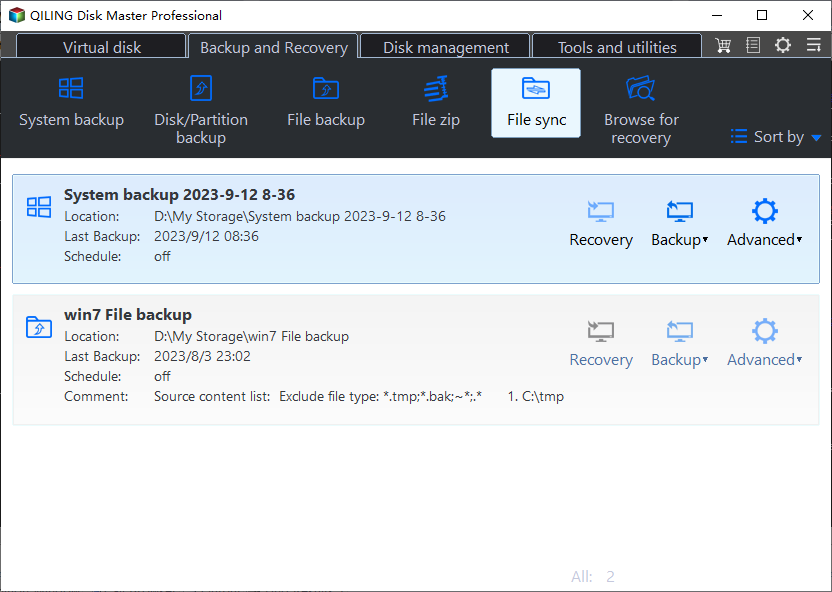
1. Install and run Qiling Disk Master. Click "Backup and recovery" on the left pane and select "File Sync".
2. Name the task so that you can distinguish it from other sync tasks. Click "Folder" to select the folder to be monitored.
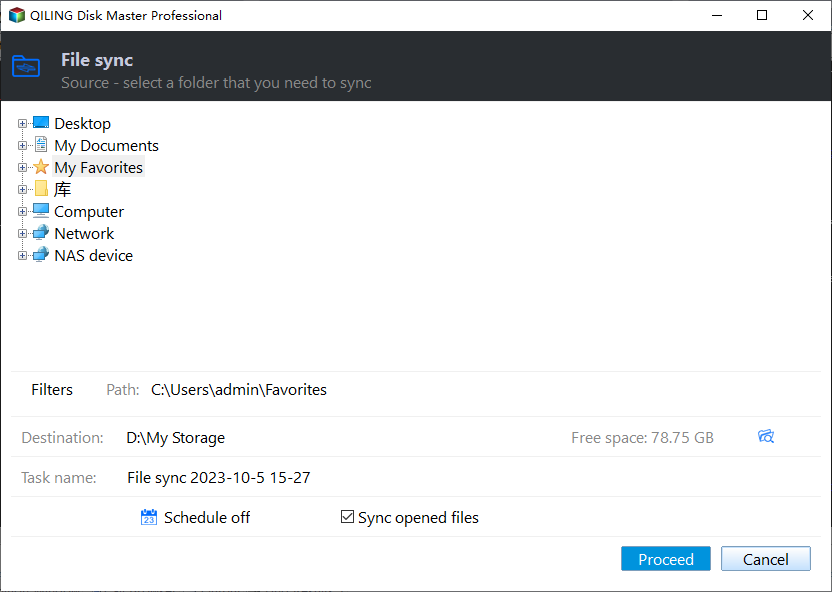
Tip: To sync files from multiple folders to the destination path at one sync task, please click the "+" icon after you add the first source folder.
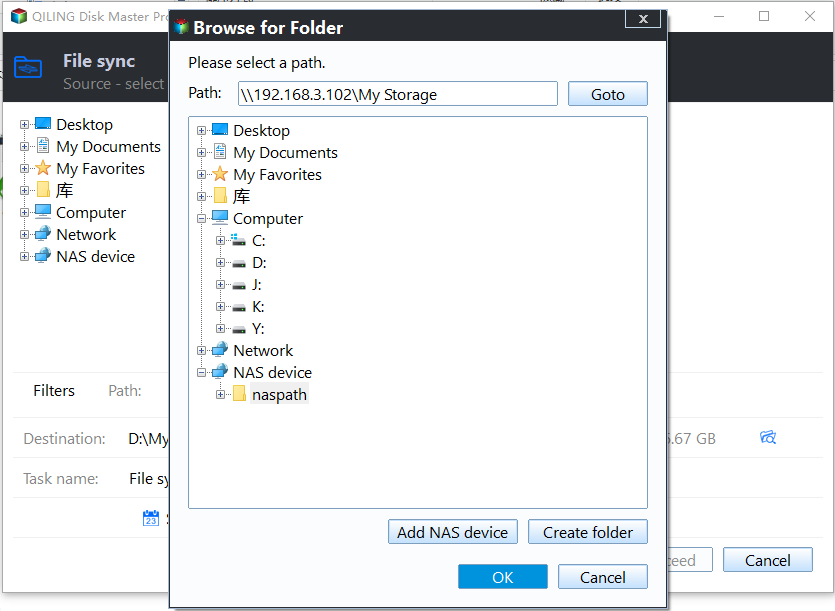
3. Select a destination location to store the synced files.
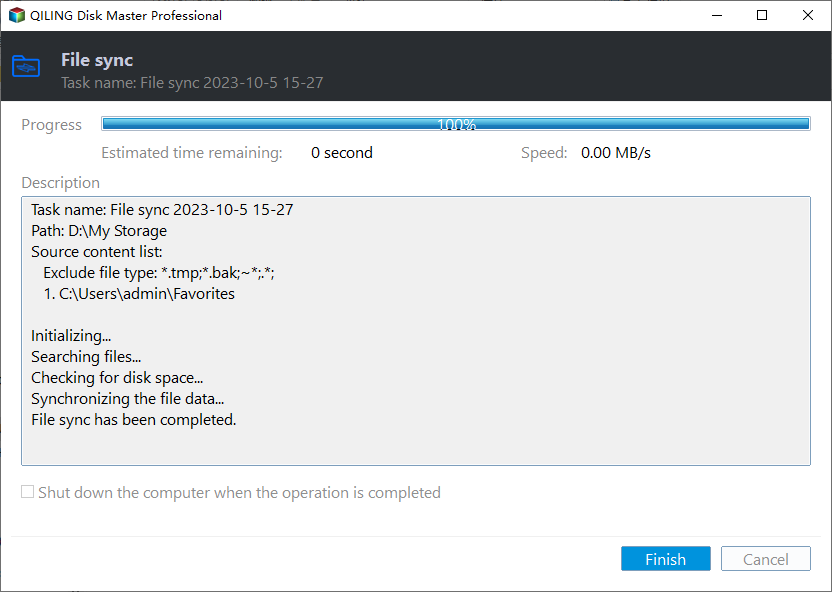
4. Click on the "Proceed" button to perform the operation.
Notes:
- Options: To add a comment and enable email notification for your sync task, follow these steps:
- To ensure seamless file synchronization, it's essential to preserve the original source folder names after performing a file sync. Modifying the source folder name can cause the program to lose track of the synced files, making it impossible to synchronize them again.
Summary
Qiling Disk Master is an incredibly user-friendly tool that allows you to monitor a folder and automatically move files with ease. But that's not all - it's also a professional-grade backup and clone software, capable of more complex tasks like creating disk images and cloning an SSD to a new one.
Related Articles
- How to Automatically Backup Excel File in Different Location
In this essay, you will find two ways to backup excel file in different location easily in Windows 7, 8, 10. Let's see the step-by-step guide to auto backup excel files. - How to Sync Local Folder to Dropbox? (2 Ways Included)
You can easily sync local folder to Dropbox with 3 practical methods, even if you make changes in the original folder or it's outside the Dropbox folder. Learn more about it below! - Real-Time File Replication for Windows
In this article, you will find the easiest way to perform real-time file replication in Windows 11, 10, 8, 7 with the real-time file synchronization software. let's find out. - 10 Way to Fix OneDrive Not Syncing in Windows 10 or 11
This article introduces reasons and 10 solutions to OneDrive not syncing in Windows 7, 8, 10, and 11. So you can easily fix it and sync files! - Backup Data before Replacing Hard Drive in Windows 10 (2 Ways)
This article tells you how to backup data before replacing hard drive to ensure data security. - Can I Backup Dropbox to External Hard Drive Safely?
If you don't know how to backup Dropbox to external hard drive, please continue to read this article. In this article, you will get 4 simple and effective methods with detailed instructions to help you get it done in seconds.
Products
Articles & Tutorials
- Data Recovery
- Data Backup
- File Recovery
- File Backup
- File synchronize
- System Backup and Restore
- Disk and Partition Clone
- Technical articles
- Disk Master Help
- Windows Deleted File and Disk Recovery Tutorials
- Windows File and Data Recovery Tutorials
- More Windows Tutorials for Install, Security, Files, and PC Tips
- Windows Boot, Repair, and Recovery Environment Tutorials
- Windows Backup Tutorials
- Windows Restore Tutorials
- Windows Clone and Migration Tutorials
- Windows Server Backup, Recovery, and Management Tutorials
- Windows Disk, Partition, and Storage Management Tutorials