Mirror Folder to Network Drive Automatically (Safest)
- How do I automatically mirror a folder to network drive?
- Methods of Windows mirror folder to network share
- Mirror folder to network drive or share automatically and safely
- In the end
How do I automatically mirror a folder to a network drive?
To mirror photos from a hard disk drive to a network-shared folder, you can use a combination of software and scripting. One option is to use a file syncing tool like SyncToy or Robocopy, which can automatically copy files from one location to another. Alternatively, you can use a scripting tool like PowerShell or Python to create a script that automates the file transfer process. This script can be set up to run at regular intervals, such as daily or weekly, to ensure that all new photos are copied to the network-shared folder.
"You want to create exact duplicates of the original files on this disk, stored in a shared network location that requires a login, and have them updated daily, rather than compressing them into a backup container file."
Methods of Windows mirror folder to network share
Here are the most commonly used ways to sync folder between two locations:
- Use the "Share" feature. This method is suitable for syncing folders between drives and computers on the same network segment in Windows 7/8/10/11, but requires manual file addition to a shared folder and does not support scheduled syncing.
- SyncToy schedule. To schedule a sync folder using Task Scheduler, you can set up various triggers such as daily, weekly, or monthly syncs, or even syncs when the computer starts or a specific event is logged, allowing for customized synchronization schedules.
- Robocopy automatic backup. Running Robocopy on the command line can be more demanding, but it can be easily automated using a batch file. Similar to scheduling Windows 10 to wake from sleep, you can input the Robocopy command line in a text file and save it as a .bat file, which can then be double-clicked to run it automatically.
- Schedule network files offline with Sync Center. This method only works for making network files or folders offline on Windows PCs. It requires enabling offline files and setting up schedule sync in the Sync partnership details.
- Reliable File sync software is a convenient solution that even novices can quickly get started with. Most programs support various sync methods and schedule settings, such as daily, weekly, monthly, or real-time syncing. They also allow syncing folders to network drives or vice versa, depending on your specific needs.
Mirror folder to network drive or share automatically and safely
Using reliable file sync software to mirror a folder automatically is the easiest method. One such software is Qiling Disk Master Professional, which provides two ways to achieve this.
- You can automatically mirror a folder to a network drive using Schedule Sync, with options for daily, weekly, monthly, or event-based triggers, or even sync files when a USB drive is connected. Additionally, you can choose from different sync methods, including Basic Sync, Mirror Sync, and Two-Way Sync.
- Real-The software features a "Time Sync" method that enables real-time syncing of all changes from a local folder to a network drive. This includes syncing new, edited, or deleted files as soon as they are detected.
In addition to syncing, you can also sync local folders to NAS, cloud storage, or external drives. To ensure data security, follow the 3-2-1 backup strategy, creating multiple backups in different locations.
To mirror a folder to a network drive in Windows 10 or other systems, download the software and follow the steps below. Alternatively, to synchronize folders between Windows Servers, try Qiling Disk Master Server.
Mirror folder to network drive in Windows 10
Qiling Disk Master has a user-friendly interface that makes the sync process easy to understand. The software uses a feature called Mirror Sync, which can sync modifications, deletions, or new folders and overwrite any changes made in the network drive at the next scheduled sync.
Step 1. Open Qiling Disk Master Professional and click "Backup and recovery" > "File Sync".

Besides Mirror Sync, you can also use Real-Time Sync to automatically sync a folder to a network drive, ensuring that changes are synced immediately, reducing the risk of data loss and keeping your files up-to-date.
Step 2. Click "Folder" to select folders that need to be synced on your computer.

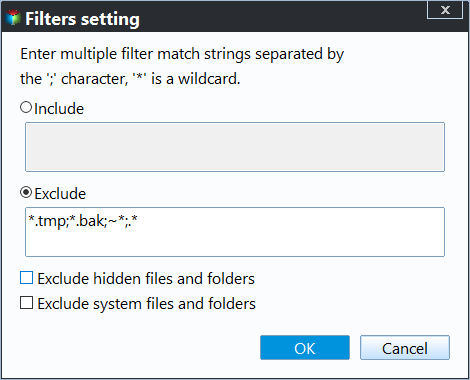
Click the funnel button next to the selected folder to filter its settings, and then exclude or include files you don't want to sync in that folder.
Step 3. To add a shared folder, click the inverted triangle button, select "Add Share or NAS Device" and add a network shared folder to store files.

If you're mirroring a folder to a network drive for the first time, make sure you have a network shared folder set up and added to the software. This will enable you to successfully mirror the folder to the network drive.
To set up the network shared folder:
- To share a folder, find the folder you want to share, right-click it and choose Properties.
- Click the Sharing tab and then choose the Advanced Sharing option.
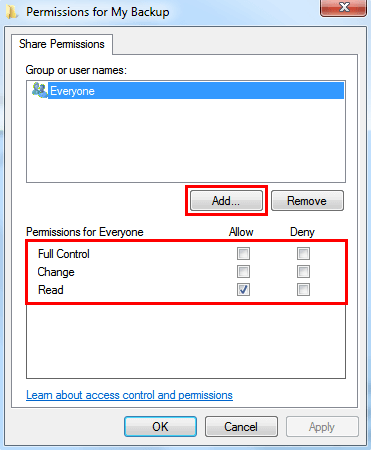
- To set the share permissions, check the "Share this folder" box and click on "Permissions" to configure the access rights for the shared folder.
- To share files with another user, click Add and type the user name you want to share with. Then, select Full Control, Change, and Read permissions for the user, and click OK to confirm.
To add network shared folder:
In the "Add Share or NAS Device" window, type the network path (IP address of shared folder) or name of the network drive, and select the previously configured folder to store files.

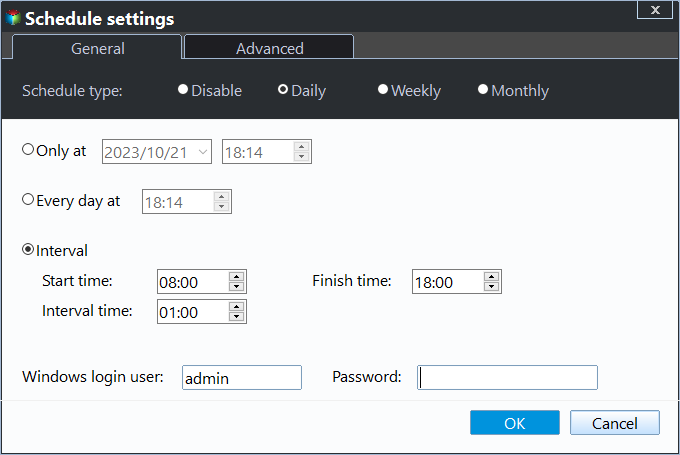
Step 4. To sync folders, click the "Schedule Sync" button and enable it. Choose a synchronization frequency, such as daily or weekly, or select an event trigger, like when a file is added or modified, depending on how often the folder changes and its impact on the computer's performance.
Step 5. Confirm the folder you want to sync and the network shared folder, then click "Proceed" to start the automatic synchronization of the Windows 10 mirror folder to the network drive.
Notes ✎...
◉ Please don't modify the source folder name of the schedule sync task, otherwise the program won't be able to synchronize the selected folder anymore.
◉ The sync method cannot sync files larger than 4GB to a FAT32 formatted drive, so large files should be backed up using File Backup, which can automatically split files into 4GB parts.
In the end
To mirror a folder to a network drive automatically, the easiest method is to use file sync software like Qiling Disk Master. This software allows you to set it up once and then syncs the folder to the network drive automatically, eliminating the need for manual intervention.
This software supports various sync methods and settings, allowing you to choose based on desired frequency or effect. It also features Disk Clone for copying files from one hard drive to another. Upgrading to the official version unlocks additional features.
Related Articles
- How to Sync Folder to Network Drive in Windows 7/8/10
- How to Sync Network Folder to Google Drive
- How to Sync Folders to NAS Automatically in Windows 10/8/7
- 3 Ways to Make Windows Sync Folders between Computers
- Auto Sync Files to External Hard Drive with Best Free Tool
- How to Automatically Copy Files from One Folder to Another Easily
This page presents how to auto copy files from one folder to another in Windows 11, 10, 8, 7, XP, Vista and provides you with 2 helpful ways.
Products
Articles & Tutorials
- Data Recovery
- Data Backup
- File Recovery
- File Backup
- File synchronize
- System Backup and Restore
- Disk and Partition Clone
- Technical articles
- Disk Master Help
- Windows Deleted File and Disk Recovery Tutorials
- Windows File and Data Recovery Tutorials
- More Windows Tutorials for Install, Security, Files, and PC Tips
- Windows Boot, Repair, and Recovery Environment Tutorials
- Windows Backup Tutorials
- Windows Restore Tutorials
- Windows Clone and Migration Tutorials
- Windows Server Backup, Recovery, and Management Tutorials
- Windows Disk, Partition, and Storage Management Tutorials