What Is Block Level Backup and How to Use It?
What is block-level backup?
Block-Snapshot-based backup, a feature of incremental or differential backup, only backs up changed files, allowing for more efficient storage and reduced backup times. This technology also enables the backup of files that are currently in use, making it a convenient and effective solution for data protection.
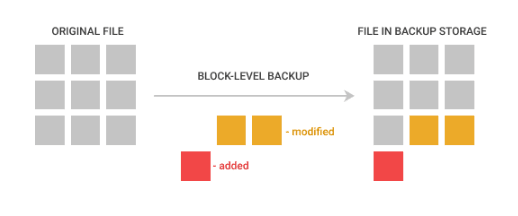
File-level backup is a type of backup that focuses on individual files or folders, rather than an entire partition, system, or disk. It's not suitable for backing up these larger entities.
Block-level backup vs file-level backup: which is better?
Speaking of block-The main difference between block-level and file-level backup lies in the approach to backing up data. File-level backup, also known as file-based backup, involves backing up individual files or folders, often based on their timestamps or modification dates.
| Block-Level Backup | File-Level Backup | |
| Backup Speed | Faster | Much slower |
| Backup Content | Backup only changed blocks in the disk, system, or partition, even files in use, by using a technique called incremental backup. This method saves space and time by only storing the data that has changed since the last backup, making it an efficient and space-saving approach to data preservation. | To detect changes, look through every file and replace the original file, excluding any file currently in use. |
| System resource consumption | Use fewer system resources and do not affect other running processes. | The process is using more system resources and can affect other running processes. |
If you want to backup only the changed blocks in files, systems, partitions, or disks, consider using block-level backup instead of file-level backup. This approach saves time and disk space by not replacing original files with changes, allowing you to efficiently backup only what's needed.
Block-level backup software to backup only changed files
Qiling Disk Master Standard is free backup software for Windows, allowing automatic backup of disks, systems, partitions, and files, with the option to backup only changed files using block-level backup.
Usually, there are two block-Block-level backup, including block-level incremental backup and block-level differential backup, are two types of backups that build upon a full backup. While both methods differ slightly, they share a common foundation. Block-level incremental backup captures only the changes made since the last full backup, whereas block-level differential backup captures all changes made since the last full backup, but doesn't overwrite the previous differential backup.
- The incremental backup is the default method, which is totally free. It only backs up changes since the last backup, whether it's a full backup or incremental. However, this can result in an invalid backup image if any of the backups get damaged between two full backups.
- In contrast to the full backup, the differential backup only records changes since the last full backup, making it less affected by damaged backups. This means that even if one or more backups are damaged, you can still restore the Windows image to a new hard drive, albeit with increased backup time and disk space usage.
Incremental backup is worth trying for backing up only changed blocks in files. To avoid backup corruption and data loss, it's suggested to set daily/weekly/monthly schedules for continuous data protection.
How to create block level incremental backup step by step
Qiling Disk Master Standard has a very user-friendly interface, making it easy to use. Simply download, install, and open the software to get started. Before creating an incremental backup, try Qiling Disk Master Server for server users.
Step 1. To back up your system, click on "Backup", then select "System Backup" from the available options. This will allow you to include all system files and settings in the backup.

Step 2. The system-related partitions are automatically selected, and you only need to choose a destination path to save the backup image. This allows you to backup Windows 10 to an external hard drive, network drive, or other locations that are detected by Windows.

Step 3. Click "Schedule Backup" to enable daily/weekly/monthly backup and incremental backup. Afteward, click "Proceed" to perform block-level system backup.
The script creates one full backup initially and then generates six incremental backups by default, repeating the backup process if schedule backup is enabled.

To perform an incremental backup, select the backup image at the Home screen, click Backup > Incremental Backup, and then confirm with OK.
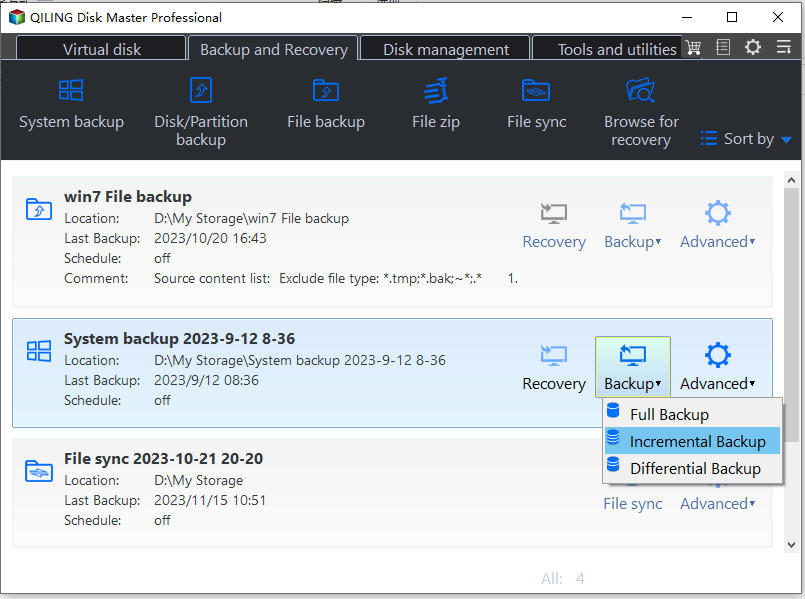
If you're concerned that incremental backups might get corrupted and lead to data loss, you can consider using differential backups instead. Differential backups can help mitigate the limitations of incremental backups.
Incremental backups may become invalid if old backups are manually deleted, especially when the backup disk is full. To avoid this, it's recommended to set up automatic deletion of old backup files.
This software allows you to set up a backup scheme with automatic cleanup methods, which can be enabled in three ways: by quantity, by time, or by daily/weekly/monthly frequency. To utilize this feature, you need to upgrade the software, which comes with a 5% discount for a single computer.

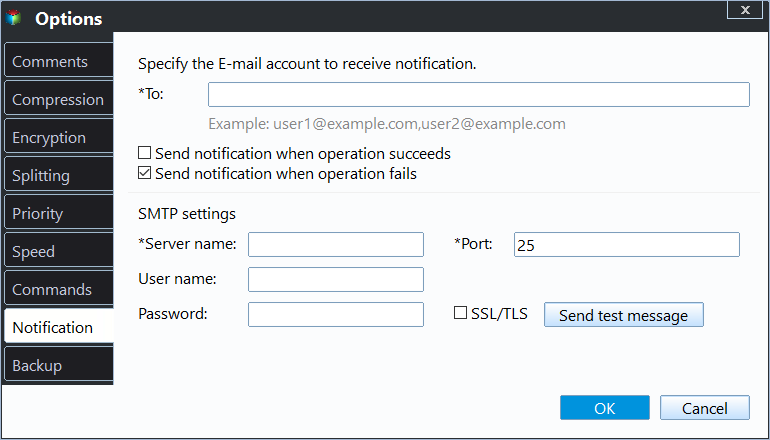
In addition to automatic backups, you can also set up email notifications to confirm the completion of each backup task. Furthermore, you can customize the backup process by splitting, compressing, or commenting on the backup image, and even select a backup mode that suits your needs.
Block level backup is a lightweight option that consumes minimal computer resources, making it possible to run backups in the background while you're engaged in other activities like watching movies, writing papers, or browsing the web.
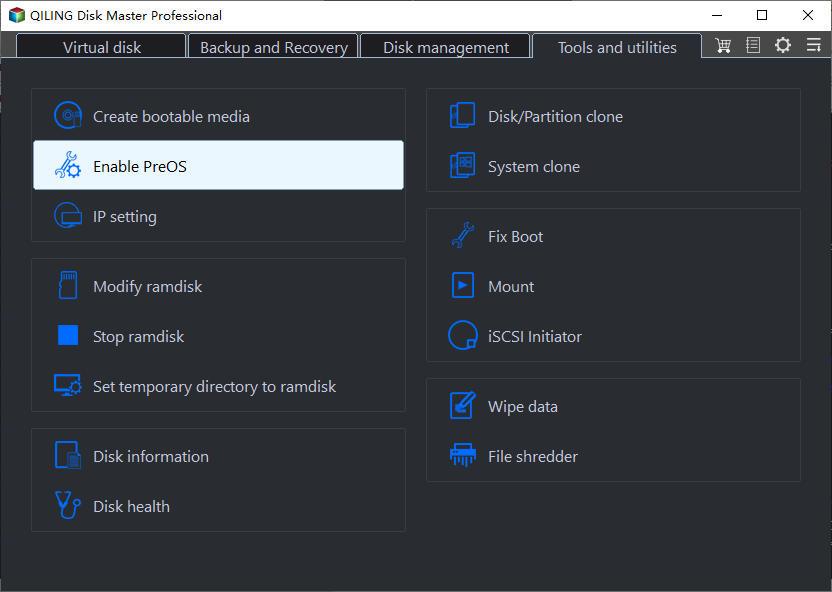
To prevent computer failure, you can create a bootable USB or CD/DVD that allows you to boot your computer from it and restore your system image without having to boot into Windows 10.
If you don't have a storage device, try making a recovery environment in Windows 10. This adds a boot menu that you can access at system startup every time.
Summary
Using a reliable block-level backup software can save a significant amount of disk space by backing up system, disk, partition, or files at the block level. However, when creating block-level incremental backups, it's essential to prioritize security, as corrupted backups can invalidate subsequent backups and lead to failed system restores.
To avoid the problem of running out of storage space, consider scheduling backups, replacing them with differential backups, and automatically deleting old backup images. This approach can be effective individually, but combining all three methods is the most beneficial. These backup settings can be applied to all types of backups.
To access backup images, you need to restore them first. However, you can use the Clone or Sync feature for flexible access, such as cloning a hard drive to an SSD using the Disk Clone feature.
Related Articles
- How to Create Block Level Incremental Backups in Windows?
Learn how to Create Block Level Incremental Backups in Windows with clear steps, key checks, and practical tips. - What Is File Level Backup and How to Do It in Windows 10/8/7?
You will get the file-level backup meaning and how to backup your crucial data with this method in Windows 11, 10, 8, 7. Block-level file backup supported. - The Best Free Block Level Replication Software
This guide explains The Best Free Block Level Replication Software with clear steps, key checks, and practical tips. - Does Installing Windows 11 Delete Everything?
This guide explains Does Installing Windows 11 Delete Everything with clear steps, key checks, and practical tips. - Qiling Image Deploy | SYSPREP Workaround in Windows 7, 8, 10, 11
This article describes a great Sysprep alternative in Windows 7, 8, 10, 11 - Qiling Image Deploy which can deploy system to multiple computers simultaneously. - Windows Deployment Services (WDS) Alternative - More Efficient
If you are not content with Windows Deployment Services and looking for a WDS alternative, here it is.
Products
Articles & Tutorials
- Data Recovery
- Data Backup
- File Recovery
- File Backup
- File synchronize
- System Backup and Restore
- Disk and Partition Clone
- Technical articles
- Disk Master Help
- Windows Deleted File and Disk Recovery Tutorials
- Windows File and Data Recovery Tutorials
- More Windows Tutorials for Install, Security, Files, and PC Tips
- Windows Boot, Repair, and Recovery Environment Tutorials
- Windows Backup Tutorials
- Windows Restore Tutorials
- Windows Clone and Migration Tutorials
- Windows Server Backup, Recovery, and Management Tutorials
- Windows Disk, Partition, and Storage Management Tutorials