The Best Free Block Level Replication Software
Block level replication VS file level replication
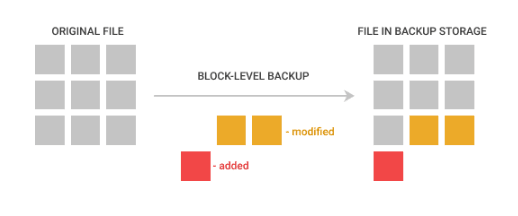
The growing importance of technology and science has led to a surge in popularity of block level replication software. Unlike file level replication, which copies entire files made up of blocks, block level replication copies individual storage blocks. This approach has several advantages over file level backup, making it a more desirable option.
- Faster speed. If your files are modified, you can backup only the blocks that have been modified rather than the entire files, saving a lot of time.
- Less storage space. If a small modification is added to your files, you can copy only the modified blocks, which means you'll have more storage space for other data.
- Easier to restore. When you run a restore from file level backup, the program restores your data file by file, which takes less time and energy compared to recovering the entire files.
Free block level replication software for Windows 11/10/8/7
Want to find a reliable block level backup software for Windows? Qiling Disk Master, the professional backup and restore freeware, runs smoothly on Windows 11, Windows 10, Windows 8.1/8, Windows 7, Windows Vista and XP.
This software offers two backup options: block level backup and file level backup. With block level backup, you can back up your entire operating system, partitions, and disks. Alternatively, you can use file level backup to specifically target your files and folders.
Want to try out this awesome block level replication software? Don't worry, it's super easy! Just follow the quick steps below.
Detailed steps of block level replication
To create a block level copy for system backup, you can use Qiling Disk Master to create a complete image of your system, including all files, directories, and metadata.
Step 1. Download, install and launch this software.
Step 2. Select Backup from the left side. Then click System Backup.
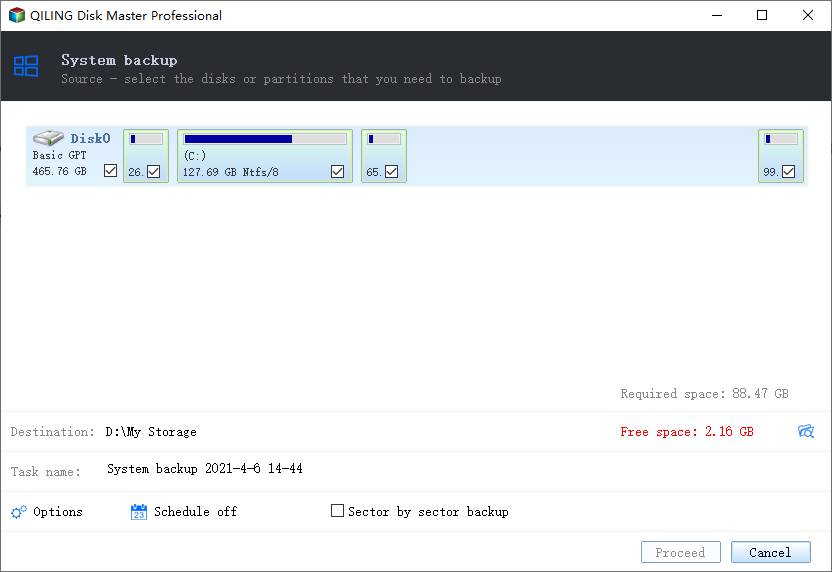
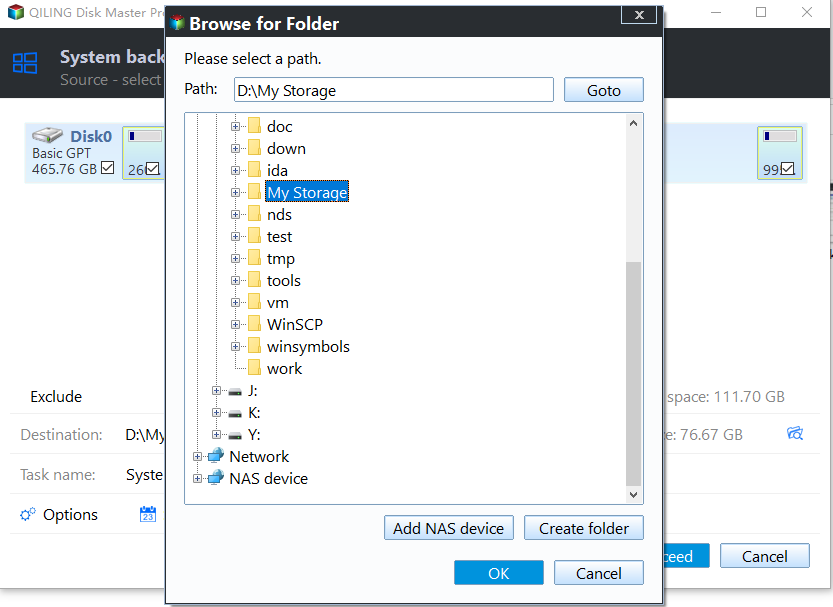
Step 3. Select the required system partitions and choose a destination path, then click "Proceed" to begin the task.
Step 4. When the System Backup Progress is completed, you can click Finish.
Notes:
- If you click on "Backup Options" in step 3, you will be presented with five options: General, Compression, Splitting, Intelligent Sector, and VSS. These options can be customized based on your specific needs.
- If you want to keep your system backup up to date, you can click Schedule Backup to create schedules, which can be set to Daily, Weekly, Monthly, or triggered by an Event or USB plug in.
- When you click Backup Scheme, you can copy only the modified blocks by choosing Incremental Backup or Differential Backup, but you need to upgrade to Pro edition to enjoy differential backup.
- To automatically delete older backups, enable automatic backup cleanup in the backup scheme, a feature available in the Pro edition.
- If you want to check the data integrity of the backup, you can click Check backup integrity on completion.
- After backing up your system, you can select one of the options: Shut down PC, Restart PC, Hibernate, or Sleep.
Summary
Using Qiling Disk Master, the best block level replication software, users can easily run a block level backup, making the process effortless and straightforward.
Qiling Disk Master offers various practical features such as cloning a hard drive, syncing two folders on the same computer, and restoring Windows 7 from a backup. These features can help prevent data loss by providing a backup and restore solution.
Related Articles
- Best Real-Time File Replication Software to Sync Changes
In this article, you will find the easiest way to perform real-time file replication in Windows 11, 10, 8, 7 with the real-time file synchronization software. let's find out. - Clone BitLocker Encrypted Disk Drive in Windows 10/8/7
When your current drive is encrypted with BitLocker, you can use this specialist freeware to clone BitLocker Encrypted disk. 9 concerned FAQs are discussed. - Quick Guide to Use Shadow Copy in Windows Server 2012
You will learn the Windows Server 2012 (R2) shadow copy best practices as well as more safer way to backup files. Anyway, check out these useful ways first. - How to Enable SMB on Windows 10?
This post explains how to enable SMB on Windows 10. - Fixed | System Image Restore Failed 0x80042412 in Windows 7/8/10
This guide explains Fixed | System Image Restore Failed 0x80042412 in Windows 7/8/10 with clear steps, key checks, and practical tips. - Top 5 Free SSD Imaging Software for Windows 11 | 2023
This article will introduce you to 5 of the best free SSD imaging software for Windows 11, 10, 8 and 7, so hurry up and explore to find the best one for you!
Products
Articles & Tutorials
- Data Recovery
- Data Backup
- File Recovery
- File Backup
- File synchronize
- System Backup and Restore
- Disk and Partition Clone
- Technical articles
- Disk Master Help
- Windows Deleted File and Disk Recovery Tutorials
- Windows File and Data Recovery Tutorials
- More Windows Tutorials for Install, Security, Files, and PC Tips
- Windows Boot, Repair, and Recovery Environment Tutorials
- Windows Backup Tutorials
- Windows Restore Tutorials
- Windows Clone and Migration Tutorials
- Windows Server Backup, Recovery, and Management Tutorials
- Windows Disk, Partition, and Storage Management Tutorials