Top 5 Free SSD Imaging Software for Windows 11 | 2023
Why Need SSD Imaging Software ?
Solid State Drives (SSDs) offer several advantages over traditional hard drives, including faster read and write speeds, shock resistance, lower power consumption, and no noise. These benefits result in a smoother user experience, especially when used as a boot drive, and ultimately lead to improved system performance.
To keep performance stable and protect data, create an SSD image that includes important files, the system partition, and boot files. With a reliable SSD image backup, you can recover quickly after failure or move Windows to a larger SSD without reinstalling everything from scratch.
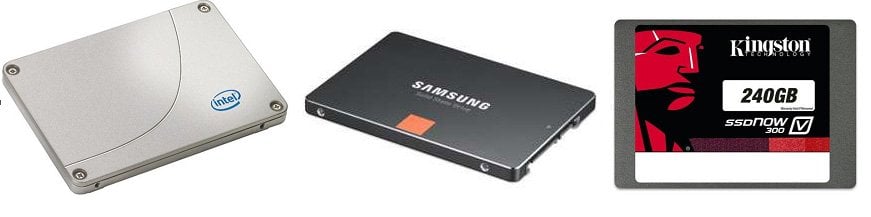
Free SSD Imaging Software List for Windows (Top 5)
There are many reliable vendors of disk imaging software available, with many long-standing options that are stable and virus-free. After researching the market, we've compiled a list of trustworthy disk imaging software that can be used with confidence.
- #1. Qiling Disk Master
- #2. Acronis Cyber Protect
- #3. Macrium Reflect
- #4. Clonezilla
- #5. R-Drive Image
#1. Qiling Disk Master
Qiling Disk Master Standard is one of the best free SSD imaging software options for Windows 11/10/8.1/8/7/Vista/XP. It supports fast and secure SSD imaging, disk backup, and cloning for HDDs, SATA SSDs, NVMe M.2 SSDs, USB flash drives, and SD cards.

💡 Highlighted Features:
- It allows you to clone an SSD to a larger one or clone an HDD to a smaller SSD using Intelligent Clone or Sector-by-Sector Clone.
- It provides you with System Clone, Disk Clone, and Partition Clone features.
- The software offers various backup options, including System Backup, Disk Backup, File Backup, Outlook Backup, Cloud Backup, and Partition Backup, providing comprehensive protection for your data.
- Run cloning without interrupting your work.
- Its SSD Alignment feature improves SSD performance with 4K partition alignment and helps prolong SSD lifespan when cloning to an SSD.
| Pros | Cons |
|
+ Instant customer support |
- Cost more to get full features - No support for Mac or Linux |
#2. Acronis Cyber Protect
Acronis Cyber Protect is a disk imaging and file backup tool that also includes anti-malware software, available for various operating systems. It's used by technicians to deploy operating systems and by academics to help recover computers after analyzing virus infections, and can also clone content from one physical storage device to another.
💡 Highlighted Features:
- Provides the best security services to ensure data privacy.
- It provides various backup types that are compatible with different tools.
- The software provides a unique feature of clipboard control that prevents any kind of data leakage, offering an additional layer of security and protection.
- Encrypting removable media, such as USB drives or external hard drives, adds an extra layer of security to protect sensitive data from unauthorized access. This makes it more difficult for unauthorized individuals to access the data, even if the device is lost or stolen.
- Data backups are encrypted and decrypted only by the server and the client, ensuring secure storage and transmission.
| Pros | Cons |
|
+ Comprehensive protection |
- Cost more to get full features |
#3. Macrium Reflect
Macrium Reflect is a backup utility for Windows that uses Microsoft Volume Shadow Copy to create accurate point-in-time backups for disaster recovery or data migration.
💡 Highlighted Features:
- Make instant backups to ensure data security.
- The software now supports efficient SSD trimming, allowing for easier management of SSD-based operations.
- Provides predefined templates to back up data.
- It provides security against ransomware and other threats to your backups.
| Pros | Cons |
|
+ Easy to use |
- Limited free version - No cloud backup - No file synchronization - Single user- $69.95 |
#4. Clonezilla
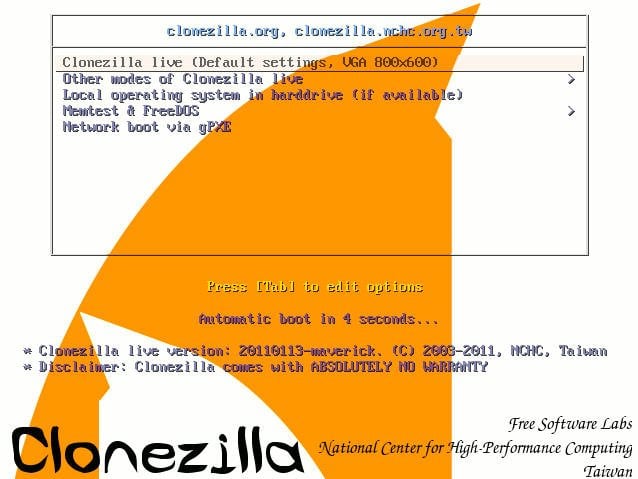
Clonezilla is a set of open source tools for simplifying computer deployment and maintenance, allowing for the cloning and imaging of operating systems and drives. It can be used to deploy images to multiple systems and integrates with other open source programs to provide cloning and imaging capabilities, including cloning larger disks to smaller ones.
💡 Highlighted Features:
- This is an open source tool that allows users to customize it to their requirements.
- It supports MBR (Master Boot Record) and GPT (GUID Partition Table).
- The tool enables users to save the image of a device on multiple devices.
- It is compatible with all OS (Operating Systems), even Linux.
- The tool is encrypted with AES 256-bit encryption, making it highly secure.
| Pros | Cons |
|
+ Open-source and free |
- Requires some technical knowledge - Limited support options - No incremental backups |
#5. R-Drive Image
R-Drive Image is a disk imaging and backup software for Windows that creates a copy of an entire hard disk or partition, saving it as an image file, allowing for data recovery in case of system failure, data corruption, or virus attack.
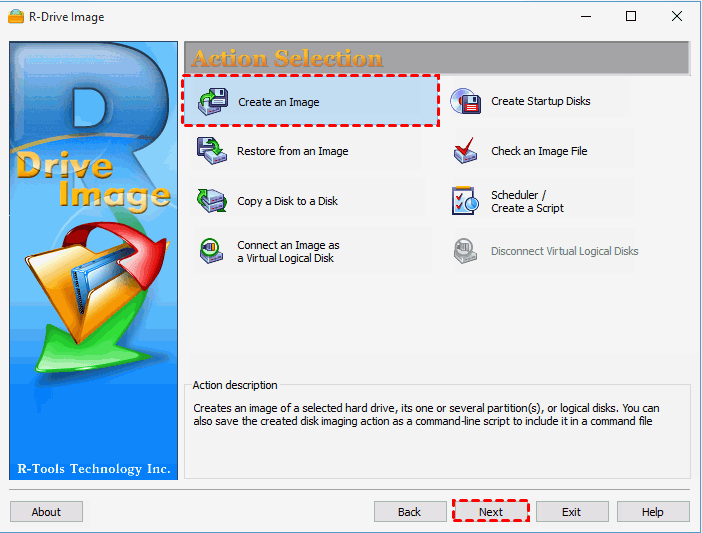
💡 Highlighted Features:
- The software offers advanced drive imaging features that enable users to easily copy disks one by one, making it a useful tool for various purposes.
- This tool provides an image recovery feature that helps in recovering deleted or corrupted images, making it easier to retrieve them.
- The tool allows users to schedule automatic backups.
- R-Drive Image supports multiple file systems, allowing for easier imaging of various files.
- The application also supports various partitioning schemes.
| Pros | Cons |
|
+ Compression and encryption |
- Limited operating system support - No cloud backup - No disk defragmentation |
How to Image SSD in Windows 11 with Qiling Disk Master
To image your SSD, you can use either of two methods, depending on your purpose. First, make sure your SSD is connected to your computer and is detected by Windows. Then, you can choose between two imaging methods based on your needs.
☞ Method 1: Create SSD Image in Windows 11 with Disk Backup
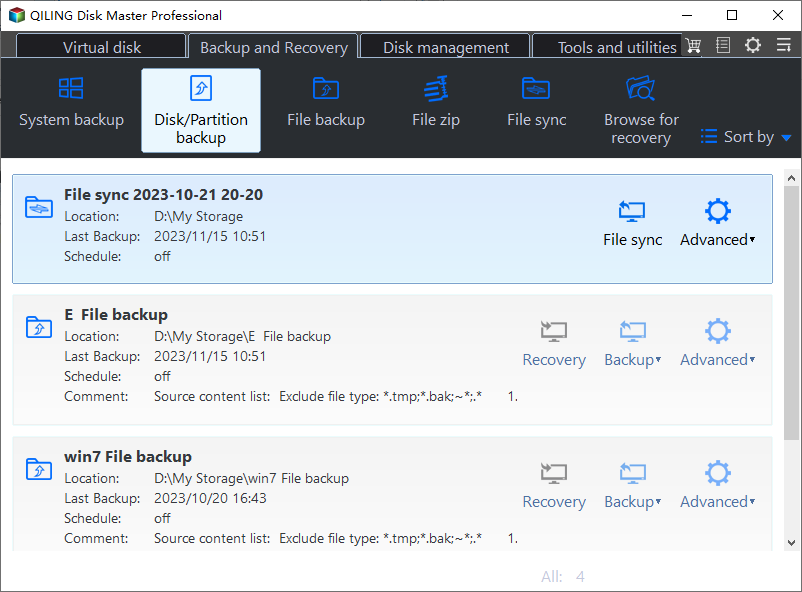
Disk Backup creates an image of the source disk and saves it as an .afi file for file backups or an .fvd file for system, partition, or disk backups. These image files cannot be opened directly in Windows File Explorer; you need to restore the backup image before checking the data.
- Launch Qiling Disk Master, select Backup > Disk Backup, and then follow the wizard.
☞ Method 2: Create SSD Image in Windows 11 with Disk Clone
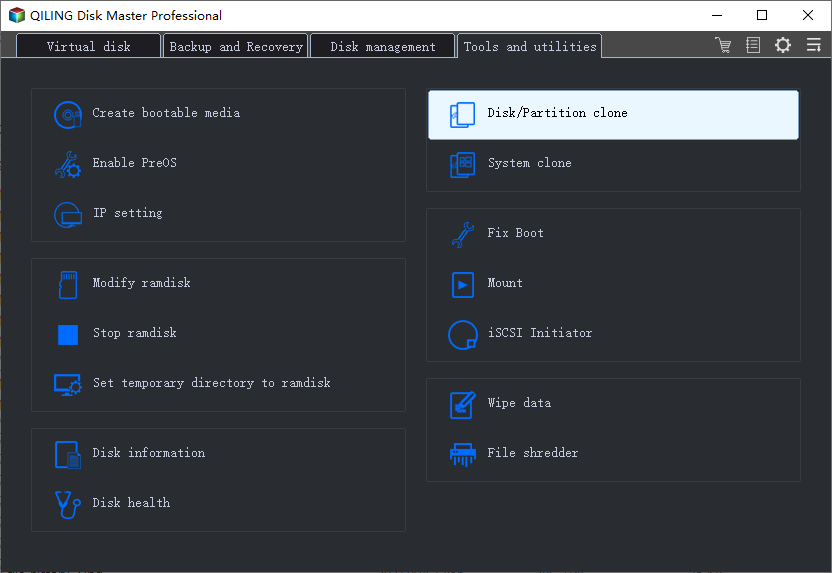
The cloning method preserves the current status of an SSD disk when cloning, making it ideal for replacing a laptop's hard drive or upgrading to a larger SSD. The source's format is retained after cloning, and you can immediately verify the content.
- Launch the SSD cloning software, choose Disk Clone under Clone tab, then follow the wizard.
Final Words
If you're looking for free SSD imaging software, there are several options available. After comparing them, I recommend Qiling Disk Master, which allows you to easily create SSD images in Windows 11/10/8/7.
Qiling Disk Master Professional can create incremental or differential backups to save space, delete old backup images to free up disk space, and even migrate Windows 10 to an SSD with insufficient target disk space.
This software is highly recommended for protecting your data, and you can try it by downloading it. For unlimited PCs or servers, you can consider the Technician or Technician Plus edition of Qiling Disk Master.
Related Articles
- Best Free SSD Cloning Software for Windows 10, 8, and 7
This guide explains Best Free SSD Cloning Software for Windows 10, 8, and 7 with clear steps, key checks, and practical tips. - Best Free ADATA SSD Clone Software - Qiling Disk Master
In this essay, you will find the best free ADATA SSD clone software to clone HDD/ SSD to ADATA SSD with step-by-step guide in Windows 10, 8, 7. - Free Western Digital Disk Cloning Software (Securely Boot)
In this article, you will find the best Western Digital (WD) disk cloning software to help you clone HDD to SSD easily and safely. The cloned drive will boot without any issues after cloning. - Clone Hard Drive or SSD with Free Disk Cloning Software (Securely Boot)
Disk clone is the easiest way to migrate hard drive to another HDD or SSD. You can try Qiling Disk Master to clone disk in Windows 11, 10, 8, 7 with securely boot. - Files and Folders Backup with QILING disk master Software
QILING disk master provides a File Backup feature to back up files and folders by copying them from a source folder to a destination image. - How to Use File Sync in QILING disk master Software
File Sync is a utility designed to update two folders in two different places quickly and easily.
Products
Articles & Tutorials
- Data Recovery
- Data Backup
- File Recovery
- File Backup
- File synchronize
- System Backup and Restore
- Disk and Partition Clone
- Technical articles
- Disk Master Help
- Windows Deleted File and Disk Recovery Tutorials
- Windows File and Data Recovery Tutorials
- More Windows Tutorials for Install, Security, Files, and PC Tips
- Windows Boot, Repair, and Recovery Environment Tutorials
- Windows Backup Tutorials
- Windows Restore Tutorials
- Windows Clone and Migration Tutorials
- Windows Server Backup, Recovery, and Management Tutorials
- Windows Disk, Partition, and Storage Management Tutorials