Windows Server 2012 (R2) Shadow Copy Best Practices
- What is Shadow Copy?
- Best Practices: Enable and Configure Shadow Copy in Windows Server 2012 (R2)
- Secure Way to backup files in Windows Server 2012(R2)
- Conclusion
What Is Shadow Copy?
Shadow Copy is a technology included in Windows operating systems, from XP to 11, and Windows Server from 2003 to 2022, that allows users to take backup copies or snapshots of files and folders in use, either manually or automatically.
You can customize the shadow copy settings, such as setting a custom schedule or location, and configure the disk space for shadow copies, which applies to NTFS file system volumes on local or external hard drives, allowing you to restore files and folders to a previous version.
Note: To resolve Volume Shadow Copy Services errors, check if the shadow copy has been disabled on the volume you're trying to snapshot. If so, refer to the relevant documentation to enable it.
Best Practices: Enable and Configure Shadow Copy in Windows Server 2012 (R2)
To enable and configure the shadow copy feature in Windows Server 2012(R2), you need to install the File and Storage Services, which is a prerequisite for this feature. This allows you to create a copy of data that can be used for backup and recovery purposes.
To install the iSCSI target server, log on to the server with a local administrator, go to the Server Dashboard, click on Add Roles and Features, select the server, ensure all server roles under File and iSCSI Services are checked, then click Next and Install to complete the installation.
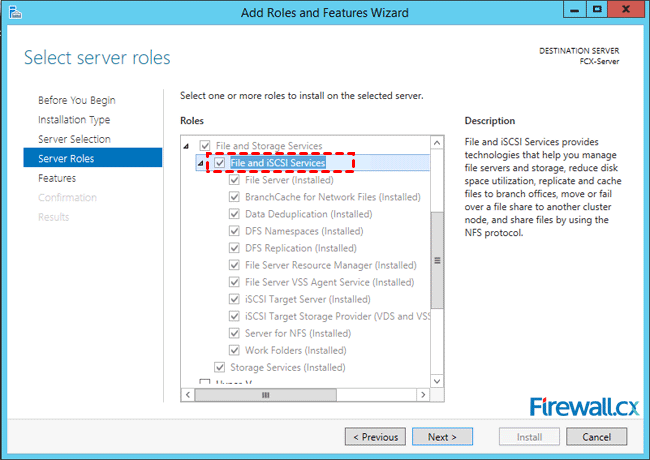
After installing all the File and Storage Services, you can then start to enable volume shadow copy in Windows Server 2012 (R2). Please follow the steps below.
Steps to enable volume shadow copy in Windows Server 2012 (R2)
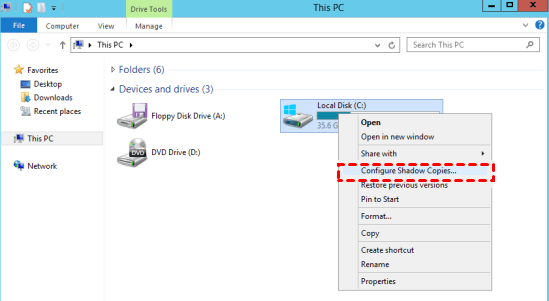
- To enable Shadow Copies on a specific volume, open File Explorer, right-click on the volume you want to enable it for, and select the "Configure Shadow Copies" option from the context menu.
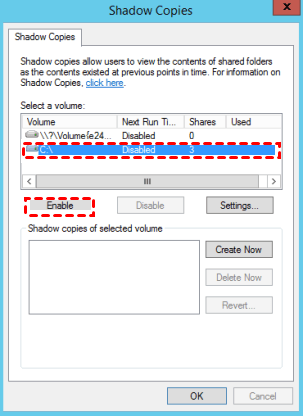
- Pitch on the volume and press Enable button.
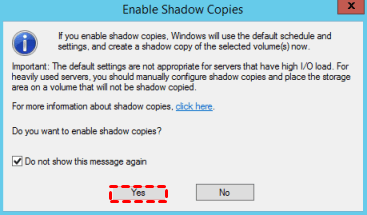
- A window will show up to prompt you, click Yes.
- You will go back to the Shadow Copies window, where the previously selected volume is enabled. Then, click on Settings in the Shadow Copies window.
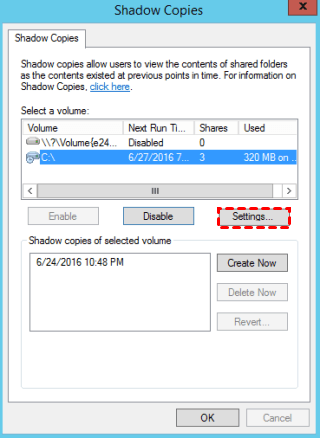
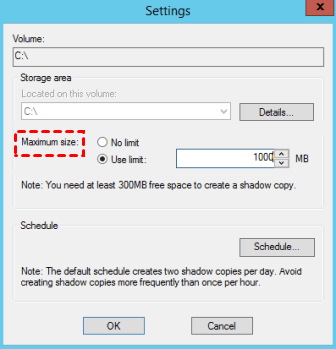
- In the Settings window, you can set the maximum size to No limit or specify a value by Use limit option, with a minimum disk space reserved for shadow copies of at least 300 MB.
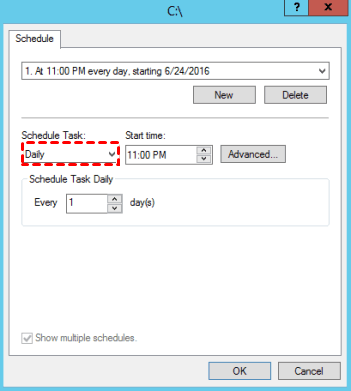
- You can still customize the schedule to your preference, with options including Daily, Weekly, Monthly, Once, At System Startup, At Logon, or At idle, and further specify repeat tasks in the Advanced settings.
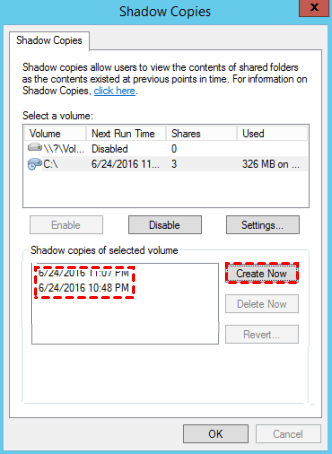
- Click OK until you return to the Shadow Copy window. You can choose to click the "Create Now" button to create a Shadow Copy immediately, or let it do as scheduled according to your settings.
Tips:
✦ To enable Shadow Copies, close this window and go to Storage -> Disk Management, right-click the disk and select All Tasks -> Configure Shadow Copies to configure.
✦ To check the previous versions of your files or folders, select the item and click "Restore previous versions". This will list all the shadow copies under the "Previous Versions" tab in the Properties dialog, allowing you to choose whether to copy or restore the previous version.
✦ To restore the previous state for your volume in Windows Server 2012 (R2), select the volume containing files or folders you want to restore and click on the "Revert" button to initiate the operation.
✦ To disable volume shadow copy for Server 2012 (R2), you can do so by opening the Shadow Copies window, selecting the drive you want to disable, and clicking 'Stop on this volume'. This will disable the volume shadow copy for the selected drive, preventing future backups.
Securer Way to backup files in Windows Server 2012(R2)
The Shadow Copy feature only tracks changes to files and folders, not their entirety, and if the volume or disk containing these files or folders is corrupted, all files will be lost.
And it's based on volume-Using volume-level backup instead of file-level backup is a good idea, as it avoids backing up many unnecessary files and reduces the disk space required for shadow copies. To achieve this, consider using Qiling Disk Master Server, a reliable alternative to Microsoft Volume Shadow Copy, which allows you to backup files, systems, disks, partitions, and schedule them according to your needs.
The software is compatible with various Windows operating systems, including Windows XP, Vista, 7, 8, 8.1, 10, and 11, as well as Windows Server 2003, 2008, 2011, 2012, 2016, 2019, 2022, and SBS, all in both 32-bit and 64-bit editions.
To demonstrate how the backup process works, let's take file backup as an example. The process involves creating a copy of your files, which can be done manually by copying and pasting files to a backup location, or automatically through a software or service that monitors your files and creates a backup at regular intervals. This ensures that your files are safe and can be restored in case of data loss or system failure, protecting you from potential data loss and ensuring business continuity.
- Open Qiling Disk Master after installing, and select the option to backup your data by choosing Backup -> File Backup.

- Name the task so that you can distinguish it from other backup tasks, and then select the files or folders you want to backup by clicking on the corresponding option, either "Files" or "Folder".

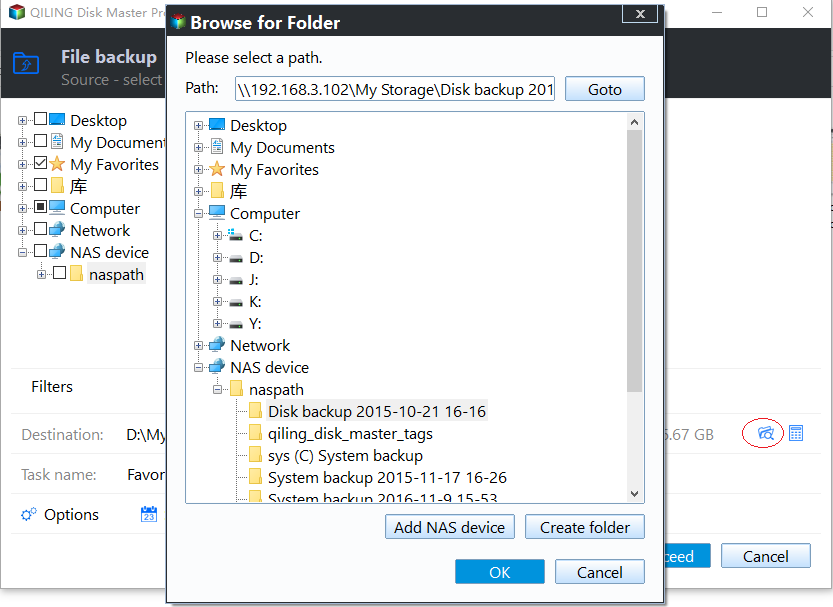
- Select a destination location Create a designated backup folder on your computer or external drive, where you can store all the files and folders you want to backup.
- To backup all files and folders, including changes, you can enable shadow copy on Server 2012 (R2) by clicking "Options" and selecting "Use Microsoft VSS Backup" in the Backup Service section.
- Confirm the operation and click "Proceed" to start backing up files on Server 2012(R2).

Besides, you can configure multiple backup settings if you want:
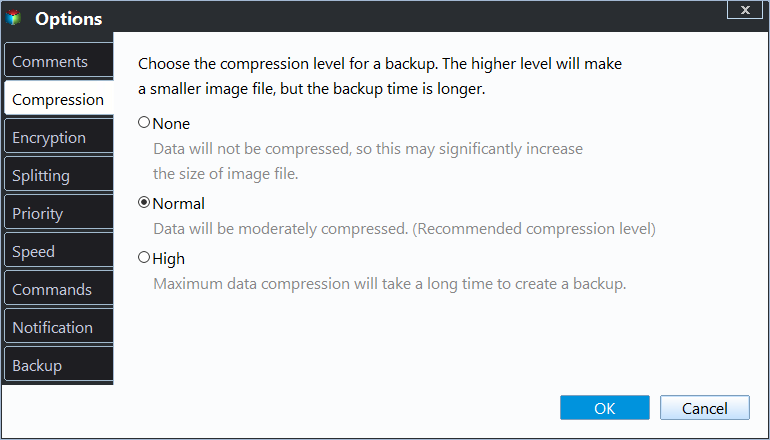
✦ Options: "You could comment, enable email or SMS notification, compress, split this task, and set up to backup used sectors to improve the overall efficiency and organization of the task."
✦ Schedule Backup: You can set up a Windows Server 2012 (R2) backup task to run on a daily, weekly, or monthly schedule, or even when a specific event occurs, such as a USB plug-in. This allows for flexible and automated backup management.
- The backup task can be set to run automatically based on daily, weekly, or monthly intervals, saving time and effort. This allows for precise scheduling of backup dates, times, and intervals if needed.
- The backup task can be triggered by 4 different events: User logon, User logoff, System startup, and System shutdown.
- To automate data backup, the system can be set up to trigger a backup process once a specific USB device is plugged in, ensuring that important data is safely stored and easily recoverable.

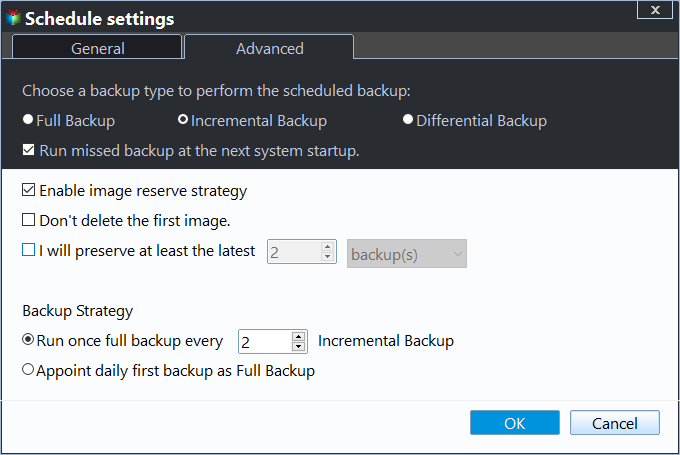
✦ Backup Scheme: You can set the backup method to Full, Incremental, or Differential Backup. Additionally, you can enable automatic backup cleanup, which will delete old backups automatically based on quantity, time, or daily, weekly, or monthly intervals.
Wait for the operation to finish, your Windows operating system will be backed up with a success. You can also perform Windows Server 2019 backup with these steps.
Conclusion
Windows Server 2012 (R2) shadow copy is a feature that keeps track of changes made to files and folders in a volume, but it does not copy all data. This leaves a significant security risk, as data can be lost if the volume is damaged.
To ensure your files and backups are secure, it's best to use a powerful file backup software like Qiling Disk Master Server. This tool not only allows you to backup your files but also enables you to schedule backups according to your preferences. Additionally, you can set it to delete old backup files regularly, ensuring that you always have enough space for new backups.
If you have multiple computers, you may be interested in Technician Plus, which allows you to install it on unlimited computers within one company, provide unlimited billable technical services, and create bootable media, among other features. It's best to choose the right option based on your specific needs.
If you want to create a centralized backup for all clients within your company, it's highly recommended to try the centralized backup software Qiling Centralized Disk Master.
Related Articles
- Shadow Copy Windows 10 All You Need to Know
Windows 10 Volume Shadow Copy can help you recover lost files or system while free backup software can protect your computer continuously. Learn more and follow the stepwise guide below. - Volume Shadow Copy Windows 10 vs All-round Backup Software
You will learn how to enable/restore/disable volume shadow copy in Windows 10/8/7 as well as all-round way to backup files and folders. Get details now! - Solved: Windows Backup Failed to Read from the Shadow Copy
Learn how to fix the error: Windows backup failed while trying to read from the Shadow Copy on one of the volumes being backed up when you backup using Windows tool. - Top 4 Ways to Backup Outlook Live Emails on Your PC
This tutorial offers 4 ways to backup Outlook live emails on your PC. Pick up one way that best fits your need. - The Best Free Alternative to WD SmartWare - Qiling Disk Master
You will find the best free WD SmartWare alternative in this article to backup files easily and safely, just find the step by step guide to backup. - WD Smartware Files Pending Backup-Why Files Not Backed up
This guide explains WD Smartware Files Pending Backup-Why Files Not Backed up with clear steps, key checks, and practical tips. - Enable Shadow Copies in Windows Server 2019
Enable Shadow Copies in Windows Server 2019, set storage limits, schedule snapshots, and protect files with a separate backup.
Products
Articles & Tutorials
- Data Recovery
- Data Backup
- File Recovery
- File Backup
- File synchronize
- System Backup and Restore
- Disk and Partition Clone
- Technical articles
- Disk Master Help
- Windows Deleted File and Disk Recovery Tutorials
- Windows File and Data Recovery Tutorials
- More Windows Tutorials for Install, Security, Files, and PC Tips
- Windows Boot, Repair, and Recovery Environment Tutorials
- Windows Backup Tutorials
- Windows Restore Tutorials
- Windows Clone and Migration Tutorials
- Windows Server Backup, Recovery, and Management Tutorials
- Windows Disk, Partition, and Storage Management Tutorials